Widgets(小部件(Widgets))
Widgets display content to Workshop users and are the core building blocks of a module’s user interface. Commonly used widgets include the Filter List, Object Table, and Button Group widgets. Module builders construct applications in Workshop by placing widgets into the module layout and configuring widgets with the desired input and output variables, display options, and Actions required for their use case.
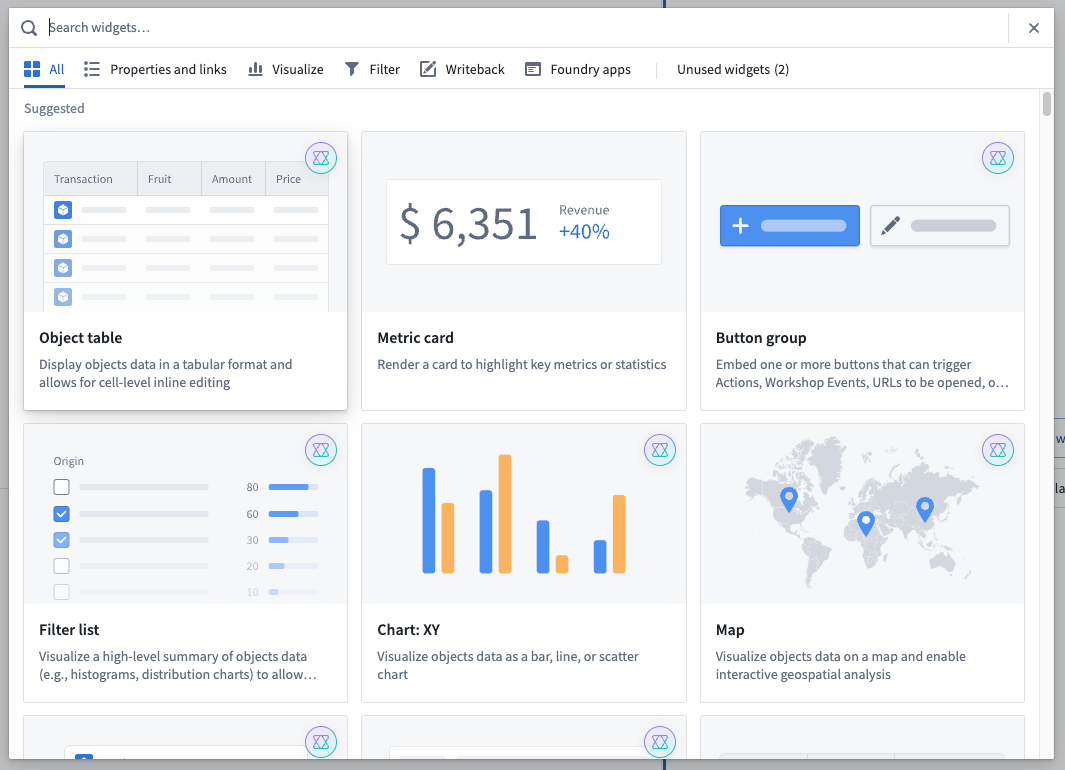
To add a widget to a module, hover over any empty section to reveal the + Add widget button, then select it. You can also select the + button in a section or module header. Then, choose the desired widget from the widget selector modal that opens.
Widget configuration
Once a widget has been added to a Workshop module, select the widget to reveal its configuration options on the right side of the screen. The example below will explain the general core concepts of Workshop widgets while showing how to configure a Filter List widget.
Widget setup
The core configuration options of a widget live within the Widget setup tab. This is where a module builder will configure the input and output variables of a widget (that is, the data that initially populates a widget and, when applicable, the data that is then produced and output by the widget) as well as any additional configuration and display options.
The screenshot below shows the initial state of a newly added and not yet configured Filter List widget:

In the example of the Filter List widget seen above, the core configuration options are the following:
- Object Set: This is the input variable to the Filter List widget and determines the filter options that will be available. This configuration accepts either an existing object set variable defined elsewhere in this Workshop module or a new object set variable to be created.
- Filter List: This determines the filter options that will be shown in the widget. This configuration option is revealed in more detail once the Object Set is populated; it will then show the property types seen within the initial object set and allow searching by keyword on all properties and filtering by linked object presence.
- Allow Users to Add and Remove Filters: This option adds a user interface to the widget that allows module users to add and remove the displayed filters.
- Filter Output: This option is an Object Set Filter variable that is an output of the widget. This filter may be applied to another Object Set variable to filter the objects within the specified variable. By default, an output variable will be created when adding a Filter List widget to the module.
The below screenshot shows an example of the Filter List’s Widget setup tab after it has been configured:

Metadata
The Metadata tab allows you to rename your widget and also access the widget’s raw JSON configuration.
Editing the Widget Name option will affect how the current widget is referenced through Workshop, most notably as a component in the Layout panel, and also in default variable names.
The Raw Widget Configuration displays how the current widget’s setup is stored in JSON and offers advanced module builders the option to quickly view, edit, or copy this configuration in its raw format.
Display
The Display tab enables configuration of the size of the current widget and allows module builders to switch between Auto (max), Absolute, and Flex sizing.
- Auto (max): Automatically scale the height of a widget based on its contents while setting a max height. This option is not available for setting the width of widgets in a column layout.
- Absolute: Specify a fixed pixel size for the widget.
- Flex: Specify the ratio of this widget's height or width to that of other widgets in the current module so that widgets can scale appropriately as screen sizes or resolutions change.
Reuse widgets
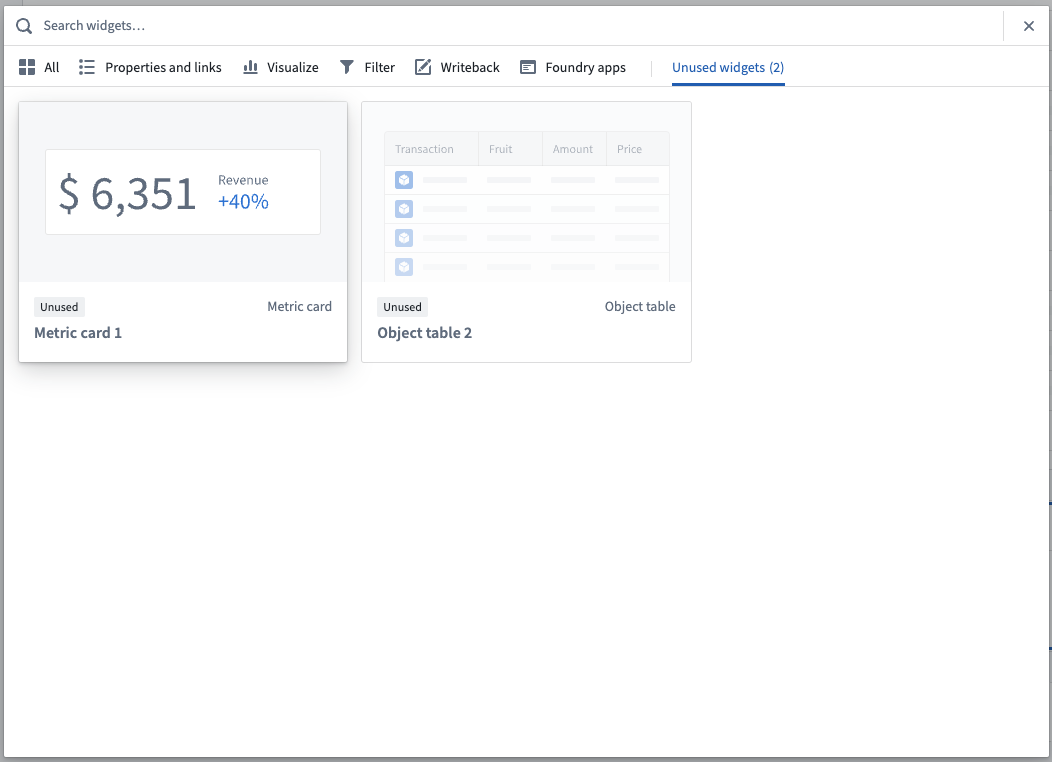
After configuring a widget, you can copy it to reuse anywhere in the module. This capability is especially useful for recreating complex widget configurations; however, if the widget configuration may change often over time, an embedded Workshop module widget may be more appropriate. To copy a widget for reuse, select the widget and use Cmd+C (macOS) or Ctrl+C (Windows). Use Cmd+V (macOS) or Ctrl+V (Windows) to paste the widget into the Unused widgets area located at the bottom of the Layouts section in the left side panel. Add the widget to your module by choosing + Add widget, then find it in the Unused widgets tab of the widget selector modal.
Alternately, the controls found for duplicating sections may be used to copy, cut, and paste widgets.
Input and output variables
Input and output variables control how data moves within a Workshop module.
Input variables define the data passed into a given widget, usually to then be displayed within the widget. An example input variable is the object set input that is passed to the Object Table, Filter List, Charts, and Map widgets.
Output variables define the data passed out of a given widget to then be consumed by a subsequent downstream widget or another variable. Example output variables include the “Selected Objects” object set output produced by the Object Table widget or the "Selected Value“ string output produced by the String Dropdown widget.
The Widget Configuration example above includes details on how the input variable (object set) and output variables (active object and selected objects) are configurable for an Object Table widget. For more detail on variables in general, see the Variables documentation.
Types of widgets
Widgets offer a variety of uses from visualizing information to enabling events and data writeback to be triggered from within a Workshop module. The categories below broadly break down the functionality of Workshop’s widgets:
- Core display widgets
- Visualization widgets
- Filtering widgets
- Event-triggering & navigational widgets
- Embed Foundry apps
中文翻译
小部件(Widgets)
小部件(Widgets) 向 Workshop 用户展示内容,是模块用户界面的核心构建块。常用的小部件包括筛选列表(Filter List)、对象表(Object Table)和按钮组(Button Group)。模块构建者通过将小部件放入模块布局(Layout),并为其配置所需的输入输出变量、显示选项以及用例所需的操作(Actions),从而在 Workshop 中构建应用程序。
要向模块添加小部件,请将鼠标悬停在任意空白区域,点击出现的 + 添加小部件(+ Add widget) 按钮,然后选择它。您也可以点击某个区域或模块标题中的 + 按钮,然后在打开的小部件选择器模态框中选择所需的小部件。
小部件配置(Widget configuration)
将小部件添加到 Workshop 模块后,选择该小部件即可在屏幕右侧显示其配置选项。以下示例将说明 Workshop 小部件的一般核心概念,同时展示如何配置筛选列表(Filter List)小部件。
小部件设置(Widget setup)
小部件的核心配置选项位于 小部件设置(Widget setup) 选项卡中。模块构建者在此处配置小部件的输入和输出变量(即最初填充小部件的数据,以及适用情况下小部件生成并输出的数据),以及任何额外的配置和显示选项。
下方截图显示了一个新添加但尚未配置的筛选列表(Filter List)小部件的初始状态:
在上述筛选列表(Filter List)小部件的示例中,核心配置选项如下:
- 对象集(Object Set): 这是筛选列表(Filter List)小部件的输入变量,决定了可用的筛选选项。此配置接受此 Workshop 模块中其他地方定义的现有对象集变量,或将要创建的新对象集变量。
- 筛选列表(Filter List): 这决定了小部件中显示的筛选选项。一旦 对象集(Object Set) 被填充,此配置选项会显示更多细节;它将显示初始对象集中可见的属性类型,并允许按关键字搜索所有属性以及按链接对象存在性进行筛选。
- 允许用户添加和移除筛选(Allow Users to Add and Remove Filters): 此选项为小部件添加一个用户界面,允许模块用户添加和移除显示的筛选器。
- 筛选输出(Filter Output): 此选项是一个对象集筛选器(Object Set Filter)变量,是小部件的输出。此筛选器可应用于另一个对象集变量,以筛选指定变量内的对象。默认情况下,向模块添加筛选列表(Filter List)小部件时会创建一个输出变量。
下方截图显示了配置完成后筛选列表(Filter List)的 小部件设置(Widget setup) 选项卡示例:
元数据(Metadata)
元数据(Metadata) 选项卡允许您重命名小部件,并访问小部件的原始 JSON 配置。
编辑 小部件名称(Widget Name) 选项会影响当前小部件在 Workshop 中的引用方式,最显著的是在 布局(Layout) 面板中作为组件,以及在默认变量名中。
原始小部件配置(Raw Widget Configuration) 显示当前小部件的设置如何以 JSON 格式存储,并为高级模块构建者提供快速查看、编辑或复制此原始格式配置的选项。
显示(Display)
显示(Display) 选项卡允许配置当前小部件的大小,并允许模块构建者在自动(最大)(Auto (max))、绝对(Absolute)和弹性(Flex)尺寸之间切换。
- 自动(最大)(Auto (max)): 根据小部件内容自动缩放其高度,同时设置最大高度。此选项不适用于在列布局中设置小部件的宽度。
- 绝对(Absolute): 为小部件指定固定的像素大小。
- 弹性(Flex): 指定此小部件相对于当前模块中其他小部件的高度或宽度比例,以便小部件能够根据屏幕尺寸或分辨率的变化适当缩放。
复用小部件(Reuse widgets)
配置小部件后,您可以复制它以在模块中的任何位置复用。此功能对于重新创建复杂的小部件配置特别有用;然而,如果小部件配置可能随时间频繁变化,则嵌入式 Workshop 模块小部件(Embedded Workshop module widget)可能更合适。要复制小部件以供复用,请选择该小部件并使用 Cmd+C(macOS)或 Ctrl+C(Windows)。使用 Cmd+V(macOS)或 Ctrl+V(Windows)将小部件粘贴到左侧面板 布局(Layouts) 部分底部的 未使用的小部件(Unused widgets) 区域。通过选择 + 添加小部件(+ Add widget) 将小部件添加到模块,然后在小部件选择器模态框的 未使用的小部件(Unused widgets) 选项卡中找到它。
或者,也可以使用复制区域(Duplicating sections)的控件来复制、剪切和粘贴小部件。
输入和输出变量(Input and output variables)
输入和输出变量控制数据在 Workshop 模块内的移动方式。
输入变量定义传入给定小部件的数据,通常随后在小部件内显示。输入变量的一个示例是传递给对象表(Object Table)、筛选列表(Filter List)、图表(Charts)和地图(Map)小部件的对象集输入。
输出变量定义从给定小部件传出的数据,随后由下游小部件或其他变量使用。输出变量的示例包括对象表(Object Table)小部件生成的"选定对象(Selected Objects)"对象集输出,或字符串下拉(String Dropdown)小部件生成的"选定值(Selected Value)"字符串输出。
上面的小部件配置(Widget Configuration)示例包含了输入变量(对象集)和输出变量(活动对象和选定对象)如何为对象表(Object Table)小部件进行配置的详细信息。有关变量的更多详细信息,请参阅变量文档(Variables documentation)。
小部件类型(Types of widgets)
小部件用途广泛,从可视化信息到在 Workshop 模块内触发事件和数据回写。以下类别大致划分了 Workshop 小部件的功能: