Drag and drop in Workshop(Workshop 中的拖放功能)
Drag-and-drop functionality allows users to easily move data between applications by dragging it from one application to another. Refer to the drag-and-drop documentation for more information.
In Workshop, multiple components enable drag-and-drop actions for cross-application interactivity and interactions between widgets. These components and interactions are detailed below.
Workshop drop zones
Drop zones are interactive components that allow users to transfer data by "dropping" it on the element. The following are Workshop components that can be configured as drop zones, refer to the drop zone documentation to learn more.
Section drop zone
The section component can be configured to receive drag payloads.
- To turn the section component into a drop zone, select the relevant section and toggle Drop Handling in the section configuration panel to the right.
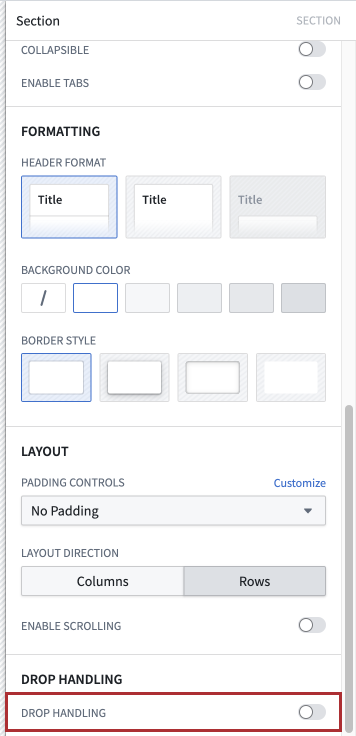
:::callout{theme="neutral"} If the drop handling toggle is not displayed, contact your platform administrator to enable this feature. :::
- When drop handling is enabled, additional configurations will appear below the toggle. These configurations define the appearance of the drop zone when a drag payload is dragged over it:
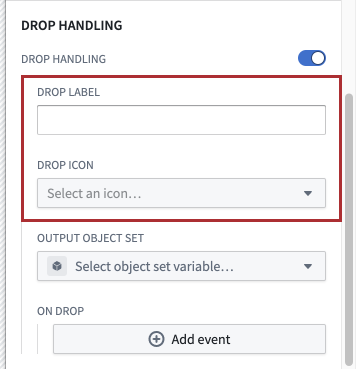
The Drop label and Drop icon settings determine the text and icon that will appear on the drop zone, respectively.
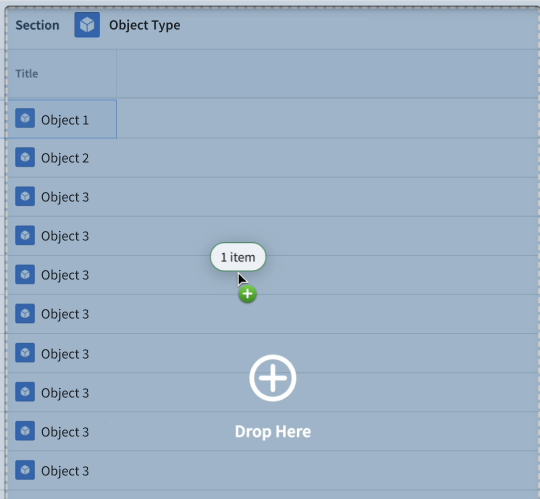
For example, if Drop label is configured as "Drop here" and the plus icon is selected as the Drop icon, the drop zone might look as follows when a user drags a payload over:
- Lastly, configure what happens to dropped data with the Output object set and On drop settings.
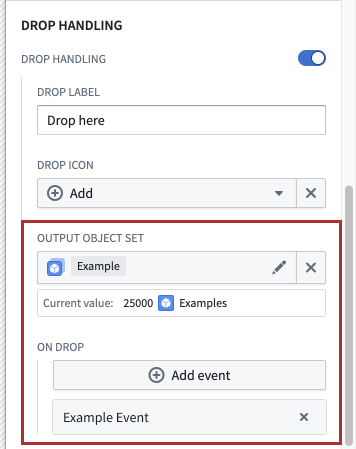
Select the object set variable that the dropped data should be written to. This can be used to populate an object table, for example. An event can also be configured to fire after the drop.
Section drop zone usage
After the section component has been configured as a drop zone, users can drag and drop objects onto the section. Using enrichment, users can drag both Gotham and Foundry objects onto this drop zone.
This drop zone accepts the Foundry object RID and the Foundry object set media type. Refer to the media types documentation for more information.
Drag zones
Drag zones are interactive elements that allow users to "grab" data and transfer it by dragging it onto a drop zone. The following are Workshop components than can be configured as drag zones. Refer to the drag zone documentation to learn more.
The following drag zones can be dragged onto both Gotham and Foundry drop zones that accept object media types using enrichment. Note that without enrichment, these drag zones can only transfer data to drop zones that accept their specific media type.
Object set title drag zone
To configure the object set title component as a drag zone, select the component and toggle Enable drag in the configuration panel to the right. This drag zone can be used to transport Foundry object set RIDs.
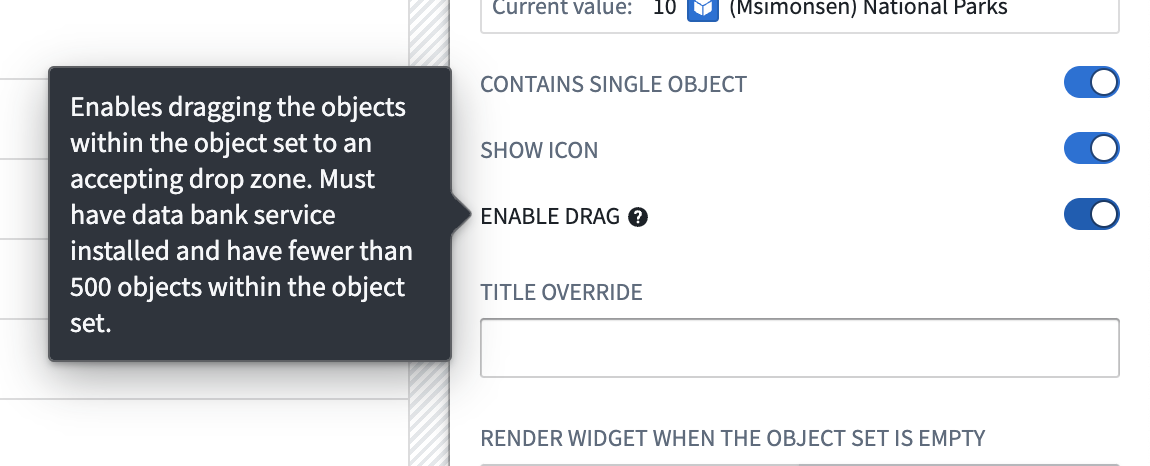
When this is enabled, the component can be dragged onto compatible drop zones to transfer data. Without enrichment, this component can only be dragged onto drop zones that accept the Foundry object set media type. Refer to the media types documentation for more information.
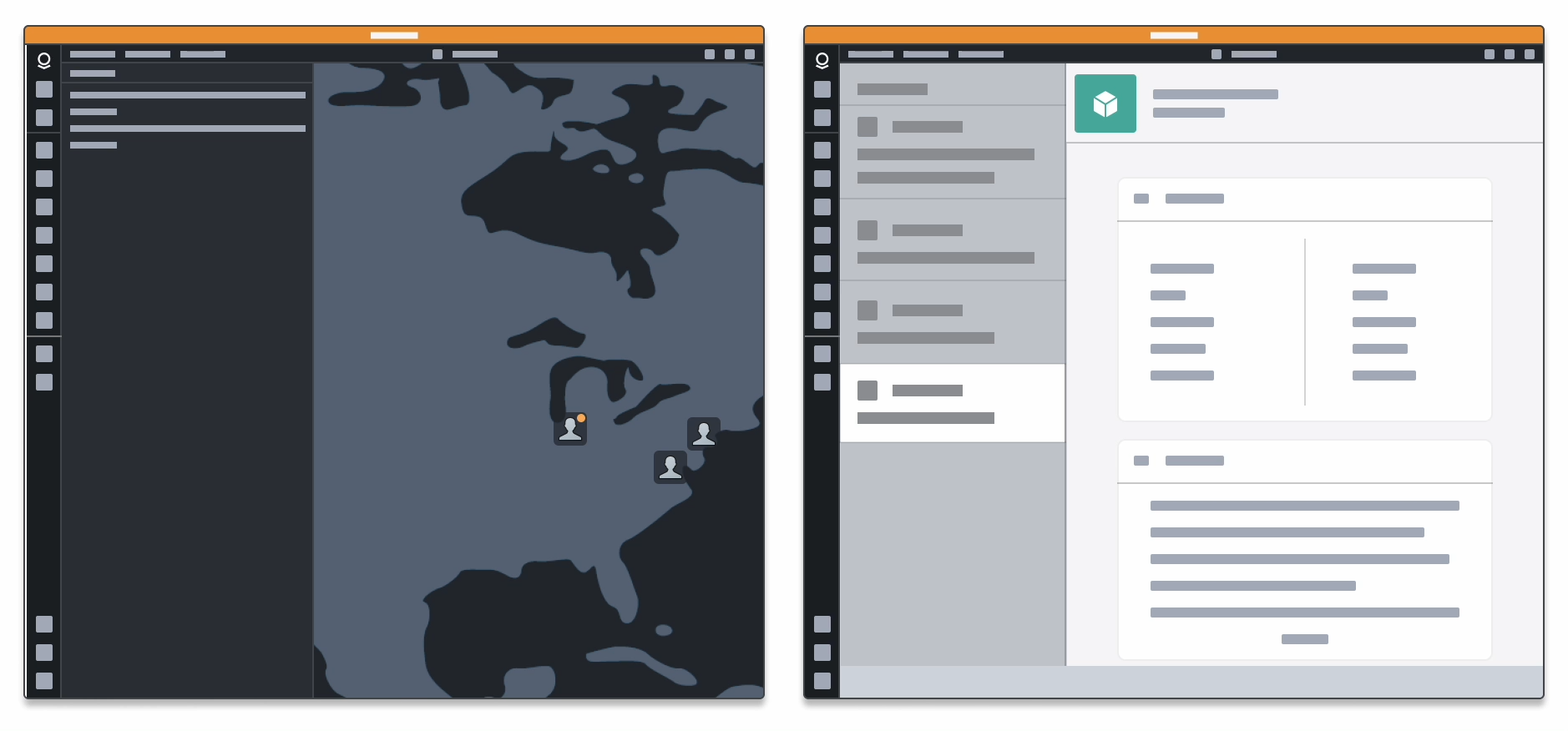
Object table cell drag zone
Cells in an object table can be dragged onto compatible drop zones to transfer data. Without enrichment, this drag zone can be dragged onto drop zones that accept the Foundry object RID media type. Refer to the media types documentation for more information.
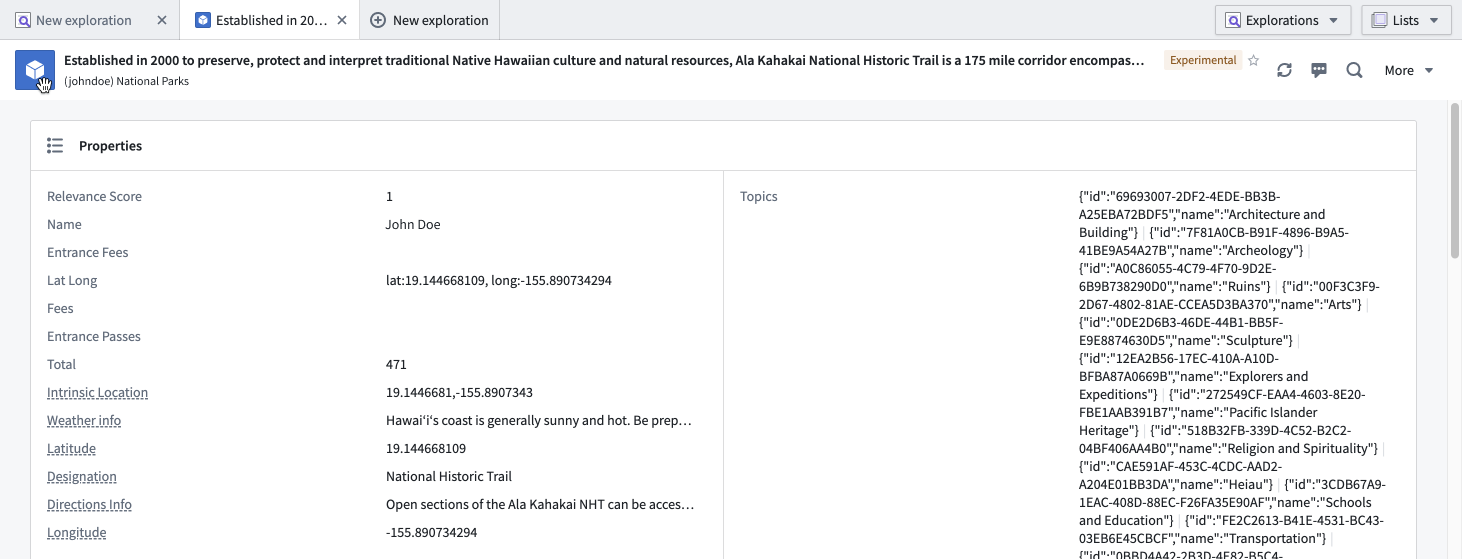
Object view drag zone
The icon in the object view widget header can be dragged onto compatible drop zones. Without enrichment, this drag zone is compatible with drop zones that accept the Foundry object RID media type. Refer to the media types documentation for more information.
Reordering within widgets
Some Workshop widgets provide drag-and-drop interactions that stay within the widget itself rather than transferring data to drop zones. The Object List widget, for example, can be configured to let users reorder items by dragging object cards.
When reordering is enabled in the Object List:
- Reordering is supported within a single Object List widget
- Reordering in a grid layout is not supported
- The widget displays only the first 500 objects
Learn more about this configuration in the Object List documentation.
中文翻译
Workshop 中的拖放功能
拖放功能允许用户通过将数据从一个应用拖拽到另一个应用,轻松地在应用之间移动数据。更多信息请参阅拖放文档。
在 Workshop 中,多个组件支持拖放操作,用于实现跨应用交互以及微件之间的交互。以下将详细介绍这些组件及其交互方式。
Workshop 放置区
放置区(Drop zones)是交互式组件,允许用户通过将数据"放置"到元素上来传输数据。以下是可配置为放置区的 Workshop 组件,更多信息请参阅放置区文档。
分区放置区
分区(Section)组件可配置为接收拖拽载荷。
- 要将分区组件变为放置区,请选择相关分区,然后在右侧的分区配置面板中切换放置处理(Drop Handling)开关。
:::callout{theme="neutral"} 如果未显示放置处理开关,请联系您的平台管理员以启用此功能。 :::
- 启用放置处理后,开关下方将出现其他配置项。这些配置定义了当拖拽载荷拖过放置区时,放置区的外观:
放置标签(Drop label)和放置图标(Drop icon)设置分别决定了放置区上显示的文本和图标。
例如,如果将放置标签配置为"放置于此",并选择加号图标作为放置图标,则当用户拖拽载荷经过时,放置区可能如下所示:
- 最后,使用输出对象集(Output object set)和放置时(On drop)设置来配置放置数据后的操作。
选择放置数据应写入的对象集变量。例如,这可用于填充对象表。还可以配置在放置后触发的事件。
分区放置区使用
将分区组件配置为放置区后,用户可以拖放对象到该分区上。通过富化(Enrichment),用户可以将 Gotham 和 Foundry 对象拖放到此放置区。
此放置区接受Foundry 对象 RID和Foundry 对象集媒体类型。更多信息请参阅媒体类型文档。
拖拽区
拖拽区(Drag zones)是交互式元素,允许用户"抓取"数据并通过拖拽将其传输到放置区。以下是可配置为拖拽区的 Workshop 组件。更多信息请参阅拖拽区文档。
以下拖拽区可以通过富化拖放到接受对象媒体类型的 Gotham 和 Foundry 放置区。请注意,如果没有富化,这些拖拽区只能将数据传输到接受其特定媒体类型的放置区。
对象集标题拖拽区
要将对象集标题(Object set title)组件配置为拖拽区,请选择该组件,然后在右侧配置面板中切换启用拖拽(Enable drag)开关。此拖拽区可用于传输 Foundry 对象集 RID。
启用后,该组件可拖拽到兼容的放置区以传输数据。如果没有富化,此组件只能拖拽到接受Foundry 对象集媒体类型的放置区。更多信息请参阅媒体类型文档。
对象表单元格拖拽区
对象表(Object table)中的单元格可拖拽到兼容的放置区以传输数据。如果没有富化,此拖拽区可拖拽到接受Foundry 对象 RID媒体类型的放置区。更多信息请参阅媒体类型文档。
对象视图拖拽区
对象视图微件(Object view widget)标题中的图标可拖拽到兼容的放置区。如果没有富化,此拖拽区兼容接受Foundry 对象 RID媒体类型的放置区。更多信息请参阅媒体类型文档。
微件内的重新排序
某些 Workshop 微件提供仅限于微件内部的拖放交互,而非将数据传输到放置区。例如,对象列表微件(Object List widget)可配置为允许用户通过拖拽对象卡片来重新排序项目。
在对象列表中启用重新排序时:
- 仅支持在单个对象列表微件内进行重新排序
- 不支持在网格布局中重新排序
- 微件仅显示前 500 个对象
更多关于此配置的信息,请参阅对象列表文档。