Loop layouts(循环布局)
This page discusses loop layouts. For an overview of Workshop embedding features, see the embedding overview page.

Loop layouts allow you to loop over an object set or array, displaying an embedded module for each object in the set or each entry in the array used as input.
Each embedded module in the loop layout functions independently from other embedded module instances, and has its own variable scope and layout state. Loop layouts offer more control over how object sets are displayed than other object set display widgets, such as object table or object list widgets. While other object set display widgets come with a fixed set of features, the loop layout allows any feature combination available in Workshop to be used for the display of each object in the object set, or each entry in the array.
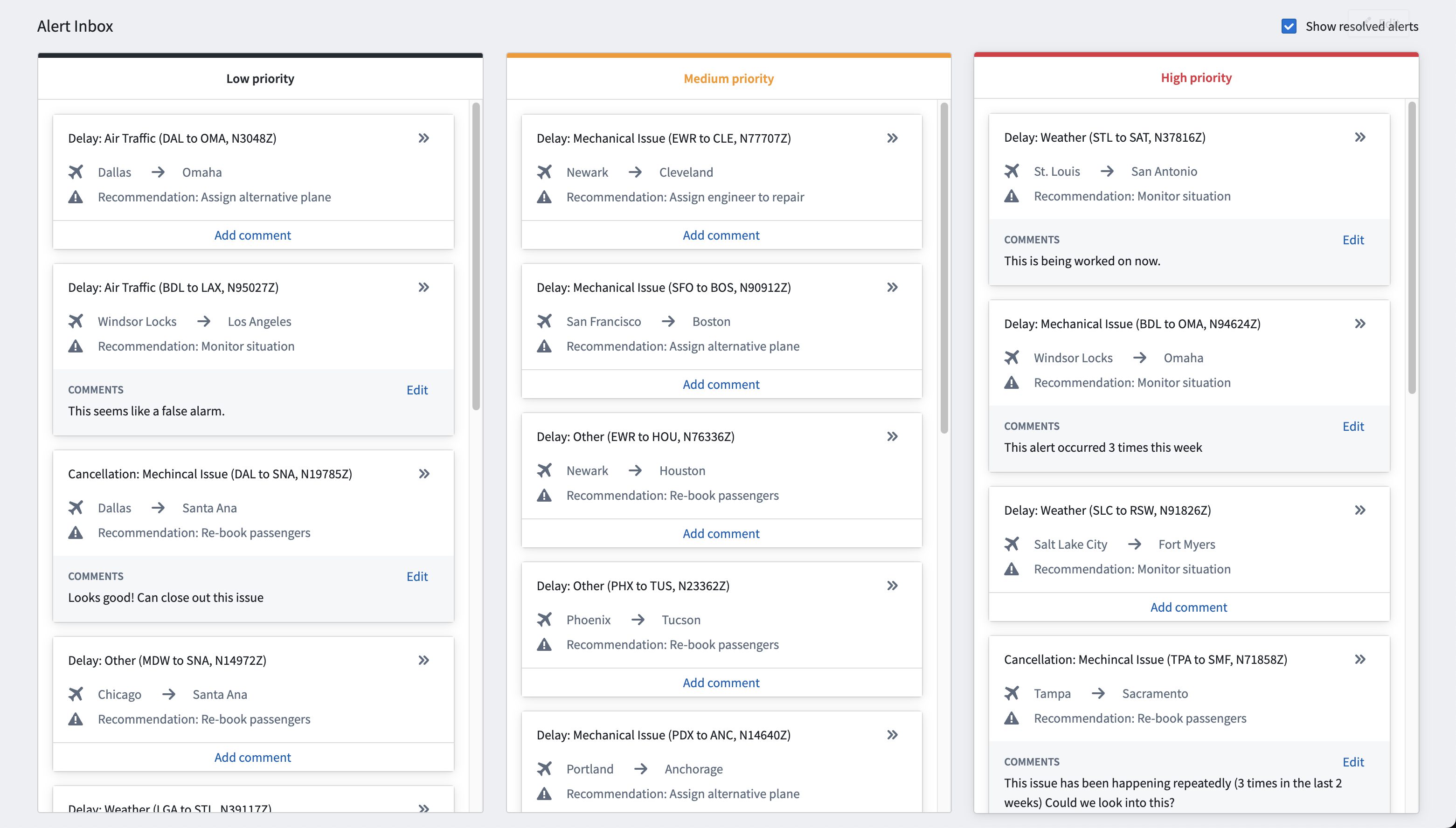
Below is an example of a loop layout to create interactive ticket cards for each object in three object sets (one per column), to create a kanban style application. Each ticket card is an embedded module instance populated with an object from the object set provided to the column's loop layout. In this embedded module, full layout control is available, and the builder can configure exactly what to display, and what actions are available for each object, offering greater flexibility than what is offered by other object set display widgets.
Configuration
Loop layout configurations allow builders to select an object set or array, a module to embed for each object in the set or entry in the array, and controls for sorting and paging styles.
Loop over an object set

Object set to loop through
If the object set option is selected, the first configuration made in a loop layout is the “object set to loop through” variable input. This object set will be looped through in the loop layout, with each object from this set used to display an instance of the child embedded module configured in the “module selection” step.
Sort
Property sorts may be applied to the object set being looped through to determine the order in which the objects will be displayed in the looped layout.
A custom sort may be achieved by returning a static object set with the desired sort order in the object set definition from a function backed object set variable.
For object sets of a single object type that are not static object sets, a primary key sort will be applied behind any user configured sorts to ensure a consistent ordering of objects. This may cause the loop layout to fail to display if the primary key is not sortable.
Loop over an array
Loop layouts support looping over various array types, including string, Boolean, number, date, timestamp, and struct arrays.

Array to loop through
If the array option is selected, the first configuration is the array to loop through variable input. Loop layouts iterate through each entry in the array, and each entry is displayed as an instance of the embedded module configured in the Module selection step. Modules are ordered by the entry's position in the array. Inserting, re-ordering, and deleting entries from the array will be reflected in the looped layout.
Paging style
- Limit: This paging style will display only a single page which displays up to the first X objects or array entries, where X is the value configured in the “Max items to display” configuration.
- Paged: This paging style will display pages of objects or array entries of size X, where X is the value configured in the “Max items per page” configuration. Loop layouts are currently limited to paging through the first ten thousand objects.
Display
- List: This display option will display the objects or array entries in a list. There are no additional configuration options.
- Grid: This display option will display the objects or array entries in a grid. Additionally, a max number of columns and min card width in pixels may be configured.
With either option, a consistent height for each row may be achieved by configuring an absolute or max height on the top level section in the selected child module.
Module selection
Loop layout module selection works similarly to embedded module widget module selection, requiring selection of a child module. Builders may either select an existing module through the Compass resource selector or create a new embedded module using the Create new option.
The module selected for a loop layout must have a module interface object set variable if configured to loop over an object set, or a variable typed to the array type if configured to loop over an array.
Embedded modules created using the 'Create New' option will feature a basic module with a preset module interface variable matching the array type or object set and a widget for displaying each entry or item. Looped sections configured to use object sets will feature an Object Set Title widget, while looped sections configured to use arrays will feature a Markdown widget to display the value of the array entry. When using an array of structs, the struct-typed module interface variable will contain a variable transform, rendering the fields of each struct entry of the array in the Markdown widget.


Interface variable
In this configuration, builders must specify the module interface variable from the child module that will be mapped to objects from the object set to loop through variable, or entries from the array to loop through variable, depending on which one the loop layout is configured to iterate through. Refer to configuring the module interface for the selected module for more information.
If this variable value is changed in the child module, for instance through a “set variable value” event, unexpected behavior may occur.
Interface configuration
Other than the module interface variable input described above, loop layout variable mapping works the same way as the embedded module interface configuration for all other module interface variables.
Unlike the object set to loop through variable, these additional variables may be changed in the child module template. Each variable will be the same variable reference for each looped instance, allowing variable state to be shared across looped instances and the parent module.
Layout settings
Padding
This is the same padding configuration offered on other Workshop layouts. The configured padding will be applied around each instance of the embedded module in the loop layout.
Inner border style
If padding is applied to the loop layout, a border style may be selected which will be applied to each instance of the embedded module in the loop layout.
Share variables
The interface configuration in loop layouts allows variable values to be shared across loop layout embedded modules. This may be useful to share something like the state of a selected object. In this use case, each embedded module has the ability to have an event set the value of the shared selected object variable, which can then be used in the parent module.
Limitations
Loop layout paging limit
Loop layouts are currently limited to paging through the first ten thousand objects; this limit may change in the future.
Dynamic values
Any variable values that are dynamic per module instance must be derived from the passed in object. The passed in object is the only way that each module instance is differentiated. Additional variables may be passed to every module instance in the loop layout and these variables will be shared across instances.
中文翻译
循环布局
本文档讨论循环布局。有关Workshop嵌入功能的概述,请参阅嵌入概述页面。
循环布局允许您对对象集(Object Set)或数组(Array)进行循环,为集合中的每个对象或数组中的每个条目显示一个嵌入模块。
循环布局中的每个嵌入模块独立于其他嵌入模块实例运行,拥有自己的变量作用域和布局状态。与其他对象集显示组件(如对象表(Object Table)或对象列表(Object List)组件)相比,循环布局提供了对对象集显示方式的更多控制。其他对象集显示组件具有固定的功能集,而循环布局允许使用Workshop中可用的任何功能组合来显示对象集中的每个对象或数组中的每个条目。
以下是一个循环布局示例,用于为三个对象集(每列一个)中的每个对象创建交互式工单卡片,从而构建看板风格的应用。每个工单卡片都是一个嵌入模块实例,由提供给该列循环布局的对象集中的对象填充。在此嵌入模块中,可以完全控制布局,构建者可以精确配置要显示的内容以及每个对象可用的操作,这比其它对象集显示组件提供了更大的灵活性。
配置
循环布局配置允许构建者选择对象集或数组、为集合中每个对象或数组中每个条目嵌入的模块,以及排序和分页样式的控制。
循环遍历对象集
要循环遍历的对象集
如果选择了对象集选项,循环布局中的第一个配置是"要循环遍历的对象集"变量输入。此对象集将在循环布局中被遍历,该集合中的每个对象将用于显示在"模块选择"步骤中配置的子嵌入模块的一个实例。
排序
可以对要循环遍历的对象集应用属性排序,以确定对象在循环布局中的显示顺序。
通过从函数支持的对象集变量的对象集定义中返回具有所需排序顺序的静态对象集,可以实现自定义排序。
对于非静态对象集的单一对象类型对象集,将在用户配置的任何排序之后应用主键排序,以确保对象排序的一致性。如果主键不可排序,这可能导致循环布局无法显示。
循环遍历数组
循环布局支持遍历各种数组类型,包括字符串(String)、布尔值(Boolean)、数字(Number)、日期(Date)、时间戳(Timestamp)和结构体(Struct)数组。
要循环遍历的数组
如果选择了数组选项,第一个配置是"要循环遍历的数组"变量输入。循环布局遍历数组中的每个条目,每个条目将显示为在模块选择步骤中配置的嵌入模块的一个实例。模块按条目在数组中的位置排序。从数组中插入、重新排序和删除条目将反映在循环布局中。
分页样式
- 限制(Limit): 此分页样式仅显示单个页面,最多显示前X个对象或数组条目,其中X是在"最大显示项数"配置中设置的值。
- 分页(Paged): 此分页样式将显示大小为X的对象或数组条目页面,其中X是在"每页最大项数"配置中设置的值。循环布局目前仅限于遍历前一万个对象。
显示
- 列表(List): 此显示选项将以列表形式显示对象或数组条目。没有额外的配置选项。
- 网格(Grid): 此显示选项将以网格形式显示对象或数组条目。此外,可以配置最大列数和以像素为单位的最小卡片宽度。
使用任一选项,可以通过在所选子模块的顶层部分配置绝对高度或最大高度来实现每行高度一致。
模块选择
循环布局的模块选择与嵌入模块组件的模块选择类似,需要选择一个子模块。构建者可以通过Compass资源选择器选择现有模块,或使用创建新模块选项创建新的嵌入模块。
为循环布局选择的模块必须具有模块接口对象集变量(如果配置为循环遍历对象集),或具有与数组类型匹配的变量(如果配置为循环遍历数组)。
使用"创建新模块"选项创建的嵌入模块将包含一个基本模块,该模块具有预设的模块接口变量(匹配数组类型或对象集)以及用于显示每个条目或项目的组件。配置为使用对象集的循环部分将包含一个对象集标题组件,而配置为使用数组的循环部分将包含一个Markdown组件来显示数组条目的值。当使用结构体数组时,结构体类型的模块接口变量将包含一个变量转换(Variable Transformation),在Markdown组件中渲染数组中每个结构体条目的字段。
接口变量
在此配置中,构建者必须指定子模块中的模块接口变量,该变量将映射到"要循环遍历的对象集"变量中的对象,或"要循环遍历的数组"变量中的条目,具体取决于循环布局配置为遍历哪种类型。有关更多信息,请参阅配置所选模块的模块接口。
如果在子模块中更改了此变量值(例如通过"设置变量值"事件),可能会发生意外行为。
接口配置
除了上述模块接口变量输入外,循环布局变量映射的工作方式与所有其他模块接口变量的嵌入模块接口配置相同。
与"要循环遍历的对象集"变量不同,这些额外的变量可以在子模块模板中更改。每个变量对于每个循环实例都是相同的变量引用,允许变量状态在循环实例和父模块之间共享。
布局设置
内边距(Padding)
这与Workshop其他布局提供的内边距配置相同。配置的内边距将应用于循环布局中每个嵌入模块实例的周围。
内部边框样式
如果为循环布局应用了内边距,则可以选择边框样式,该样式将应用于循环布局中每个嵌入模块实例。
共享变量
循环布局中的接口配置允许在循环布局嵌入模块之间共享变量值。这对于共享诸如选定对象状态之类的内容可能很有用。在此用例中,每个嵌入模块都可以通过事件设置共享的"选定对象"变量的值,然后该变量可以在父模块中使用。
限制
循环布局分页限制
循环布局目前仅限于遍历前一万个对象;此限制将来可能会更改。
动态值
每个模块实例的动态变量值必须从传入的对象派生。传入的对象是区分每个模块实例的唯一方式。额外的变量可以传递给循环布局中的每个模块实例,这些变量将在实例之间共享。