Add Workshop application to a Marketplace product(将 Workshop 应用程序添加到 Marketplace 产品中)
Use Foundry DevOps to include your Workshop applications in Marketplace products for other users to install and reuse. Learn how to create a Marketplace product..
Supported features
All generally available Workshop features are supported for packaging, with the exception of static/object-backed scenarios.
Adding Workshop applications to products
To add a Workshop application to a product, first create a product, then add outputs. Choose the Add files option to navigate to the Workshop application from within the Compass filesystem and add it to your product.
Once you select your application, if you receive any error messages, visit the packaging error linter for more information. We recommend enabling the linter before attempting to package your application.
Installation configuration
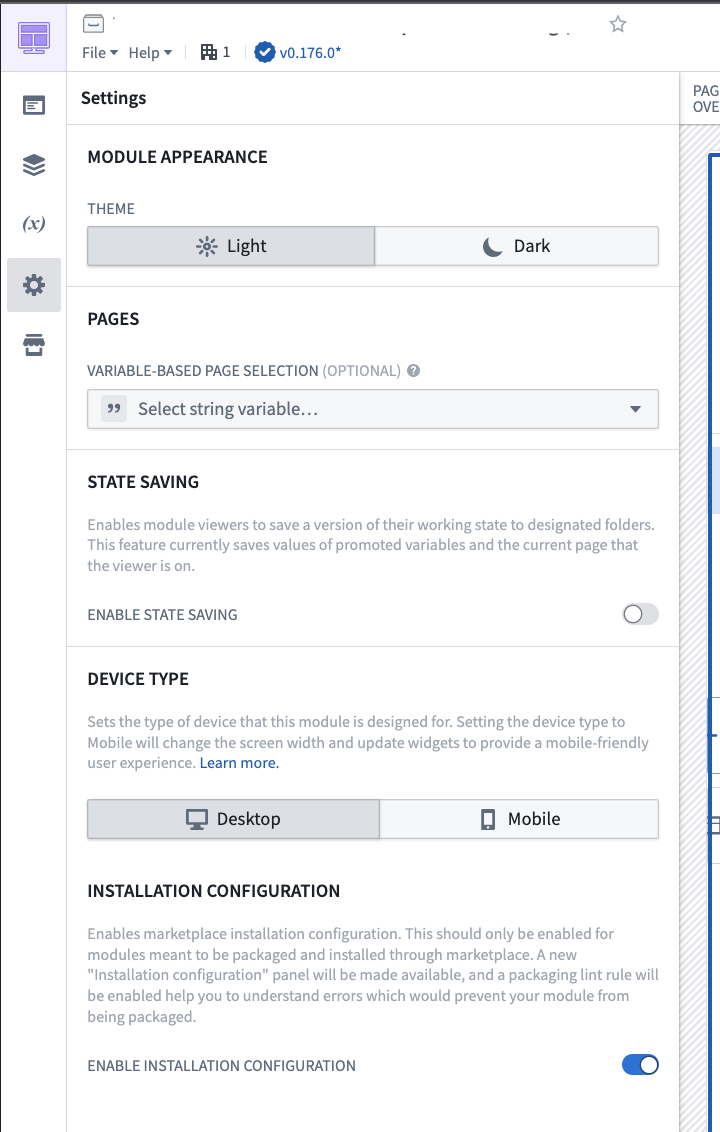
If you have created a Workshop application that you would like to include as part of a Marketplace product, enable Installation configuration in the Workshop settings as below, which provides additional features for debugging packaging errors when creating your product and creating Installation parameters to expose during installation.
Packaging error linter
To successfully package a Workshop application, DevOps must be able to successfully identify all application dependencies, such as the object types that are used in the application. Once you have enabled Installation configuration, any errors will be surfaced in the top right corner of your application next to warnings.
Note that there may be some (~5-10 seconds) latency for errors to appear depending on the size of your application. If no errors are present, nothing will appear.
It is generally a best practice to enable the linter and check for errors before attempting to package your application in DevOps. If you attempt packaging before enabling the linter, you will be directed to use the linter if there are any unresolved issues.
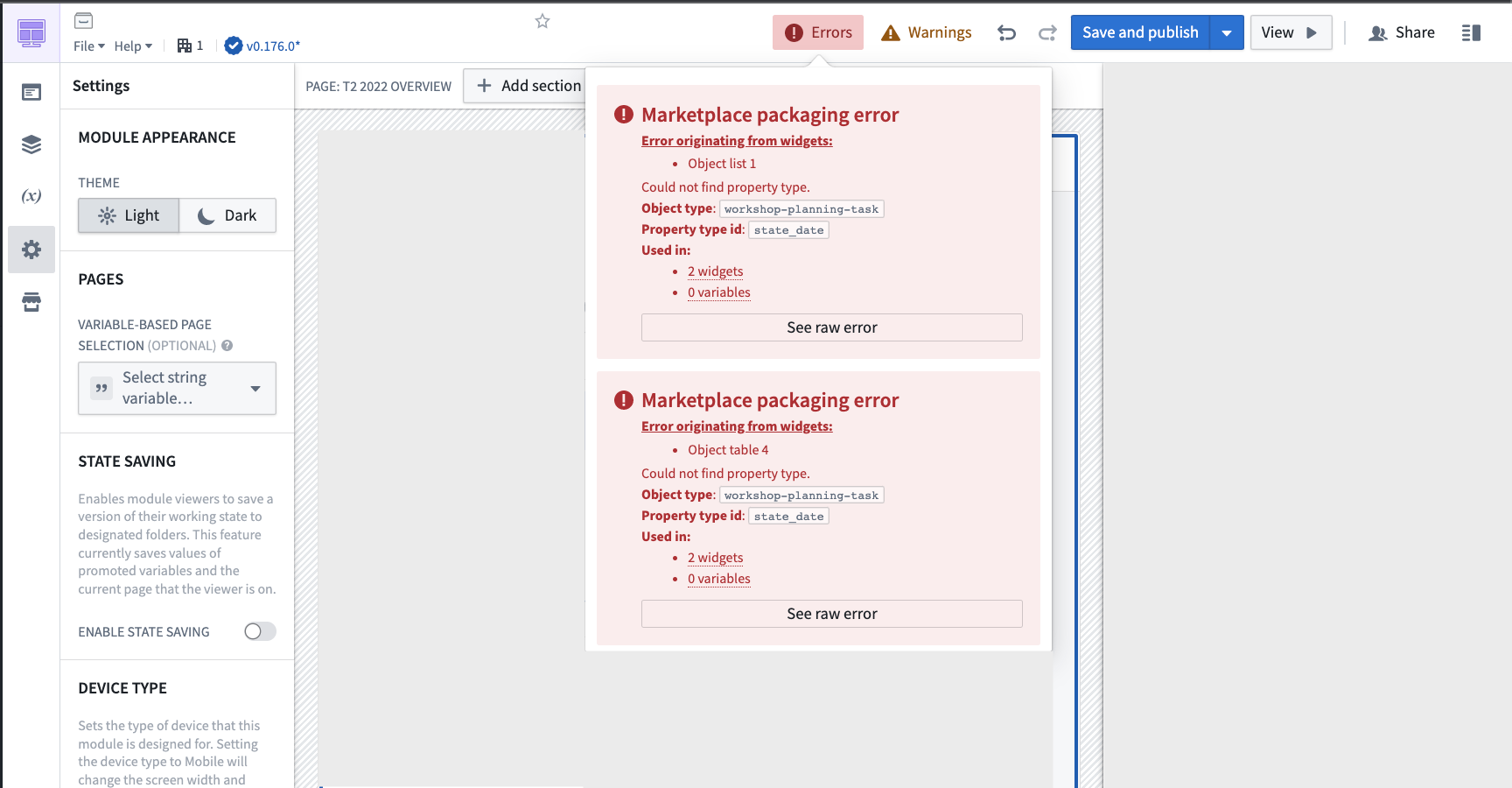
Common errors that are surfaced by the linter include:
-
Your application references a property of an object type variable that cannot be resolved due to new features that are not fully integrated with Marketplace. To resolve this error, you can manually designate the object type using the variable's Module Interface setting.
-
Your application references a property or object type that has since been deleted or had its primary key renamed. To resolve this issue, replace the property or object type reference with the new property or object type, or delete the reference if it is no longer needed.
-
Your application uses a custom widget that has not yet been configured for packaging. Contact your Palantir representative for further assistance.
-
Your application uses the Resource List widget to reference Compass resources. The Resource List widget does not support automatic detection of Compass resources as inputs for Marketplace packaging. Applications using this widget require manual configuration of dependencies during deployment.
Installation parameters
After enabling Installation configuration, a new panel will appear under Settings. Two types of installation parameters are configurable from this panel: string and boolean parameters.
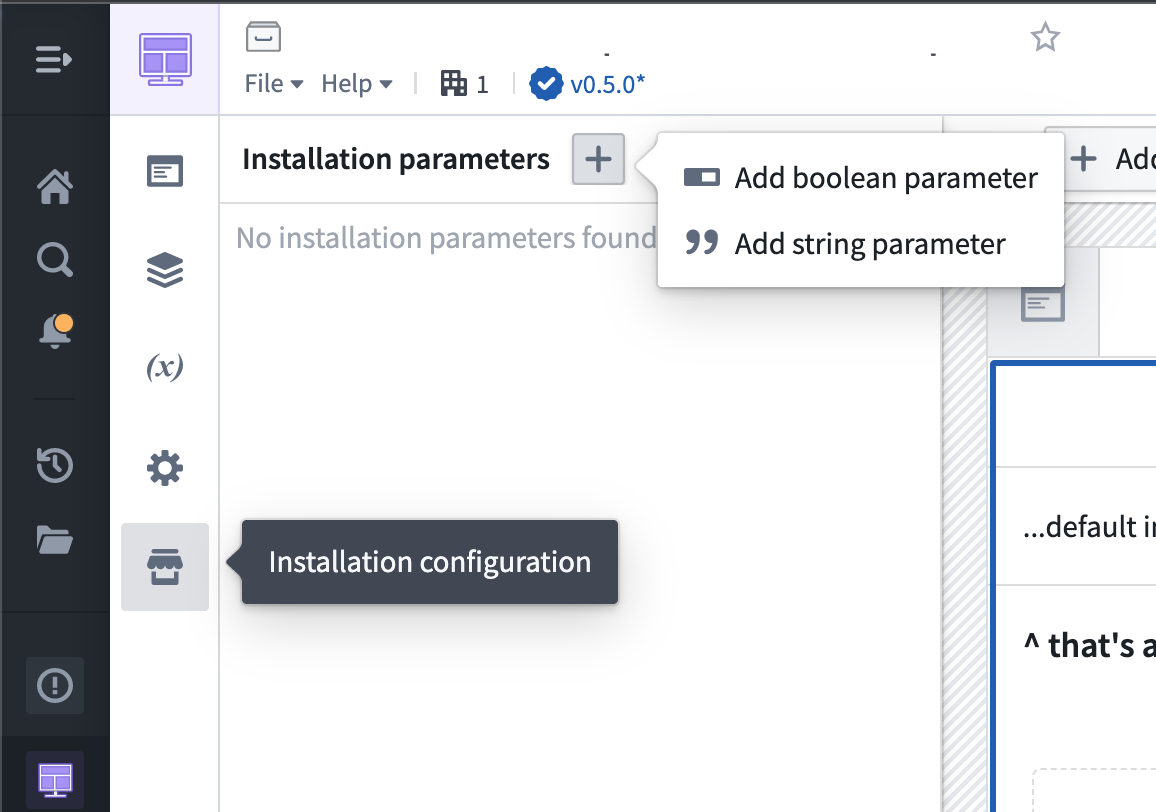
Use string parameters to allow for customization of content like application titles at installation time. For example, you can use a string parameter to allow installers to customize the application with their organization’s name when installing your product.
Use boolean parameters to show/hide content based on installer preferences. For example, you can use a boolean parameter to allow installers to show a specific chart in the application when relevant.
Once you’ve created your installation parameters, you can connect the parameters to Workshop variables.
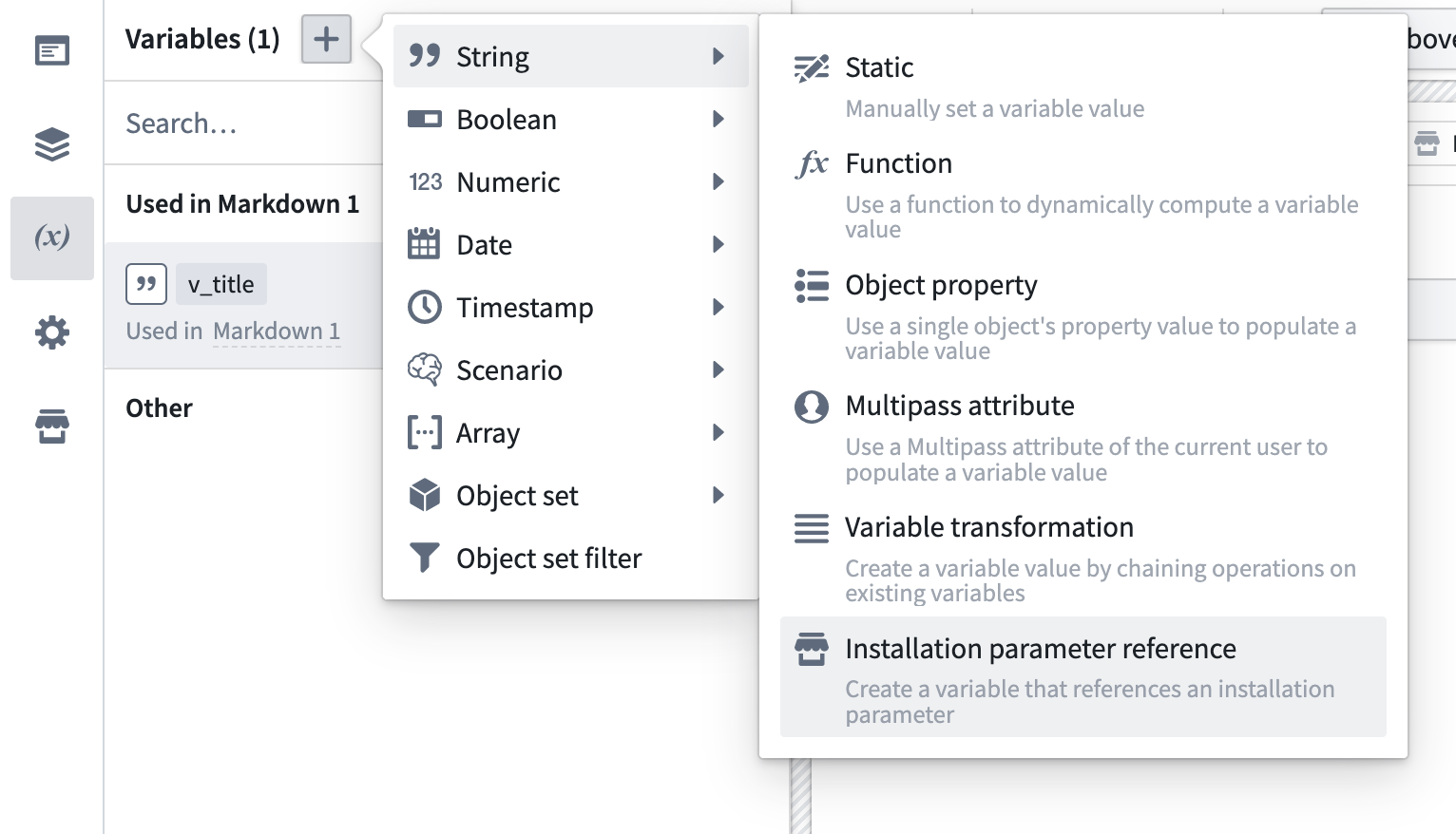
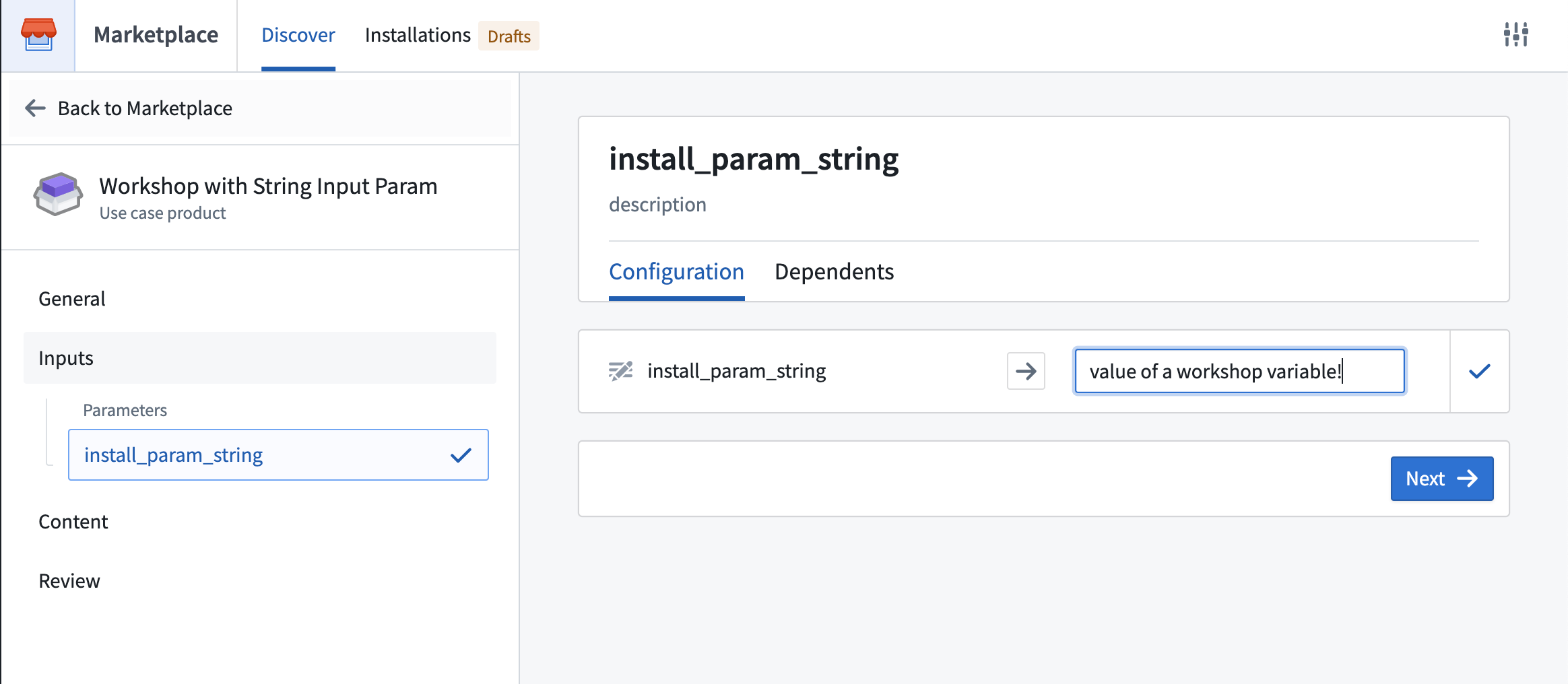
When other users install your product, these parameters will be surfaced as inputs.
中文翻译
将 Workshop 应用程序添加到 Marketplace 产品中
使用 Foundry DevOps 将您的 Workshop 应用程序包含在 Marketplace 产品中,供其他用户安装和复用。了解如何创建 Marketplace 产品。
支持的功能
所有正式发布的 Workshop 功能均支持打包,但静态/对象支持场景除外。
将 Workshop 应用程序添加到产品中
要将 Workshop 应用程序添加到产品中,首先创建一个产品,然后添加输出。选择 添加文件 选项,从 Compass 文件系统中导航到 Workshop 应用程序,并将其添加到您的产品中。
选择应用程序后,如果收到任何错误消息,请查阅打包错误检查器以获取更多信息。我们建议在尝试打包应用程序之前启用该检查器。
安装配置
如果您创建了一个希望作为 Marketplace 产品一部分包含的 Workshop 应用程序,请按如下方式在 Workshop 设置中启用 安装配置,这将在创建产品时提供额外的打包错误调试功能,并创建在安装过程中暴露的安装参数。
打包错误检查器
要成功打包 Workshop 应用程序,DevOps 必须能够成功识别所有应用程序依赖项,例如应用程序中使用的对象类型。启用 安装配置 后,任何错误都会显示在应用程序右上角,与警告信息相邻。
请注意,根据应用程序的大小,错误显示可能会有约 5-10 秒的延迟。如果没有错误,则不会显示任何内容。
通常的最佳实践是在尝试通过 DevOps 打包应用程序之前启用检查器并检查错误。如果在启用检查器之前尝试打包,系统会提示您使用检查器来解决任何未解决的问题。
检查器显示的常见错误包括:
-
您的应用程序引用了某个对象类型变量(Object Type Variable)的属性,但由于某些尚未与 Marketplace 完全集成的新功能,该属性无法解析。要解决此错误,您可以使用变量的模块接口(Module Interface)设置手动指定对象类型。
-
您的应用程序引用了已被删除或主键已重命名的属性或对象类型。要解决此问题,请将属性或对象类型引用替换为新的属性或对象类型,如果不再需要,则删除该引用。
-
您的应用程序使用了尚未配置打包的自定义小部件(Custom Widget)。请联系您的 Palantir 代表以获取进一步帮助。
-
您的应用程序使用了资源列表小部件(Resource List Widget)来引用 Compass 资源。资源列表小部件不支持自动检测 Compass 资源作为 Marketplace 打包的输入。使用此小部件的应用程序需要在部署期间手动配置依赖项。
安装参数
启用 安装配置 后,设置 下将出现一个新面板。此面板可配置两种类型的安装参数:string(字符串)和 boolean(布尔值)参数。
使用 string 参数允许在安装时自定义内容,例如应用程序标题。例如,您可以使用 string 参数让安装者在安装您的产品时,用其组织名称自定义应用程序。
使用 boolean 参数根据安装者的偏好显示/隐藏内容。例如,您可以使用 boolean 参数让安装者在相关时显示应用程序中的特定图表。
创建安装参数后,您可以将这些参数连接到 Workshop 变量。
当其他用户安装您的产品时,这些参数将作为输入显示。