Getting started(入门指南)
This tutorial walks you through how to build a simple mobile Workshop application that allows users to view flight data, filter flights, and view details about each flight. This tutorial uses example data that is included in most Foundry environments. Since the Foundry Ontology is customized to your needs and data, you may not have access to the exact object types described in the tutorial.
This tutorial focuses on the steps required to create a mobile Workshop application, and assumes you already have some familiarity with building a Workshop application and configuring writeback using Ontology Actions. If you have never used Workshop or Actions, consider starting with the general Workshop and Action types tutorials:
Part 1: Initial setup
To start, we'll create a basic application that can be used to scroll through flights data using the following steps:
-
Create a new Workshop module.
-
Select Settings in the left sidebar, and switch to the Mobile device type. The editor's dimensions will switch to those of a mobile device, and the layout will be updated to have a single column.
-
For now, toggle off the navigation bar by disabling the switch next to Module navigation bar visible in the top-right.

-
Select Overview in the left sidebar, then select Add object set variable to start adding data to your application. In this case, add the [Example Data] Flight object type to your module.

-
Select + Add widget and add an Object list widget to your application. Configure the widget to use your flights object set variable, then select properties to show in the list. In this case, we'll add the properties Carrier Name, Origin City Name, Destination City Name, Departure, and Arrival to the list.

At this point, you've created a basic application that can be used to scroll through flights data. In the next step, we'll add some interactivity to this application.
Part 2: Add filtering
In this part of the tutorial, we'll add the ability to filter the list of flights. To provide the user with enough screen space to apply filters, we'll nest the filtering within a Workshop drawer.
-
Select Layout in the left sidebar, then select the + and add a New drawer to the application. Update the drawer's title and name to "Filter flights" and set its icon to the filtering icon.

-
Within the drawer, select + Add widget and add a Filter list widget. Configure the Filter list's input data to be the Flights object set variable you created earlier.
-
Under Filters configuration, select a few properties that users should be able to filter. In this case, we'll add filters on the Origin City Name, Destination City Name, and Cancellation reason properties.

-
Close the drawer using the X in the top-right of the editor view. Back in the flights view, click the + in the top toolbar to add a widget in the toolbar. Select the Button group widget.

-
Set the button to have a minimal style and large style, then select Button 1 to configure the button and its behavior. In this case, we want the button to just show the filter icon. Remove the button text, then select the filter icon under Left icon. Select + Add event, then select Open Filter flights.

-
Next, update your object list to respect the filter being produced by the filter list widget. Select the object list widget, then remove the object set variable configuration by selecting the X under Input data.

-
Select New object set variable, and name your new variable "Filtered flights".
-
Under Starting object set, select your existing object set variable named "[Example Data] Flight". Next, select Filter using variable and choose the output from your Filter list widget.

At this point, you've added the ability for users to filter the list of flights based on a set of properties that you've configured. To avoid UI clutter, these filters show up in a full-page drawer so that users can easily configure multiple filters at once before returning to their filtered list.
Try opening the drawer and filtering to flights from Denver, CO that were canceled due to Weather. Close the drawer and you'll see that the list of flights has been updated appropriately.
In the next step, we'll let users explore more details about a selected flight.
Part 3: Add selected object view
In this part of the tutorial, we'll enable users to navigate to a different page to view details when they select a flight from the list.
-
Select Layout in the left sidebar, then select the + and add a New page to the application. Update the page's name to "Flight details". In the header for your new page, remove the section title.
-
Select the + on the left side of the toolbar and add an Object set title widget. Configure the widget to use "Object list 1 Active object" as its input object set.

-
Within the page, select Set layout and then select the Flow layout. This adds a scrollable body to your page that can contain multiple widgets.

-
Next, we'll show some of the current flight's properties:
-
Select the section in your new Flow layout and update its title to "Properties".
- Select + Add widget and add a Property list widget
- Configure the property list widget to also use "Object list 1 Active object" as its input object set
-
Update the property list widget to use a stacked label layout and have 1 column, then select a few properties to surface. In this case, we'll show the Operating carrier, Carrier Name, Cancelled, and Cancellation Reason.

-
Then, we'll show information about the origin and destination airports:
-
Select + Add section at the bottom of your Flow layout. Update the new section's title to "Origin Airport"
- Select + Add widget and add a Property list widget
- Click Select object set variable... and then + New object set variable. Start with the "Object list 1 Active object" variable, then Search around using the [Example Data] Origin Airport link. Rename this new variable to "Active flight origin airport".
-
Update the property list widget to use a stacked label layout and have 1 column, then select a few properties to surface. In this case, we'll show the Display Name, Number of Carriers, Number of Departing Flights, Number of Destinations properties.
-
Repeat the above steps to add a section showing information about the destination airport as well.

-
Switch back to your original page showing the object list of flights using the Layout sidebar on the left. Select your object list, then select + Add event under On active object selection in the configuration options. Select Switch to Flight details.

At this point, you've added the ability to navigate to a different page to view details about each flight in the list. Try selecting a flight in your object list to navigate to the "Flight details" page you just created.
Finally, we'll preview your mobile application in your desktop browser and on your phone.
Part 4: View and use module
Select Save and publish in the top-right to save your module, then select View ↗. This will open your application in Foundry's mobile app launcher.
At this point, you have different options to preview your mobile application in your desktop browser and on your phone:
-
Desktop browser preview. To preview what your application will look like on an actual phone, use your browser's support for mobile device emulation:
- Safari Responsive Design Mode ↗
-

-
On a mobile device. If you have a mobile device with network access to your Foundry environment, you can also navigate to your application by opening the URL from your phone. In some browsers such as Chrome and Edge, you can easily do this by right-clicking on the page and selecting Create QR Code for this Page. Then, you can scan the QR code using your mobile device to open the application.

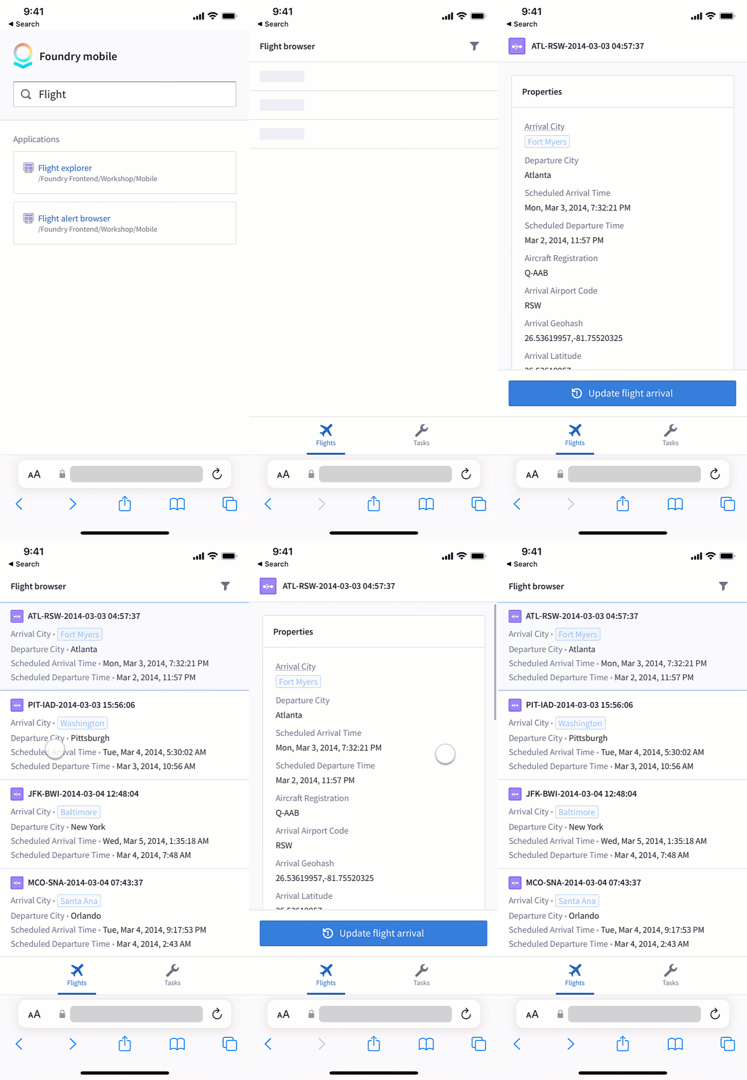
Note that in the mobile app launcher, you can use the browser's Back and Forward interactions to navigate through pages. On an Android device, you can use the device's Back button to navigate, and on iOS, you can swipe from the left or right as illustrated below.
Next steps
This tutorial walked you through how to build a simple application for exploring flight data on a mobile device. Continue learning about Workshop's mobile support using the following resources:
- Learn about mobile design best practices.
- Use the navigation bar to expand your application with more pages.
- Learn about network access for Workshop mobile applications.
中文翻译
入门指南
本教程将引导您构建一个简单的移动端 Workshop 应用程序,使用户能够查看航班数据、筛选航班以及查看每个航班的详细信息。本教程使用大多数 Foundry 环境中包含的示例数据。由于 Foundry 本体论(Ontology)是根据您的需求和数据定制的,您可能无法访问教程中描述的确切对象类型。
本教程重点介绍创建移动端 Workshop 应用程序所需的步骤,并假设您已经熟悉构建 Workshop 应用程序以及使用本体论操作(Ontology Actions)配置回写。如果您从未使用过 Workshop 或操作(Actions),建议先阅读 Workshop 和操作类型的通用教程:
第一部分:初始设置
首先,我们将创建一个基本应用程序,用于浏览航班数据,具体步骤如下:
-
创建一个新的 Workshop 模块。
-
在左侧边栏中选择设置(Settings),然后切换到移动端(Mobile)设备类型。编辑器的尺寸将切换为移动设备的尺寸,布局将更新为单列模式。
-
暂时关闭导航栏,方法是禁用右上角模块导航栏可见(Module navigation bar visible)旁边的开关。
-
在左侧边栏中选择概览(Overview),然后选择添加对象集变量(Add object set variable)开始向应用程序添加数据。在本例中,将[示例数据] 航班([Example Data] Flight)对象类型添加到模块中。
-
选择+ 添加组件(+ Add widget),然后向应用程序添加一个对象列表(Object list)组件。配置该组件使用您的航班对象集变量,然后选择要在列表中显示的属性。在本例中,我们将添加承运商名称(Carrier Name)、出发城市名称(Origin City Name)、目的地城市名称(Destination City Name)、出发时间(Departure)和到达时间(Arrival)属性。
至此,您已经创建了一个可用于浏览航班数据的基本应用程序。在下一步中,我们将为这个应用程序添加一些交互功能。
第二部分:添加筛选功能
在本部分教程中,我们将添加筛选航班列表的功能。为了给用户提供足够的屏幕空间来应用筛选条件,我们将把筛选功能嵌套在 Workshop 抽屉(Drawer)中。
-
在左侧边栏中选择布局(Layout),然后选择+并添加一个新建抽屉(New drawer)到应用程序中。将抽屉的标题和名称更新为"筛选航班(Filter flights)",并将其图标设置为筛选图标。
-
在抽屉内,选择+ 添加组件(+ Add widget)并添加一个筛选列表(Filter list)组件。将筛选列表的输入数据配置为您之前创建的航班对象集变量。
-
在筛选配置(Filters configuration)下,选择一些用户应该能够筛选的属性。在本例中,我们将添加出发城市名称(Origin City Name)、目的地城市名称(Destination City Name)和取消原因(Cancellation reason)属性的筛选条件。
-
使用编辑器视图右上角的X关闭抽屉。返回航班视图,点击顶部工具栏中的+在工具栏中添加一个组件。选择按钮组(Button group)组件。
-
将按钮设置为简约样式(minimal style)和大号样式(large style),然后选择按钮 1(Button 1)来配置按钮及其行为。在本例中,我们希望按钮只显示筛选图标。删除按钮文本,然后在左侧图标(Left icon)下选择筛选图标。选择+ 添加事件(+ Add event),然后选择打开筛选航班(Open Filter flights)。
-
接下来,更新您的对象列表,使其遵循筛选列表组件生成的筛选条件。选择对象列表组件,然后通过选择输入数据(Input data)下的X来移除对象集变量配置。
-
选择新建对象集变量(New object set variable),并将新变量命名为"已筛选航班(Filtered flights)"。
-
在起始对象集(Starting object set)下,选择您现有的名为"[示例数据] 航班([Example Data] Flight)"的对象集变量。接下来,选择使用变量筛选(Filter using variable),然后选择筛选列表组件的输出。
至此,您已经为用户添加了根据您配置的一组属性来筛选航班列表的功能。为了避免界面杂乱,这些筛选条件显示在整页抽屉中,以便用户可以轻松地一次性配置多个筛选条件,然后返回筛选后的列表。
尝试打开抽屉,筛选出从丹佛(Denver, CO)出发且因天气(Weather)原因取消的航班。关闭抽屉后,您会看到航班列表已相应更新。
在下一步中,我们将让用户能够探索所选航班的更多详细信息。
第三部分:添加选中对象视图
在本部分教程中,我们将使用户能够在从列表中选择航班时导航到另一个页面查看详细信息。
-
在左侧边栏中选择布局(Layout),然后选择+并添加一个新建页面(New page)到应用程序中。将页面名称更新为"航班详情(Flight details)"。在新页面的页眉中,删除章节标题。
-
选择工具栏左侧的+并添加一个对象集标题(Object set title)组件。配置该组件使用"对象列表 1 活动对象(Object list 1 Active object)"作为其输入对象集。
-
在页面内,选择设置布局(Set layout),然后选择流式布局(Flow)布局。这将在页面中添加一个可滚动的正文区域,可以包含多个组件。
-
接下来,我们将显示当前航班的一些属性:
-
选择新的流式布局中的章节,并将其标题更新为"属性(Properties)"。
- 选择+ 添加组件(+ Add widget)并添加一个属性列表(Property list)组件。
- 配置属性列表组件也使用"对象列表 1 活动对象(Object list 1 Active object)"作为其输入对象集。
-
将属性列表组件更新为使用堆叠标签布局,并设置为 1 列,然后选择一些要显示的属性。在本例中,我们将显示运营承运商(Operating carrier)、承运商名称(Carrier Name)、已取消(Cancelled)和取消原因(Cancellation Reason)。
-
然后,我们将显示出发机场和目的地机场的信息:
-
在流式布局底部选择+ 添加章节(+ Add section)。将新章节的标题更新为"出发机场(Origin Airport)"。
- 选择+ 添加组件(+ Add widget)并添加一个属性列表组件。
- 点击选择对象集变量...(Select object set variable...),然后点击+ 新建对象集变量(+ New object set variable)。从"对象列表 1 活动对象(Object list 1 Active object)"变量开始,然后使用[示例数据] 出发机场([Example Data] Origin Airport)链接进行周边搜索(Search around)。将此新变量重命名为"活动航班出发机场(Active flight origin airport)"。
-
将属性列表组件更新为使用堆叠标签布局,并设置为 1 列,然后选择一些要显示的属性。在本例中,我们将显示显示名称(Display Name)、承运商数量(Number of Carriers)、出发航班数量(Number of Departing Flights)、目的地数量(Number of Destinations)属性。
-
重复上述步骤,添加一个显示目的地机场信息的章节。
-
使用左侧的布局(Layout)侧边栏切换回显示航班对象列表的原始页面。选择您的对象列表,然后在配置选项中的活动对象选择时(On active object selection)下选择+ 添加事件(+ Add event)。选择切换到航班详情(Switch to Flight details)。
至此,您已经添加了导航到另一个页面以查看列表中每个航班详细信息的功能。尝试在对象列表中选择一个航班,导航到您刚刚创建的"航班详情(Flight details)"页面。
最后,我们将在桌面浏览器和手机上预览您的移动应用程序。
第四部分:查看和使用模块
选择右上角的保存并发布(Save and publish)来保存您的模块,然后选择查看 ↗(View ↗)。这将在 Foundry 的移动应用启动器中打开您的应用程序。
此时,您有不同选项可以在桌面浏览器和手机上预览您的移动应用程序:
-
桌面浏览器预览。要预览您的应用程序在真实手机上的显示效果,请使用浏览器的移动设备模拟功能:
- Safari 响应式设计模式 ↗
-
-
在移动设备上。如果您拥有可以访问 Foundry 环境的移动设备,也可以通过从手机打开 URL 来导航到您的应用程序。在 Chrome 和 Edge 等浏览器中,您可以右键单击页面并选择为此页面创建二维码(Create QR Code for this Page)来轻松实现。然后,您可以使用移动设备扫描二维码来打开应用程序。
请注意,在移动应用启动器中,您可以使用浏览器的后退和前进交互来浏览页面。在 Android 设备上,您可以使用设备的返回按钮进行导航;在 iOS 上,您可以像下图所示从左侧或右侧滑动。
后续步骤
本教程引导您完成了如何在移动设备上构建一个用于探索航班数据的简单应用程序。继续使用以下资源了解 Workshop 的移动端支持: