Set up a read-only dashboard(设置只读仪表板)
You can combine the security controls of Workshop and permission configuration options in Control Panel to create a read-only dashboard that is separated from other access workflows in your Palantir enrollment.
Consider a business that uses a Palantir enrollment to perform sensitive processes. Due to the sensitivity of these processes, the business chooses to only provision Palantir accounts to a specific set of users listed in their identity provider (foundry-users-sg, for example). As these processes develop, the business realizes a need to share some specific subset of the output data more broadly. However, this data is meant to be consumed in a read-only manner, and the business wants to enforce that control programmatically. The list of new users is tracked in a separate group (read-only-foundry-users-sg, for example) that will have some overlap with existing users.
1. Configure administrative changes
The first step to enable a read-only dashboard is to make changes to administrative configurations in Control Panel. These changes will ensure that new user access can be configured without impacting existing access.
Configure an Organization
An Organization is the lowest level security concept used for configuring workflows within the same enrollment. Organizations provide the crucial security configuration options required to enable a read-only dashboard workflow.
Create a new read-only Organization
Within an enrollment, the business has an existing Organization (Company, for example) where workflows are performed. To support changes to security configurations that will enforce a read-only workflow, the business must create a new Organization. To avoid confusion, we recommend naming the new Organization with (read-only) appended at the end of the existing Organization name (Company (read-only)). The new Organization should be created within a private space (/Company (read-only)) and be administered by the same group that administers the existing Organization (foundry-admins-sg, for example).
Set application access permissions
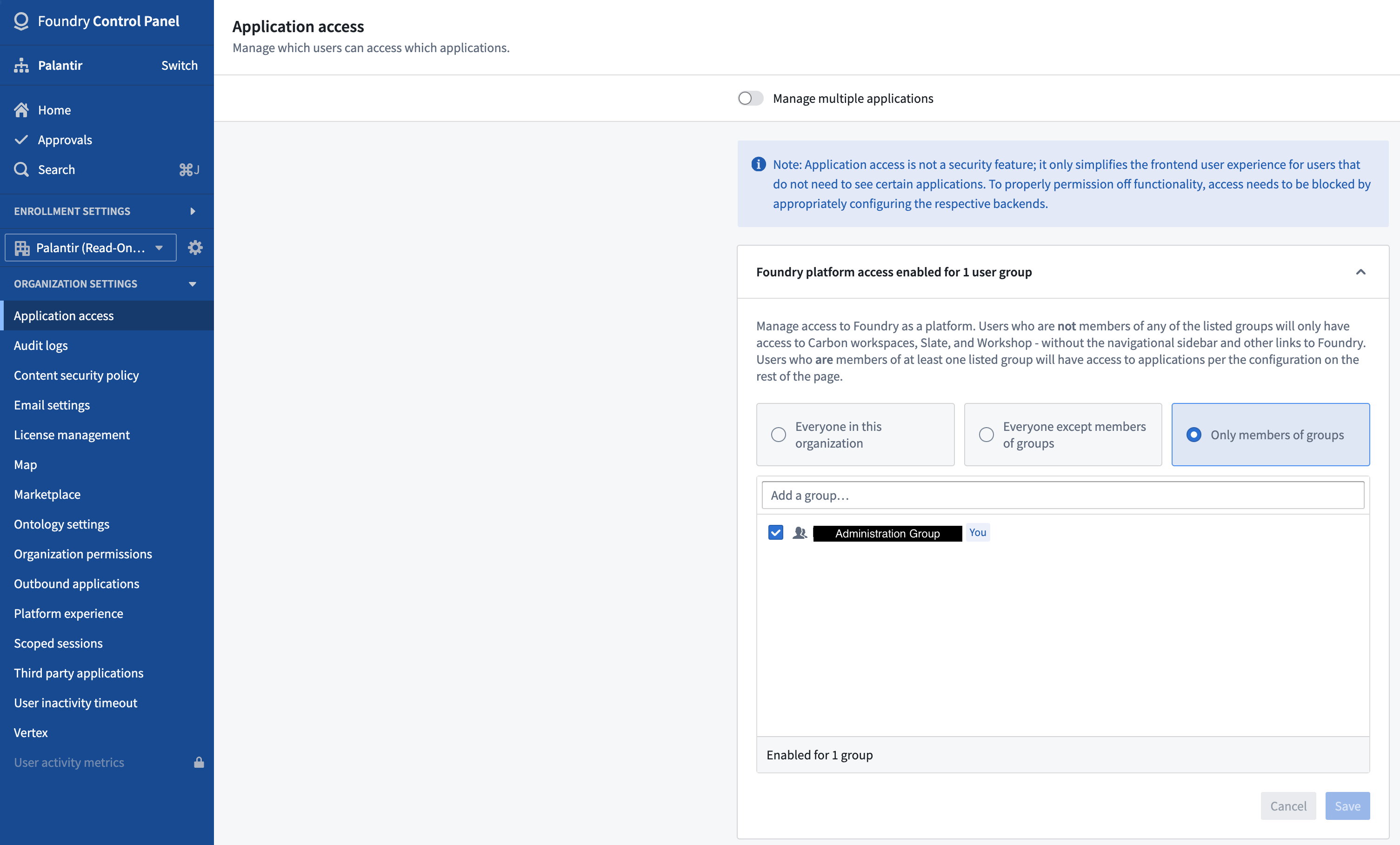
Configuring application access allows Organizations to limit the set of applications that users assigned to the read-only Organization can access. To support viewing dashboards, this Organization should be allowed to use Slate and Workshop applications; all other applications should be disabled. Configure this in Control Panel by only granting full platform access to the administrative group of an enrollment (foundry-admins-sg, for example).
Configure a home page
Each Organization has the ability to specify a default home page for users based on their group membership. Read-only dashboards should be configured as user home pages to provide the best user experience.
Configure authentication
Since the read-only dashboards in this scenario operate within the same business, the same authentication provider used for current workflows should be configured for the dashboards. Doing so will simplify overall management overhead and allow existing users to seamlessly continue using the new dashboard workflow and any existing workflows.
Organization assignment
In the Organization assignment configuration section within Authentication settings for the currently configured authentication provider, the existing user group (foundry-users-sg, for example) that assigns users to the existing Organization should be left in place, and an additional rule should be added to assign the new user group to the new read-only Organization.
Additionally, the Organization administrators must configure the read-only Organization settings to include the existing user group as guest members (for example, foundry-users-sg as guest members of Company (read-only)).
Configure Workshop and object data sources
You do not need to configure any special security settings with Workshop. However, ensure that any objects used in the Workshop module are backed by the Ontology associated with the Company (read-only) space. To accomplish this, administrators should ensure that the Workshop module and data sources backing those objects are stored in a Project that was created in the space created earlier (/Company (read-only)).
For dashboards intended for unattended or long-lived display, consider launching Workshop modules in Kiosk mode.
中文翻译
设置只读仪表板
您可以结合Workshop的安全控制能力与Control Panel中的权限配置选项,创建与您Palantir租户(enrollment)内其他访问工作流隔离的只读仪表板。
假设某企业使用Palantir租户开展敏感业务流程,由于流程的敏感性,企业仅为身份提供商中列出的特定用户组(例如foundry-users-sg)分配Palantir账号。随着业务发展,企业产生了更广泛共享部分特定输出数据子集的需求,但这类数据仅允许以只读方式访问,企业希望通过程序化方式强制执行该控制策略。新用户清单由单独的用户组(例如read-only-foundry-users-sg)维护,该组会与现有用户组存在部分重叠。
1. 配置管理侧变更
启用只读仪表板的第一步是修改Control Panel中的管理配置,这些修改可以确保新配置的用户访问不会影响现有访问权限。
配置组织(Organization)
组织(Organization) 是用于在同一租户(enrollment)内配置不同工作流的最底层安全概念,组织提供了实现只读仪表板工作流所需的核心安全配置选项。
创建新的只读组织
租户内已有一个用于开展业务工作流的现有组织(例如Company)。为了调整安全配置以强制执行只读工作流,企业必须新建一个组织。为避免混淆,我们建议在现有组织名称后追加(read-only)作为新组织的名称(例如Company (read-only))。新组织应当创建在私有空间(space)(/Company (read-only))下,并由管理现有组织的同一用户组(group)(例如foundry-admins-sg)负责管理。
设置应用访问权限
配置应用访问权限(application access)可以限制分配到只读组织的用户可访问的应用范围。为支持查看仪表板,应当允许该组织使用Slate和Workshop应用,禁用所有其他应用。您可以在Control Panel中完成该配置,仅向租户的管理组(例如foundry-admins-sg)授予完整平台访问权限即可。
配置主页
每个组织都可以根据用户的用户组归属为用户指定默认主页(default home page)。应当将只读仪表板配置为用户的主页,以提供最优使用体验。
配置身份验证
由于本场景下的只读仪表板服务于同一企业,应当为仪表板配置与当前业务流程相同的身份验证提供商。这样可以降低整体管理成本,同时让现有用户可以无缝使用新的仪表板工作流及所有现有工作流。
组织分配
在当前已配置的身份验证提供商的身份验证设置下的组织分配(Organization assignment)配置区中,用于将用户分配到现有组织的现有用户组(例如foundry-users-sg)的规则应当保留,同时需要新增一条规则,将新用户组分配到新建的只读组织。
此外,组织管理员必须配置只读组织的设置,将现有用户组添加为访客成员(例如将foundry-users-sg设为Company (read-only)的访客成员)。
配置Workshop与对象数据源
您无需为Workshop配置任何特殊安全设置,但需要确保Workshop模块中使用的所有对象都由与Company (read-only)空间关联的本体论(Ontology)提供支撑。为此,管理员应当确保Workshop模块及支撑这些对象的数据源都存储在之前创建的空间(/Company (read-only))下的项目(Project)中。
对于无需人员值守、需要长时间展示的仪表板,建议以 kiosk模式(Kiosk mode)启动Workshop模块。