State saving(状态保存)
State saving is a powerful Workshop feature that allows module consumers to store the current state of their work within a module and then either return to that saved state or share the saved state with other users.
State saving makes it easier to construct complex, long-running workflows in Workshop and facilitates collaboration between users. Example use cases for state saving include:
- Filtering for Alert objects with a
Statusproperty of "Unresolved" and aLocationproperty of "Zurich" and then saving that state for future reference. - Selecting a specific object of interest and then saving that view to share with a coworker.
- Partially completing an input form built of native Workshop widgets (e.g. the Text input widget or Date input widget) and saving state in order to return later to finish the data entry.
When a state is saved, Workshop is preserving two things: (1) the current values ("states") of variables enabled for use with state saving and (2) optionally, the current page that a user is viewing. In Workshop’s Edit Mode, module builders can decide which variables to use with state saving and also configure other state saving options. Module consumers in Workshop’s View Mode can then save, open, and share states as needed for their workflow.
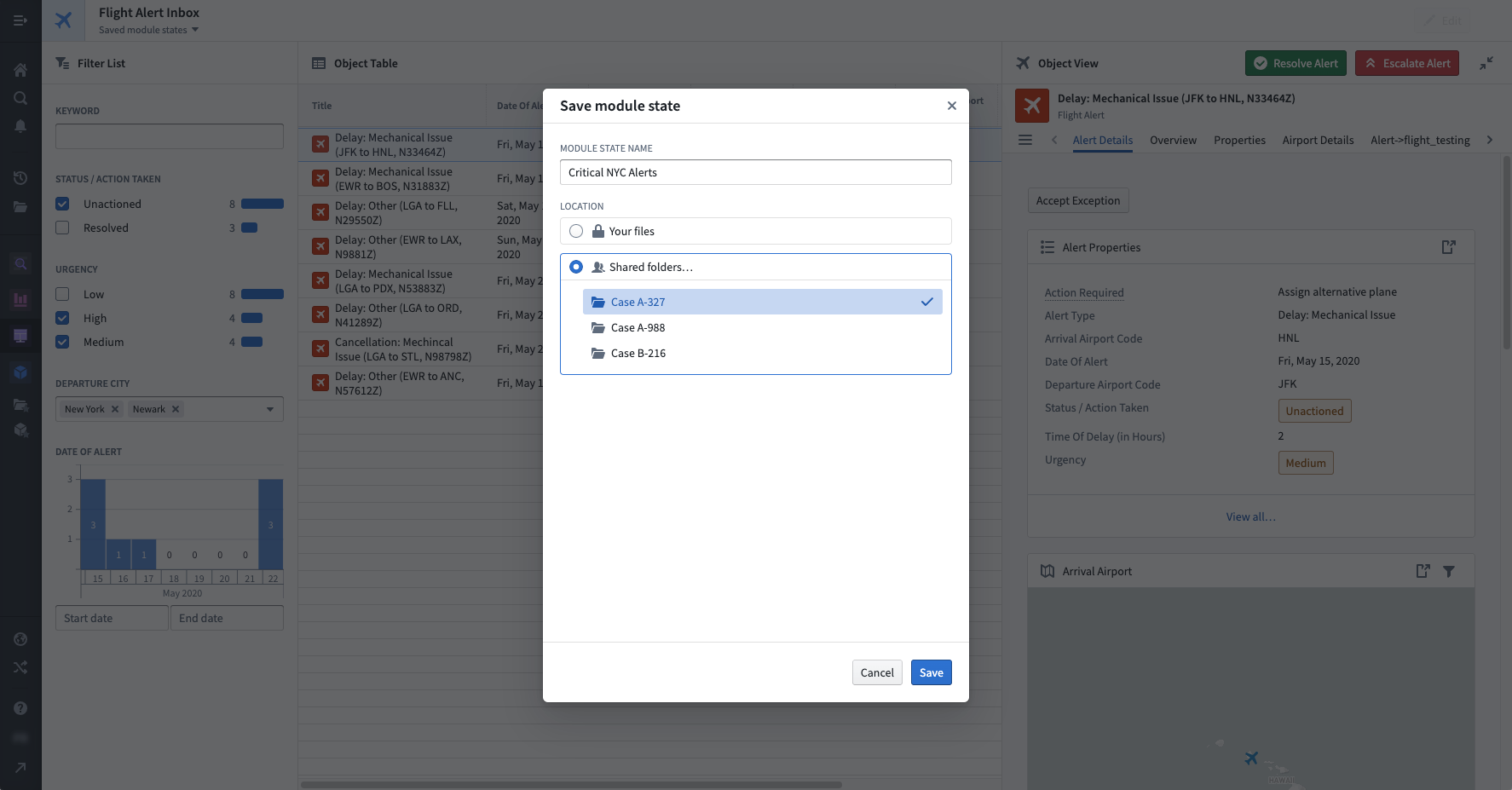
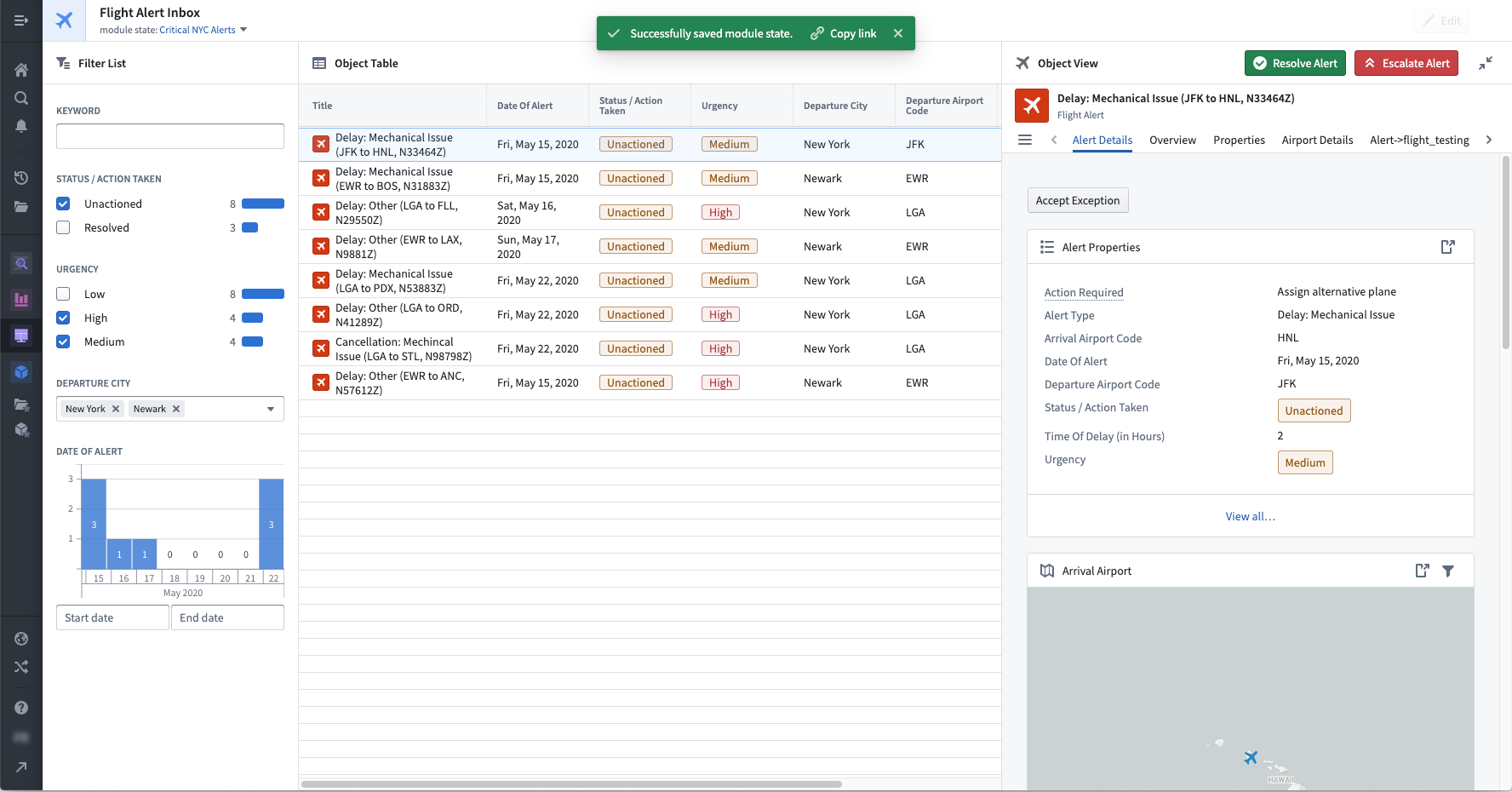
The following screenshots display an example of state saving. In this case, a module builder has configured state saving to preserve Object Set Filter variable output by the Filter List, which will save the user’s selected filtering criteria for high- and medium-priority unactioned alerts from NYC airports. The module builder has also configured the active Object Set variable output by the Object Table widget, which will save the currently highlighted alert in the table and then displayed in the Object View widget on the right-side of this module. Once this state is saved, the module consumer can easily return to this specific view of NYC flight alerts in the future or share the view with other users as a link.
How to enable state saving
In Workshop’s Edit Mode, a builder user can enable state saving with the following three steps, explained in detail below:
- Open the module settings panel and toggle on Enable State Saving.
- Enable state saving for variables which should have their state saved.
- Optionally, configure allowed save locations and shortcuts for this module's saved states.
Toggle on state saving
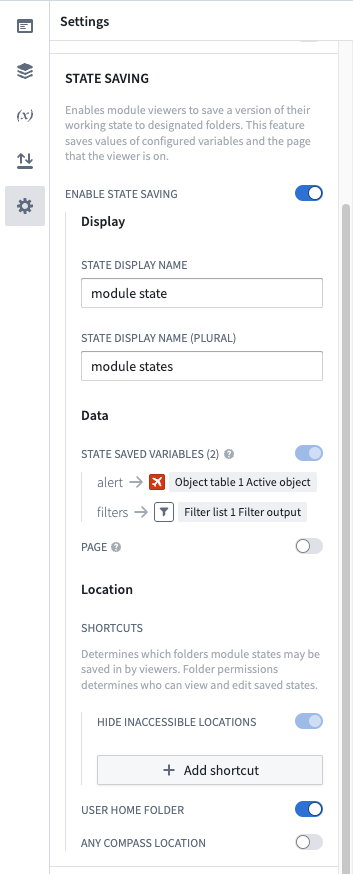
Open the Settings panel by selecting the settings icon ( ). Within this panel, enable the Enable State Saving toggle as seen below.
Configure state saving for variables
Open the Variables panel and enable state saving for variables which should have their state saved. To do so, select a variable and then navigate to the settings tab and add an external ID to the variable. The screenshot below shows an example of enabling state saving for an Object Set Filter variable output by a Filter List widget, which will save the user’s selected filtering criteria:
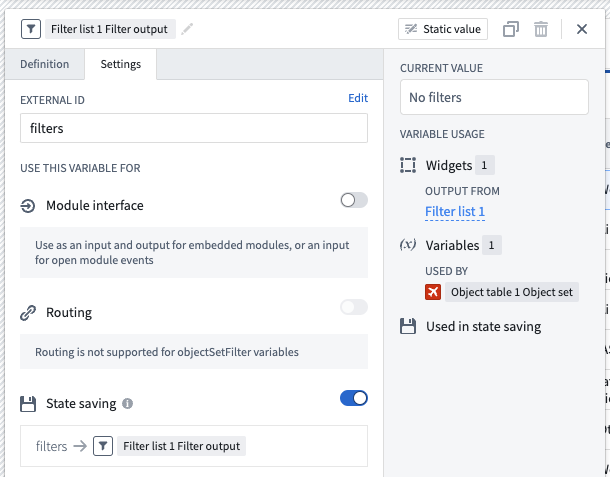
For more information about configuring object set filter variables, including default filters and filter value extraction, see Object set filter variables.
:::callout{theme="neutral"} Variable values are stored within a saved state via their external ID. As a result, modifying a variable's external ID after state saving has been configured may cause previously configured states to reload unsuccessfully.
Modifying a variable's external ID allows a module's configuration to change over time while supporting state saving. For instance, if a module that was initially configured with an Object Dropdown widget (which allows a user to select a single object) is later replaced with an Object Selection widget (which allows a user to select multiple objects), state saving will continue to work as long as the output object set from those widgets uses the same external ID. :::
Configure optional settings
Within the Settings panel under the State Saving section, you can configure settings for preserving the user's current page within a saved state. You can also set the allowed save location and folder shortcuts for this module's saved states. Folder shortcuts can make it easier to ensure that all shareable states for this module will be saved to the same location.
Configuration options
For state saving, the core configuration options are the following:
- Enable state saving: This toggle controls whether state saving is enabled for the current module. If true, module consumers can save the state of enabled variables and the current page within the module. If false, module consumers will not see any state saving options.
- Display
- State display name: This field determines how a singular saved state is referenced within this module to consumer users and is meant to adapt on-screen language to a specific application’s need. By default, this is set to module state. If set to a value of inbox, module consumers will see on-screen references to a saved inbox rather than a saved module state.
- State display name (plural): This field determines how multiple saved states are referenced within this module to consumer users and is meant to adapt on-screen language to a specific application’s need. By default, this is set to module states. If set to a value of inboxes, module consumers will see on-screen references to saved inboxes rather than to saved module states.
- Data
- State saving variables: Saving state will preserve the current values of any state saving enabled variables within the module.
- Page: If enabled, saving state will preserve the currently active page within the module.
- Location
- Add shortcut: This option allows a builder to configure shortcuts to specific Project folders into which states can be saved for this module. A custom display name can be optionally configured for each folder shortcut.
- User home folder: If enabled, states can be saved to a user’s private home folder.
- Any Compass location: If enabled, states can be saved to any Project folder chosen by a module consumer.
Supported variable types and widgets
With state saving, you can preserve values for the following Workshop variable types:
- Array, of Boolean, date, numeric, string, or timestamp values
- Boolean
- Date
- Object Set
- Object Set Filter
- Numeric
- String
- Timestamp
State saving is also supported by widgets which output one of the variable types listed above. Some of the supported widgets include:
- Checkbox
- Date Input
- Date Time Picker
- Filter List
- Numeric Input
- Object Dropdown
- Object List
- Object Table
- String Dropdown
Limitations
No inheritance of state saving configuration from embedded modules
Embedding a Workshop module does not carry over the state saving configuration of the embedded module. To save variable values of an embedded module to a saved state, add the desired variables to the child module's module interface and pass in saved state variables from the parent module in the embedded module configuration.
State saving is only available for users with platform access
State saving is only available for end-users when platform access is enabled for that user. Users that do not have platform access will not have the ability to access state saving components. Learn more about platform access restrictions.
Module header visibility required
For module consumers to access state saving options in View Mode, the module header must be visible. If the module header is hidden, the state saving dropdown will not appear in the interface, even if state saving has been properly configured for the module.
中文翻译
状态保存
状态保存 (State saving) 是一项强大的 Workshop 功能,允许模块使用者在模块中存储其当前工作状态,随后可以返回该保存的状态或与其他用户共享。
状态保存使在 Workshop 中构建复杂的长期运行工作流变得更加容易,并促进了用户之间的协作。状态保存的示例用例包括:
- 筛选
Status属性为“Unresolved”且Location属性为“Zurich”的 Alert 对象,然后保存该状态以备将来参考。 - 选择特定的关注对象,然后保存该视图以便与同事共享。
- 部分完成由原生 Workshop 组件(如文本输入组件或日期输入组件)构建的输入表单,并保存状态以便稍后返回完成数据录入。
保存状态时,Workshop 会保留两项内容:(1) 启用状态保存的变量 (variables) 的当前值(“状态”);(2) 可选地,用户当前正在查看的页面。在 Workshop 的编辑模式下,模块构建者可以决定哪些变量用于状态保存,并配置其他状态保存选项。随后,在 Workshop 的查看模式下,模块使用者可以根据其工作流需要保存、打开和共享状态。
以下截图展示了状态保存的示例。在此例中,模块构建者将状态保存配置为保留由过滤器列表输出的对象集过滤器 (Object Set Filter) 变量,这将保存用户针对纽约机场高优先级和中优先级未处理警报所选的筛选条件。模块构建者还配置了由对象表组件输出的活动对象集 (Object Set) 变量,这将保存表中当前高亮显示的警报,并在该模块右侧的对象视图组件中显示。保存此状态后,模块使用者将来可以轻松返回此特定的纽约航班警报视图,或通过链接与其他用户共享该视图。
如何启用状态保存
在 Workshop 的编辑模式下,构建者用户可以通过以下三个步骤启用状态保存,详细说明如下:
开启状态保存
点击设置图标()打开设置面板。在该面板中,开启启用状态保存开关,如下图所示。
为变量配置状态保存
打开变量面板,为需要保存状态的变量启用状态保存。具体操作为:选择一个变量,导航至设置选项卡,并为该变量添加外部 ID。下方截图展示了为过滤器列表组件输出的 Object Set Filter 变量启用状态保存的示例,这将保存用户选择的筛选条件:
有关配置对象集过滤器变量的更多信息,包括默认过滤器和过滤器值提取,请参阅对象集过滤器变量。
:::callout{theme="neutral"} 变量值通过其外部 ID 存储在已保存的状态中。因此,在配置状态保存后修改变量的外部 ID 可能会导致之前配置的状态重新加载失败。
修改变量的外部 ID 允许模块的配置随时间推移而更改,同时继续支持状态保存。例如,如果最初配置了对象下拉组件(允许用户选择单个对象)的模块后来被替换为对象选择组件(允许用户选择多个对象),只要这些组件输出的对象集使用相同的外部 ID,状态保存功能就会继续正常工作。 :::
配置可选设置
在设置面板的状态保存部分,您可以配置在已保存状态中保留用户当前页面的设置。您还可以设置此模块已保存状态的允许保存位置和文件夹快捷方式。文件夹快捷方式可以更轻松地确保此模块的所有可共享状态都保存到同一位置。
配置选项
对于状态保存,核心配置选项如下:
- 启用状态保存: 此开关控制当前模块是否启用状态保存。如果为 true,模块使用者可以保存已启用变量的状态以及模块内的当前页面。如果为 false,模块使用者将看不到任何状态保存选项。
- 显示
- 状态显示名称: 此字段决定在此模块中向使用者引用单个已保存状态的方式,旨在使界面语言适应特定应用的需求。默认设置为模块状态。如果设置为收件箱,模块使用者在界面上看到的将是已保存的收件箱,而不是已保存的模块状态。
- 状态显示名称(复数): 此字段决定在此模块中向使用者引用多个已保存状态的方式,旨在使界面语言适应特定应用的需求。默认设置为模块状态。如果设置为收件箱,模块使用者在界面上看到的将是已保存的收件箱,而不是已保存的模块状态。
- 数据
- 状态保存变量: 保存状态将保留模块内任何启用了状态保存的变量的当前值。
- 页面: 如果启用,保存状态将保留模块内当前活动的页面。
- 位置
- 添加快捷方式: 此选项允许构建者配置指向特定项目文件夹的快捷方式,以便将此模块的状态保存到这些文件夹中。可以为每个文件夹快捷方式可选地配置自定义显示名称。
- 用户主文件夹: 如果启用,状态可以保存到用户的私有主文件夹中。
- 任意 Compass 位置: 如果启用,状态可以保存到模块使用者选择的任意项目文件夹中。
支持的变量类型和组件
通过状态保存,您可以保留以下 Workshop 变量类型的值:
- 数组,包含布尔值、日期、数值、字符串或时间戳值
- 布尔值
- 日期
- 对象集
- 对象集过滤器
- 数值
- 字符串
- 时间戳
输出上述变量类型之一的组件也支持状态保存。部分受支持的组件包括:
- 复选框
- 日期输入
- 日期时间选择器
- 过滤器列表
- 数值输入
- 对象下拉菜单
- 对象列表
- 对象表
- 字符串下拉菜单
限制
嵌入模块不继承状态保存配置
嵌入 Workshop 模块不会继承被嵌入模块的状态保存配置。要将嵌入模块的变量值保存到已保存状态中,请将所需变量添加到子模块的模块接口,并在嵌入模块配置中从父模块传入已保存的状态变量。
状态保存仅对具有平台访问权限的用户可用
状态保存仅在最终用户启用了平台访问权限时可用。没有平台访问权限的用户将无法访问状态保存组件。了解有关平台访问限制的更多信息。
需要显示模块标头
为了让模块使用者在查看模式下访问状态保存选项,模块标头必须可见。如果隐藏了模块标头,即使已为模块正确配置了状态保存,界面中也不会显示状态保存下拉菜单。