Used colors(已使用颜色(Used colors))
Colors used within a Workshop application can be defined and saved on the module level using Workshop’s used colors feature. This feature allows builders to set a color palette for an application and easily swap out colors used throughout their module.
Access the Used colors panel by navigating to a module’s Settings tab in edit mode. The panel consists of two main sections: Saved colors and Unsaved colors.
Note that usage of intent colors will not be displayed in the Used colors panel.
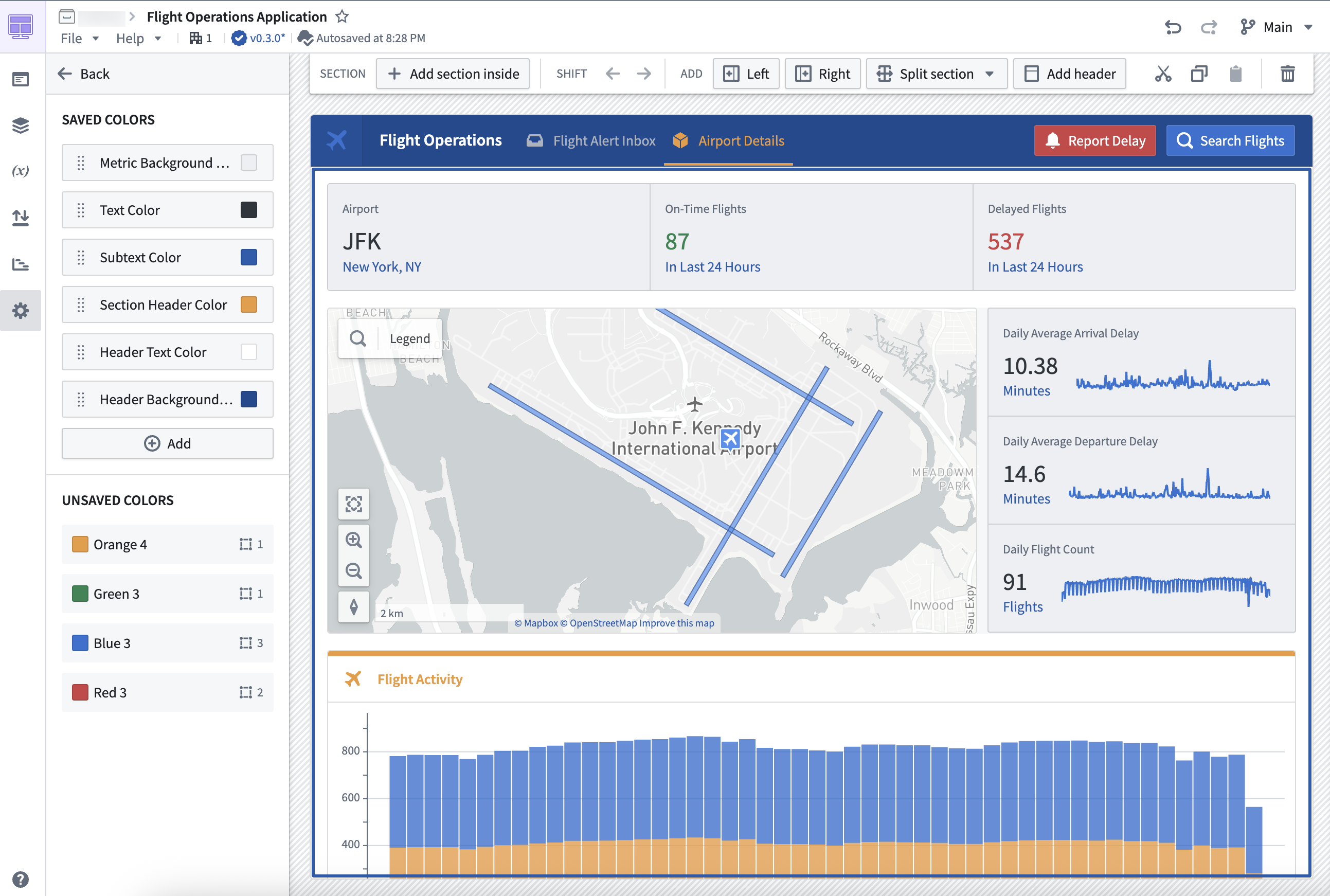
Saved colors
Saved colors are defined at the module level. Add colors to the Saved colors section to make them selectable when configuring custom colors in layouts and widgets, including section and page backgrounds. You can rename saved colors, set separate colors for light and dark modes, and view where each color is used across layouts and widgets in your module. When you edit a saved color, the change propagates to all layouts, sections, and widgets that reference it, so you can update colors across your module in one place.
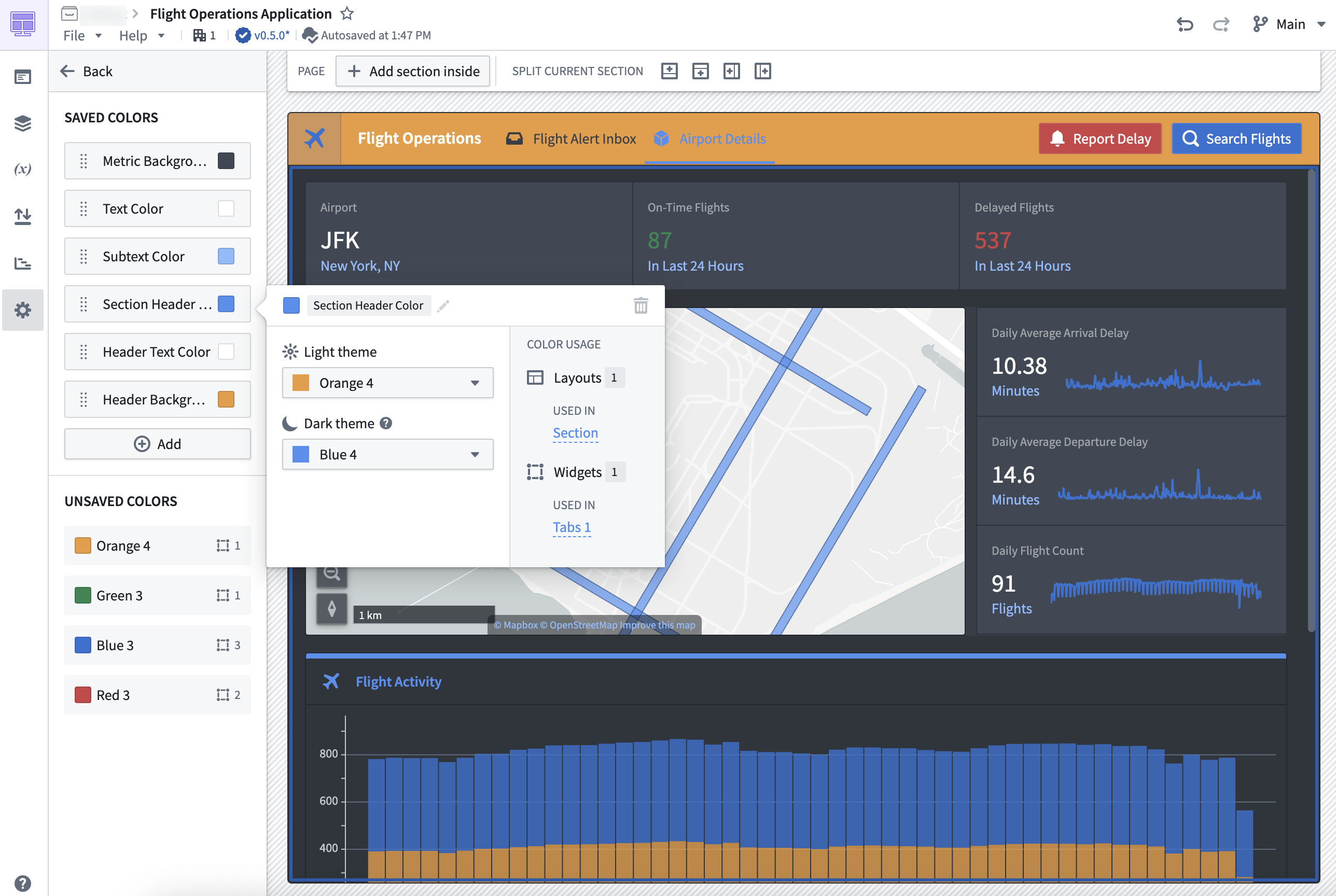
Unsaved colors
Unsaved colors represent custom colors used in layouts and widgets throughout the module that are not defined as saved colors. You can select the hex code of an unsaved color to copy it for use elsewhere, and you can also see the usage of these colors in layouts and widgets within the module.
中文翻译
已使用颜色(Used colors)
你可以通过Workshop的已使用颜色功能,在模块(module)级别定义并保存Workshop应用中使用的所有颜色。借助该功能,构建者可以为应用设置调色板(color palette),并轻松替换整个模块内用到的所有颜色。
在编辑模式下进入模块的设置(Settings)标签页,即可打开已使用颜色面板。该面板包含两大核心分区:已保存颜色(Saved colors)和未保存颜色(Unsaved colors)。
请注意,意图色(intent colors)的使用情况不会展示在已使用颜色面板中。
已保存颜色
已保存颜色在模块级别定义。将颜色添加到已保存颜色分区后,你在布局(layout)和小部件(widget)(包括分区和页面背景)中配置自定义颜色时就可以选择这些已保存的颜色。你可以重命名已保存颜色,分别为浅色模式(light mode)和深色模式(dark mode)设置对应颜色,还可以查看每一种颜色在模块内的布局和小部件中的使用位置。编辑已保存颜色后,改动会同步到所有引用了该颜色的布局、分区和小部件,因此你只需在一处操作即可更新整个模块的配色。