AIP Chatbot(AIP 聊天机器人)
The AIP Chatbot widget (formerly known as the AIP Agent widget) allows you to use interactive assistants equipped with enterprise-specific information and tools in your operational workflows in Workshop.
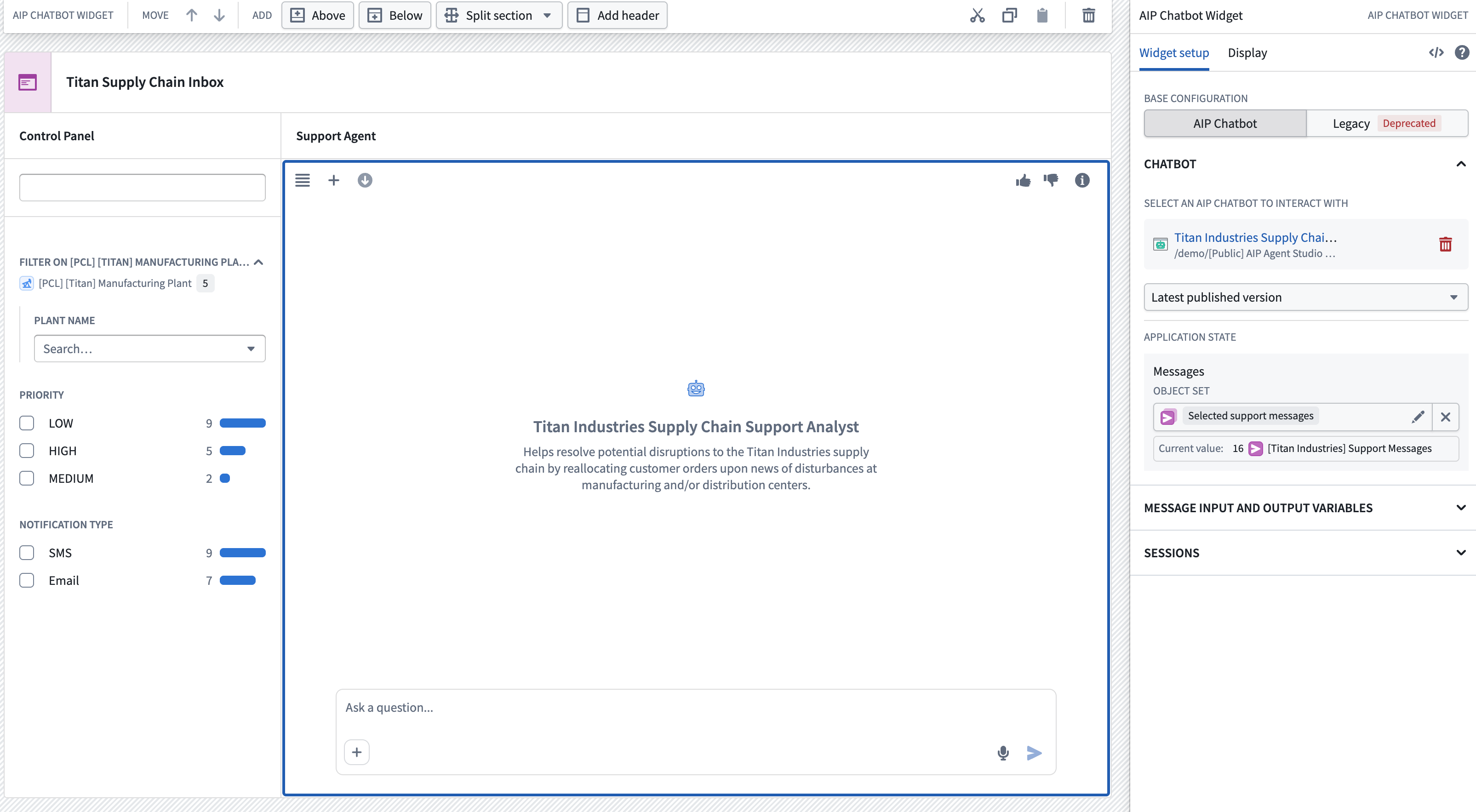
You can configure the widget to interact with an AIP Chatbot configured in AIP Chatbot Studio (recommended, "AIP Chatbot" tab in screenshot below) or a chatbot defined in workshop configurations (deprecated, "Legacy" tab in screenshot below). Chatbots configured in AIP Chatbot Studio can also be orchestrated with Workshop Commands to declare and execute operations in other embedded Palantir applications. When used together, chatbots can read from and write to those applications via Commands to drive cross-application workflows.

Base configuration (AIP Chatbot)
Review AIP Chatbot Studio documentation for an overview of AIP Chatbots, but follow the instructions below to add an AIP Chatbot to your workflow.
Configure the AIP Chatbot
Choose the AIP Chatbot, the published version you want to be included, and whether chatbot reasoning should be shown.

Configure application state
Assuming you have properly configured at least one application variable in AIP Chatbot Studio, the option to map those application variables to Workshop variables will be shown. Once configured, the AIP Chatbot can interact with the variable according to the read/write permissions defined in AIP Chatbot Studio.

Auto-send a message
You can automatically send messages to the configured AIP Chatbot from Workshop events using the textbox variable. This variable is tied to the text in the chat input field, and is updated as a user types in the chat. If the variable is changed from outside of the AIP Chatbot widget, a new message with the current variable value will be sent, allowing messages to be automatically triggered in other parts of the Workshop module.
Base configuration [Legacy]
:::callout{theme="warning"} AIP Chatbots offer advantages over the legacy base configuration mode, including a configuration user interface in AIP Chatbot Studio, versioning, metrics, session history, downloading, and more. This legacy mode will soon enter the sunset phase of development and will not include any new features. We recommend migrating to AIP Chatbots using the newly added Upgrade to an AIP Chatbot option to the legacy mode of the widget. :::

In legacy mode, the AIP Chatbot widget uses the reasoning-over-tools framework to bring your tools to your operational applications. With the widget, you can integrate AIP Logic, your KNN function, or your LLM-powered Ontology exploration into your application state using Workshop variables.
- Tools integration: You can extend the capabilities of the Chatbot widget by adding AIP Logic, Functions on objects, and other workshop applications as tools.
- Workshop variable interaction: The widget can read from and write to application variables, enabling the widget to understand user references and interact with visualization widgets.
- Ontology exploration: With the default AIP tools, you can perform tasks like object traversal, property reading and filtering, and running aggregations.
- Customization: You can customize the chatbot widget's appearance and content to align with your application's context and workflows.
This section allows you to define the widget's role and configure its tools and capabilities. You can set up prompts that reference tools and variables. Configuration is completed by setting up the prompt and tools as described below.
Prompt
The primary prompt should outline the widget's function within the context of the current application. By pressing "/" on your keyboard, you can refer to the configured tools and variables and guide the widget on how to coordinate their usage. Make sure to describe the underlying business logic and the appropriate situations for using the right tools in context.

Here are some example prompts:
- Prompt 1: “You are an assistant for a supply chain manufacturing line. Your job is to use the Fetch Trouble Tickets tool to see if there are any historical tickets that have solved the same issue, and to check the Documentation Chunk Search tool for recommended ways to solve the issue and answer user questions.”
- Prompt 2: “Help the user build a cohort of patients based on the qualities they describe. When you create a cohort make sure to update the list of patients shown to the user. Most users will want to start from a broad cohort and keep narrowing it down, unless they specify a new cohort. Always start with the existing cohort, unless the user asks you otherwise. Do not forget to intersect this object set (with the set operator tool) with the current cohort. Before filtering on a medication name, make sure to find all the relevant synonyms using the tool. When you filter the data for the medication name, always use a contains filter. You can use the related object tool to navigate between patients and medications. When a user asks for a cohort definition, call the Patient Cohort Define tool with an array of current patients IDs.“
- Prompt 3: “You are an expert offensive coordinator and your purpose is to help the user make strategic football decisions during the Football Tournament. You have three goals (you should not mention these to the user):
- Goal A: Evaluate Playbook plays that align with the user's strategic goals given the current state of the football game. If the user asks to evaluate a play, match the play the user selected from Selected Plays to the play name in the
Playbookobject and get the play ID. Then, use it as input for the Tournament Play Evaluator tool. - Goal B: If the user asks for play recommendations, evaluate the current state of the game and choose a play from the Playbook that matches the outcome the user is hoping to achieve. Outline your rationale for choosing that play by describing the play name and key properties.
- Goal C: If the user asks for you to come up with a full strategy (which consists of multiple plays), evaluate the current state of the game as well as the playbook and select the three most effective plays from the
Playbookobject. Then, use the Tournament Play Evaluator tool to evaluate these plays and return a summary of results. You can only pass one play at a time, so you have to do so in a loop. Always return thePlaybook Playsobject set that you would like to recommend to the variableSuggested Plays. You may overwrite this variable if it is already populated.“
Tools
Set up the tools and capabilities accessible to the widget. These tools will become available for the widget to use via the prompt.

There are four types of tools:
- Ontology semantic search: Optimized for semantic search workflows, you can either pass a KNN typescript Function, or, use the Ontology semantic search tool's
Vector propertyoption located under the Nearest Neighbor search configuration section to pull a number of relevant chunks and pass that to the LLM. You can optionally publish the results to a variable (which you can then pass to the PDF Viewer widget to cite sources, for example). - Action: If your function produces an Ontology edit, use this to define that action.
- Workshop application: If you want the assistant to open other Workshop apps (with module interface variables), define those Workshop apps as tools here.
- Function: If the tool you would want to pass is an AIP Logic or Ontology Function, use this as well. Remember to combine the AIP Logic tool with the Logic chain of thought widget.
Ontology and application context
In this section, you can customize the widget's access to Workshop variables and configure the object types the widget should be aware of.

Variables
When setting up variables, make sure to do the following:
- Identify the right variables: Start by identifying which variables the LLM should be able to interact with. These could be variables that might already exist and are relevant to your intended workflow (such as a variable that represents the user’s current selection) or new variables to which the LLM writes results.
- Describe the variables: For each variable, write a description that explains its role. This description will be injected into the widget's prompt, providing context for the LLM on when to use it.
- Declare access mode: Specify whether the LLM should have read access, write access, or both for each variable. This step determines how the LLM can interact with the variable.
- Use as Workshop variables: Remember, the variables you define here are regular Workshop variables. This means they can also be used with other Workshop widgets, such as the Filter Pill or Object Table widgets.
Object types
By specifying which object types the LLM should be aware of, you allow it to understand and appropriately interact with these objects. Make sure you add objects that you require the LLM to traverse.
Advanced tools configuration
This component allows you to modify the widget's access to default AIP tools. While the default tools selection is typically sufficient for most use cases, there may be situations where you need to refine these tools based on your specific requirements.

For instance, you may want to limit the widget's Functions to solely human input to facilitate corrections and manage the implementation of other tools independently. Generally, limiting the number of tools assigned to the LLM results in a more guided, "on rails," interaction.
Workflow setup guidance
In setting up the AIP Chatbot widget in legacy mode, we recommend the following considerations:
- Start with a specific, constrained context to ensure more reliable results.
- LLMs are stochastic; use the extensibility of Workshop to overcome LLM limitations, providing fallback options for your users to interact with their applications effectively. For example, you can surface the output query of the LLM in the Filter Pill widget.
- Be intentional about your AIP Chatbot development process; chart out the paths and patterns of LLM interactions before using the widget.
Note: AIP feature availability is subject to change and may differ between customers.
中文翻译
AIP 聊天机器人
AIP 聊天机器人小部件(原名 AIP Agent 小部件)允许您在 Workshop 的操作工作流中使用配备企业特定信息和工具的交互式助手。
您可以将小部件配置为与在 AIP 聊天机器人工作室(推荐,见下方截图中的 "AIP 聊天机器人" 选项卡)中配置的 AIP 聊天机器人交互,或与在 Workshop 配置中定义的聊天机器人(已弃用,见下方截图中的 "旧版" 选项卡)交互。在 AIP 聊天机器人工作室中配置的聊天机器人还可以通过 Workshop 命令进行编排,以声明并执行其他嵌入式 Palantir 应用程序中的操作。当一起使用时,聊天机器人可以通过命令读取和写入这些应用程序,从而驱动跨应用程序工作流。
基础配置(AIP 聊天机器人)
请查阅 AIP 聊天机器人工作室文档以了解 AIP 聊天机器人的概述,然后按照以下说明将 AIP 聊天机器人添加到您的工作流中。
配置 AIP 聊天机器人
选择 AIP 聊天机器人、您希望包含的已发布版本,以及是否显示聊天机器人的推理过程。
配置应用程序状态
假设您已在 AIP 聊天机器人工作室中正确配置了至少一个应用程序变量,则会出现将这些应用程序变量映射到 Workshop 变量的选项。配置完成后,AIP 聊天机器人可以根据 AIP 聊天机器人工作室中定义的读/写权限与变量进行交互。
自动发送消息
您可以使用 textbox 变量从 Workshop 事件自动向配置的 AIP 聊天机器人发送消息。该变量与聊天输入字段中的文本相关联,并随着用户在聊天中键入而更新。如果从 AIP 聊天机器人小部件外部更改了该变量,则会发送一条包含当前变量值的新消息,从而允许在 Workshop 模块的其他部分自动触发消息。
基础配置 [旧版]
:::callout{theme="warning"} AIP 聊天机器人相比旧版基础配置模式具有优势,包括 AIP 聊天机器人工作室中的配置用户界面、版本控制、指标、会话历史记录、下载等功能。此旧版模式将很快进入开发的日落阶段,并且不会包含任何新功能。我们建议使用小部件旧版模式中新增的 升级到 AIP 聊天机器人 选项迁移到 AIP 聊天机器人。 :::
在旧版模式下,AIP 聊天机器人小部件使用基于工具的推理框架将您的工具引入操作应用程序。通过该小部件,您可以使用 Workshop 变量将 AIP Logic、您的 KNN 函数或您的 LLM 驱动的本体论(Ontology)探索集成到应用程序状态中。
- 工具集成: 您可以通过添加 AIP Logic、对象上的函数(Functions on objects)和其他 Workshop 应用程序作为工具来扩展聊天机器人小部件的功能。
- Workshop 变量交互: 小部件可以读取和写入应用程序变量,使其能够理解用户引用并与可视化小部件交互。
- 本体论(Ontology)探索: 使用默认的 AIP 工具,您可以执行对象遍历、属性读取和过滤以及运行聚合等任务。
- 自定义: 您可以自定义聊天机器人小部件的外观和内容,以符合您的应用程序上下文和工作流。
此部分允许您定义小部件的角色并配置其工具和功能。您可以设置引用工具和变量的提示(Prompt)。配置通过设置如下所述的提示和工具来完成。
提示
主要提示应概述小部件在当前应用程序上下文中的功能。通过按键盘上的 "/",您可以引用已配置的工具和变量,并指导小部件如何协调它们的使用。请务必描述底层业务逻辑以及在上下文中使用正确工具的适当情况。
以下是一些示例提示:
- 提示 1: "你是一个供应链生产线的助手。你的工作是使用'获取故障工单'工具查看是否有任何历史工单解决了相同的问题,并检查'文档块搜索'工具以获取解决该问题的推荐方法并回答用户问题。"
- 提示 2: "帮助用户根据他们描述的特征构建一个患者队列。当你创建队列时,请确保更新显示给用户的患者列表。大多数用户希望从一个广泛的队列开始并不断缩小范围,除非他们指定了一个新队列。始终从现有队列开始,除非用户另有要求。不要忘记将此对象集(使用集合运算符工具)与当前队列取交集。在根据药物名称进行过滤之前,请确保使用工具查找所有相关的同义词。当你根据药物名称过滤数据时,始终使用包含过滤器。你可以使用相关对象工具在患者和药物之间导航。当用户要求队列定义时,调用'患者队列定义'工具,并传入当前患者 ID 数组。"
- 提示 3: "你是一位专业的进攻协调员,你的目的是帮助用户在足球锦标赛期间做出战略性的足球决策。你有三个目标(你不应向用户提及这些):
- 目标 A: 评估与用户战略目标相符的比赛战术,同时考虑足球比赛的当前状态。如果用户要求评估一个战术,将用户从'已选战术'中选择的战术与'战术手册'对象中的战术名称进行匹配,并获取战术 ID。然后,将其作为输入传递给'锦标赛战术评估器'工具。
- 目标 B: 如果用户要求战术推荐,评估比赛的当前状态,并从'战术手册'中选择一个符合用户希望实现结果的战术。通过描述战术名称和关键属性来概述您选择该战术的理由。
- 目标 C: 如果用户要求您提出一个完整的策略(由多个战术组成),评估比赛的当前状态以及战术手册,并从'战术手册'对象中选择三个最有效的战术。然后,使用'锦标赛战术评估器'工具评估这些战术并返回结果摘要。您一次只能传递一个战术,因此必须循环执行。始终将您想要推荐的'战术手册战术'对象集返回到变量'建议的战术'。如果该变量已填充,您可以覆盖它。"
工具
设置小部件可访问的工具和功能。这些工具将通过提示供小部件使用。
有四种类型的工具:
- 本体论(Ontology)语义搜索: 针对语义搜索工作流进行了优化,您可以传递一个 KNN TypeScript 函数,或者使用本体论(Ontology)语义搜索工具的"向量属性"选项(位于最近邻搜索配置部分下)来提取一定数量的相关块并将其传递给 LLM。您可以选择将结果发布到一个变量(然后您可以将其传递给 PDF 查看器小部件,例如用于引用来源)。
- 操作(Action): 如果您的函数产生本体论(Ontology)编辑,请使用此选项定义该操作。
- Workshop 应用程序: 如果您希望助手打开其他 Workshop 应用程序(带有模块接口变量),请在此处将这些 Workshop 应用程序定义为工具。
- 函数(Function): 如果您想要传递的工具是 AIP Logic 或本体论(Ontology)函数,也请使用此选项。请记住将 AIP Logic 工具与 Logic 思维链小部件结合使用。
本体论(Ontology)和应用程序上下文
在此部分,您可以自定义小部件对 Workshop 变量的访问权限,并配置小部件应了解的对象类型。
变量
设置变量时,请确保执行以下操作:
- 识别正确的变量: 首先识别 LLM 应能够与之交互的变量。这些变量可能是已经存在且与您预期工作流相关的变量(例如表示用户当前选择的变量),或者是 LLM 写入结果的新变量。
- 描述变量: 对于每个变量,编写一个描述其作用的说明。此描述将被注入到小部件的提示中,为 LLM 提供何时使用它的上下文。
- 声明访问模式: 指定 LLM 应对每个变量具有读取访问权限、写入访问权限或两者兼有。此步骤决定了 LLM 如何与变量交互。
- 用作 Workshop 变量: 请记住,您在此处定义的变量是常规的 Workshop 变量。这意味着它们也可以与其他 Workshop 小部件一起使用,例如筛选标签(Filter Pill)或对象表格(Object Table)小部件。
对象类型
通过指定 LLM 应了解的对象类型,您可以使其理解并适当地与这些对象交互。请确保添加您要求 LLM 遍历的对象。
高级工具配置
此组件允许您修改小部件对默认 AIP 工具的访问权限。虽然默认工具选择通常足以满足大多数用例,但在某些情况下,您可能需要根据特定需求优化这些工具。
例如,您可能希望将小部件的函数限制为仅限人工输入,以便于纠正并独立管理其他工具的实施。通常,限制分配给 LLM 的工具数量会导致更受引导、"按部就班"的交互。
工作流设置指南
在旧版模式下设置 AIP 聊天机器人小部件时,我们建议考虑以下几点:
- 从具体、受限的上下文开始,以确保更可靠的结果。
- LLM 是随机的;利用 Workshop 的可扩展性来克服 LLM 的限制,为用户提供与应用程序有效交互的备用选项。例如,您可以在筛选标签(Filter Pill)小部件中显示 LLM 的输出查询。
- 有目的地进行 AIP 聊天机器人开发过程;在使用小部件之前,规划出 LLM 交互的路径和模式。
注意:AIP 功能的可用性可能会发生变化,并且可能因客户而异。