Audio and Transcription Display widget(音频与转录显示组件)
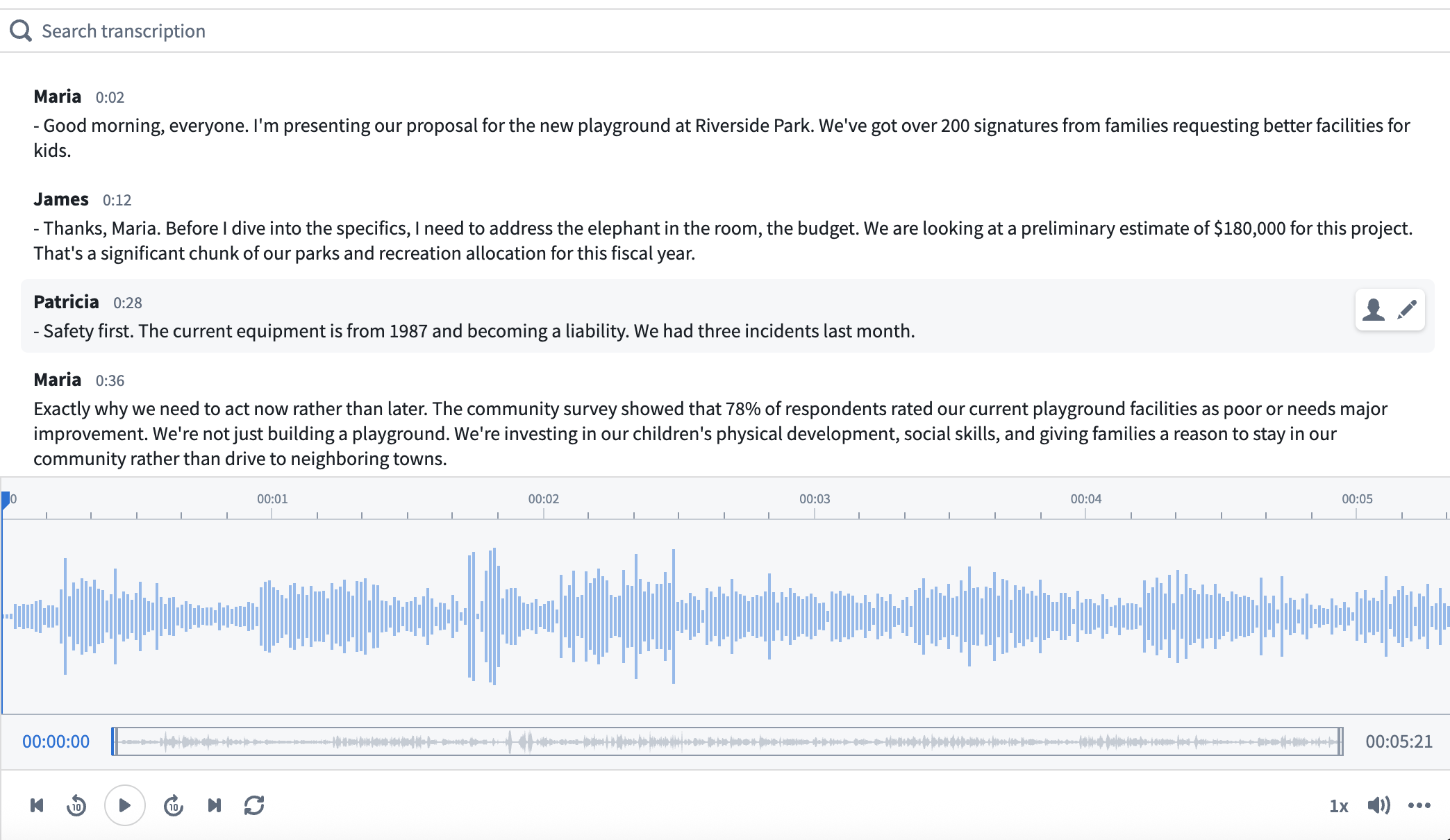
The audio and transcription display widget visualizes and allows the playback of audio based on a media reference property on an object. It can also be used to display and interact with transcriptions using an object set containing transcription segments.
To capture audio directly within Workshop, use the Audio Recorder widget, which uploads recordings to a media reference or media set that you can then play back and visualize here.
In contrast to the Media Preview widget, the Audio and Transcription Display widget provides additional audio-specific configuration options, such as timestamp-driven behavior. The transcription component provides the following features:
- Aligned playback between the audio player and transcription view
- Speaker display for easy navigation to speakers of interest
- Action configuration options for advanced functionality, such as transcript editing
Configuration options
Audio
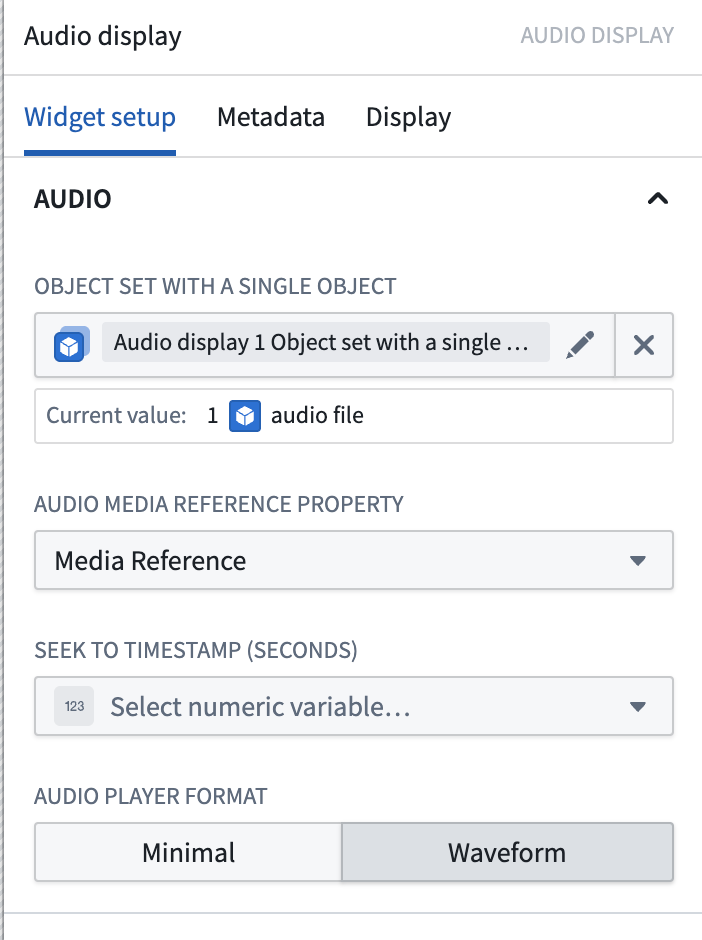
- Object set with a single object: An object with a media reference property.
- Audio media reference property: The media reference object property that is an audio media reference.
- Seek to timestamp (seconds): An optional numeric variable that seeks the audio to a specific timestamp.
- If the given number is greater than the length of the audio, it will seek to the end of the audio.
- If the given number is less than zero, it will seek to the beginning of the audio.
- Playback will work as normal on user interaction.
Transcription (optional)
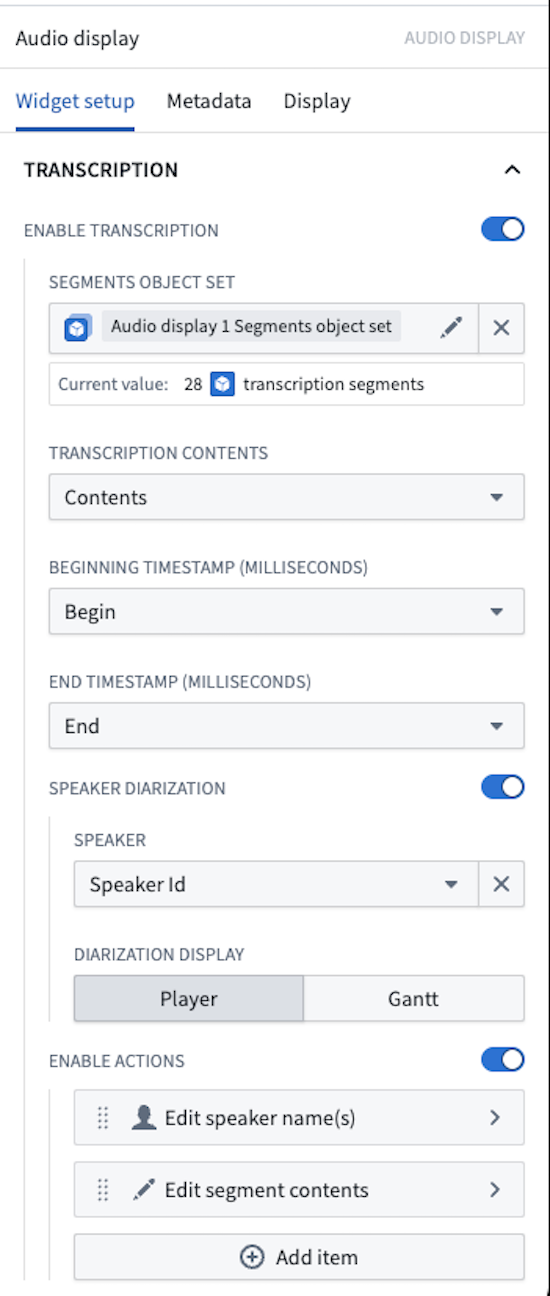
- Enable transcription: Optionally display interactive transcription above the audio.
- Segments object set: An object set containing segments that include selected properties.
- Transcription contents: The string object property containing the segment text.
- Beginning timestamp (milliseconds): The numeric object property containing the segment's beginning timestamp in milliseconds.
- End timestamp (milliseconds): The numeric object property containing the segment's end timestamp in milliseconds.
- Speaker diarization: Toggle to enable or disable the Gantt chart speaker display.
- Speaker: The string object property containing the speaker name or ID.
- Diarization display: Select between Player and Gantt visualization options.
- Enable actions: Enable actions that will appear in a toolbar when a segment is hovered over.
- Icon: Choose an icon to represent this action in the toolbar. If no icon is set, a pencil icon will be used by default.
- Action label: Set the name for the action that will display in the tooltip of the icon.
- Action: Set an action that can be triggered from the segment toolbar. The hovered segment may be referenced using the
Selected segmentvariable. For more information on actions, review our action type documentation.
中文翻译
音频与转录显示组件
音频与转录显示组件可基于对象上的媒体引用(media reference)属性,对音频进行可视化展示并支持播放。该组件还可用于显示包含转录片段的对象集,并与之进行交互。
如需在 Workshop 中直接录制音频,请使用音频录制器组件(Audio Recorder widget),该组件可将录音上传至媒体引用或媒体集,随后您可在此处回放并可视化这些录音。
与媒体预览组件(Media Preview widget)不同,音频与转录显示组件提供了更多音频专属配置选项,例如基于时间戳的行为控制。 转录组件具备以下功能:
- 音频播放器与转录视图之间的同步播放
- 说话人显示,便于快速定位感兴趣的说话人
- 高级功能(如转录编辑)的操作配置选项
配置选项
音频
- 包含单个对象的对象集: 包含媒体引用属性的对象。
- 音频媒体引用属性: 作为音频媒体引用的媒体引用(media reference)对象属性。
- 跳转至时间戳(秒): 可选数值变量,用于将音频跳转至指定时间戳。
- 若给定数值大于音频时长,则跳转至音频末尾。
- 若给定数值小于零,则跳转至音频开头。
- 用户交互时播放行为将恢复正常。
转录(可选)
- 启用转录: 可选地在音频上方显示交互式转录。
- 片段对象集: 包含具有选定属性的片段的对象集。
- 转录内容: 包含片段文本的字符串对象属性。
- 起始时间戳(毫秒): 包含片段起始时间戳(毫秒)的数值对象属性。
- 结束时间戳(毫秒): 包含片段结束时间戳(毫秒)的数值对象属性。
- 说话人分离: 切换开关以启用或禁用甘特图说话人显示。
- 说话人: 包含说话人名称或ID的字符串对象属性。
- 分离显示: 在播放器(Player)和甘特图(Gantt)可视化选项之间选择。
- 启用操作: 启用悬停片段时工具栏中显示的操作。
- 图标: 选择代表工具栏中此操作的图标。若未设置图标,默认使用铅笔图标。
- 操作标签: 设置操作名称,将显示在图标工具提示中。
- 操作: 设置可从片段工具栏触发的操作。悬停的片段可通过
Selected segment变量引用。有关操作的更多信息,请参阅我们的操作类型文档(action type documentation)。