Audio Recorder(音频录制器(Audio Recorder))
The Audio Recorder widget allows you to record audio directly within Workshop applications. You can upload recordings to a media reference property or a specified media set.
For playback and transcription display of audio saved to a media reference or media set, see the Audio and Transcription Display widget.
The Audio recorder has several lifecycle states:
-
No recording: Select the record button to start a new recording.

-
Recording in progress: Pause your recording by selecting the pause button.

-
Recording paused: Resume your recording by selecting the record button. To end the current recording session, select the stop button.

-
Recording completed: Play back, save, or discard your recording.

Configuration options
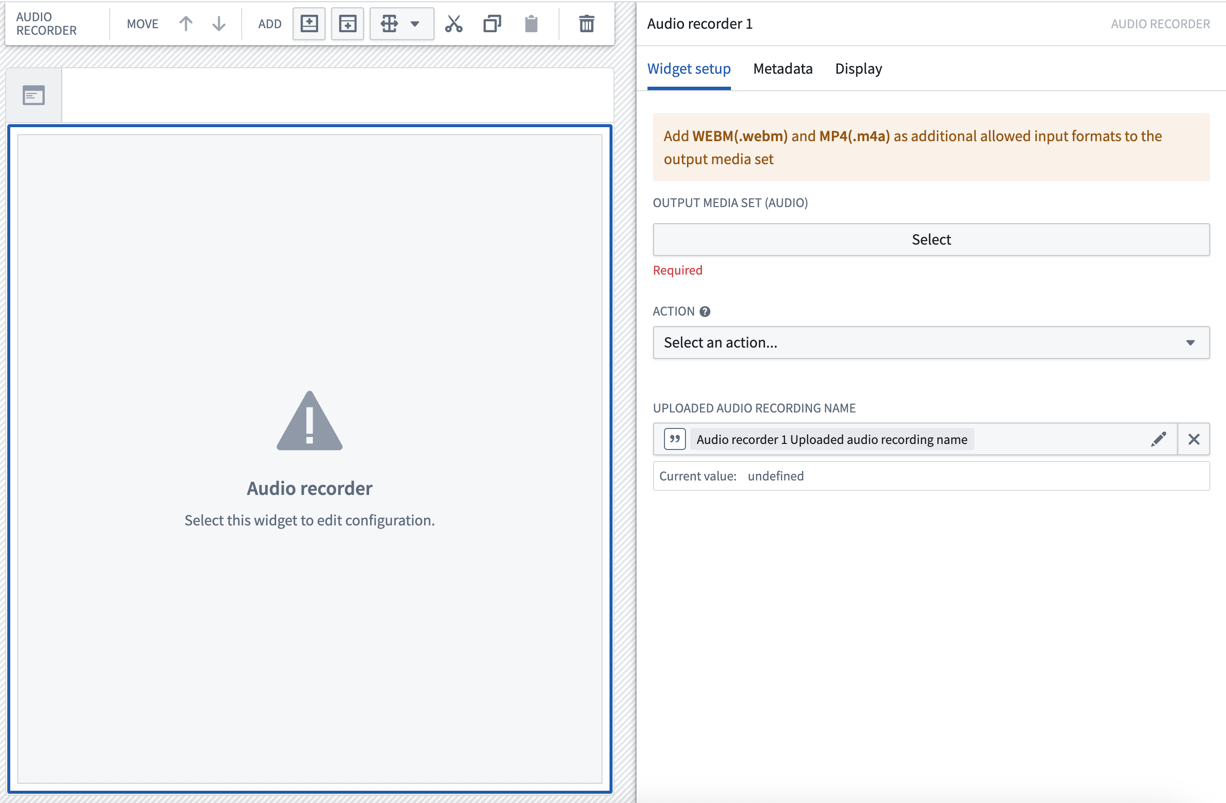
You are required a select a media set to save the audio recordings to. Optionally, you can configure an action to be triggered upon completion of the recording session.
Here is a screenshot of the initial state of a newly-added Audio recorder widget alongside its initial configuration panel:
General setup
To set up the Audio Recorder widget, select the media set where recorded audio files will be uploaded. The widget will save recordings directly to this destination.

:::callout{theme="warning" title="Supported audio formats"} To ensure compatibility with desktop and mobile devices:
- For web applications: Add WEBM (.webm) as an additional allowed input format to your output media set.
- For mobile applications: Add MP4 (.m4a) as an additional allowed input format to your output media set. :::
Action configuration
To use the recorded audio in your ontology, you can configure an action to run automatically when an audio recording is uploaded. The audio recorder widget automatically stores the media reference and recording name locally as values that can be passed to your action.
- Action configuration
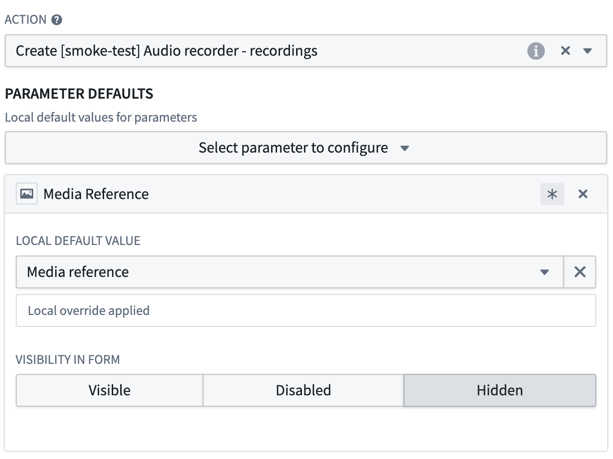
- Action: Choose the action to trigger upon upload from the action dropdown. The selected action must include a media reference parameter and be associated with an object type backed by the same media set as your output media set.
- Parameter defaults: Configure how widget values are passed to your action:
- Media reference parameter: Set the local default value to Media reference to automatically pass the uploaded recording's media reference to your action. It is recommended to set the visibility of the media reference parameter to Hidden since the value is automatically populated by the widget.
- Audio recording name parameter: Optionally use Audio recording name as a local default value for string parameters to pass the recording's file name.
Output variables
- Uploaded audio recording name
- Save the uploaded filename to a string Workshop variable for use elsewhere in your application. This allows you to reference the specific recording that was just uploaded, enabling workflows like displaying the recording in an object table or triggering additional processing.
中文翻译
音频录制器(Audio Recorder)
音频录制器(Audio Recorder) 组件允许您直接在Workshop应用中录制音频。您可以将录制内容上传到媒体引用(media reference)属性或指定的媒体集(media set)。
如需播放和转录音频(已保存至媒体引用或媒体集),请参阅音频与转录展示组件(Audio and Transcription Display widget)。
音频录制器具有以下生命周期状态:
-
无录制状态:点击录制按钮开始新的录制。
-
录制进行中:点击暂停按钮暂停录制。
-
录制暂停状态:点击录制按钮恢复录制。点击停止按钮结束当前录制会话。
-
录制完成状态:播放、保存或放弃录制内容。
配置选项(Configuration options)
您需要选择一个媒体集(media set)来保存录制的音频文件。此外,您还可以配置录制完成后触发的操作(action)。
以下是新添加的音频录制器组件的初始状态及其初始配置面板截图:
常规设置(General setup)
要设置音频录制器组件,请选择用于上传录制音频文件的媒体集。组件会将录制内容直接保存到此目标位置。
:::callout{theme="warning" title="支持的音频格式(Supported audio formats)"} 为确保与桌面端和移动端设备的兼容性:
- 对于Web应用: 在输出媒体集中添加WEBM (.webm)作为额外的允许输入格式。
- 对于移动应用: 在输出媒体集中添加MP4 (.m4a)作为额外的允许输入格式。 :::
操作配置(Action configuration)
要在本体论(ontology)中使用录制的音频,您可以配置一个操作,使其在音频录制上传时自动运行。音频录制器组件会自动将媒体引用(media reference)和录制名称存储为本地值,这些值可以传递给您的操作。
- 操作配置(Action configuration)
- 操作(Action): 从操作下拉菜单中选择上传时要触发的操作。所选操作必须包含媒体引用参数,并且关联到与输出媒体集使用相同媒体集的对象类型(object type)。
- 参数默认值(Parameter defaults): 配置组件值如何传递给操作:
- 媒体引用参数(Media reference parameter): 将本地默认值设置为媒体引用(Media reference),以自动将上传录制的媒体引用传递给操作。建议将媒体引用参数的可见性设置为隐藏(Hidden),因为该值由组件自动填充。
- 音频录制名称参数(Audio recording name parameter): 可选地,使用音频录制名称(Audio recording name)作为字符串参数的本地默认值,以传递录制文件的文件名。
输出变量(Output variables)
- 已上传音频录制名称(Uploaded audio recording name)
- 将上传的文件名保存到字符串类型的Workshop变量中,以便在应用的其他位置使用。这样您可以引用刚刚上传的特定录制内容,从而实现在对象表格中显示录制内容或触发额外处理等工作流。