Comments(评论(Comments))
The Comments widget enables collaboration in a Workshop module.
References
You can use references to mention objects in comments. References are interactive, selecting one can either display the mentioned object’s properties in a tooltip or trigger an event in the module such as opening a modal or showing the Object View.
See below for an example of configuring and using references in the Comments widget:
| Configuration | Usage |
|---|---|
 |
 |
Permissions
Comments are not separate objects, they are attached directly to the parent object. They do not show up in Object Explorer and can only be displayed using the comments widget. To make the comments searchable in Ontology, review this section below.
Comments follow the permissions of the parent object, so if you can access the object then you can view and post new comments under it. This means that Restricted Views are automatically supported. You can also delete your own comments if you unintentionally posted something.
Note on granular permissions
Let us explore more granular permissions using an example of a medical practice. A medical practice can configure a patient object with column level permissions, so that only the basic fields are visible to the admins and the doctors can view both the basic fields and any sensitive fields. To prevent admins from viewing comments left by doctors on sensitive fields, the practice creates a separate proxy object called PatientSensitiveComments. This way they can have two comment threads in their module, one comment thread directly on the patient object that is visible both to admins and doctors, and another comment thread on the proxy object PatientSensitiveComments that is only visible to doctors.
(Advanced) Making comments searchable in Ontology
You can preserve the history of comments in Ontology by enabling an Action Log. To do this, toggle on Action to perform after commenting and navigate to the Ontology to configure fields like Comment text, Parent Object, and Current user. Because the Action Log is append-only, comments stored this way cannot be edited or deleted after they are written.
Alternatively, you can create a dedicated object type (for example, Ticket Comment) to mirror comments in the Ontology, making them searchable and available for Ontology workflows. With this approach, you configure the Action to perform after commenting to create a new object with the comment text.
However, note that the comment service remains the source of truth: editing or deleting the mirrored object will not affect the comment as displayed in the widget, nor will it preserve comment history. If you require an immutable record of all comment activity, use the Action Log approach instead.
There are several things to consider before adding Comment text to the Action Log:
- You should be careful if the parent object is configured as a Restricted View and the row-level permissions reference a field that can be changed, since the Action Log is append-only. For example, if a ticket has a field called
Sensitivity levelwhose value changes fromPublictoLegal only, then the comments already stored in the Action Log will still contain the previous valuePublic. To make sure the comments you copy to Ontology layer follow the permissions of the parent object, you should create a dedicatedTicket Commentobject and configure an action that changes theSensitivity levelof the ticket to also update theSensitivity levelof the comments stored in theTicket Commentobject. - The Action Log will not show the rich text display of comments like in the Comments widget.
Notifications
After commenting on an object, you will be automatically subscribed to get notifications when other users comment on the object. Mentioning a user in a comment will also send a notification to them and subscribe them to receive notifications for future comments on the object. Notifications are delivered as an email to the user and appear in their notification inbox in Foundry.
Notifications should be seen as an enhancement to the workflow and should not be the only way of notifying a user know that there is an outstanding action. Users should be able to see tasks assigned to them in your Workshop application in an inbox view.
Default notifications
The Comments widget comes with notifications enabled by default. The default notifications include a link to the Object View for the object on which the comment was left. To make sure the user can see the comment when they click the link, you should configure the object view to be backed by a Workshop module with a Comments widget. To customize the notification text or to include a link to the Workshop application instead, follow the instructions for custom notifications.
Custom notifications
To send a custom notification, you can disable “Send default notifications” and configure an “Action to perform after commenting” which has a notification side-effect, refer to the action notification documentation for more information. The Comments widget provides special values that can be passed to an action: Users to notify (a list of Multipass user IDs) and Comment text. These allow you to easily construct a custom notification. To include a link to a specific location in your Workshop application you can configure a module interface variable. The examples below show how you can configure a custom notification:
-
Set up an Action in Ontology with following fields

-
Then add the notification side effect to the action rules

-
Configure the notification that should be sent
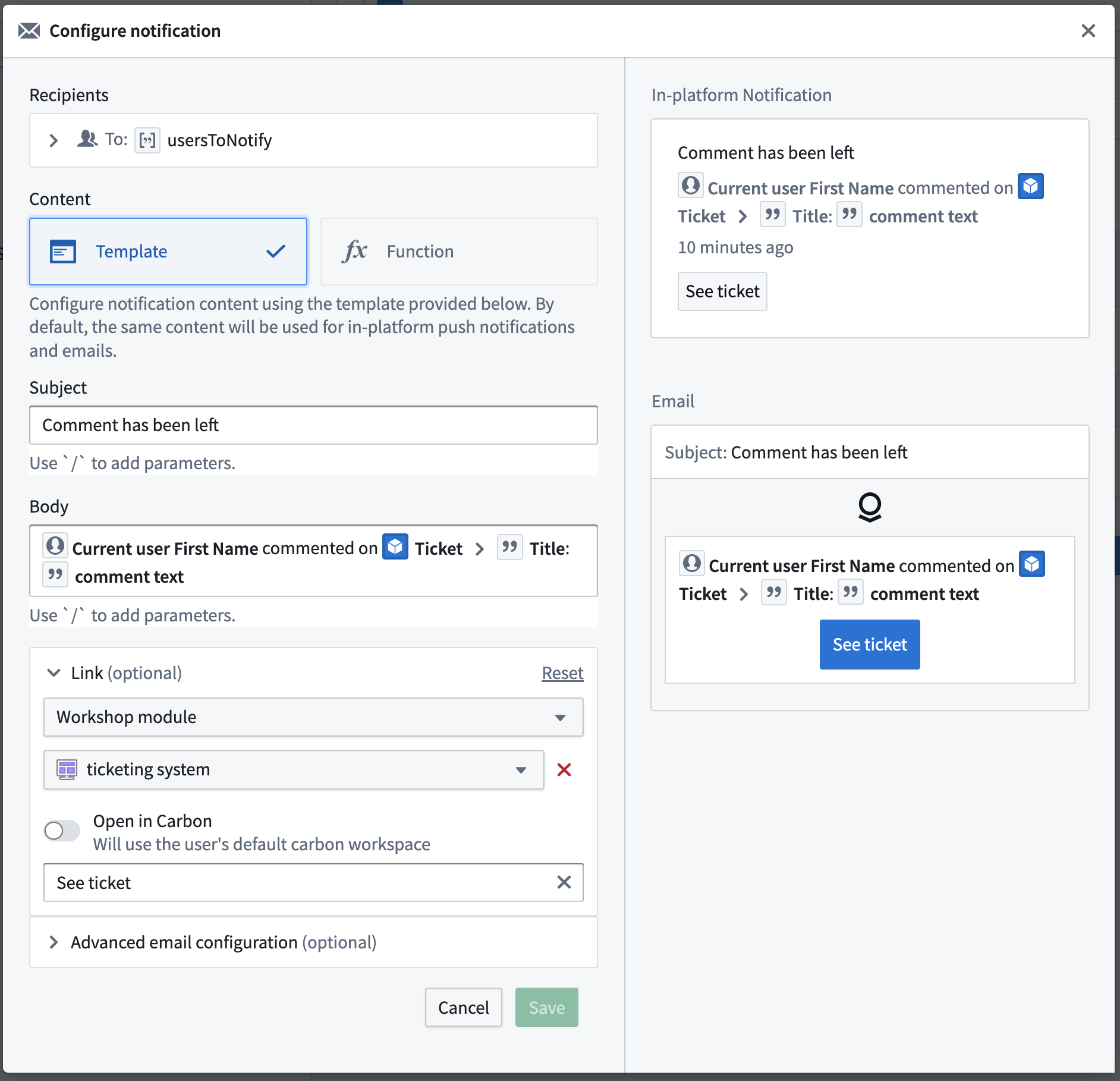
-
Configure the action in the Comments widget to pass
Users to notifyandComment text
Attachments
You can upload attachments, such as files and images, either under the parent object or directly under a comment. Attachments uploaded under a comment will be visible only in the Comments widget and are best suited for draft documents and iteration. We recommend only uploading small attachments, for larger attachments you will notice a long upload time and there is a 200 MB limit. We recommend uploading larger attachments directly on the parent object.
Action Log
The Comment widget can display comments and actions taken on the relevant objects in one unified feed. Learn more about Action Log here.

Frequently asked questions
Can I create comments automatically when an action happens?
The Comments widget lets you display Action Log entries in a common feed with comments, so automated "comments" should be represented as Action Log entries.
Can I display comments from the Comments Helper in Object Explorer through the Comments widget in Workshop?
Comments from the Comments Helper in Object Explorer cannot be displayed or reused in Workshop's Comments widget.
中文翻译
评论(Comments)
评论(Comments)组件支持在Workshop模块中进行协作。
引用(References)
您可以使用引用(references)在评论中提及对象。引用是可交互的,选择引用可以显示所提及对象的属性提示,或触发模块中的事件,例如打开模态框或显示对象视图(Object View)。
以下是在评论(Comments)组件中配置和使用引用的示例:
| 配置 | 使用 |
|---|---|
|
|
权限(Permissions)
评论不是独立的对象,而是直接附加到父对象上。它们不会显示在对象浏览器(Object Explorer)中,只能通过评论组件显示。要使评论在本体论(Ontology)中可搜索,请查看下方章节。
评论遵循父对象的权限设置,因此如果您能访问该对象,就可以查看和发布新评论。这意味着受限视图(Restricted Views)会自动得到支持。您也可以删除自己不小心发布的评论。
关于细粒度权限的说明
让我们通过一个医疗实践的例子来探讨更细粒度的权限。医疗机构可以为patient对象配置列级权限,使管理员只能看到基本字段,而医生可以查看基本字段和敏感字段。为防止管理员查看医生在敏感字段上留下的评论,该机构创建了一个名为PatientSensitiveComments的独立代理对象。这样,他们可以在模块中拥有两个评论线程:一个直接附加在patient对象上,对管理员和医生都可见;另一个附加在代理对象PatientSensitiveComments上,仅对医生可见。
(高级) 使评论在本体论(Ontology)中可搜索
您可以通过启用操作日志(Action Log)来保留评论在本体论(Ontology)中的历史记录。为此,请开启评论后执行的操作(Action to perform after commenting),然后导航到本体论(Ontology)配置评论文本(Comment text)、父对象(Parent Object)和当前用户(Current user)等字段。由于操作日志(Action Log)仅支持追加写入,以这种方式存储的评论在写入后无法编辑或删除。
或者,您可以创建一个专用对象类型(例如Ticket Comment)来镜像本体论(Ontology)中的评论,使其可搜索并可用于本体论(Ontology)工作流。使用此方法时,您需要配置评论后执行的操作(Action to perform after commenting)来创建一个包含评论文本的新对象。
但请注意,评论服务仍然是权威数据源:编辑或删除镜像对象不会影响组件中显示的评论,也不会保留评论历史。如果您需要所有评论活动的不可变记录,请改用操作日志(Action Log)方法。
在将评论文本(Comment text)添加到操作日志(Action Log)之前,需要考虑以下几点:
- 如果父对象配置为受限视图(Restricted View),且行级权限引用了可能更改的字段,您需要谨慎操作,因为操作日志(Action Log)仅支持追加写入。例如,如果某个工单的
敏感级别(Sensitivity level)字段值从公开(Public)变为仅限法律(Legal only),那么操作日志(Action Log)中已存储的评论仍会包含之前的公开(Public)值。为确保复制到本体论(Ontology)层的评论遵循父对象的权限,您应该创建一个专用的工单评论(Ticket Comment)对象,并配置一个操作,在更改工单的敏感级别(Sensitivity level)时,同时更新存储在工单评论(Ticket Comment)对象中的评论的敏感级别(Sensitivity level)。 - 操作日志(Action Log)不会像评论(Comments)组件那样显示评论的富文本格式。
通知(Notifications)
对某个对象发表评论后,您将自动订阅该对象的通知,以便在其他用户评论该对象时收到通知。在评论中提及某个用户也会向该用户发送通知,并使其订阅该对象的未来评论通知。通知会以电子邮件形式发送给用户,并显示在Foundry中的通知收件箱中。
通知应被视为工作流的增强功能,而不应是通知用户有待处理操作的唯一方式。用户应该能够在您的Workshop应用程序的收件箱视图(inbox view)中看到分配给他们的任务。
默认通知(Default notifications)
评论(Comments)组件默认启用通知。默认通知包含指向评论所在对象的对象视图(Object View)的链接。为确保用户点击链接后能看到评论,您应该配置由Workshop模块支持的对象视图,并包含评论(Comments)组件。要自定义通知文本或包含指向Workshop应用程序的链接,请按照自定义通知的说明进行操作。
自定义通知(Custom notifications)
要发送自定义通知,您可以禁用"发送默认通知(Send default notifications)",并配置一个具有通知副作用的"评论后执行的操作(Action to perform after commenting)",更多信息请参考操作通知文档。评论(Comments)组件提供了可以传递给操作的特殊值:要通知的用户(Users to notify)(Multipass用户ID列表)和评论文本(Comment text)。这些值使您可以轻松构建自定义通知。要包含指向Workshop应用程序中特定位置的链接,您可以配置一个模块接口变量(module interface variable)。以下示例展示了如何配置自定义通知:
-
在本体论(Ontology)中设置一个操作,包含以下字段
-
然后为操作规则添加通知副作用
-
配置要发送的通知
-
在评论(Comments)组件中配置操作,传递
要通知的用户(Users to notify)和评论文本(Comment text)
附件(Attachments)
您可以上传附件,例如文件和图片,可以上传到父对象下,也可以直接上传到评论下。上传到评论下的附件仅在评论(Comments)组件中可见,最适合用于草稿文档和迭代。我们建议只上传小附件,对于较大的附件,上传时间会较长,且存在200 MB的限制。我们建议将较大的附件直接上传到父对象上。
操作日志(Action Log)
评论(Comments)组件可以在一个统一的动态中显示评论和对相关对象执行的操作。了解更多关于操作日志(Action Log)的信息,请点击此处。
常见问题
我可以在操作发生时自动创建评论吗?
评论(Comments)组件允许您在评论的公共动态中显示操作日志(Action Log)条目,因此自动化的"评论"应表示为操作日志(Action Log)条目。
我可以通过Workshop中的评论(Comments)组件显示对象浏览器(Object Explorer)中评论助手(Comments Helper)的评论吗?
对象浏览器(Object Explorer)中评论助手(Comments Helper)的评论无法在Workshop的评论(Comments)组件中显示或重用。