Exploration Search Bar(探索搜索栏)
Use the Exploration Search Bar widget to visualize and apply filters to an object set. The widget supports both filtering on properties on the object type and filtering with linked object types and their properties. For more information on how to use the extensive filtering capabilities of the search bar, review the filter results documentation.
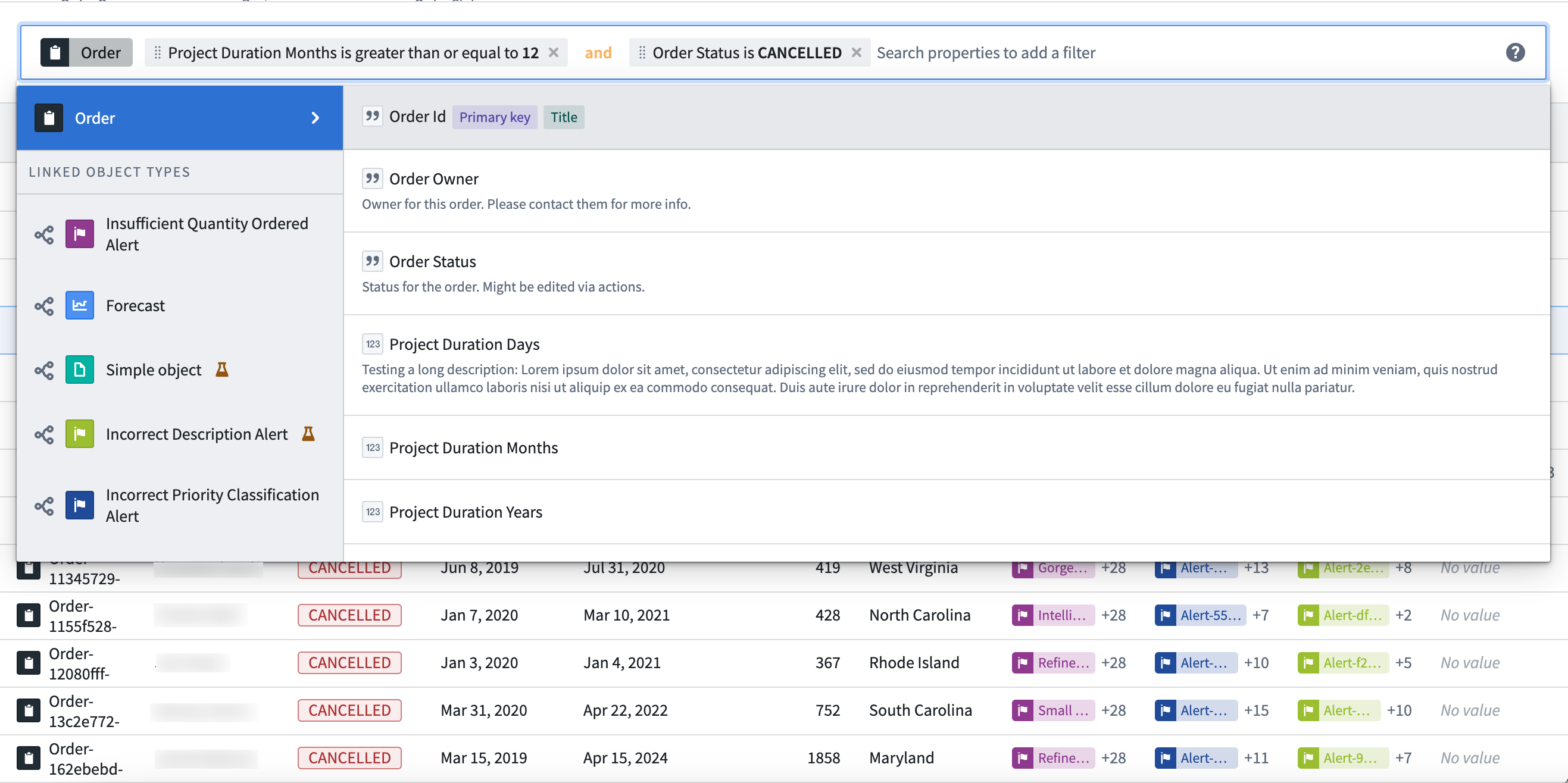
Configuration options
- Mode
- Read only: Display a non-editable view of any filters applied to a specified object set containing a single object type.
- Remove only: Display an editable view of any filters applied to a specified object set containing a single object type, allowing users to remove any applied filters. An object set filter variable containing the applied filters may optionally be specified as output.
- Update existing filters only: Display an editable view of any filters applied to a specified object set containing a single object type, allowing users to remove or edit any applied filters. An object set filter variable containing the applied filters may optionally be specified as output.
- Add, update, remove: Display an editable view of any filters applied to a specified object set containing a single object type, allowing users to remove or edit any applied filters and add new property filters to apply on the object set. An object set filter variable containing the applied filters may optionally be specified as output.
- Menu configuration
- Property types available: Define which property types to display in the dropdown menu. Options include All (Including hidden), Prominent, Visible, or Custom.
- Link types available: Define which link types to display in the dropdown menu. Options include All (Including hidden), Prominent, Visible, Custom list, or None.
- Disable property value autocomplete: Toggle to display/hide suggested filters.
- Disable keyword filtering: Toggle to enable/disable keyword filtering for string properties.
- Show clear button: Toggle to display/hide a button to clear all filters from the search field.
- Prevent users from changing operators (or, and): Toggle to enable/disable users from changing operator values used between applied filters.
- Icon: Add an icon to display to the left of the tab label.
- Fill entire container width: Toggle to enable/disable the search bar spanning the width of its container.
- Display object type pill: Toggle to enable/disable a pill describing the object type of the current object set.
- Show search help icon: Toggle to display/hide the help icon linking to the filter results documentation page.
- Placeholder: Define placeholder text to display in the search field.
中文翻译
探索搜索栏
使用探索搜索栏(Exploration Search Bar)微件来可视化对象集(Object Set)并对其应用过滤器。该微件支持对对象类型(Object Type)的属性进行过滤,也支持通过关联对象类型及其属性进行过滤。有关如何使用该搜索栏强大过滤功能的更多信息,请参阅过滤结果文档。
配置选项
- 模式
- 只读:以不可编辑的视图显示应用于指定对象集(仅含单一对象类型)的所有过滤器。
- 仅移除:以可编辑视图显示应用于指定对象集(仅含单一对象类型)的所有过滤器,允许用户移除任何已应用的过滤器。可选择将包含已应用过滤器的对象集过滤器变量指定为输出。
- 仅更新现有过滤器:以可编辑视图显示应用于指定对象集(仅含单一对象类型)的所有过滤器,允许用户移除或编辑任何已应用的过滤器。可选择将包含已应用过滤器的对象集过滤器变量指定为输出。
- 添加、更新、移除:以可编辑视图显示应用于指定对象集(仅含单一对象类型)的所有过滤器,允许用户移除或编辑任何已应用的过滤器,并添加新的属性过滤器以应用于该对象集。可选择将包含已应用过滤器的对象集过滤器变量指定为输出。
- 菜单配置
- 可用属性类型:定义在下拉菜单中显示的属性类型。选项包括全部(包含隐藏)、主要、可见或自定义。
- 可用链接类型:定义在下拉菜单中显示的链接类型。选项包括全部(包含隐藏)、主要、可见、自定义列表或无。
- 禁用属性值自动补全:切换开关以显示或隐藏过滤器建议。
- 禁用关键字过滤:切换开关以启用或禁用字符串属性的关键字过滤。
- 显示清除按钮:切换开关以显示或隐藏用于清除搜索框中所有过滤器的按钮。
- 阻止用户更改运算符(或、与):切换开关以允许或禁止用户更改已应用过滤器之间使用的运算符值。
- 图标:添加一个图标,显示在选项卡标签的左侧。
- 填满整个容器宽度:切换开关以控制搜索栏是否延展至其容器的整个宽度。
- 显示对象类型标签:切换开关以启用或禁用描述当前对象集对象类型的胶囊标签。
- 显示搜索帮助图标:切换开关以显示或隐藏链接至过滤结果文档页面的帮助图标。
- 占位符:定义在搜索框中显示的占位符文本。