Filter List(筛选列表)
The Filter List widget is used to visualize a high-level summary of object data and allow users to filter within that summary. Module builders configuring a Filter List widget can use features including the following:
- Histograms and distribution charts that visualize the most common property values in a property type and enable filtering by property value.
- A keyword search component that allows broad filtering across an object set on a user-entered search term.
- Single- and multi-select components that enable searching and filtering on all values of a given property type.
- An output object set filter variable that allows filtering criteria applied within this widget to be applied to downstream object set variables within the module.
- The ability to set default filtering criteria via the output object set filter variable.
- The option to enable users to add and remove filters on property types.
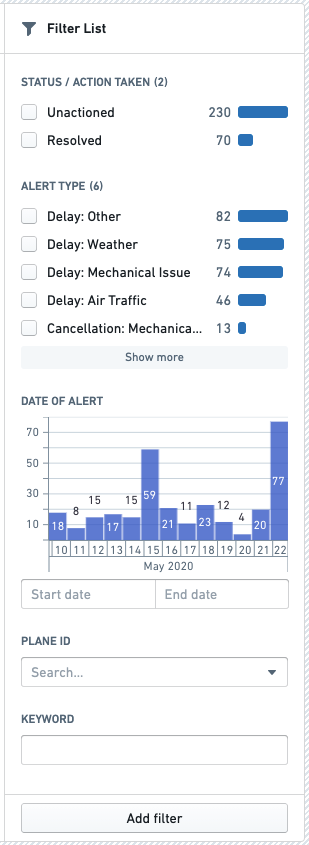
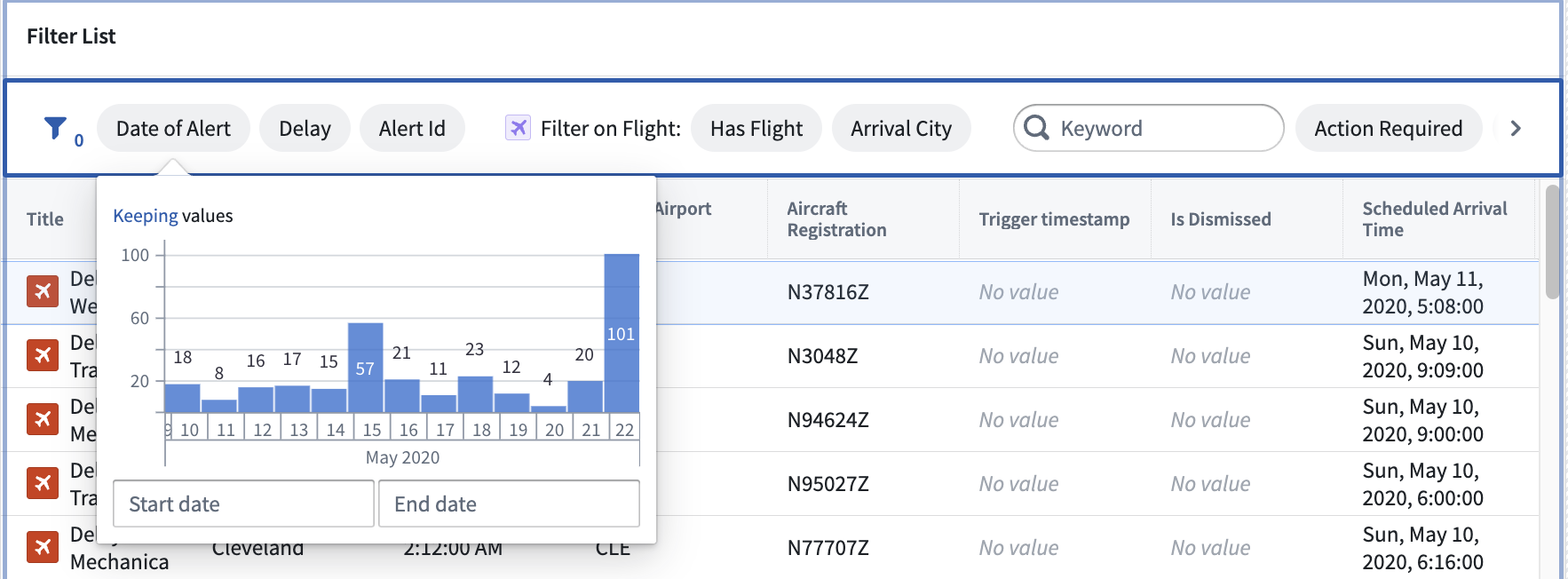
The screenshot below shows an example of a configured Filter List widget displaying Flight Alert objects in both vertical and pill layout:
Configuration Options
Here is a screenshot of the initial state of a newly added Filter List widget alongside its initial configuration panel:
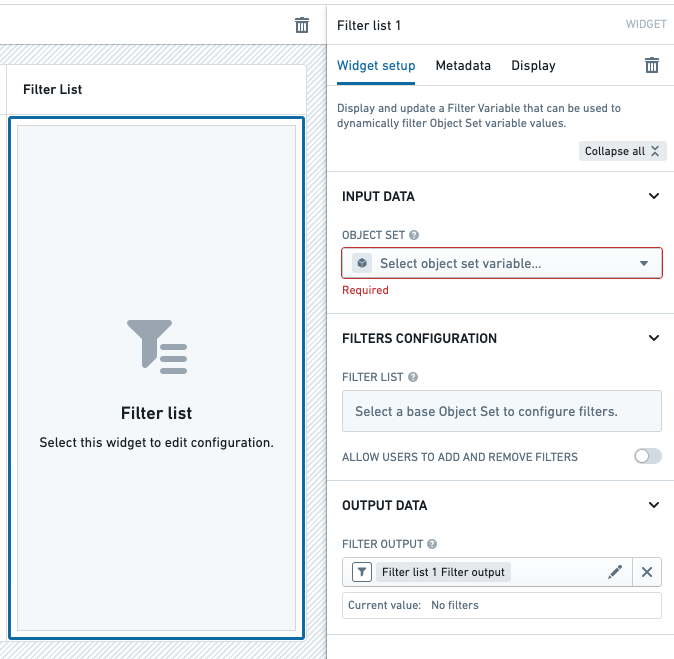
For the Filter List widget, the core configuration options are the following:
- Input data
- Object set
- This input variable determines the object data that will be displayed within the widget.
- A module builder can either reuse an existing object set variable created elsewhere in this module or define a new object set variable inline.
- Many of the other configuration options shown below will only be configurable once this object set parameter has been populated.
- Filters configuration
- Add filter
- Selecting a property here will result in that property being displayed within the Filter List and filterable by users.
- Filter component
- This option determines how each property is visualized within the Filter List.
- Options include keyword, histogram, single- and multi-select dropdowns, distribution chart, single- and multi-date pickers, and timeline displays.
- Allow user to add and remove filters
- If enabled, users will see an Add filter button within the widget and will be able to add and remove filterable properties.
- Layout configuration
- Vertical layout
- This option will layout all the filters from top to bottom in a vertical scrolling fashion.
- Pills layout
- This option will layout all the filters horizontally within an interactive pill. Once selected, the pill opens a popover with filter configuration UI.
- Output data
- Filter output
- This variable plays two roles within the Filter List.
- The first role is serving as the widget's output variable; an object set filter variable that contains the currently applied filtering criteria from the widget and can be used to filter object set variables within this module.
- The second role is providing a means of setting the default filtering criteria for the Filter List; setting a default value for this variable will result in those default property filters being applied within the Filter List when this module is initially loaded.
- Filter outputs can be used to filter object sets of different object types so long as the property IDs match. To check whether the property IDs of two different object types are identical, navigate to the Ontology Manager and look for property IDs.
- Filtered values may also be extracted from the widget's filter output field by setting up filter value extraction on the object set filter variable, allowing them to be used elsewhere in your module.
Filter object sets of multiple object types
You can use a variable to store a union of multiple object sets of different object types and pass it to the Filter List widget. The Filter List will allow the following filtering options:
- Common property: The properties that the different object types have in common. The properties must have the same property ID to be matched together. The object types sharing attributes must use the same Object Storage version ( either V1 or V2).
- Single property: A unique property that exists on only one of the object types. This property is not found in any of the other object types.
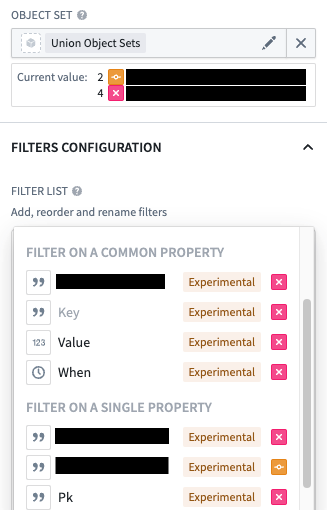
The output variable of the Filter List widget can then be used to filter the variable containing the unioned object sets and all object types instances will be filtered.
Filter on linked properties
:::callout{theme="info"} Object types on Object Storage V1 have a linked object filter limit of 100,000 objects. If your linked object type has more than 100,000 objects, consider migrating to Object Storage V2. :::
To filter on linked object properties, select a link within the Filter on a link section of the Add filter... dropdown.
Once selected, click into the link config to add filter sections. You will see a setup similar to the Filters configuration options described in the Configuration Options section, with some additional options.
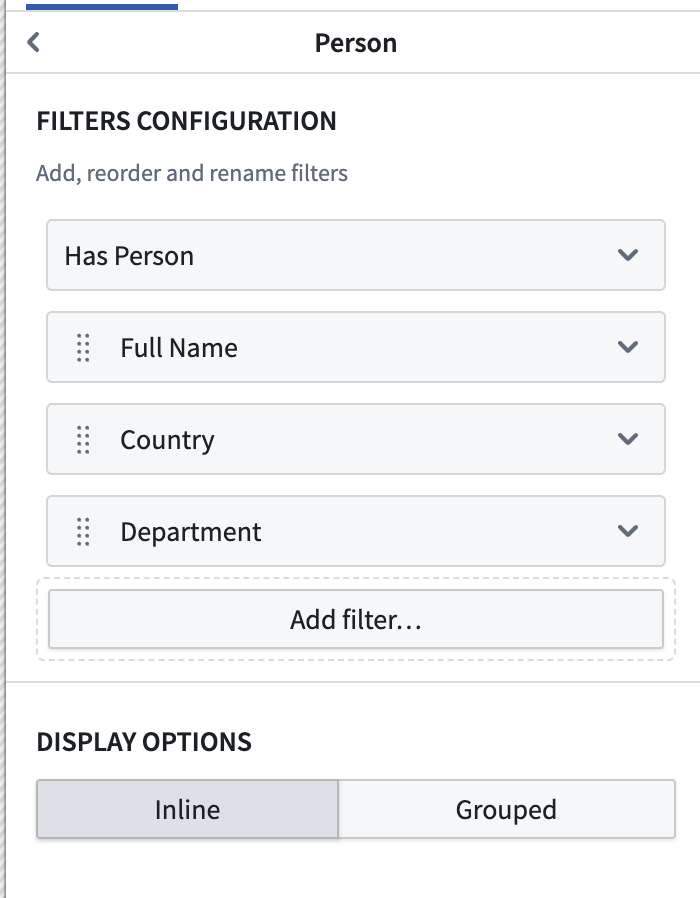
- Has link
- The Has Link filter is unique to linked object filters and filters on the presence of a link. For example: "Filter for all Tasks that have a link to Person."
- Display options
- Inline
- The inline display option will display the linked filters alongside non-linked filters (in the same grouping).
- Grouped
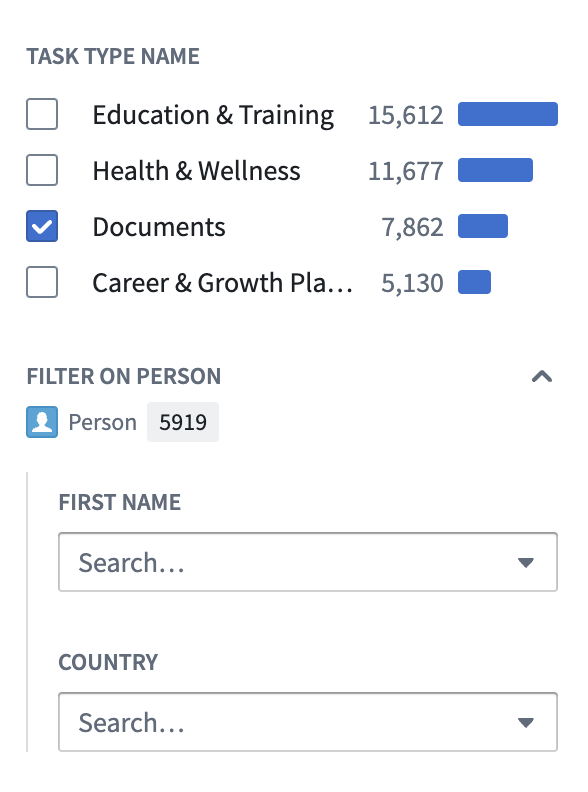
- The grouped option will visually group linked filters into a section, adding an object icon and linked object count as seen in the screenshot below.
- Collapse by default: When enabled, this option will display the linked filter group as collapsed by default when the module is loaded.
Advanced filtering
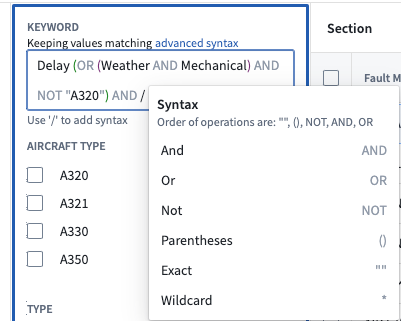
The Filter List widget supports more advanced workflows through the keyword search widget. By switching the search type to advanced syntax, you can chain search operations with each other and define the order of operations through brackets. If no brackets are defined, common Boolean logic is used to determine precedence of operators as follows: quotations, parentheses, NOT, AND, OR.
The new advanced keyword search widget can be accessed through the Filter List widget. Once the Filter List widget is configured, any keyword search filter component will have the advanced syntax as an option in the dropdown UI.
中文翻译
筛选列表
筛选列表(Filter List) 组件用于可视化对象数据的高级摘要,并允许用户在该摘要中进行筛选。配置筛选列表组件的模块构建者可以使用以下功能:
- 直方图和分布图,用于可视化属性类型中最常见的属性值,并支持按属性值进行筛选。
- 关键词搜索组件,允许用户根据输入的搜索词对对象集进行广泛筛选。
- 单选和多选组件,支持对给定属性类型的所有值进行搜索和筛选。
- 输出对象集筛选变量,允许将在此组件内应用的筛选条件应用于模块内的下游对象集变量。
- 通过输出对象集筛选变量设置默认筛选条件的能力。
- 允许用户添加和移除属性类型筛选条件的选项。
下面的截图展示了一个已配置的筛选列表组件示例,该组件以垂直布局和药丸布局显示航班警报(Flight Alert)对象:
配置选项
以下是新添加的筛选列表组件的初始状态及其初始配置面板的截图:
对于筛选列表组件,核心配置选项如下:
- 输入数据(Input data)
- 对象集(Object set)
- 此输入变量决定将在组件内显示的对象数据。
- 模块构建者可以重用在此模块其他位置创建的现有对象集变量,也可以内联定义一个新的对象集变量。
- 下面显示的许多其他配置选项只有在填充了此对象集参数后才可配置。
- 对象集(Object set)
- 筛选器配置(Filters configuration)
- 添加筛选器(Add filter)
- 在此处选择一个属性将导致该属性显示在筛选列表中,并且用户可对其进行筛选。
- 筛选器组件(Filter component)
- 此选项决定每个属性在筛选列表中的可视化方式。
- 选项包括关键词(keyword)、直方图(histogram)、单选和多选下拉菜单、分布图(distribution chart)、单选和多选日期选择器以及时间线(timeline)显示。
- 允许用户添加和移除筛选器(Allow user to add and remove filters)
- 如果启用,用户将在组件内看到一个添加筛选器(Add filter)按钮,并且能够添加和移除可筛选的属性。
- 添加筛选器(Add filter)
- 布局配置(Layout configuration)
- 垂直布局(Vertical layout)
- 此选项将以垂直滚动的方式从上到下排列所有筛选器。
- 药丸布局(Pills layout)
- 此选项将在交互式药丸内水平排列所有筛选器。选中后,药丸会打开一个包含筛选器配置界面的弹出框。
- 垂直布局(Vertical layout)
- 输出数据(Output data)
- 筛选器输出(Filter output)
- 此变量在筛选列表中扮演两个角色。
- 第一个角色是作为组件的输出变量;它是一个对象集筛选变量,包含当前从组件应用的筛选条件,可用于筛选此模块内的对象集变量。
- 第二个角色是提供一种为筛选列表设置默认筛选条件的方法;为此变量设置默认值将导致在模块初始加载时,这些默认属性筛选器被应用到筛选列表中。
- 只要属性ID匹配,筛选器输出可用于筛选不同对象类型的对象集。要检查两个不同对象类型的属性ID是否相同,请导航至本体管理器(Ontology Manager)并查找属性ID。
- 还可以通过在对象集筛选变量上设置筛选值提取,从组件的筛选器输出字段中提取筛选后的值,以便在模块的其他地方使用。
- 筛选器输出(Filter output)
筛选多种对象类型的对象集
您可以使用一个变量来存储多个不同对象类型的对象集的并集,并将其传递给筛选列表组件。筛选列表将允许以下筛选选项:
- 公共属性(Common property): 不同对象类型共有的属性。这些属性必须具有相同的属性ID才能匹配在一起。共享属性的对象类型必须使用相同的对象存储版本(V1或V2)。
- 单一属性(Single property): 仅存在于其中一种对象类型上的唯一属性。此属性在任何其他对象类型中都找不到。
然后,筛选列表组件的输出变量可用于筛选包含并集对象集的变量,并且所有对象类型的实例都将被筛选。
筛选链接属性
:::callout{theme="info"} 对象存储V1上的对象类型具有100,000个对象的链接对象筛选限制。如果您的链接对象类型拥有超过100,000个对象,请考虑迁移到对象存储V2。 :::
要筛选链接对象属性,请在添加筛选器...下拉菜单的筛选链接(Filter on a link)部分中选择一个链接。
选择后,点击进入链接配置以添加筛选部分。您将看到类似于配置选项部分中描述的筛选器配置选项的设置,并附带一些额外选项。
- 存在链接(Has link)
- 存在链接(Has Link)筛选器是链接对象筛选器独有的,用于筛选链接的存在性。例如:"筛选所有与人员(Person)存在链接的任务(Tasks)。"
- 显示选项(Display options)
- 内联(Inline)
- 内联显示选项将把链接筛选器与非链接筛选器一起显示(在同一分组中)。
- 分组(Grouped)
- 分组选项将在视觉上将链接筛选器分组到一个部分中,添加一个对象图标和链接对象计数,如下面的截图所示。
- 默认折叠(Collapse by default): 启用后,此选项将在模块加载时默认将链接筛选器组显示为折叠状态。
- 内联(Inline)
高级筛选
筛选列表组件通过关键词搜索组件支持更高级的工作流程。通过将搜索类型切换为高级语法,您可以相互链接搜索操作,并通过括号定义操作顺序。如果未定义括号,则使用常见的布尔逻辑来确定运算符的优先级,顺序如下:引号、括号、NOT、AND、OR。
新的高级关键词搜索组件可以通过筛选列表组件访问。配置好筛选列表组件后,任何关键词搜索筛选器组件都将在下拉菜单界面中将高级语法作为一个选项提供。