Iframe(内嵌框架(Iframe))
:::callout{theme="neutral"} When trying to develop a custom widget, we recommend using a Custom widget instead of an Iframe widget's bidirectional option. :::
The Iframe widget enables embedding of external, full-page applications within Workshop, providing builders with a way to add custom views to their modules.
An embedded application can also bidirectionally communicate using Workshop variables and events, enabling the embedded app to act similar to a custom widget. See the bidirectional configuration options for more details on how to iframe an application that is able to read from and write to Workshop.
Note that since iframes require additional memory and processing resources, the stability and performance of your Workshop module may be impacted. We do not recommend embedding more than one iframe widget on-screen.

:::callout{theme="neutral"} You will need to configure the content security policy (CSP) in order to iframe external resources in your Foundry environment. The external resource itself must also set a frame-ancestors directive for the Content-Security-Policy header ↗ that allows your Foundry URL to embed the resource. If you are using a URL external to your Foundry environment that makes requests to Foundry APIs, you must additionally configure cross-origin resource sharing (CORS). :::
URL
Input the URL for an application as a static string or a string variable.

:::callout{theme="neutral"}
When embedding another Foundry application, you can hide the Foundry sidebar by adding the embedded=true URL query parameter.
:::
:::callout{theme="neutral"}
When pasting a standard YouTube URL (for example, https://www.youtube.com/watch?v=VIDEO_ID), Workshop will detect the URL format and offer a one-click option to convert it to the proper embedded format (https://www.youtube.com/embed/VIDEO_ID) required for display in an iframe.
:::
Slate
The Slate configuration option allows you to embed a Slate application into your Workshop module. Parameters can be used to allow your embedded Slate application and the Workshop module to interact with each other.
The sections below provide details on how to embed a Slate application with the iframe widget.
Slate source
The Slate source defines the method of referencing the Slate embedded within your module. You can choose to use a Compass reference or Permalink as your Slate source.
- Compass reference: Allows you to use a Foundry resource selector to choose a Slate application to embed.
- Permalink: Allows you to enter the permalink or RID of a Slate application to choose it to embed. You can find your Slate RID within your URL:
/workspace/slate/documents/\\<slate-permalink>/latest.
URL parameters
URL parameters append to your Slate URL and are used to set variables in Slate. Changing a URL parameter will cause the whole page to reload, so we recommend only using URL parameters for variables that rarely need to be modified. To reference a URL parameter in Slate, set up a variable with the same name as the URL parameter and reference it using handlebars: {{username}}. Note that static string URL parameters should be URI encoded as they are passed directly as URL parameters.
Example: Change the appearance of the embedded Slate application based on the user name and ID on load.


Input parameters
Input parameters are passed into the embedded Slate application from the Workshop module. An input parameter is defined by its key and its value type. Static strings, string variables, numbers, and object sets can be passed to the embedded Slate application.
Within your Slate application, you can retrieve information from your Workshop module by using the Slate.getMessage event in the Events panel and the code example below as a reference. The parameter_key must match the key you defined in your iframe widget in Workshop.
const payload = {{slEventValue}}
return payload["<parameter_key>"]
Example: Set a Workshop filter to adjust the view in your embedded Slate application.
const payload = {{slEventValue}}
return payload["flight-alerts"]


Output parameters
Output parameters are passed into the Workshop module from the Slate embed. An output parameter is defined by its key and its value type. Object sets, object set filters, and string variables can be passed to the Workshop module. Within your Workshop module, you can retrieve information from your Slate application by assigning a Workshop variable to the parameter. Within your Slate application, you need to initiate the information transfer using the Slate.sendMessage event and the code snippet below. The parameter key in the code must match the key you defined in your Workshop widget.
return {
    type: "WORKSHOP//SET_OUTPUT_VALUE",
    outputParameterKey: "<parameter_key>",
    value: {{<data_to_be_sent>}}
}
:::callout{theme="neutral"}
Certain JavaScript primitives will be mapped to the appropriate Workshop types when storing the value in a string variable. undefined will be mapped to undefined (effectively setting the variable back to its default value), and null will clear the string variable value.
:::
Example: Use the selection state from the embedded Slate application to change the filter set state in Workshop.
return {
    type: "WORKSHOP//SET_OUTPUT_VALUE",
    outputParameterKey: "selected-objects",
    value: {{f_selection}}
}


Triggerable events
You can trigger any Workshop event from Slate. A triggerable event is defined by its key and its event type. You can trigger events that open overlays, reset variables, and more.
Within your Workshop module, define the event_key and the event you want to trigger. Within your Slate application, use the Slate.sendMessage event in the Events panel and the code snippet below as a reference. The event_key must match the key defined in the iframe widget.
return {
    type: "WORKSHOP//TRIGGER_WORKSHOP_EVENT",
    eventKey: "<event_key>",
}
Example: Toggle a collapsible section in Workshop with a button click from Slate.
return {
    type: "WORKSHOP//TRIGGER_WORKSHOP_EVENT",
    eventKey: "<event_key>",
}


Bidirectional
The bidirectional configuration option allows you to embed a custom-built application and enable bidirectional communication with Workshop using defined configuration fields. This enables the embedded application to act as if it were any other Workshop widget, with the ability to read from and write to Workshop variables, as well as execute Workshop events. In order to access the ontology in your application, use the Ontology SDK.
When to use
While Workshop has a variety of available widgets, some circumstances may require specific functionality beyond what is provided by Workshop's built-in widgets. This bidirectional widget option allows you to create your own applications, define configuration fields, and embed them in Workshop like any other widget.
Configure bidirectional widgets
To enable bidirectional communication, you must configure the custom application's source code before iframing it as a bidirectional widget.
Step 1: Modify your custom application to communicate with Workshop
The communication between your custom application and Workshop is done using the npm package @osdk/workshop-iframe-custom-widget ↗. Install the package to your custom application by using the following command:
npm i @osdk/workshop-iframe-custom-widget
This package provides the means to bidirectionally communicate with Workshop through the function useWorkshopContext which takes in the definition of the variables and events that your application wants to receive from Workshop, and returns a context object that has an interface to read from Workshop variable values, write to Workshop variable values, and execute Workshop events. Review the npm package page for @osdk/workshop-iframe-custom-widget ↗ for details and further instructions.
Step 2: Configure the bidirectional widget
Once your application has been deployed with the changes to bidirectionally communicate with Workshop, add an Iframe widget to your Workshop module and select the Bidirectional option.
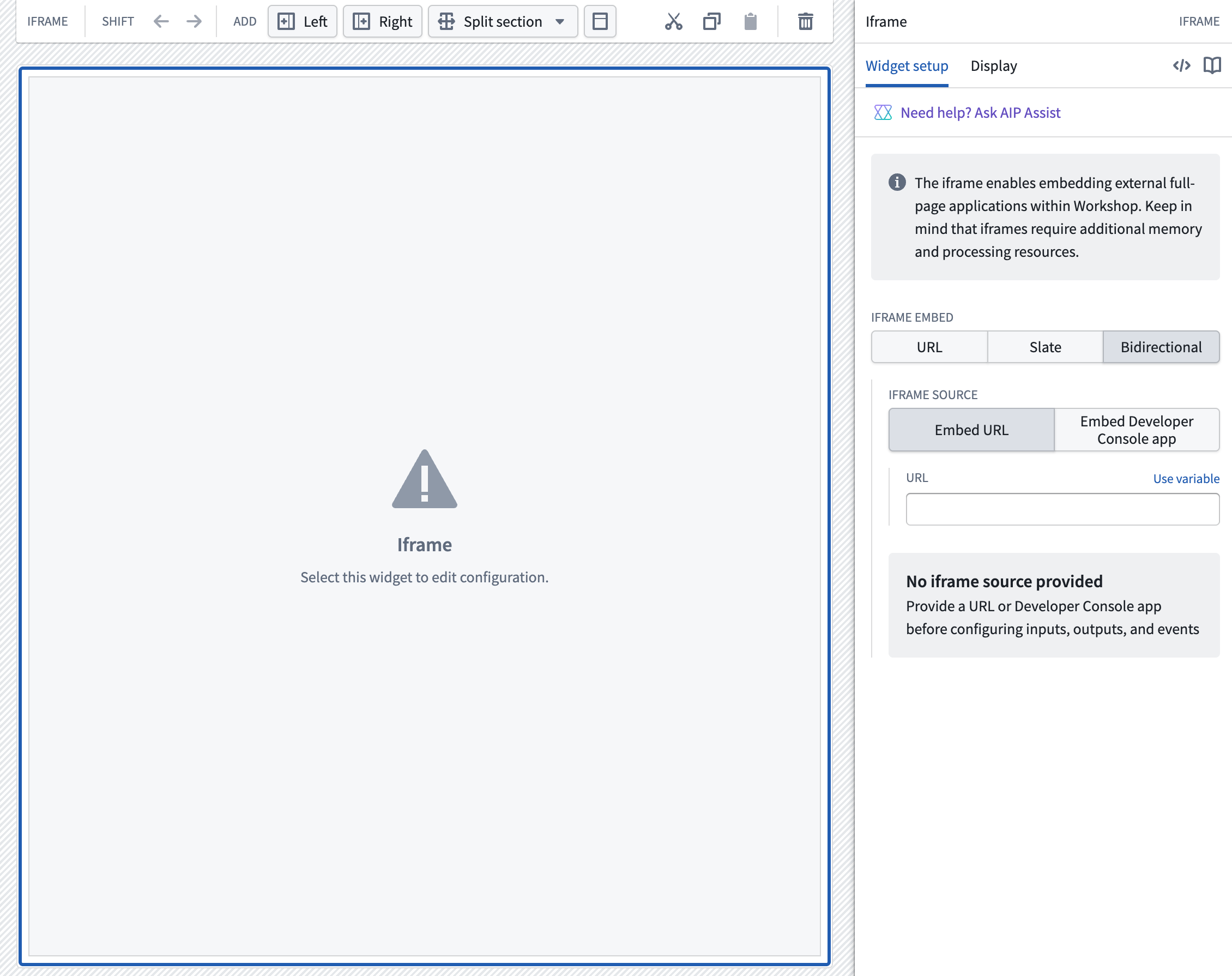
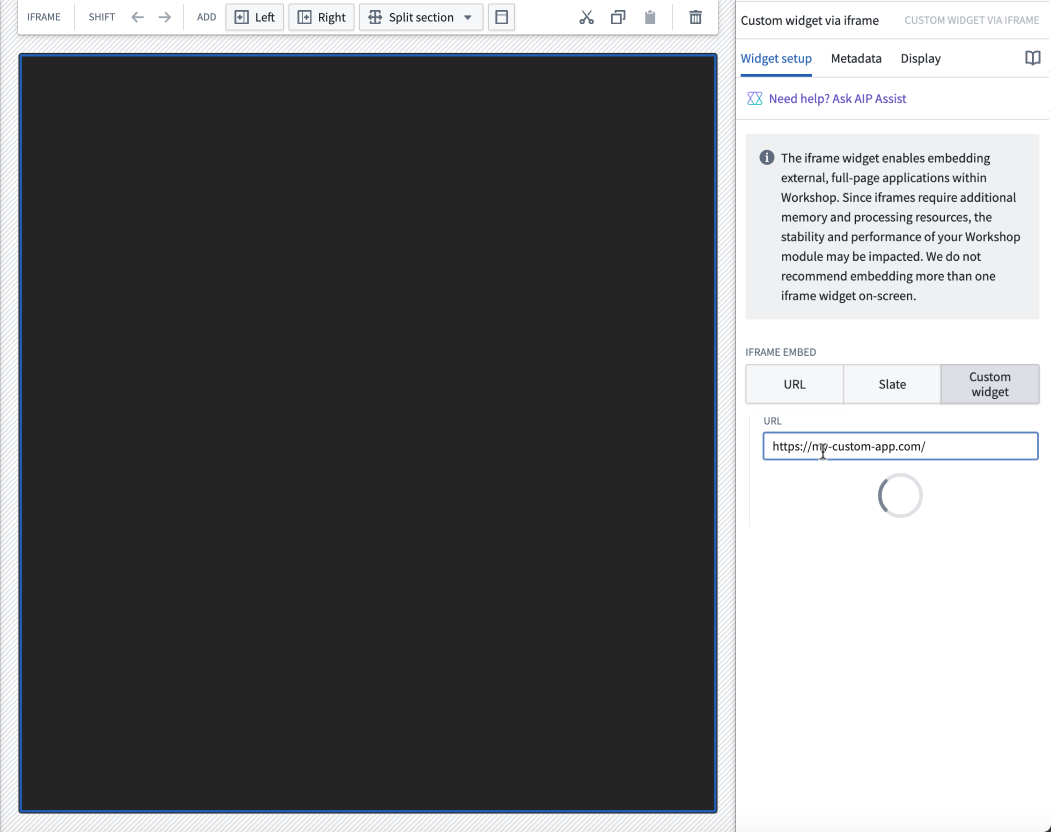
Input the URL of your application either as a static string or with a string variable. The widget's configuration panel will display a loading state while waiting to receive the definition of variables and events required by the embedded application.
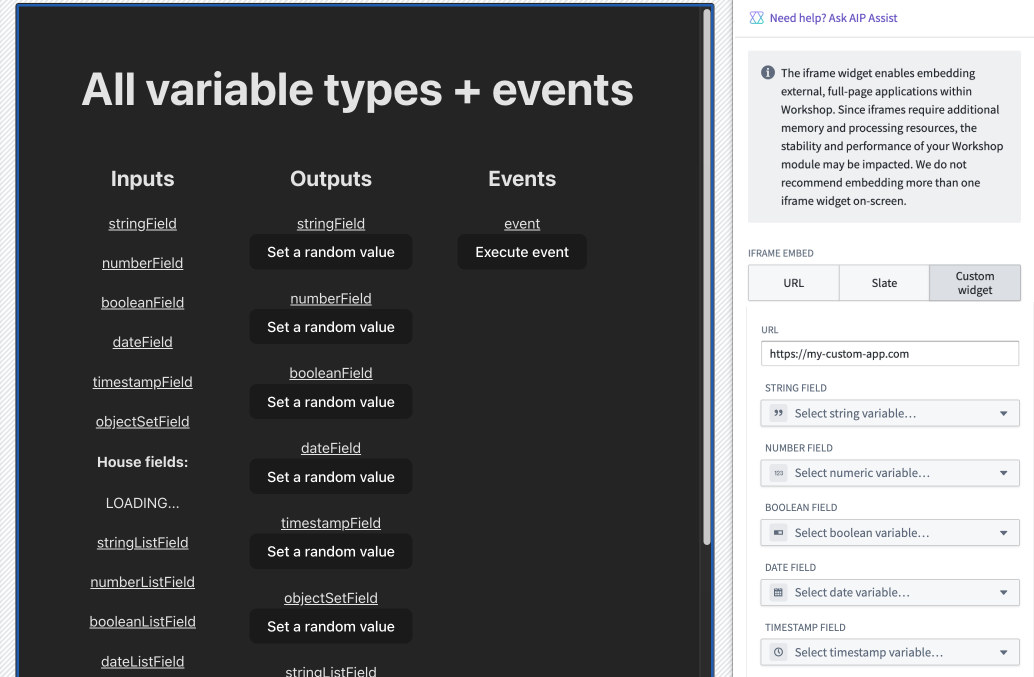
After receiving the definition of required variables and events, the widget's configuration panel will display variable pickers and event selectors for each variable and event requested, allowing each to be set.
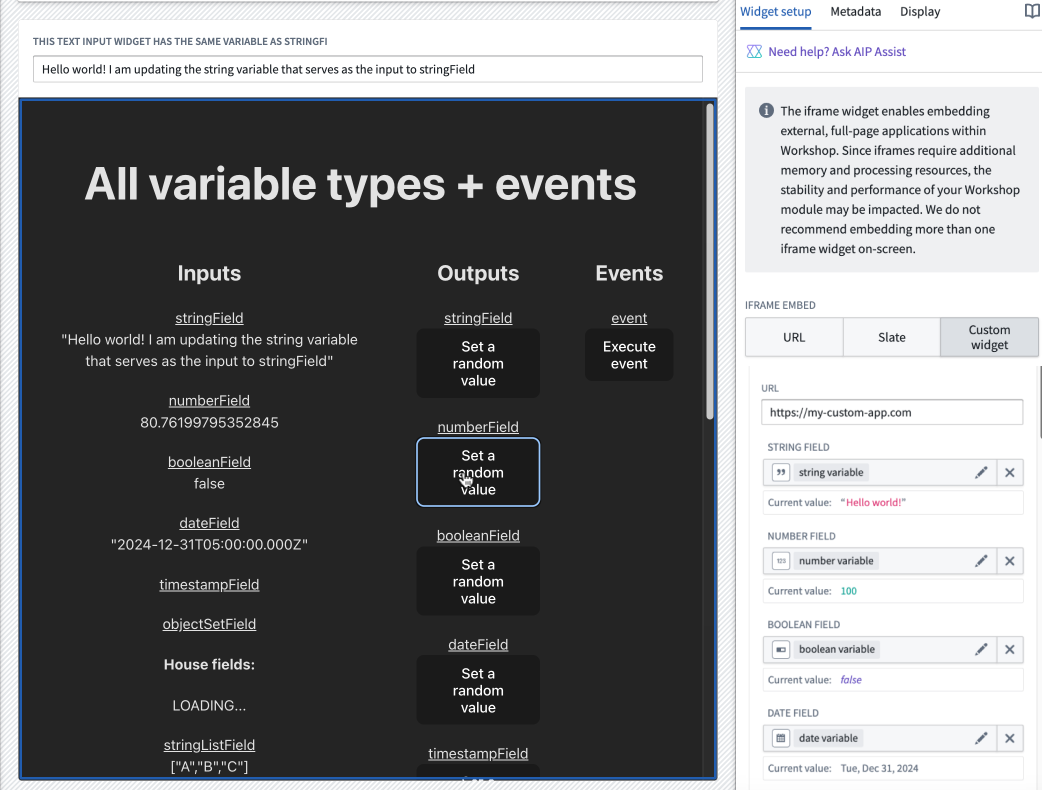
The value of the set Workshop variable will be sent to the custom application each time the value or loading state of the variable changes. The set events will determine what events can be executed from within the custom application.
Example of a bidirectional widget
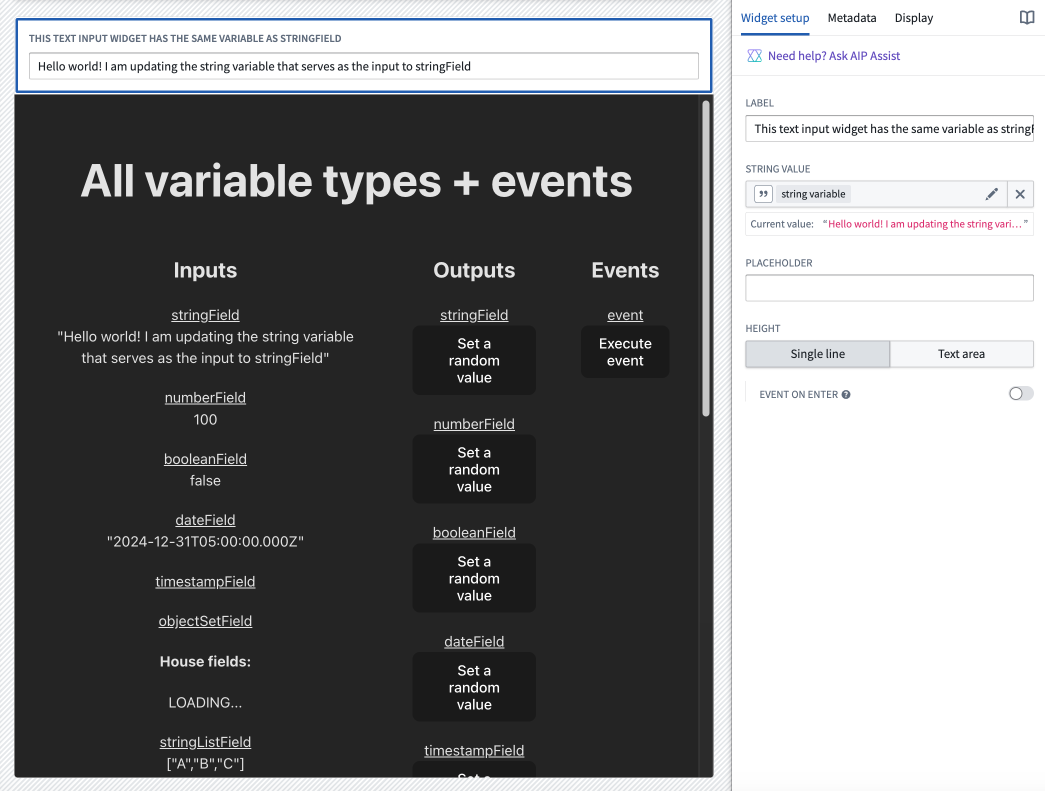
The screenshot below shows an example where a change to a variable's value in Workshop is immediately sent to and reflected within a custom application. The Workshop string variable is configured both as one of the variables within the custom application's definition and as the output of the Text Input widget. When a user enters text into the widget's input field (thus changing the string variable's value), the value is immediately passed to and reflected within the iframed application.
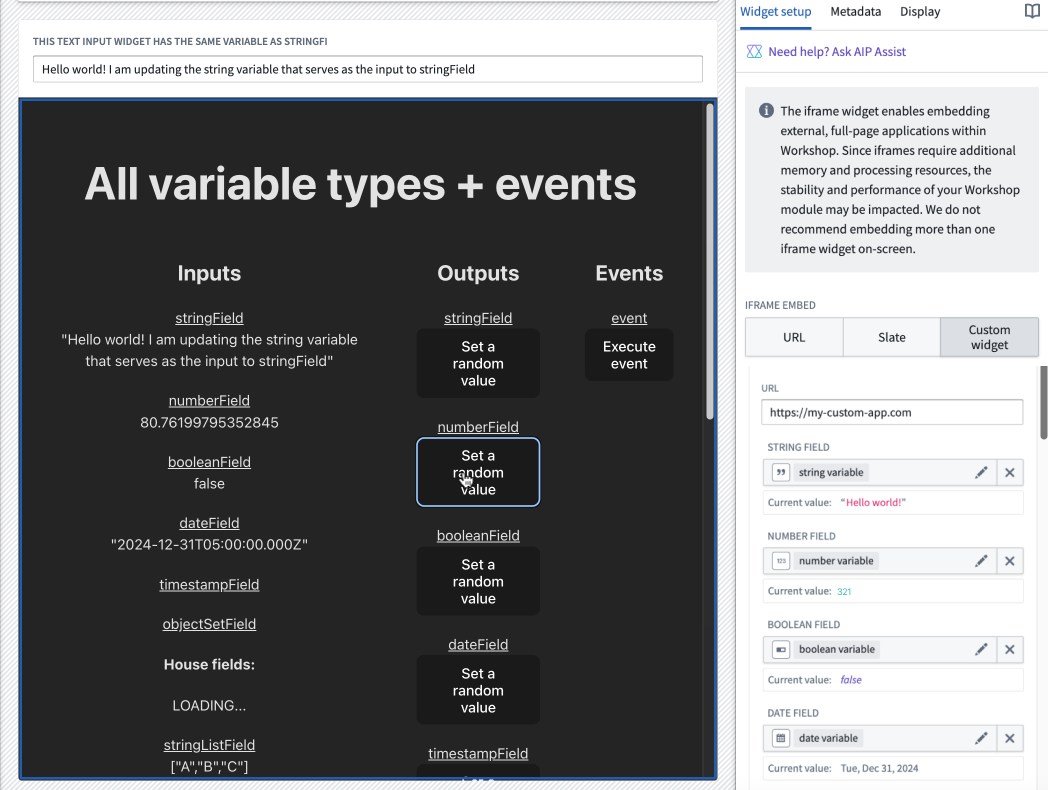
The screenshot below shows an example where a Workshop variable's value can be set by the iframed application. Selecting the Set a random value button for the numberField within the custom application will generate a numeric value and pass it to the number variable set within the iframe widget's configuration.
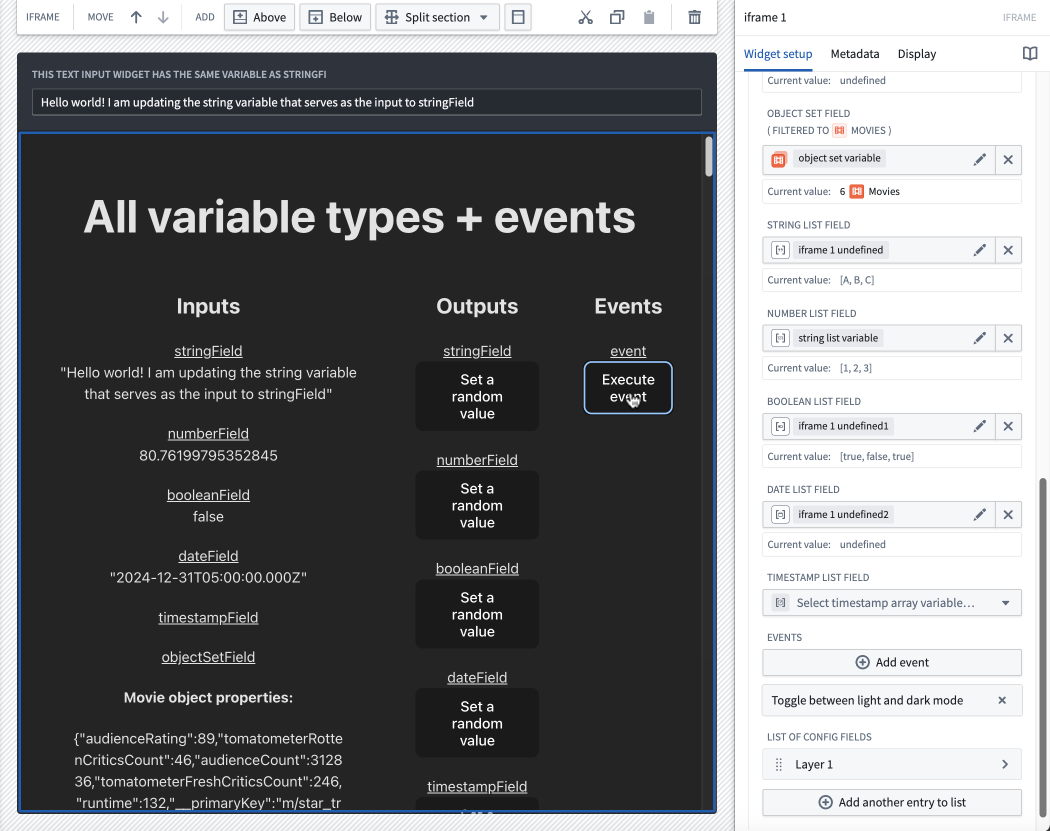
The screenshot below shows an example of a Workshop event being executed from within the iframed application. A Toggle between light and dark mode event has been set for the iframed application configuration. Selecting the Execute event button in the application will switch the module to light mode.
Limitations
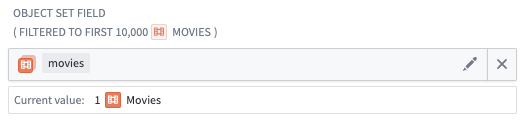
- Object set field definitions sent by the iframed application are specified with a single preset object type. When configuring the variable in Workshop, the object type that the variable is constrained to will be shown in the config panel for object set variables. If the Workshop object set variable contains objects that are not of the preset object type, the objects will be filtered out before being sent to the iframed application.
- Object Set variables are limited to 10,000 objects when sent to the iframed application. If you try to pass an Object Set variable from Workshop to the iframed app with more than 10,000 objects or attempt to set a Workshop variable with more than 10,000 objects from inside the iframed application, objects following the 10,000th object will be cut off, and not sent to the recipient.
- There is currently no support for struct variables.
- Currently, iframes reload every time they are removed from the page and later displayed again. To prevent the widget from resetting in this case, consider storing bidirectional widget data in Workshop variables that are passed to the widget.
中文翻译
内嵌框架(Iframe)
:::callout{theme="neutral"} 如果你需要开发自定义部件(Custom Widget),我们建议你使用自定义部件,而非Iframe部件的双向通信选项。 :::
Iframe部件支持将外部全页面应用嵌入到Workshop中,帮助构建者为自己的模块添加自定义视图。
嵌入的应用还可以通过Workshop变量(Variable)和事件(Event)实现双向通信,让嵌入应用的表现与自定义部件几乎一致。要了解如何嵌入可读写Workshop数据的应用,请查看双向通信配置选项的详细说明。
请注意,Iframe会占用额外内存和处理资源,可能会影响你Workshop模块的稳定性和性能。我们不建议在单个页面上嵌入超过1个Iframe部件。
:::callout{theme="neutral"}
要在你的Foundry环境中嵌入外部资源,你需要先配置内容安全策略(Content Security Policy, CSP)。外部资源本身也必须在Content-Security-Policy响应头中设置frame-ancestors指令 ↗,允许你的Foundry域名嵌入该资源。如果你使用的外部域名需要向Foundry API发起请求,你还需要额外配置跨域资源共享(Cross-Origin Resource Sharing, CORS)。
:::
URL
输入应用的URL,可以是静态字符串,也可以是字符串类型变量。
:::callout{theme="neutral"}
嵌入其他Foundry应用时,你可以添加embedded=true URL查询参数来隐藏Foundry侧边栏。
:::
:::callout{theme="neutral"}
粘贴标准YouTube URL(例如https://www.youtube.com/watch?v=VIDEO_ID)时,Workshop会自动识别URL格式,提供一键转换功能,将其转为Iframe可正常展示的嵌入格式(https://www.youtube.com/embed/VIDEO_ID)。
:::
Slate
Slate配置选项允许你将Slate应用嵌入到Workshop模块中,你可以通过参数实现嵌入Slate应用和Workshop模块的交互。
下文将详细说明如何使用Iframe部件嵌入Slate应用。
Slate 源
Slate源定义了模块内嵌入Slate的引用方式,你可以选择Compass引用或永久链接(Permalink)作为Slate源。
- Compass引用: 允许你通过Foundry资源选择器选择要嵌入的Slate应用。
- 永久链接(Permalink): 允许你输入Slate应用的永久链接或资源标识符(Resource ID, RID)来选择要嵌入的应用。你可以在Slate的URL中找到RID:
/workspace/slate/documents/\<slate-permalink>/latest。
URL 参数
URL参数会附加到Slate URL末尾,用于设置Slate中的变量。修改URL参数会触发整页重载,因此我们建议仅将URL参数用于极少需要修改的变量。要在Slate中引用URL参数,需要创建一个与URL参数同名的变量,再通过Handlebars模板(Handlebars)引用:{{username}}。请注意,静态字符串类型的URL参数需要进行URI编码,因为它们会直接作为URL参数传递。
示例: 页面加载时根据用户名和ID调整嵌入Slate应用的外观。
输入参数
输入参数是从Workshop模块传递到嵌入Slate应用的参数,由键和值类型定义。你可以向嵌入的Slate应用传递静态字符串、字符串变量、数字和对象集(Object Set)。
在Slate应用内,你可以通过事件面板中的Slate.getMessage事件,参考下方代码示例获取Workshop模块传递的信息。其中parameter_key必须与你在Workshop的Iframe部件中定义的键一致。
const payload = {{slEventValue}}
return payload["<parameter_key>"]
示例: 设置Workshop筛选器,调整嵌入Slate应用的视图。
const payload = {{slEventValue}}
return payload["flight-alerts"]
输出参数
输出参数是从嵌入的Slate应用传递到Workshop模块的参数,由键和值类型定义。可以向Workshop模块传递对象集、对象集筛选器和字符串变量。在Workshop模块中,你可以将Workshop变量绑定到对应参数,以获取Slate应用传递的信息。在Slate应用中,你需要使用Slate.sendMessage事件,参考下方代码片段发起数据传输,代码中的参数键必须与你在Workshop部件中定义的键一致。
return {
    type: "WORKSHOP//SET_OUTPUT_VALUE",
    outputParameterKey: "<parameter_key>",
    value: {{<data_to_be_sent>}}
}
:::callout{theme="neutral"}
将值存储到字符串变量时,特定的JavaScript原始类型会自动映射为对应的Workshop类型:undefined会映射为undefined(相当于将变量重置为默认值),null会清空字符串变量的值。
:::
示例: 利用嵌入Slate应用的选择状态,修改Workshop中的筛选集状态。
return {
    type: "WORKSHOP//SET_OUTPUT_VALUE",
    outputParameterKey: "selected-objects",
    value: {{f_selection}}
}
可触发事件
你可以从Slate触发任意Workshop事件。可触发事件由键和事件类型定义,你可以触发打开弹窗、重置变量等多种事件。
在Workshop模块中,定义event_key和你想要触发的事件。在Slate应用中,使用事件面板中的Slate.sendMessage事件,参考下方代码片段即可触发对应事件,其中event_key必须与Iframe部件中定义的键一致。
return {
    type: "WORKSHOP//TRIGGER_WORKSHOP_EVENT",
    eventKey: "<event_key>",
}
示例: 点击Slate中的按钮,切换Workshop中的可折叠区块展开/收起状态。
return {
    type: "WORKSHOP//TRIGGER_WORKSHOP_EVENT",
    eventKey: "<event_key>",
}
双向通信
双向通信配置选项允许你嵌入自定义开发的应用,通过定义的配置字段实现与Workshop的双向通信。这让嵌入应用的表现和其他Workshop部件完全一致,支持读写Workshop变量,也可以执行Workshop事件。如果你的应用需要访问本体(Ontology),请使用本体SDK(Ontology SDK)。
适用场景
虽然Workshop提供了多种可用部件,但部分场景下你可能需要Workshop内置部件没有提供的特定功能。此时你可以使用双向部件选项开发自定义应用,定义配置字段,像其他部件一样嵌入到Workshop中。
配置双向通信部件
要启用双向通信,你需要先修改自定义应用的源代码,之后再将其作为双向部件嵌入。
步骤1:修改自定义应用,实现与Workshop的通信
自定义应用和Workshop之间的通信通过npm包@osdk/workshop-iframe-custom-widget ↗实现,使用以下命令将该包安装到你的自定义应用中:
npm i @osdk/workshop-iframe-custom-widget
该包通过useWorkshopContext函数提供与Workshop双向通信的能力。该函数接收应用需要从Workshop获取的变量和事件定义,返回一个上下文对象,提供读取Workshop变量值、写入Workshop变量值、执行Workshop事件的接口。你可以查看@osdk/workshop-iframe-custom-widget ↗的npm包页面获取详细说明和更多指导。
步骤2:配置双向通信部件
你的应用完成双向通信适配并部署后,向Workshop模块添加一个Iframe部件,选择双向通信选项即可。
输入应用的URL,可以是静态字符串,也可以是字符串变量。部件配置面板会显示加载状态,等待接收嵌入应用所需的变量和事件定义。
接收到所需的变量和事件定义后,部件配置面板会为每个请求的变量和事件展示变量选择器和事件选择器,你可以逐一进行配置。
每次绑定的Workshop变量的值或加载状态发生变化时,新值都会自动发送到自定义应用。绑定的事件决定了自定义应用内部可以执行哪些事件。
双向通信部件示例
下方截图展示了一个示例:Workshop中变量值的变化会立即发送到自定义应用并同步展示。Workshop字符串变量同时被配置为自定义应用定义中的变量之一,以及文本输入部件的输出变量。当用户在部件输入框中输入文本(修改字符串变量的值)时,新值会立即传递到嵌入的Iframe应用并同步展示。
下方截图展示了另一个示例:嵌入的Iframe应用可以修改Workshop变量的值。点击自定义应用中numberField对应的设置随机值按钮,会生成一个数值并传递到Iframe部件配置中绑定的数字变量。
下方截图展示了从嵌入Iframe应用执行Workshop事件的示例。Iframe应用配置中绑定了切换明暗模式事件,点击应用中的执行事件按钮即可将模块切换为亮色模式。
限制
- Iframe应用发送的对象集字段定义仅支持单个预设对象类型。在Workshop中配置变量时,对象集变量的配置面板会展示变量绑定的对象类型。如果Workshop对象集变量包含不属于预设对象类型的对象,这些对象会在发送到Iframe应用前被过滤掉。
- 发送到Iframe应用的对象集变量最多支持10,000个对象。如果你尝试从Workshop向Iframe应用传递超过10,000个对象的对象集变量,或者从Iframe应用内部向Workshop变量写入超过10,000个对象,第10,000个之后的对象会被截断,不会被传递到接收方。
- 目前不支持结构体(Struct)变量。
- 目前Iframe每次从页面移除后再重新展示时都会重载。要避免部件在这种情况下重置,建议将双向部件的数据存储到Workshop变量中,再传递给部件。