Links(链接(Link)组件)
The Links widget is used to display the links relationship between objects and provide exploration into those paths. A module builder configuring a Links widget can:
- Choose the input object set which may contain one or more object types
- Select which specific links are expanded, displayed, sorted upon
The screenshot below shows an example of a configured Links widget displaying a single Flight Alert’s linked objects. The Flight Alert’s linked Departure Airport has been expanded further in this screenshot to show its links.

Configuration options
The following image shows the initial state of a Links widget and its configuration panel:
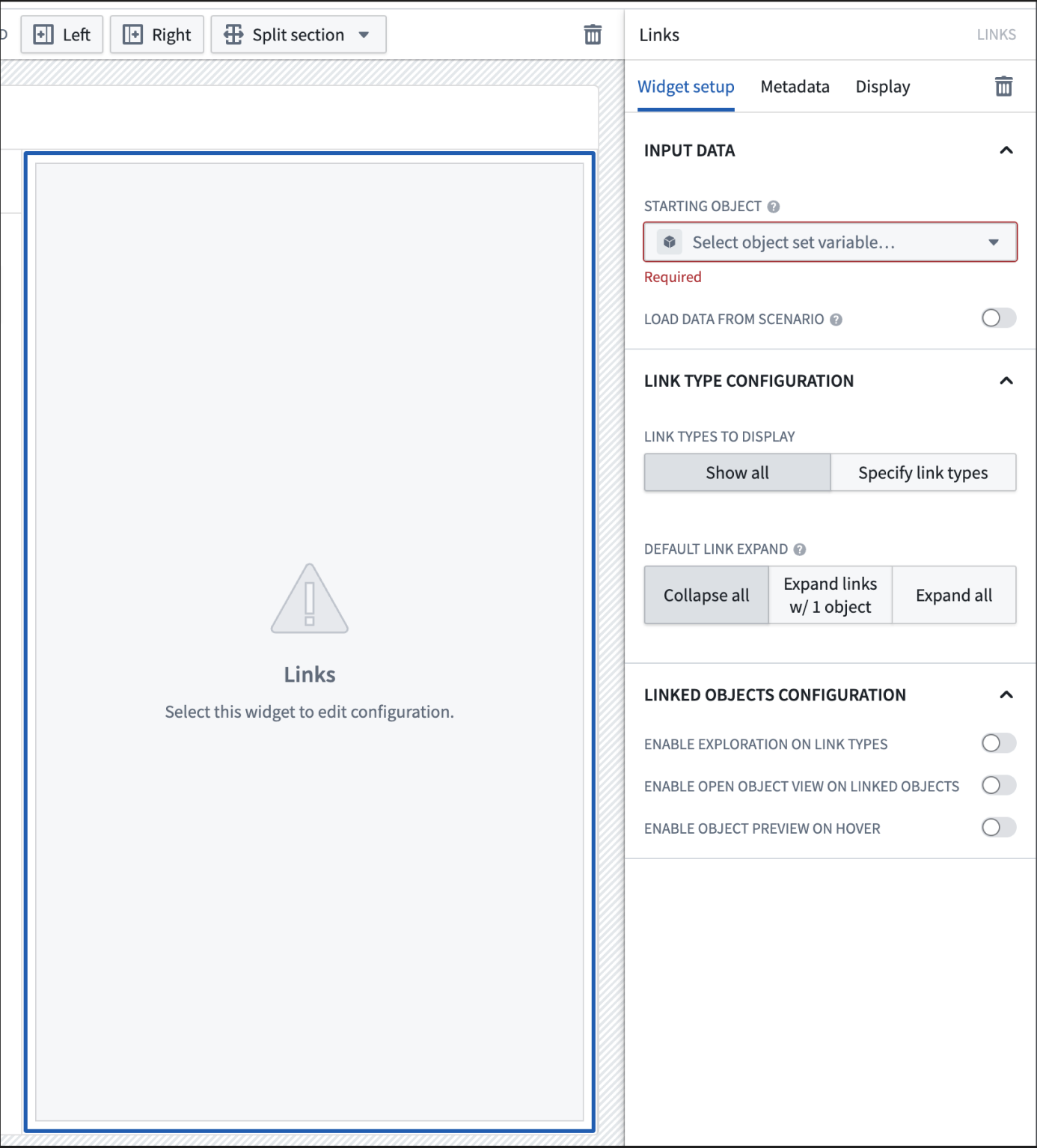
A Links widget has the following configuration options:
- Input data
- Object set: Determine the data that will be displayed within the widget. A module builder can either reuse an existing object set variable created elsewhere in this module or define a new object set variable inline. Selecting an object set here will make certain configuration options below available for configuration.
- Load data from scenario: Enable the use of scenario variables.
- Link type configuration
- Link types to display: By default, all links are shown in the links widget. By choosing “Specify link types“, granular controls and features such as link level sorting can be configured. Additional details are available in the following section, specified link configuration options.
- Default link expand: Specify the number of links that will be auto-expanded by default in the first level.
- Linked objects configuration
-
Enable exploration on link types: At each link type level, enable a button to allow viewing the link type in Object Explorer.

-
Enable open object view on linked objects: For each linked object, enable a button to allow opening the linked object's Object View in Object Explorer.

-
Enable object preview on hover: When hovering over on the title of a linked object, preview the linked object’s properties. By default, the popover includes the linked object’s prominent properties but can be configured for custom properties by specifying links.

Specified link configuration options
The following image shows the initial state of a Links widget and its configuration panel when Specify link types is selected:
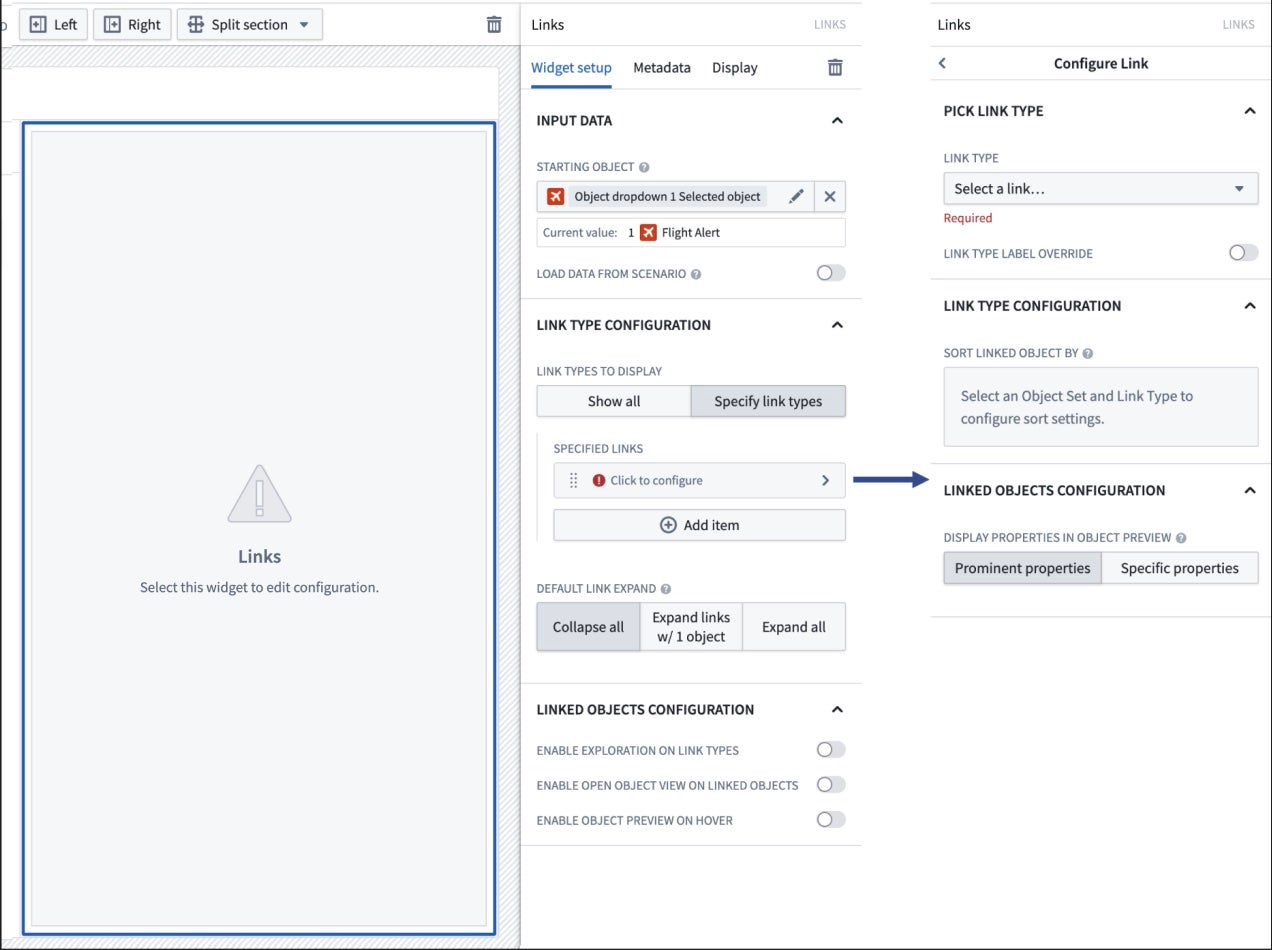
The Links widget's configuration panel options for specified links are the following:
- Pick link type
- Link type: Once a starting object set has been selected, choose the link type from a dropdown to be displayed on the widget.
- Link type label override: The link type’s label can be overridden with a new label for the link type.
- Link type configuration
- Sort linked object by: Once a link type is chosen, a property and sorting direction can be configured.
- Linked objects configuration
- Display properties in object preview: If "Enable object preview on hover" is enabled, the specified link type’s linked objects can be configured to show its prominent properties or specified properties in a preview popover.
中文翻译
链接(Link)组件
链接(Link)组件用于展示对象之间的链接关系,并提供对这些路径的探索功能。配置链接(Link)组件的模块构建者可以:
- 选择可能包含一种或多种对象类型的输入对象集
- 选择具体展开、显示和排序哪些链接
下方截图展示了一个配置好的链接(Link)组件示例,显示了单个航班警报(Flight Alert)的链接对象。在该截图中,航班警报(Flight Alert)关联的出发机场(Departure Airport)已被进一步展开,以显示其链接关系。
配置选项
下图展示了链接(Link)组件的初始状态及其配置面板:
链接(Link)组件具有以下配置选项:
- 输入数据(Input data)
- 对象集(Object set): 确定将在组件中显示的数据。模块构建者可以复用本模块中其他位置已创建的对象集变量,也可以内联定义新的对象集变量。在此处选择对象集后,下方某些配置选项将变为可用状态。
- 从场景加载数据(Load data from scenario): 启用场景(scenario)变量的使用。
- 链接类型配置(Link type configuration)
- 要显示的链接类型(Link types to display): 默认情况下,链接组件中会显示所有链接。选择"指定链接类型(Specify link types)"后,可以配置更精细的控制和功能,例如链接级别的排序。更多详情请参见下文指定链接配置选项。
- 默认链接展开(Default link expand): 指定第一层默认自动展开的链接数量。
- 链接对象配置(Linked objects configuration)
-
启用链接类型的探索(Enable exploration on link types): 在每个链接类型层级,启用一个按钮,允许在对象浏览器(Object Explorer)中查看该链接类型。
-
启用链接对象的对象视图(Enable open object view on linked objects): 为每个链接对象启用一个按钮,允许在对象浏览器(Object Explorer)中打开该链接对象的对象视图(Object View)。
-
启用悬停对象预览(Enable object preview on hover): 当鼠标悬停在链接对象的标题上时,预览该链接对象的属性。默认情况下,弹出窗口包含链接对象的主要属性,但可以通过指定链接来配置自定义属性。
指定链接配置选项
下图展示了选择指定链接类型(Specify link types)时,链接(Link)组件的初始状态及其配置面板:
链接(Link)组件针对指定链接的配置面板选项如下:
- 选择链接类型(Pick link type)
- 链接类型(Link type): 选择起始对象集后,从下拉菜单中选择要在组件中显示的链接类型。
- 链接类型标签覆盖(Link type label override): 可以为该链接类型覆盖一个新的标签。
- 链接类型配置(Link type configuration)
- 链接对象排序方式(Sort linked object by): 选择链接类型后,可以配置属性和排序方向。
- 链接对象配置(Linked objects configuration)
- 在对象预览中显示属性(Display properties in object preview): 如果启用了"悬停对象预览(Enable object preview on hover)",可以配置指定链接类型的链接对象,在预览弹出窗口中显示其主要属性或指定属性。