Curating apps in Applications Portal(在应用门户中策展应用)
Applications Portal is a tool for discovering and accessing all apps in Foundry. This includes both (1) core Foundry platform apps and (2) trusted custom apps that admins promote to Applications Portal.
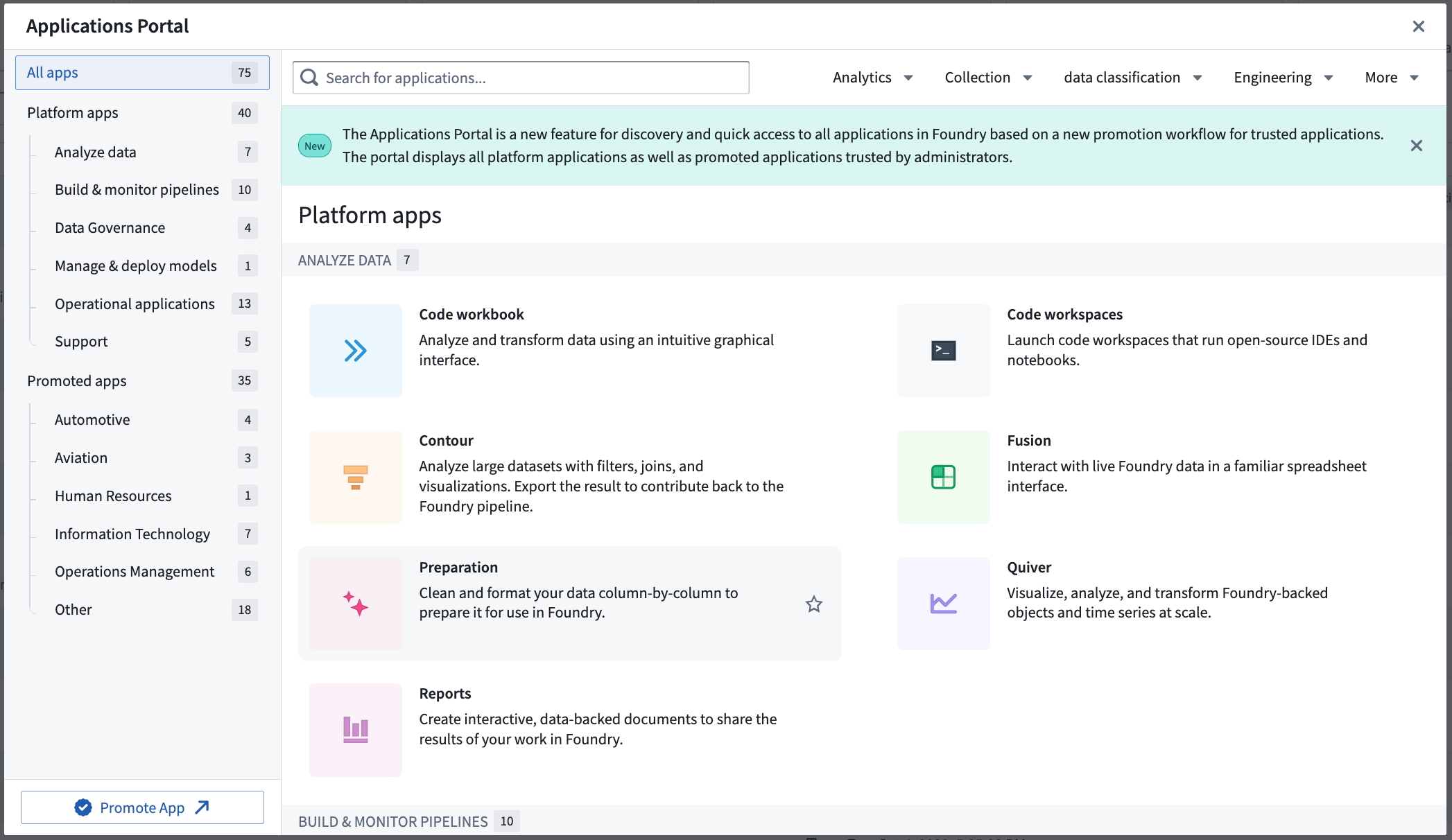
Navigate to Applications Portal
You can open Applications Portal by selecting the Applications Portal icon in the left sidebar. You will be able to view any application built in Workshop, Slate, or Carbon that you have promoted. You will also have quick access to all Foundry platform apps.
You can "pin" your favorite apps to the left sidebar for easy access. Select the star icon next to the application's name from the Applications Portal or when you're editing the application. Once pinned, a section called Promoted Apps will appear in the Foundry sidebar with a list of your favorite promoted apps.

Permissions for Applications Portal are based on filesystem permissions. If you have the Discoverer role, you will be prompted to request access.
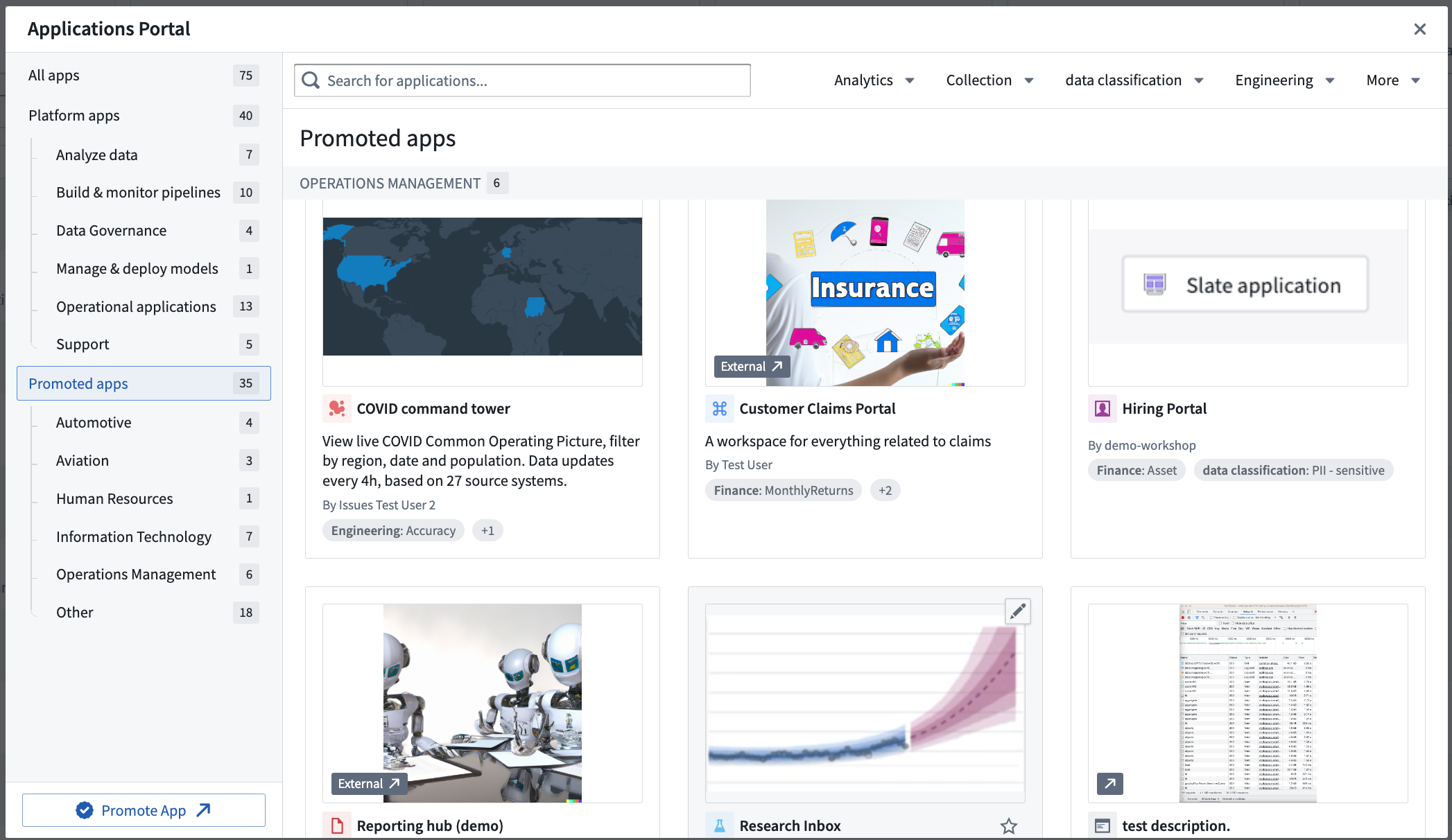
Applications Portal modes
Applications Portal has two modes of engagement:
- Basic, out-of-the-box: a tool to discover and learn about all Foundry platform apps. No admin work is required. Applications portal is an integral tool in the left sidebar, even without any promoted custom apps.
- Advanced, curation-based: an admin, Palantir representative, or customer governance team promotes all trusted custom apps to Applications Portal.
:::callout{theme="neutral"} There is a single Applications Portal for each enrollment or tenant on a multi-tenant enrollment. The promoted apps that a user can view are limited to the spaces that belong to their Organization. If you have access to a shared space, you will also see promoted apps from that space. :::
Promoted apps in Applications Portal
A promoted application is an application that was marked by an admin as trusted and production-ready. Every promotion application has the following required metadata that will be displayed in Applications Portal and in the left sidebar:
- Name: this can be different than the resource name
- Icon
- Description (optional)
- Application Owner
- Thumbnail
- Collections and tags: you can use these to categorize promoted apps in different sections and apply filters in Applications Portal. Collections are required, while tags are optional.
Promoted apps receive the purple checkmark for trusted content, similar to items in the Data Catalog.
Permissions for promoting apps to Applications Portal
Admins can promote Workshop modules, Slate applications, Carbon workspaces, or external web links to Applications Portal. Permission to promote apps to Applications Portal is granted in Control Panel. You must have either the “Organization Administrator” or “User Experience Administrator” role. You also must be an editor or owner of an app to be able to promote it.
Promoted applications appear in Applications Portal for all users with at least the Discoverer role for the application and its space.
How to promote apps to Applications Portal
The apps promotion UI is available both in Applications Portal and in edit mode of Workshop and Slate (see example below).
Un-promoting a promoted application is also done using the promotion UI, by selecting the Unpromote button at the bottom left.
You can change the resource that a promotion references to release new applications in a controlled manner.

Categorization in Applications Portal
You can use collections and tags to categorize apps in Applications Portal and apply filters to only view certain apps.
Permissions to create collections and tags or add them to a promoted app are the same as the permissions to promote to Applications Portal, based on the roles of “Organization administrator” and “User experience administrator” in Control Panel.
Collections
Collections are displayed on the left sidebar as titles of sections in Applications Portal. They are used as the top-line category in Applications Portal to curate your experience. Collections are created and managed in the Data Catalog. Once you create a collection, you can add a promoted app to it from Data Catalog and from the filesystem.
Only collections that have promoted apps linked to them are displayed in Applications Portal, and only if you have access to view/discover these apps. If a collection has no promoted apps linked to it, or if you do not have access to any apps on the collection, it will not be displayed.
Tags
Tags are displayed as labels on the promoted apps cards and can be filtered from the top right of Applications Portal. You can create and manage tags from the Tags section of Platform Settings. Once they are created, they can be added to a promoted app on the promotion UI, as well as in the filesystem.
Only tags that have promoted apps linked to them are displayed in Applications Portal as filters, and only if the user has access to view/discover these apps. If a tag is not added to any promoted apps, or if a user has no access to any apps with that tag, it would not be displayed.
Managing platform apps in Applications Portal
Foundry platform apps are tools like Quiver, Contour, Data Connection, Pipeline Builder, and more. You can configure the option to display or hide platform apps from users in Control Panel under the Application access tab. This allows you to show only certain sub-groups of apps in Applications Portal, as well as in the rest of Foundry.
中文翻译
在应用门户中策展应用
应用门户(Applications Portal)是一个用于发现和访问 Foundry 中所有应用的工具。它包括:(1) 核心 Foundry 平台应用,以及 (2) 管理员推广到应用门户的受信任自定义应用。
导航至应用门户
您可以通过点击左侧边栏中的应用门户图标来打开应用门户。您将能够查看在 Workshop、Slate 或 Carbon 中构建且已推广的任何应用。您还可以快速访问所有 Foundry 平台应用。
您可以将常用应用"固定"到左侧边栏以便快速访问。在应用门户中或编辑应用时,选择应用名称旁边的星形图标即可。固定后,Foundry 侧边栏中将出现一个名为已推广应用(Promoted Apps)的部分,其中包含您收藏的已推广应用列表。
应用门户的权限基于文件系统权限。如果您拥有发现者(Discoverer)角色,系统将提示您请求访问权限。
应用门户模式
应用门户有两种使用模式:
- 基础模式(开箱即用):用于发现和了解所有 Foundry 平台应用的工具。无需管理员操作。即使没有任何推广的自定义应用,应用门户也是左侧边栏中不可或缺的工具。
- 高级模式(基于策展):管理员、Palantir 代表或客户治理团队将所有受信任的自定义应用推广到应用门户。
:::callout{theme="neutral"} 每个注册(enrollment)或多注册租户(multi-tenant enrollment)上的每个租户都有一个独立的应用门户。用户可查看的已推广应用仅限于其组织所属的空间。如果您有权访问共享空间,您也将看到来自该空间的已推广应用。 :::
应用门户中的已推广应用
已推广应用(promoted application)是指由管理员标记为受信任且可用于生产环境的应用。每个已推广应用都包含以下将在应用门户和左侧边栏中显示的必需元数据:
- 名称:可以与资源名称不同
- 图标
- 描述(可选)
- 应用所有者
- 缩略图
- 集合和标签:您可以使用这些来将已推广应用分类到不同部分,并在应用门户中应用筛选条件。集合为必填项,标签为可选项。
已推广应用会获得紫色勾选标记,表示其为受信任内容,类似于数据目录(Data Catalog)中的项目。
向应用门户推广应用的权限
管理员可以将 Workshop 模块、Slate 应用、Carbon 工作区或外部网页链接推广到应用门户。向应用门户推广应用的权限在控制面板中授予。您必须拥有"组织管理员"(Organization Administrator)或"用户体验管理员"(User Experience Administrator)角色。同时,您必须是应用的编辑者或所有者才能进行推广。
已推广应用会显示在所有至少拥有该应用及其空间发现者角色的用户的应用门户中。
如何向应用门户推广应用
应用推广界面可在应用门户以及 Workshop 和 Slate 的编辑模式中使用(参见下方示例)。
取消推广已推广应用同样通过推广界面完成,方法是选择左下角的取消推广(Unpromote)按钮。
您可以更改推广所引用的资源,以受控方式发布新应用。
应用门户中的分类
您可以使用集合和标签对应用门户中的应用进行分类,并应用筛选条件仅查看特定应用。
创建集合和标签或将其添加到已推广应用的权限与向应用门户推广应用的权限相同,基于控制面板中的"组织管理员"和"用户体验管理员"角色。
集合
集合(Collections)在左侧边栏中显示为应用门户中各部分的标题。它们用作应用门户中的顶层类别,用于策展您的体验。集合在数据目录中创建和管理。创建集合后,您可以从数据目录和文件系统将已推广应用添加到该集合。
只有关联了已推广应用的集合才会显示在应用门户中,且仅当您有权查看/发现这些应用时。如果某个集合没有关联任何已推广应用,或者您无权访问该集合中的任何应用,则该集合不会显示。
标签
标签(Tags)显示为已推广应用卡片上的标签,可从应用门户右上角进行筛选。您可以从平台设置的标签部分创建和管理标签。创建后,可以在推广界面以及文件系统中将其添加到已推广应用。
只有关联了已推广应用的标签才会作为筛选条件显示在应用门户中,且仅当用户有权查看/发现这些应用时。如果某个标签未添加到任何已推广应用,或者用户无权访问带有该标签的任何应用,则该标签不会显示。
管理应用门户中的平台应用
Foundry 平台应用包括 Quiver、Contour、Data Connection、Pipeline Builder 等工具。您可以在控制面板的应用访问(Application access)选项卡下配置向用户显示或隐藏平台应用的选项。这允许您在应用门户以及 Foundry 的其他位置仅显示特定的应用子集。