Integrate with other Foundry applications(与其他 Foundry 应用集成)
:::callout{theme="warning"} Foundry Forms is no longer the recommended approach for data entry or writeback workflows on Foundry. Instead, build user input workflows with the Foundry Ontology, representing the relevant data structures as object types and configuring the writeback interaction with Actions. Learn more in the Forms overview documentation. :::
Forms offers seamless integration with other Foundry applications. This page discusses how Foundry Forms can be used with Fusion, Slate, and Object Explorer.
Fusion
If Fusion is chosen as the response destination, Forms will immediately create the backing spreadsheet. Every time the form is saved, the newly required columns will be automatically added to the table region.
Users can also create a form from an existing table region in Fusion by selecting the Insert tab and choosing Form.
Slate
Two Slate widgets can be used to embed a form in Slate:
- Foundry Form
- iIframe
When using an iframe, the following URL parameters can be used to customize the display of the form:
embedded=true: Must be provided when iframing a form.noHeader=true: Will remove the header from the form.progressOnly=true: Will render only the progress bar as the header; ignored whennoHeader=true.forceDarkMode=true: Will render the form in dark mode.
Additionally, users can prefill values by using the Code Editor to add a urlParam to each field:
fields:
  - uri: display.Text
    name: Text
    type: Text
    urlParam: text
    options: {}
The URL will then show as: workspace/fforms/f/new/<form-id>?embedded=true&progressOnly=true&text=prefilled.
Object Explorer
Three section widgets can be used to embed a form in an object view:
In addition, Forms supports bulk editing multiple objects through one object-backed form.
Edit object form
To add the Edit object form section:
- Create a form linked with object type
X. - Navigate to the Object View for
X, and select Actions followed by Edit object view. - Add the Edit object form section.
The Default Form ID can be found in the Forms URL: /workspace/fforms/v1/entry/<form-id>/new.
In the Prefilled Values section:
- The URI or URL parameter associated with a field can be found using the Code Editor.
- The values themselves can either be static (
2000-01-01) or taken from a property of the current object ({{start_date}}, wherestart_dateis a property ID for object typeX).
The Conditional Form section can be used to render different forms based on the value of some property.
Create linked object form
Adding and configuring this section is very similar to editing an object form, with two notable differences:
- The section should be added to the Object View for
Y, which is linked toX. - The form can be prefilled based on the last linked object, and a sort property can be provided to customize the definition of "last".
iframe
This section can be added as described above, and configured as described in Slate.
Bulk edit multiple objects
By default, this feature is disabled on a object-backed form. Enable it by toggling Allow this form to bulk edit (in Actions menu) in the Settings tab in the Visual Editor to the right of the form.
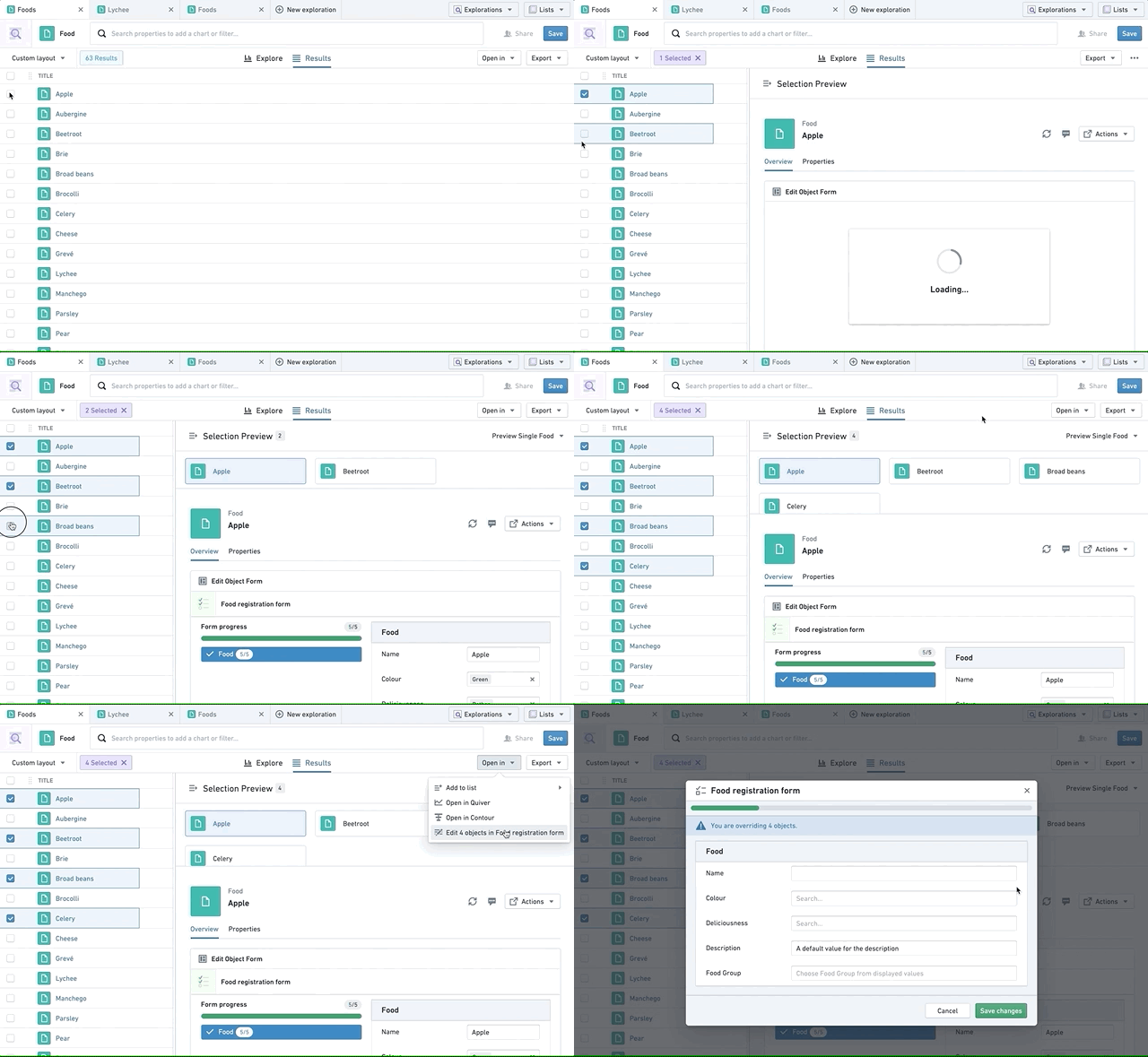
When enabled, follow the steps below to bulk edit multiple objects:
- Navigate to Object Explorer and select the objects that you want to edit.
- Select the Open in button and choose Edit [number-of-selected-objects] objects in [name-of-the-form].
- The form opens in a dialog and allows you to override properties on all selected objects.
:::callout{theme="neutral"}
A form in bulk edit mode will override all properties in that form on all selected objects. We recommend only using required fields in such forms. Use the required validator to make sure values are filled before submission.
:::
:::callout{theme="warning"} By default, it is possible to edit, at maximum, 200 objects through one form. Contact your Palantir representative if your use case requires a larger limit. :::
中文翻译
与其他 Foundry 应用集成
:::callout{theme="warning"} Foundry Forms 已不再是 Foundry 上数据录入或写回工作流的推荐方案。建议改用 Foundry Ontology 构建用户输入工作流,将相关数据结构表示为对象类型(object types),并通过操作(Actions)配置写回交互。更多信息请参阅 Forms 概述文档。 :::
Forms 可与其他 Foundry 应用无缝集成。本页介绍 Foundry Forms 如何与 Fusion、Slate 和 Object Explorer 配合使用。
Fusion
如果选择 Fusion 作为响应目标,Forms 将立即创建对应的电子表格。每次保存表单时,新增的列会自动添加到表格区域。
用户也可以从 Fusion 中现有的表格区域创建表单,方法是选择 插入 选项卡,然后选择 表单。
Slate
可以使用两个 Slate 小部件(widgets)将表单嵌入 Slate:
- Foundry Form
- iIframe
使用 iframe 时,可以通过以下 URL 参数自定义表单的显示效果:
embedded=true:在 iframe 中嵌入表单时必须提供此参数。noHeader=true:移除表单的页眉。progressOnly=true:仅将进度条渲染为页眉;当noHeader=true时此参数被忽略。forceDarkMode=true:以深色模式渲染表单。
此外,用户可以通过代码编辑器为每个字段添加 urlParam 来预填值:
fields:
  - uri: display.Text
    name: Text
    type: Text
    urlParam: text
    options: {}
此时 URL 将显示为:workspace/fforms/f/new/<form-id>?embedded=true&progressOnly=true&text=prefilled。
Object Explorer
可以使用三个区块小部件将表单嵌入对象视图:
此外,Forms 支持通过一个对象驱动表单(object-backed form)批量编辑多个对象。
编辑对象表单
要添加 编辑对象表单 区块:
- 创建一个与对象类型
X关联的表单。 - 导航到
X的对象视图,选择 操作,然后选择 编辑对象视图。 - 添加 编辑对象表单 区块。
默认表单 ID 可在 Forms URL 中找到:/workspace/fforms/v1/entry/<form-id>/new。
在 预填值 部分:
- 与字段关联的 URI 或 URL 参数可通过代码编辑器查找。
- 值本身可以是静态值(如
2000-01-01),也可以取自当前对象的属性(如{{start_date}},其中start_date是对象类型X的属性 ID)。
条件表单 部分可用于根据某个属性的值渲染不同的表单。
创建关联对象表单
添加和配置此区块与编辑对象表单非常相似,但有两点显著区别:
- 该区块应添加到与
X关联的对象类型Y的对象视图中。 - 表单可以根据最后一个关联对象进行预填,并且可以提供一个排序属性来自定义"最后一个"的定义。
iframe
此区块可按上述方法添加,并按 Slate 中的说明进行配置。
批量编辑多个对象
默认情况下,此功能在对象驱动表单上是禁用的。在表单右侧的可视化编辑器的 设置 选项卡中,切换 允许此表单批量编辑(在操作菜单中) 选项即可启用。
启用后,按照以下步骤批量编辑多个对象:
- 导航到 Object Explorer,选择要编辑的对象。
- 选择 在...中打开 按钮,然后选择 编辑 [已选对象数量] 个对象(使用 [表单名称])。
- 表单将在对话框中打开,允许您覆盖所有选定对象的属性。
:::callout{theme="neutral"}
处于批量编辑模式的表单将覆盖所有选定对象中该表单包含的所有属性。我们建议在此类表单中仅使用必填字段。使用 required 验证器确保在提交前填写值。
:::
:::callout{theme="warning"} 默认情况下,通过一个表单最多可以编辑 200 个对象。如果您的用例需要更大的限制,请联系您的 Palantir 代表。 :::