Share a form with other users(与其他用户共享表单)
:::callout{theme="warning"} Foundry Forms is no longer the recommended approach for data entry or writeback workflows on Foundry. Instead, build user input workflows with the Foundry Ontology, representing the relevant data structures as object types and configuring the writeback interaction with Actions. Learn more in the Forms overview documentation. :::
Before sharing a form, first determine what level of access is appropriate for another user. There are three different roles available to assign to other Form users:
- Editor: Can edit files and modify sharing.
- Viewer: Can view the contents of files but cannot edit them or modify sharing.
- Discoverer: Can only see file names and metadata.
You can choose to share your form through link sharing or manually adding a user or group.
:::callout{theme="neutral"} All respondents must at least be granted the Viewer role to view form content. :::
Link share
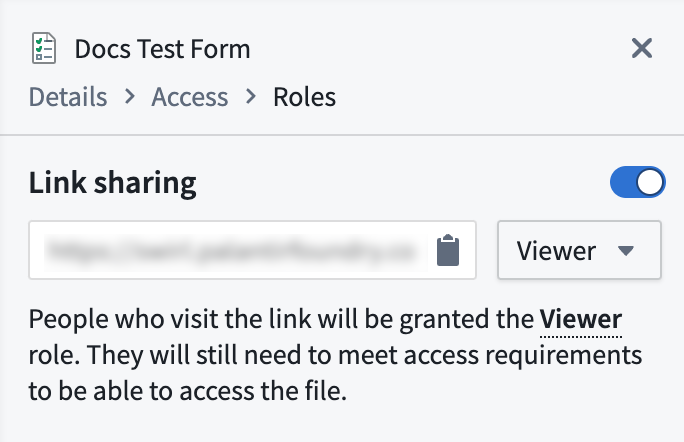
Generate a link that can be shared with copying and pasting. One access role can be specified for all who visit the link. Follow the steps below to set up link sharing:
-
Navigate to the form in Editor mode.
-
Select the Share button in the top right to reveal a side panel.
-
Toggle Link sharing on.
-
Adjust the access role as needed using the dropdown.
-
Copy and paste the autogenerated link to share the form.
Add a user or group
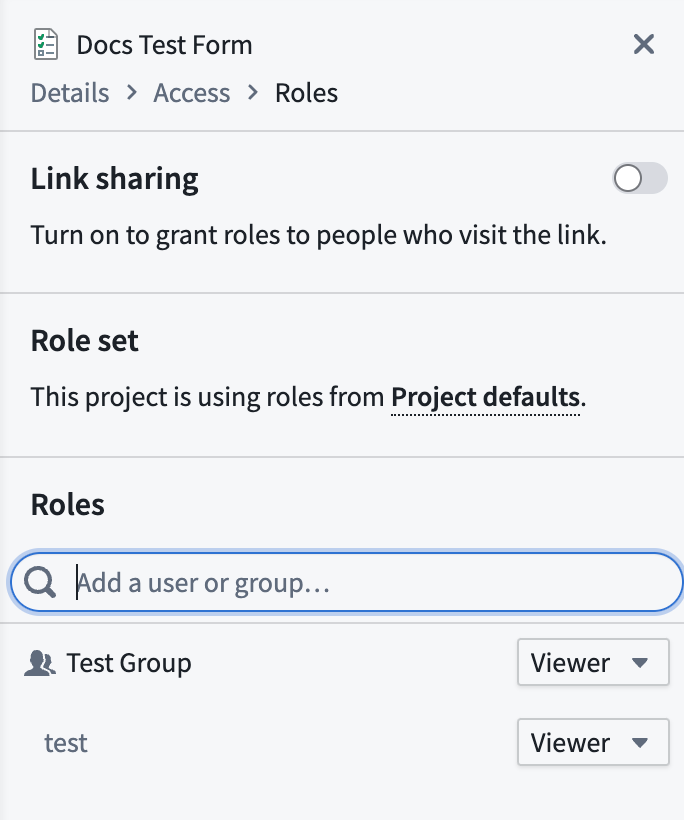
Share your form among colleagues in a controlled way. One access role can be specified for each user or group.
-
Navigate to the form in Editor mode.
-
Select the Share button in the top right to reveal a side panel.
-
In the Roles section, enter the name of the user or group you want to add.
-
Select + Add next to the name.
-
Adjust the access role as needed using the dropdown.
-
Select the blue Save button at the bottom of the panel.
中文翻译
与其他用户共享表单
:::callout{theme="warning"} Foundry Forms 已不再是 Foundry 中数据录入或写回工作流的推荐方案。建议改用 Foundry Ontology 构建用户输入工作流,将相关数据结构表示为对象类型,并通过 Actions 配置写回交互。更多信息请参阅 Forms 概述文档。 :::
在共享表单前,首先需要确定其他用户应获得的访问权限级别。可为其他表单用户分配三种不同角色:
- 编辑者 (Editor):可编辑文件并修改共享设置。
- 查看者 (Viewer):可查看文件内容,但无法编辑或修改共享设置。
- 发现者 (Discoverer):仅能查看文件名和元数据。
您可以选择通过 链接共享 或手动 添加用户或组 来共享表单。
:::callout{theme="neutral"} 所有受访者至少需被授予查看者 (Viewer) 角色才能查看表单内容。 :::
链接共享
生成可通过复制粘贴分享的链接。可为所有访问该链接的用户指定一种访问角色。请按以下步骤设置链接共享:
-
在编辑器模式下打开表单。
-
点击右上角的共享 (Share) 按钮,打开侧边面板。
-
开启链接共享 (Link sharing) 开关。
-
使用下拉菜单根据需要调整访问角色。
-
复制并粘贴自动生成的链接以共享表单。
添加用户或组
以受控方式与同事共享表单。可为每个用户或组指定一种访问角色。
-
在编辑器模式下打开表单。
-
点击右上角的共享 (Share) 按钮,打开侧边面板。
-
在角色 (Roles) 部分,输入要添加的用户或组名称。
-
点击名称旁的 + 添加 (+ Add)。
-
使用下拉菜单根据需要调整访问角色。
-
点击面板底部的蓝色保存 (Save) 按钮。