Enable additional iframe attributes(启用额外的 iframe 属性)
:::callout{theme="neutral"} Certain browser permissions, such as camera and microphone access, always require application users to grant permission to Foundry through a browser prompt. Enabling the iframe attributes allows the application to request access, but the user must still grant permission explicitly. Refer to the Permissions Policy documentation ↗ for more information. :::
The custom widgets runtime uses an <iframe> ↗ element with restrictive attributes that disallow certain browser features, such as popups and camera access, by default. However, widget developers can enable a subset of attribute values for a custom widget. The application builder must then manually grant permission to the requested attribute values for them to take effect. Often, the widget developer and application builder are the same person.
Available iframe attributes
Widget developers can request enablement of the following iframe attributes:
allow ↗ attribute values:
cameramicrophoneautoplay
sandbox ↗ attribute values:
allow-downloadsallow-formsallow-popups
Declare requested iframe attributes
Widget developers can declare requested iframe attributes in the permissions field of their custom widget configuration:
export default defineConfig({
    id: "widgetId",
    name: "A custom widget",
    description: "A widget description",
    type: "workshop",
    parameters: {},
    events: {},
    permissions: ["camera", "allow-popups"],
});
Allow requested iframe attributes in a host application
:::callout{theme="neutral"} Opting in to certain iframe attributes may require the application builder to acknowledge a checkpoint. :::
In Workshop, application builders can grant permission to requested iframe attributes when configuring a custom widget. The Permissions section, found after the Parameters and Events sections, displays these settings.
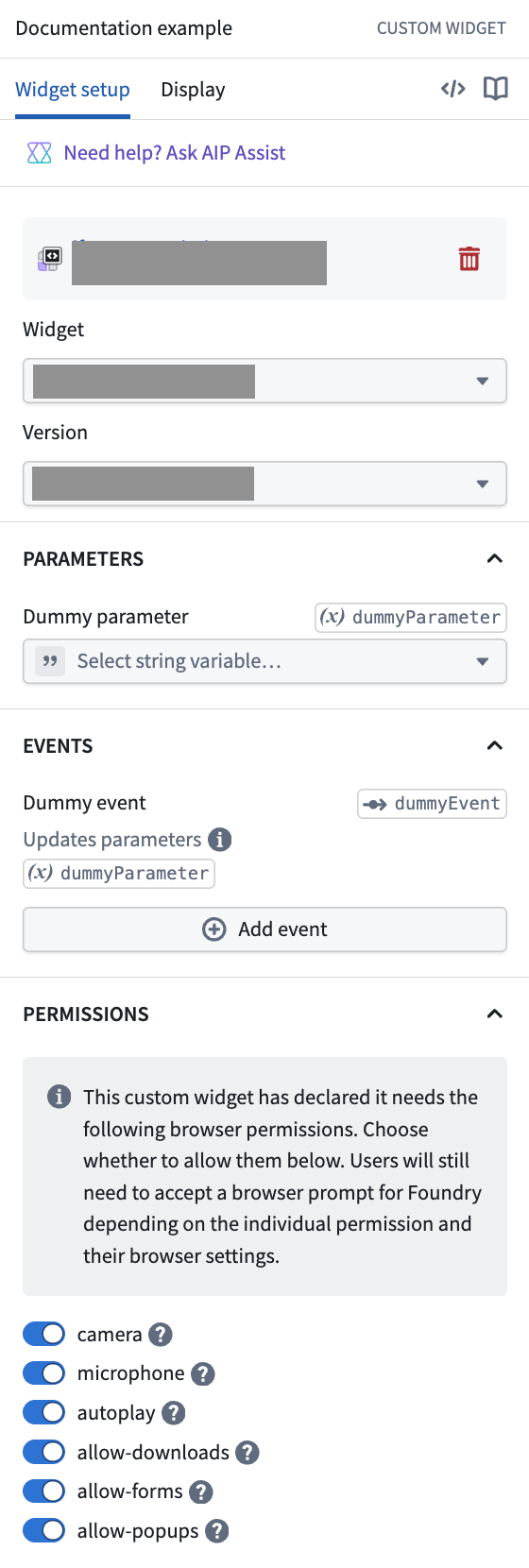
During development, the widget developer can temporarily permit the requested iframe attributes for testing; they can then use the custom widgets playground environment or VS Code workspace without needing to explicitly grant permission.
Examples
Camera and microphone
The following example requires the camera and microphone iframe allow attribute values to be enabled.
The navigator.mediaDevices.getUserMedia ↗ method may be used to prompt the user for permission to use a media input (the camera and microphone in this example) and returns a MediaStream ↗ object if successful.
const mediaStream = await navigator.mediaDevices.getUserMedia({
    video: true,
    audio: true,
});
Additionally, the Permissions API ↗ may be used to query the current status of browser permissions. The returned values may be "granted", "prompt" or "denied" based on the iframe attributes and user browser prompt status.
navigator.permissions.query({ name: "camera" });
navigator.permissions.query({ name: "microphone" });
The widget developer should ensure that cases where attribute access is not available are gracefully handled.
Autoplay
The following example requires the autoplay iframe allow attribute value to be enabled.
The autoplay ↗ attribute may be used on an <audio> or <video> element to autoplay media.
<video src={myVideoSrc} autoplay controls />
Downloads
The following examples require the allow-downloads iframe sandbox attribute value to be enabled.
Dynamically create a CSV (blob)
A Blob ↗ can be constructed with the contents of a CSV and downloaded in the browser:
<button
    onClick={() => {
        const csv = "a,b,c\n1,2,3";
        const blob = new Blob([csv], { type: "text/csv" });
        const url = URL.createObjectURL(blob);
        triggerDownload(url, "data.csv");
        URL.revokeObjectURL(url);
    }}
>
    Download CSV
</button>
The triggerDownload helper function temporarily creates an <a> element to trigger the download:
function triggerDownload(url: string, filename: string) {
    const a = document.createElement("a");
    a.download = filename;
    a.href = url;
    document.body.appendChild(a);
    a.click();
    a.remove();
}
Download static assets included in widget
Two methods are described below for downloading static assets included in a custom widget. Review the Vite Static Asset Handling ↗ documentation for more information.
Direct href
:::callout{theme="warning"}
In custom widget dev mode, the dev server provides assets from a different origin (for example, localhost) than the custom widget runtime. This behavior may cause the browser to open a new tab rather than trigger a download. However, when using the custom widget in production, the assets will correctly trigger a download.
:::
When using the Vite method to import a static asset as a URL ↗, the asset URL may be used directly in an <a> element href attribute together with the download attribute:
import imgUrl from "./img.png";

<a href={imgUrl} download="img.png" target="_blank" rel="noreferrer">
    Download
</a>;
When using the Vite public directory ↗, the assets in the public directory should be referenced using the root absolute path; for example, public/img.png should be referenced as /img.png in code:
<a href="/img.png" download="img.png" target="_blank" rel="noreferrer">
    Download
</a>
Alternative fetch blob method
An alternative method uses fetch, possibly performs additional processing, then downloads as a Blob ↗, similar to the method for dynamically creating a CSV (blob). An example of additional processing could be to replace values inside the fetched static asset with user provided input.
When using the Vite method to import a static asset as a URL ↗ we recommend also enforcing no inlining ↗ to avoid content security policy (CSP) issues with data: URIs:
import imgUrl from "./img.png?no-inline";

<button
    onClick={async () => {
        const response = await fetch(imgUrl);
        const blob = await response.blob();
        // optional: perform additional processing
        const objectUrl = window.URL.createObjectURL(blob);
        triggerDownload(objectUrl, filename);
        window.URL.revokeObjectURL(objectUrl);
    }}
>
    Download
</button>;
When using the Vite public directory ↗, the assets in the public directory should be referenced using the root absolute path; for example, public/img.png should be referenced as /img.png in code:
<button
    onClick={async () => {
        const response = await fetch("/img.png");
        const blob = await response.blob();
        // optional: perform additional processing
        const objectUrl = window.URL.createObjectURL(blob);
        triggerDownload(objectUrl, filename);
        window.URL.revokeObjectURL(objectUrl);
    }}
>
    Download
</button>
The triggerDownload helper function temporarily creates an <a> element to trigger the download:
function triggerDownload(url: string, filename: string) {
    const a = document.createElement("a");
    a.download = filename;
    a.href = url;
    document.body.appendChild(a);
    a.click();
    a.remove();
}
Open links
:::callout{theme="neutral"} When developing in Workshop, we recommend creating a Workshop event to open links; this method avoids the need to request additional iframe attributes. :::
The following example requires the allow-popups iframe sandbox attribute value to be enabled:
An <a> element can be used with the href and related attributes to open a link in a new tab:
<a href="https://palantir.com/docs" target="_blank" rel="noreferrer">
    Link
</a>
中文翻译
启用额外的 iframe 属性
:::callout{theme="neutral"} 某些浏览器权限(如摄像头和麦克风访问)始终需要应用用户通过浏览器提示授予 Foundry 权限。启用 iframe 属性允许应用请求访问权限,但用户仍必须明确授予权限。更多信息请参阅权限策略文档 ↗。 :::
自定义小部件运行时(custom widgets runtime)使用带有严格属性的 <iframe> ↗ 元素,默认情况下禁止某些浏览器功能(如弹窗和摄像头访问)。但是,小部件开发者可以为自定义小部件启用部分属性值。然后,应用构建者必须手动授予所请求属性值的权限,这些属性值才能生效。通常,小部件开发者和应用构建者是同一个人。
可用的 iframe 属性
小部件开发者可以请求启用以下 iframe 属性:
allow ↗ 属性值:
cameramicrophoneautoplay
sandbox ↗ 属性值:
allow-downloadsallow-formsallow-popups
声明请求的 iframe 属性
小部件开发者可以在自定义小部件配置的 permissions 字段中声明请求的 iframe 属性:
export default defineConfig({
    id: "widgetId",
    name: "A custom widget",
    description: "A widget description",
    type: "workshop",
    parameters: {},
    events: {},
    permissions: ["camera", "allow-popups"],
});
在宿主应用中允许请求的 iframe 属性
:::callout{theme="neutral"} 选择启用某些 iframe 属性可能需要应用构建者确认一个检查点。 :::
在 Workshop 中,应用构建者可以在配置自定义小部件时授予所请求 iframe 属性的权限。权限(Permissions)部分位于参数(Parameters)和事件(Events)部分之后,显示这些设置。
在开发过程中,小部件开发者可以临时允许请求的 iframe 属性进行测试;他们可以使用自定义小部件游乐场环境或 VS Code 工作区,而无需明确授予权限。
示例
摄像头和麦克风
以下示例需要启用 camera 和 microphone 的 iframe allow 属性值。
可以使用 navigator.mediaDevices.getUserMedia ↗ 方法提示用户授予使用媒体输入(本例中为摄像头和麦克风)的权限,如果成功则返回一个 MediaStream ↗ 对象。
const mediaStream = await navigator.mediaDevices.getUserMedia({
    video: true,
    audio: true,
});
此外,可以使用权限 API ↗ 查询浏览器权限的当前状态。根据 iframe 属性和用户浏览器提示状态,返回值可能为 "granted"、"prompt" 或 "denied"。
navigator.permissions.query({ name: "camera" });
navigator.permissions.query({ name: "microphone" });
小部件开发者应确保妥善处理属性访问不可用的情况。
自动播放
以下示例需要启用 autoplay 的 iframe allow 属性值。
可以在 <audio> 或 <video> 元素上使用 autoplay ↗ 属性来自动播放媒体。
<video src={myVideoSrc} autoplay controls />
下载
以下示例需要启用 allow-downloads 的 iframe sandbox 属性值。
动态创建 CSV(blob)
可以使用 CSV 内容构建一个 Blob ↗ 并在浏览器中下载:
<button
    onClick={() => {
        const csv = "a,b,c\n1,2,3";
        const blob = new Blob([csv], { type: "text/csv" });
        const url = URL.createObjectURL(blob);
        triggerDownload(url, "data.csv");
        URL.revokeObjectURL(url);
    }}
>
    Download CSV
</button>
triggerDownload 辅助函数临时创建一个 <a> 元素来触发下载:
function triggerDownload(url: string, filename: string) {
    const a = document.createElement("a");
    a.download = filename;
    a.href = url;
    document.body.appendChild(a);
    a.click();
    a.remove();
}
下载小部件中包含的静态资源
下面介绍两种下载自定义小部件中包含的静态资源的方法。更多信息请参阅 Vite 静态资源处理 ↗ 文档。
直接 href
:::callout{theme="warning"}
在自定义小部件开发模式下,开发服务器提供的资源来自与小部件运行时不同的源(例如 localhost)。这种行为可能导致浏览器打开新标签页而不是触发下载。但是,在生产环境中使用自定义小部件时,资源将正确触发下载。
:::
当使用 Vite 方法将静态资源作为 URL 导入 ↗时,可以直接在 <a> 元素的 href 属性中与 download 属性一起使用资源 URL:
import imgUrl from "./img.png";

<a href={imgUrl} download="img.png" target="_blank" rel="noreferrer">
    Download
</a>;
当使用 Vite 公共目录 ↗时,公共目录中的资源应使用根绝对路径引用;例如,public/img.png 在代码中应引用为 /img.png:
<a href="/img.png" download="img.png" target="_blank" rel="noreferrer">
    Download
</a>
替代的 fetch blob 方法
另一种方法使用 fetch,可能执行额外的处理,然后作为 Blob ↗ 下载,类似于动态创建 CSV(blob)的方法。额外处理的示例可能是将获取的静态资源中的值替换为用户提供的输入。
当使用 Vite 方法将静态资源作为 URL 导入 ↗时,我们建议同时强制不内联 ↗,以避免 data: URI 的内容安全策略(CSP)问题:
import imgUrl from "./img.png?no-inline";

<button
    onClick={async () => {
        const response = await fetch(imgUrl);
        const blob = await response.blob();
        // optional: perform additional processing
        const objectUrl = window.URL.createObjectURL(blob);
        triggerDownload(objectUrl, filename);
        window.URL.revokeObjectURL(objectUrl);
    }}
>
    Download
</button>;
当使用 Vite 公共目录 ↗时,公共目录中的资源应使用根绝对路径引用;例如,public/img.png 在代码中应引用为 /img.png:
<button
    onClick={async () => {
        const response = await fetch("/img.png");
        const blob = await response.blob();
        // optional: perform additional processing
        const objectUrl = window.URL.createObjectURL(blob);
        triggerDownload(objectUrl, filename);
        window.URL.revokeObjectURL(objectUrl);
    }}
>
    Download
</button>
triggerDownload 辅助函数临时创建一个 <a> 元素来触发下载:
function triggerDownload(url: string, filename: string) {
    const a = document.createElement("a");
    a.download = filename;
    a.href = url;
    document.body.appendChild(a);
    a.click();
    a.remove();
}
打开链接
:::callout{theme="neutral"} 在 Workshop 中开发时,我们建议创建 Workshop 事件来打开链接;这种方法无需请求额外的 iframe 属性。 :::
以下示例需要启用 allow-popups 的 iframe sandbox 属性值:
可以使用带有 href 和相关属性的 <a> 元素在新标签页中打开链接:
<a href="https://palantir.com/docs" target="_blank" rel="noreferrer">
    Link
</a>