Preview custom documentation in Code Repositories(在代码仓库中预览自定义文档)
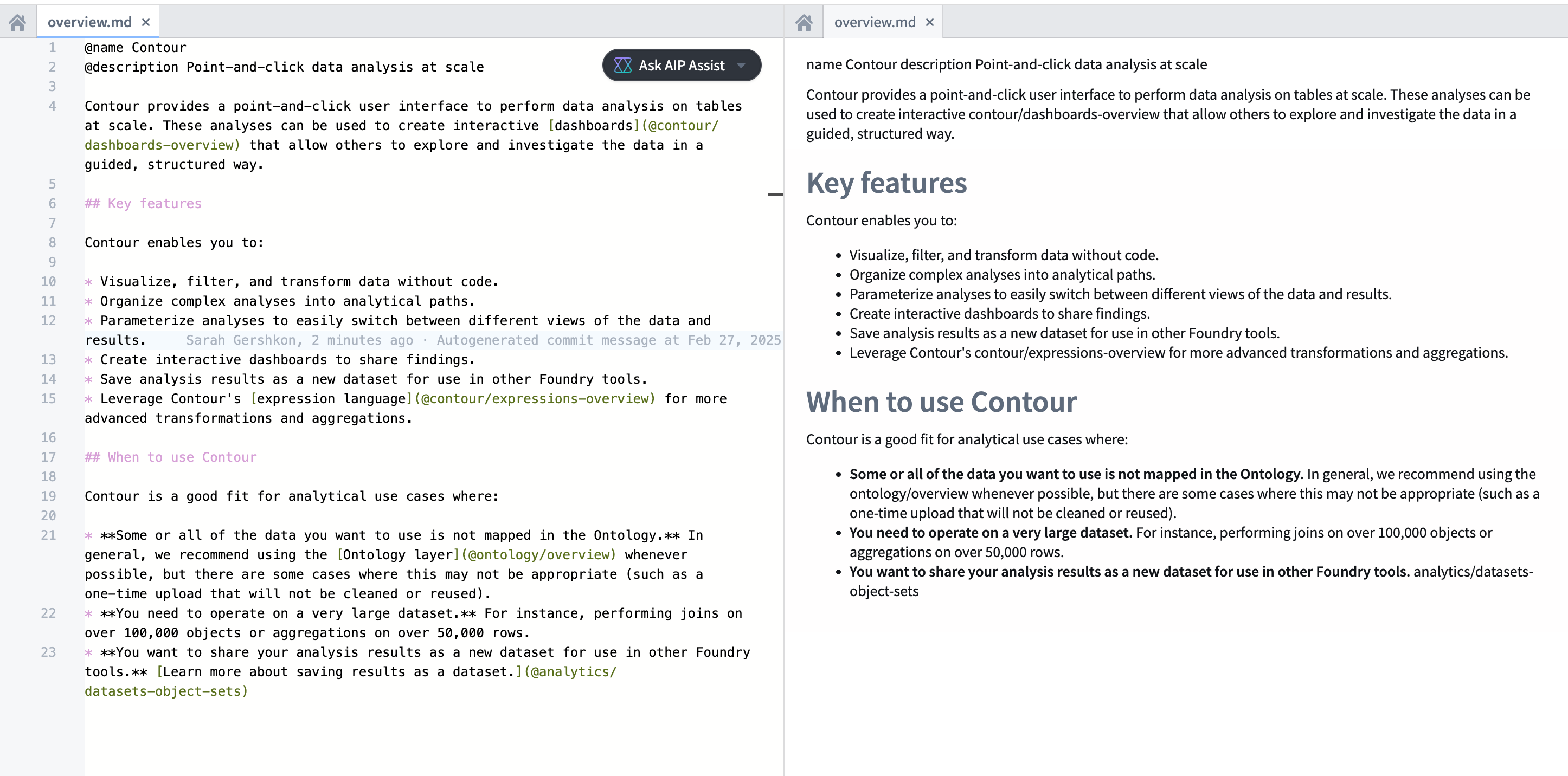
To help you write and edit custom documentation, you can preview Markdown files in your documentation repository using Code Repositories. Markdown previews are rendered side-by-side with the source Markdown code in the code editor, as shown in the screenshot below.
How to turn on Markdown preview
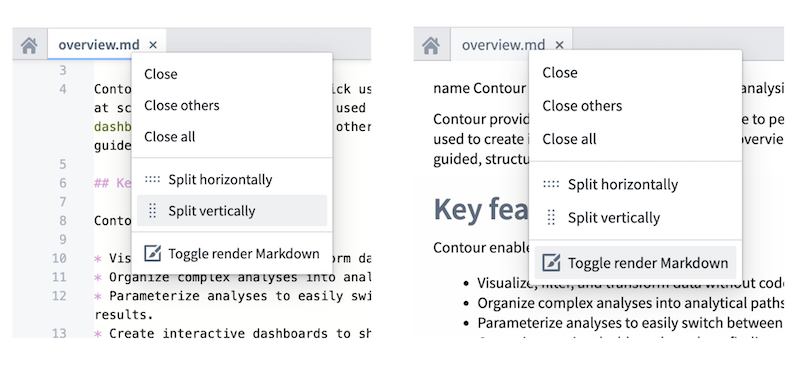
To view a rendered preview of your Markdown files in Code Repositories, you can turn on Markdown preview by following these steps.
- Right-click on your open Markdown file tab.
- Select Split vertically or Split horizontally to view the contents in two panes.
- Turn on Toggle render Markdown in the pane you would like to render as Markdown.
Differences between rendered Markdown preview and published custom documentation
Note that not all features of Palantir custom documentation will be fully rendered in a Markdown preview using Code Repositories, as the Markdown preview uses "vanilla" Markdown without Palantir-specific additions. The Markdown preview is intended to facilitate the custom documentation process but does not display a 1:1 copy of the final published documentation; Palantir-specific formatting will be applied later in the publishing process.
In particular the following will not render in their display format until published:
- Palantir-custom syntax - denoted by the
@tag, such as@titleor@description- will appear as plain text in Markdown preview but will be applied later in the publishing process. - Navigational elements, as designated in the table of contents
ordering.mdfile, may not be available in Markdown preview. - HTML elements such as callouts will not appear the same as in their final published form.
中文翻译
在代码仓库中预览自定义文档
为帮助您编写和编辑自定义文档,您可以使用代码仓库(Code Repositories)预览文档仓库中的 Markdown 文件。Markdown 预览将与代码编辑器中的源 Markdown 代码并排显示,如下方截图所示。
如何开启 Markdown 预览
要在代码仓库中查看 Markdown 文件的渲染预览,您可以按照以下步骤开启 Markdown 预览。
- 右键单击已打开的 Markdown 文件标签页。
- 选择垂直拆分或水平拆分,以在两个窗格中查看内容。
- 在您希望渲染为 Markdown 的窗格中,开启切换 Markdown 渲染。
渲染的 Markdown 预览与已发布的自定义文档之间的差异
请注意,Palantir 自定义文档的某些功能在代码仓库的 Markdown 预览中可能无法完全渲染,因为该预览使用的是"纯"Markdown,不包含 Palantir 特有的扩展。Markdown 预览旨在辅助自定义文档的编写过程,但不会显示最终发布文档的 1:1 副本;Palantir 特有的格式将在后续发布流程中应用。
具体而言,以下内容在发布之前不会以其显示格式渲染:
- Palantir 自定义语法——以
@标签标识,例如@title或@description——在 Markdown 预览中将显示为纯文本,但会在后续发布流程中生效。 - 在目录
ordering.md文件中指定的导航元素,在 Markdown 预览中可能不可用。 - HTML 元素,例如标注框,其显示效果将与最终发布形式不同。