Create and publish an application(创建并发布应用)
To create a new Slate application, navigate to a Project view and select +New > Slate application. You can also open Slate from the navigation side panel and select + New application.
Create an integrated application
To create an integrated application, choose the Integrated application option in the Create new application pop-up that appears. Add a location, title, and permalink to identify the application in a unique URL.
Next, learn how to structure your application into pages to optimize for scalability, maintainability, and performance.
Create a public application
Creating and editing new public applications requires permissions as described in Permissions. To create a new public application, select the Public application option. Public applications can only be created in projects and cannot be stored in private folders. Templates are not available for public applications.
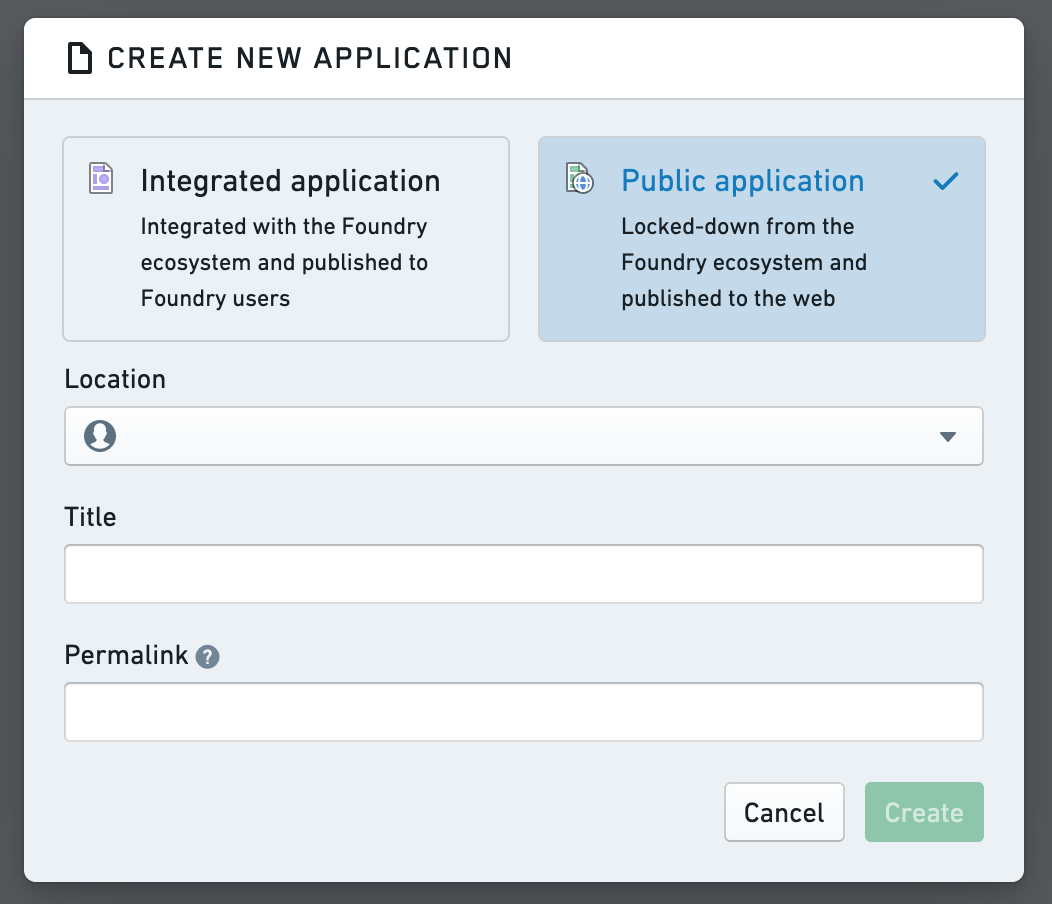
The public application must first be published before unauthenticated users can view it.
Publish a public application
To make newly-created public applications available for use, it must be published via either the version dialog or the dropdown next to Save assuming all prior edits have been saved already. Compared to strictly internal applications, public applications cannot be automatically published and the version intended for publication needs to be confirmed every time to prevent accidental publication.
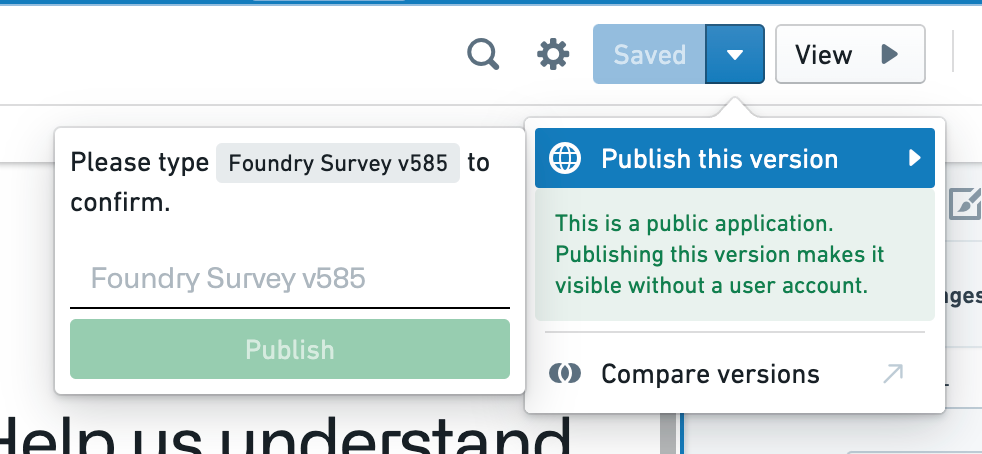
Only one version can be published at any time. Tags are also not accessible to unauthenticated users, and these users will be redirected to the published version or shown an error message where there is no published version.
Unpublish a public application
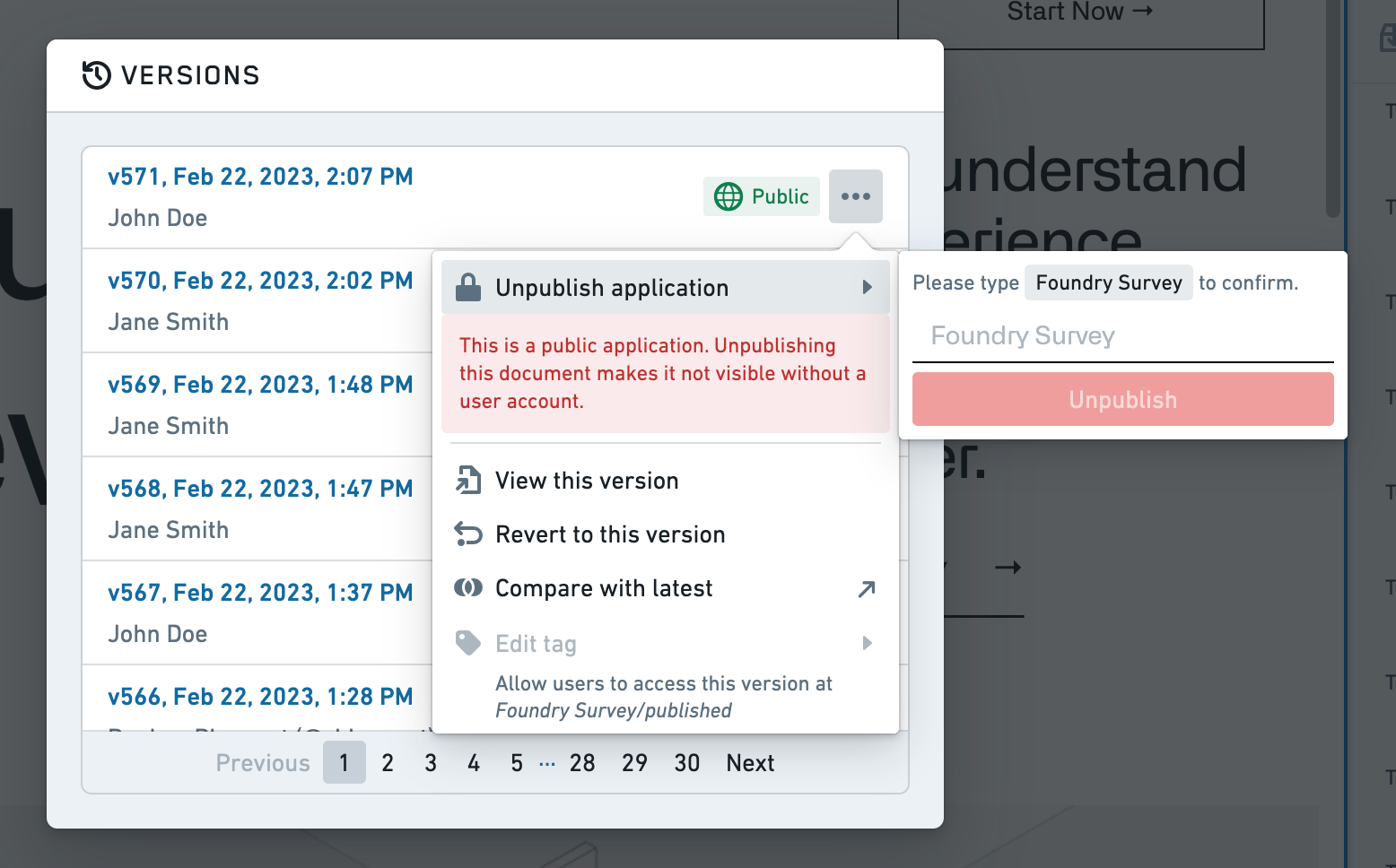
A published application can be unpublished anytime when no longer needed. Unpublished applications can be accessed by authenticated users with the required resource permissions, but are inaccessible to unauthenticated users.
To unpublish, open the version dialog in edit mode and navigate to the published version in the list, indicated by the globe icon. Open the context menu and select Unpublish for on-screen guidance.
中文翻译
创建并发布应用
要创建新的 Slate 应用,请导航至项目视图并选择 +新建 > Slate 应用。您也可以从导航侧面板打开 Slate,然后选择 + 新建应用。
创建集成应用
要创建集成应用,请在出现的创建新应用弹窗中选择集成应用选项。添加位置、标题和永久链接(permalink),以便通过唯一 URL 标识该应用。
接下来,了解如何将应用结构化为页面,以优化可扩展性、可维护性和性能。
创建公共应用
创建和编辑新的公共应用需要具备权限中所述的权限。要创建新的公共应用,请选择公共应用选项。公共应用只能在项目中创建,不能存储在私有文件夹中。公共应用不提供模板。
公共应用必须先发布,未认证用户才能查看。
发布公共应用
要使新创建的公共应用可供使用,必须通过版本对话框或保存按钮旁的下拉菜单进行发布(前提是所有之前的编辑已保存)。与严格意义上的内部应用相比,公共应用无法自动发布,每次都需要确认要发布的版本,以防止意外发布。
任何时候只能发布一个版本。未认证用户也无法访问标签(tags),这些用户将被重定向到已发布版本,或在没有已发布版本时看到错误信息。
取消发布公共应用
已发布的应用可以在不再需要时随时取消发布。取消发布的应用仍可由具有所需资源权限的认证用户访问,但未认证用户无法访问。
要取消发布,请在编辑模式下打开版本对话框,导航至列表中带有地球图标的已发布版本。打开上下文菜单并选择取消发布,按照屏幕提示操作。