Merge application changes(合并应用程序变更)
When multiple collaborators work on a single Slate application, they may need to merge their changes together to maintain version control. Version control is necessary when two or more users begin editing the same version of an application at the same time and then both attempt to save changes. Since the second attempt to save is based on a version that has been rendered out-of-date by the first save, the application cannot be saved normally without a user's changes being lost. To resolve this situation, the second user must choose from the following options:
- Discard their changes.
- Overwrite the first user’s changes.
- Save the application with a different name.
- Merge their changes with the first user’s changes.
The following section describes the merge process.
Merge conflicts
Merge conflicts arise when the same element is modified or deleted by multiple users. For example, if a widget is deleted by one user and modified by another user, there will be a conflict. Another example of a conflict is when both users modify the same query.
Conflicts can also occur when otherwise mergeable widget IDs collide, forcing users to choose one version over the other. This conflict can occur more commonly if application developers fail to follow best practices of applying semantic widget names and instead rely on default widget names.
No conflicts
If no conflict is detected upon a save, Slate automatically merges the application JSON and shows a preview of the merged application. If you are satisfied with the changes, select Accept and save. If corrections are needed, choose Make changes to view and edit the JSON.
Merging with conflicts
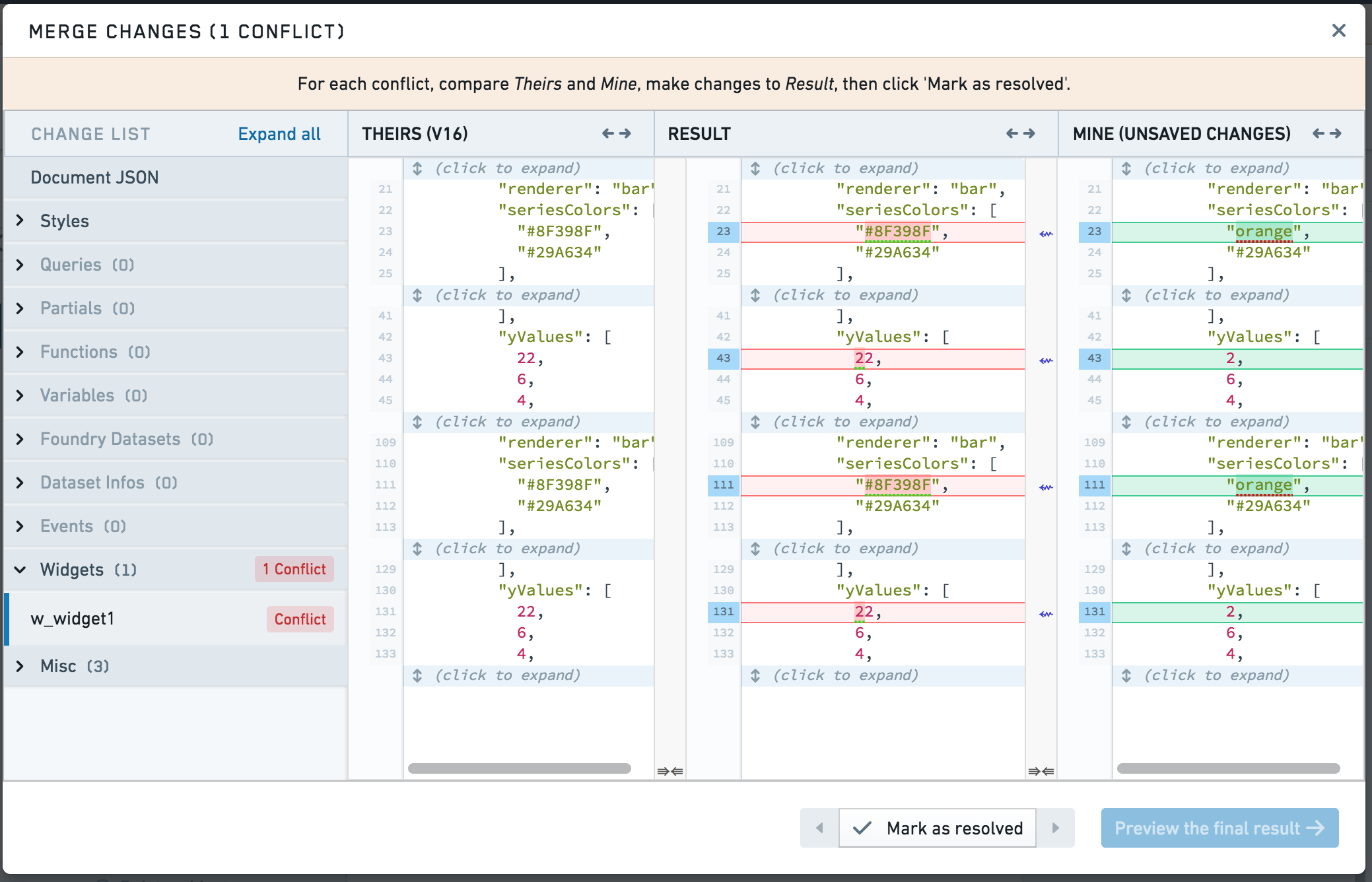
When a merge conflict is detected upon a save, you are presented with the JSON view of the changes. Within the merge view, three separate panes show the changes made from another user, the merge result, and your changes. When a merge conflict is identified, Slate will not attempt merge changes within an element and will contain the other user's changes by default.
For each of the conflicts:
- Navigate to a conflict by selecting an element with a
Conflicttag. - Modify the resulting JSON so that it contains the changes you want to retain from both your changes and the other user's changes.
- When you are satisfied with the merged result, select Mark as resolved.
When all of the conflicts are resolved and you are satisfied with the JSON changes, select Preview the final result. You are then presented with a visual preview of the merged application and have the option to save the application.
Example of merging with conflicts
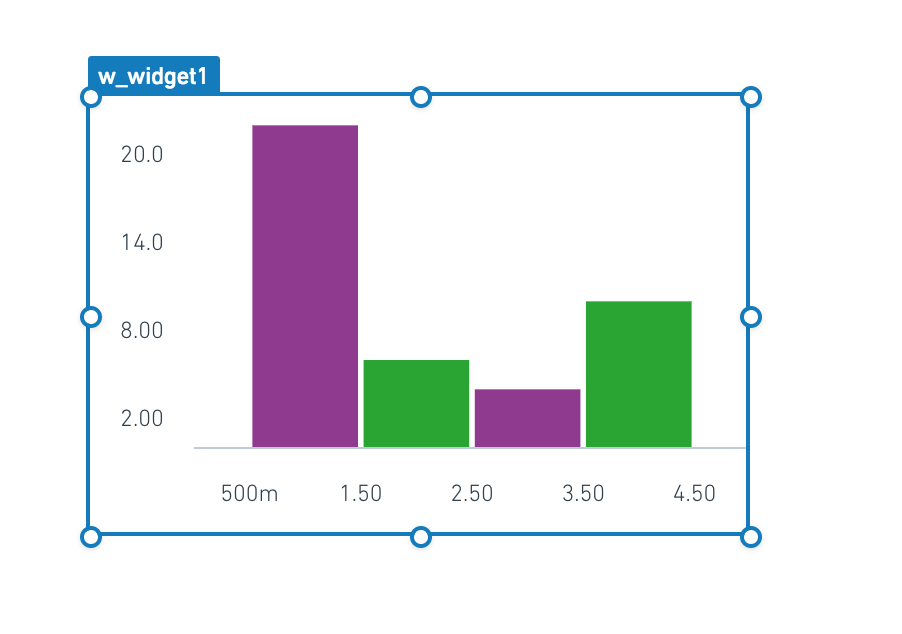
In this example, User A modifies a Y value in a chart:
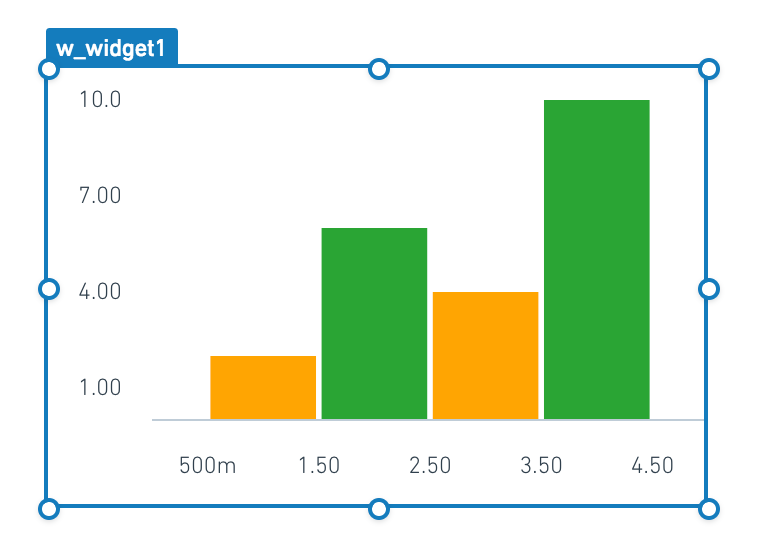
Then, User B modifies the color of a series in the same widget:
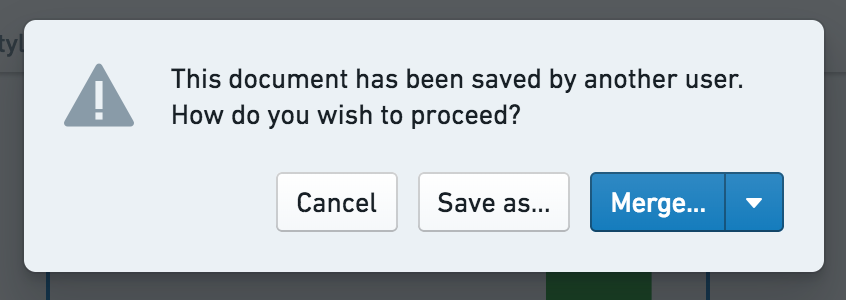
After user A saves and user B saves, user B will see the following prompt:
If user B selects the Merge... button, they will see the merge interface. In this initial view, a comparison (also known as a "diff") of the entire Slate application is displayed. User B can select a specific element using the menu on the left.
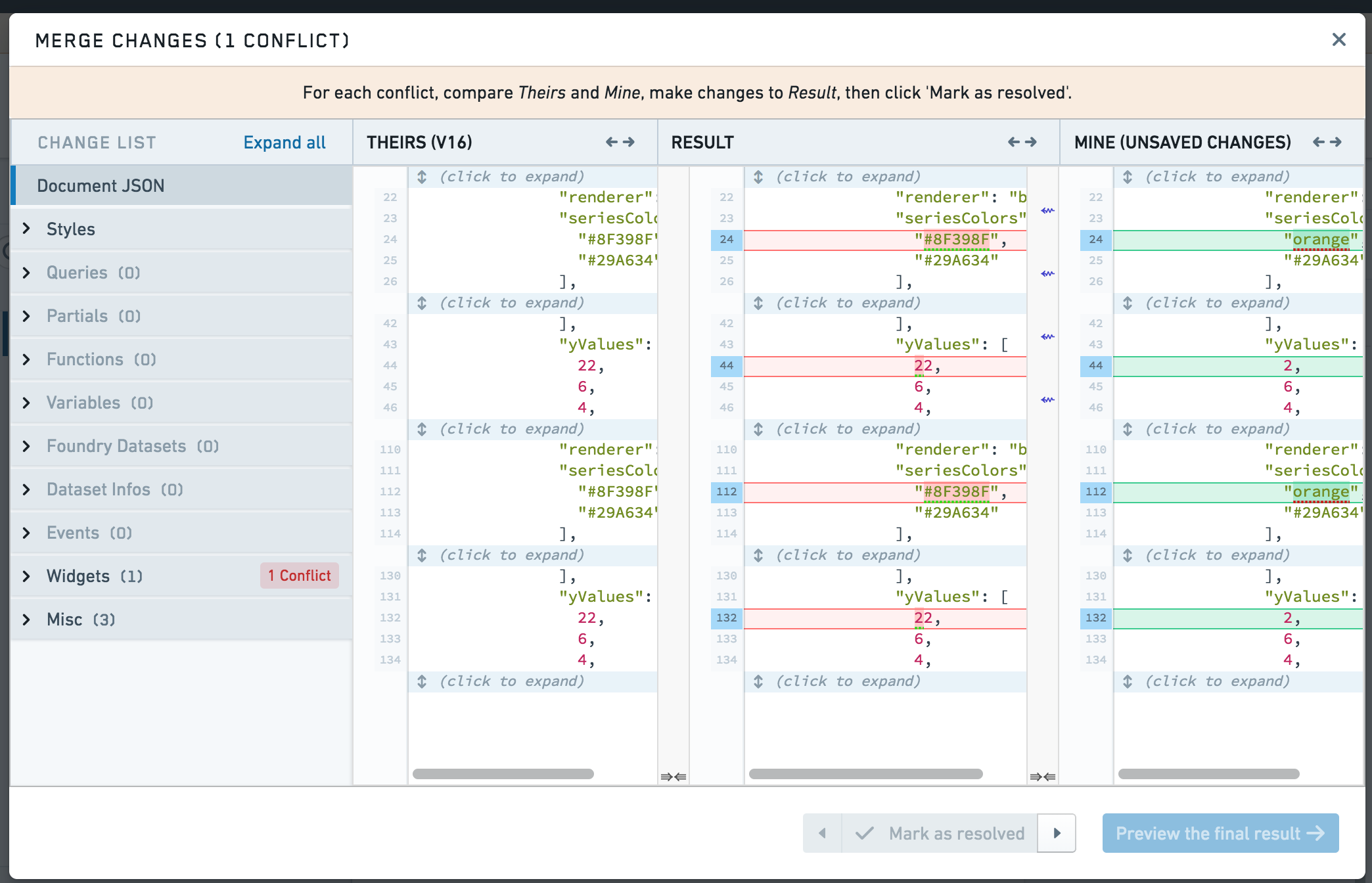
Navigating to the element with the conflict focuses on just those changes. Note that none of the changes from user B are merged yet; user B must copy the changes that they want to retain to the merge result pane.
After user B copies the changes that they want to retain to the merge result pane, it might look like this:
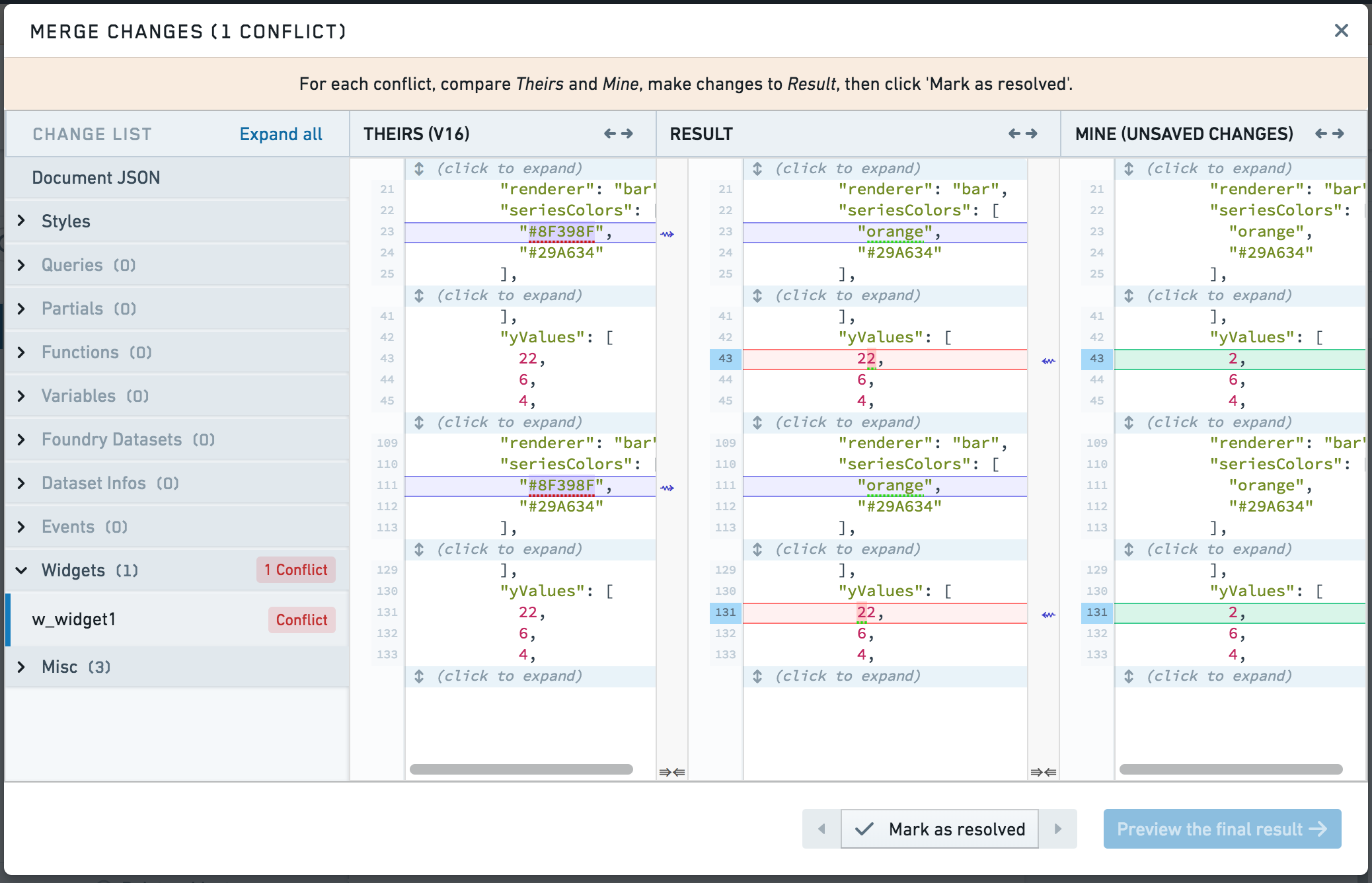
When satisfied with the content of the merge result pane, user B selects Mark as resolved.
When user B resolves all conflicts and selects Preview the final result, user B will see a visual preview of the merged application:
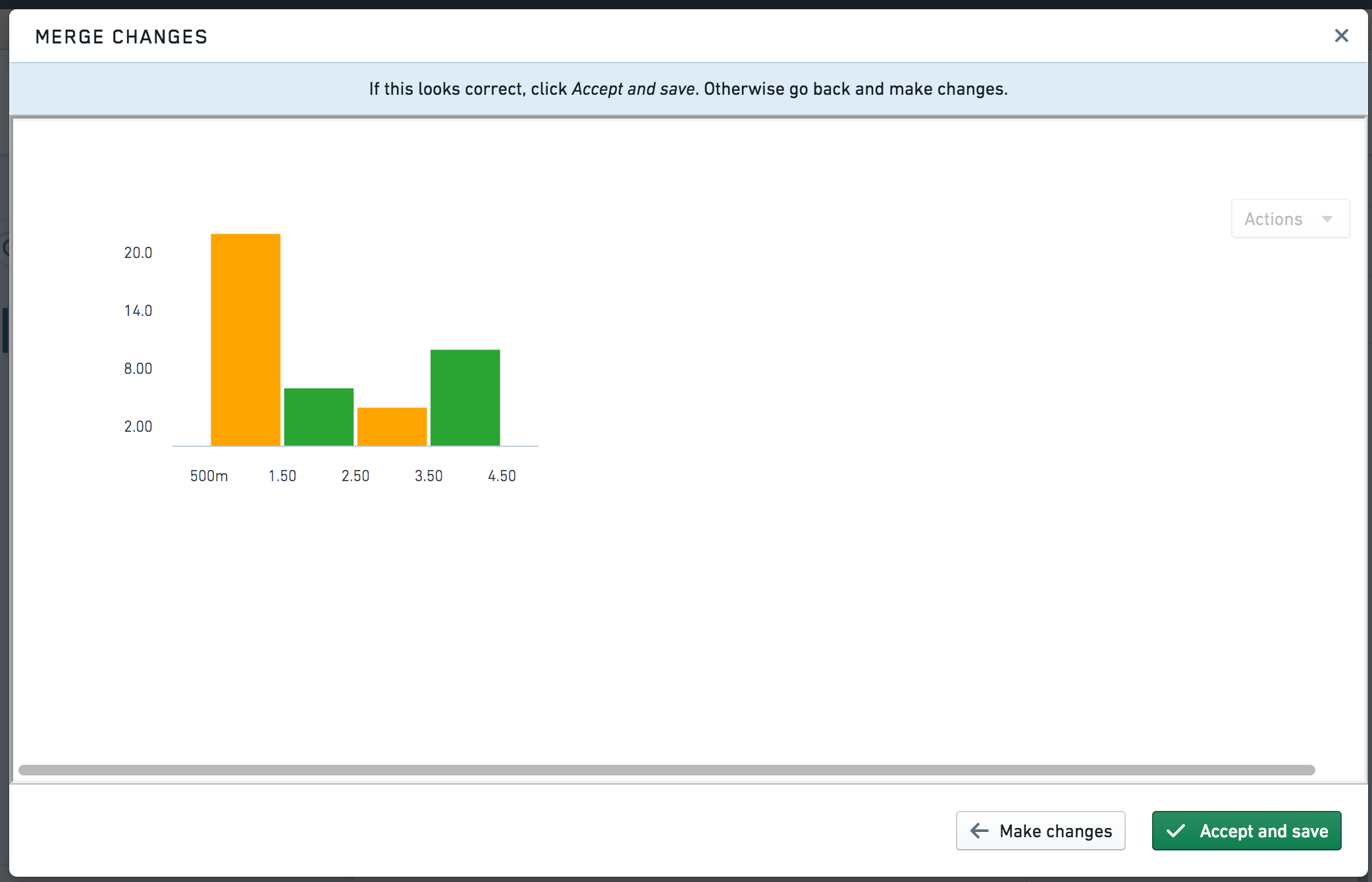
Note that the merged Slate application has attributes from both changes.
中文翻译
合并应用程序变更
当多位协作者共同处理一个 Slate 应用程序时,他们可能需要将各自的变更合并在一起以维护版本控制(version control)。当两个或更多用户同时开始编辑同一版本的应用程序,并随后都尝试保存更改时,版本控制就变得必不可少。由于第二次保存尝试所基于的版本已被第一次保存更新为过时版本,因此在不丢失用户更改的情况下,应用程序无法正常保存。为解决此问题,第二位用户必须从以下选项中选择:
- 放弃自己的更改。
- 覆盖第一位用户的更改。
- 以不同名称保存应用程序。
- 将自己的更改与第一位用户的更改合并。
以下章节描述了合并过程。
合并冲突
当多个用户修改或删除了同一元素时,就会产生合并冲突(merge conflicts)。例如,如果一个用户删除了某个小部件(widget),而另一个用户修改了它,就会产生冲突。另一个冲突的例子是当两个用户都修改了同一个查询(query)。
当原本可合并的小部件 ID 发生冲突时,也会产生冲突,迫使用户选择其中一个版本而非另一个。如果应用程序开发者未能遵循使用语义化小部件名称(semantic widget names)的最佳实践,而是依赖默认小部件名称,则此类冲突可能更常见。
无冲突
如果在保存时未检测到冲突,Slate 会自动合并应用程序 JSON,并显示合并后应用程序的预览。如果您对更改满意,请选择接受并保存。如果需要更正,请选择进行更改以查看和编辑 JSON。
存在冲突的合并
当保存时检测到合并冲突,系统会向您显示更改的 JSON 视图。在合并视图中,三个独立的面板分别显示另一位用户所做的更改、合并结果以及您自己的更改。当识别到合并冲突时,Slate 不会尝试合并元素内的更改,并默认保留另一位用户的更改。
对于每个冲突:
- 通过选择带有
冲突标签的元素来导航到冲突位置。 - 修改生成的 JSON,使其包含您希望从自己更改和另一位用户更改中保留的内容。
- 当您对合并结果满意时,选择标记为已解决。
当所有冲突都已解决,并且您对 JSON 更改满意时,选择预览最终结果。系统将向您显示合并后应用程序的可视化预览,您可以选择保存该应用程序。
存在冲突的合并示例
在此示例中,用户 A 修改了图表中的 Y 值:
然后,用户 B 修改了同一小部件中某个系列的颜色:
在用户 A 保存后,用户 B 保存时,用户 B 将看到以下提示:
如果用户 B 选择合并...按钮,他们将看到合并界面。在此初始视图中,会显示整个 Slate 应用程序的对比(也称为"差异")。用户 B 可以使用左侧菜单选择特定元素。
导航到存在冲突的元素时,视图会聚焦于这些更改。请注意,用户 B 的更改尚未合并;用户 B 必须将希望保留的更改复制到合并结果面板中。
在用户 B 将希望保留的更改复制到合并结果面板后,界面可能如下所示:
当对合并结果面板的内容满意时,用户 B 选择标记为已解决。
当用户 B 解决所有冲突并选择预览最终结果时,用户 B 将看到合并后应用程序的可视化预览:
请注意,合并后的 Slate 应用程序包含了来自双方更改的属性。