Manage application versions(管理应用版本)
Editors are able to control the version of a Slate application that is Published and viewable to the end user. This control allows for continued development on a live Slate application without the need to expose changes to end users when the application is saved.
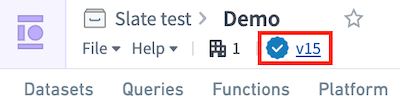
To view the versions of your Slate application, select the blue number next to the blue checkmark icon in the upper right corner of your screen, beneath the name of your application.
A Versions pop-up will appear, listing all historical versions of the application including the currently published version.
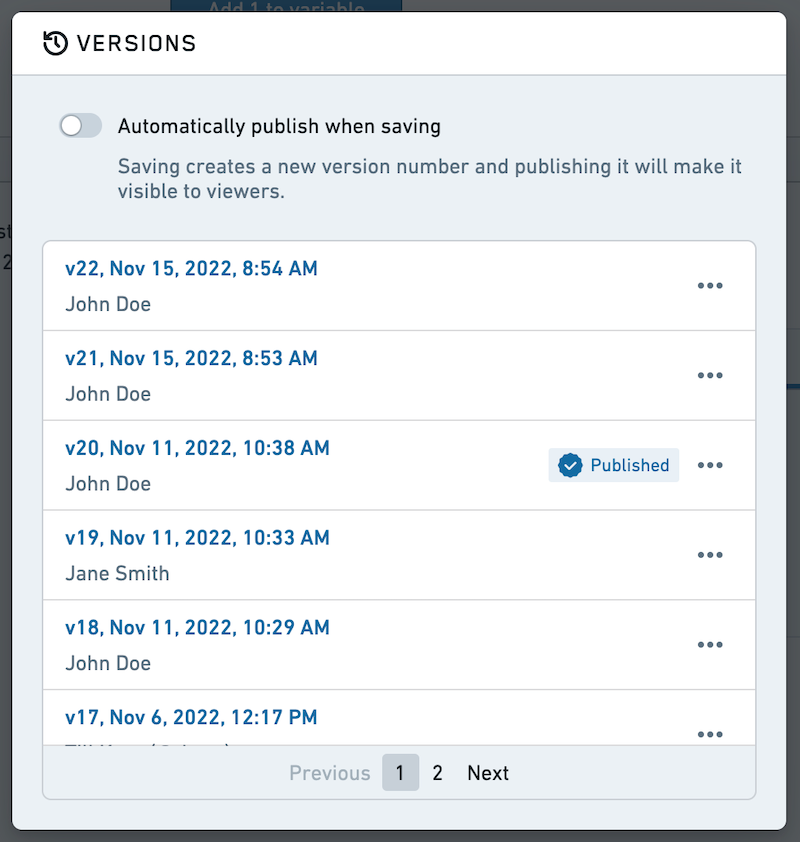
Editors can select from these versions and choose to do the following:
- Enable automatic publishing.
- Open the versions in View mode.
- Revert to a given version.
- Compare a version with the latest version.
- Manage tags applied to given versions.
Enable automatic publishing
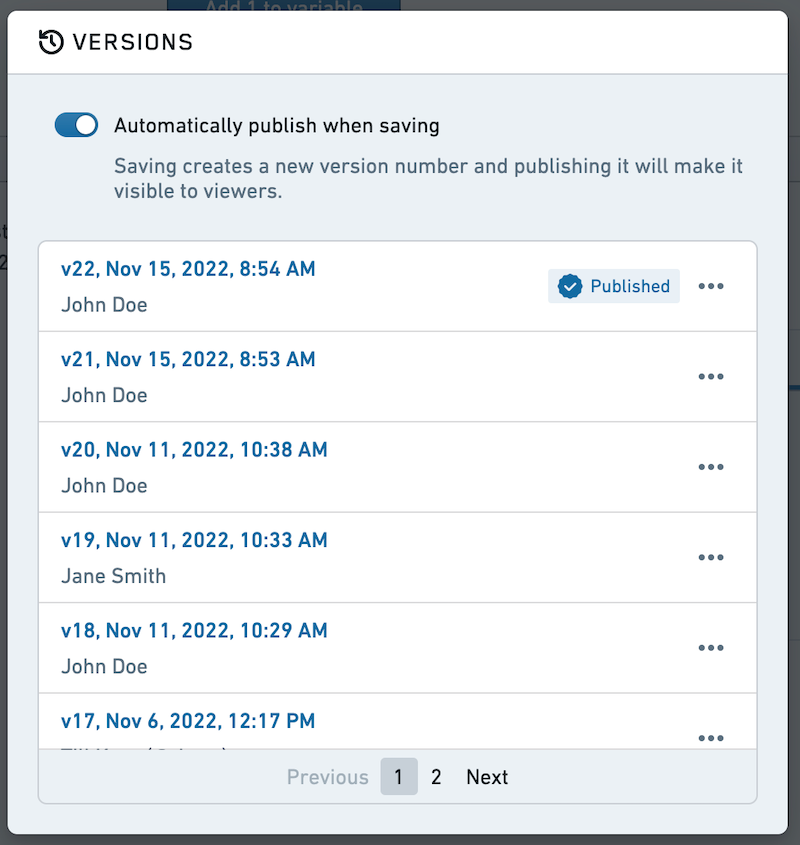
Toggle on the Always publish when saving option to allow new versions to publish automatically when saved. This option ensures that your end user view is always on the latest version. This mirrors the default behavior where navigating to a Slate permalink will always redirect to the implicit tag. When the toggle is disabled, the permalink will redirect users to the published version.
View versions
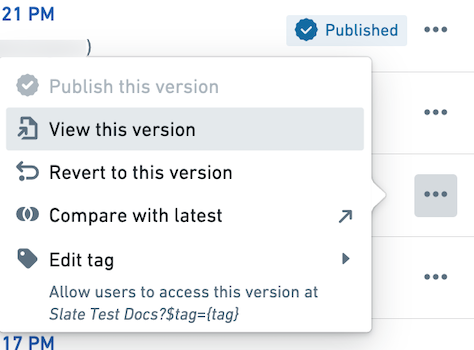
To open a version for viewing, select the three dots ... to the right of the version name and select View this version.
When you view an unpublished or untagged version, you will see a warning banner at very top of the page. The banner will also appear when viewing the latest version of the application if it is not published or manually tagged.

Revert to a version
Along with viewing a given version, you can choose to revert to a given version. Reverting to a version will save the historic version you are viewing as the newest version of the application.
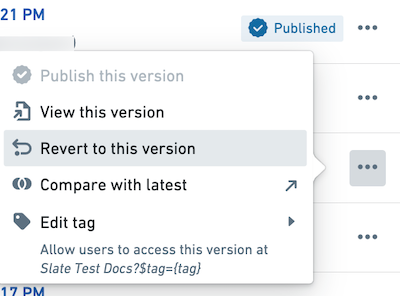
For example, if you are currently on version 55 of your application but need to revert to version 51, you can open version 51 from the Versions pop-up and select Revert to this version. Reverting saves the version you are viewing (51) as the newest version (56). Now, version 56 is an exact match of version 51, maintaining a linear version history and allowing you to always return to a specific saved version.
Compare versions
You may find it useful to compare a given version of your application with another version. You can compare a version by selecting the three dots ... to the right of the version name and choosing Compare with latest.
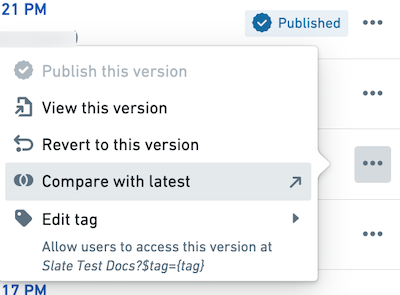
You will then see a side by side comparison (a "diff") of the application at two points in its version history. Any changes made to widgets are highlighted, and you can choose to view the changes to the underlying JSON definitions to review new or modified functions, queries, events, and variables.
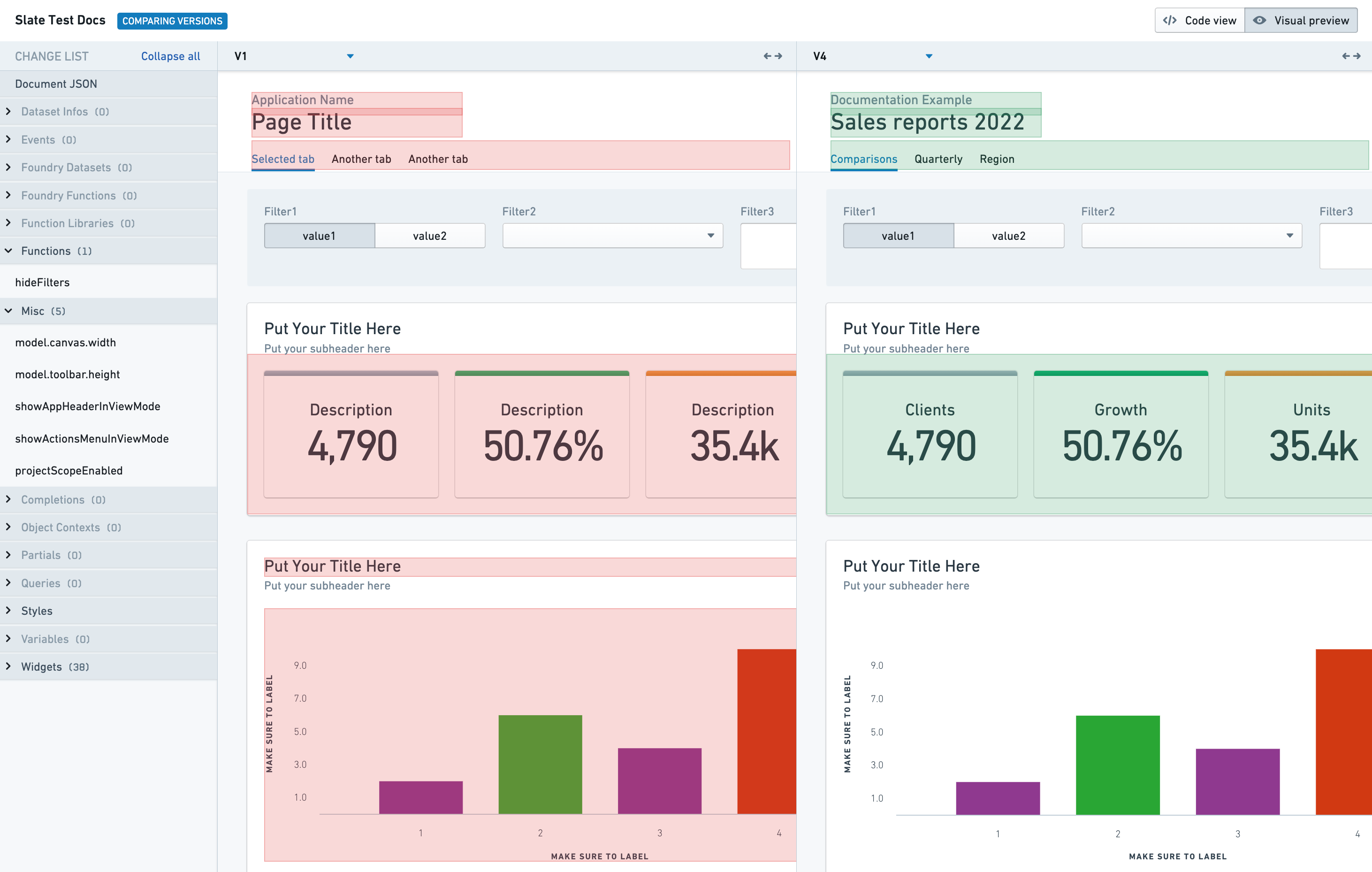
From this comparison view, you can also compare across other versions by adjusting the version numbers at the top of the page.
Manage tags
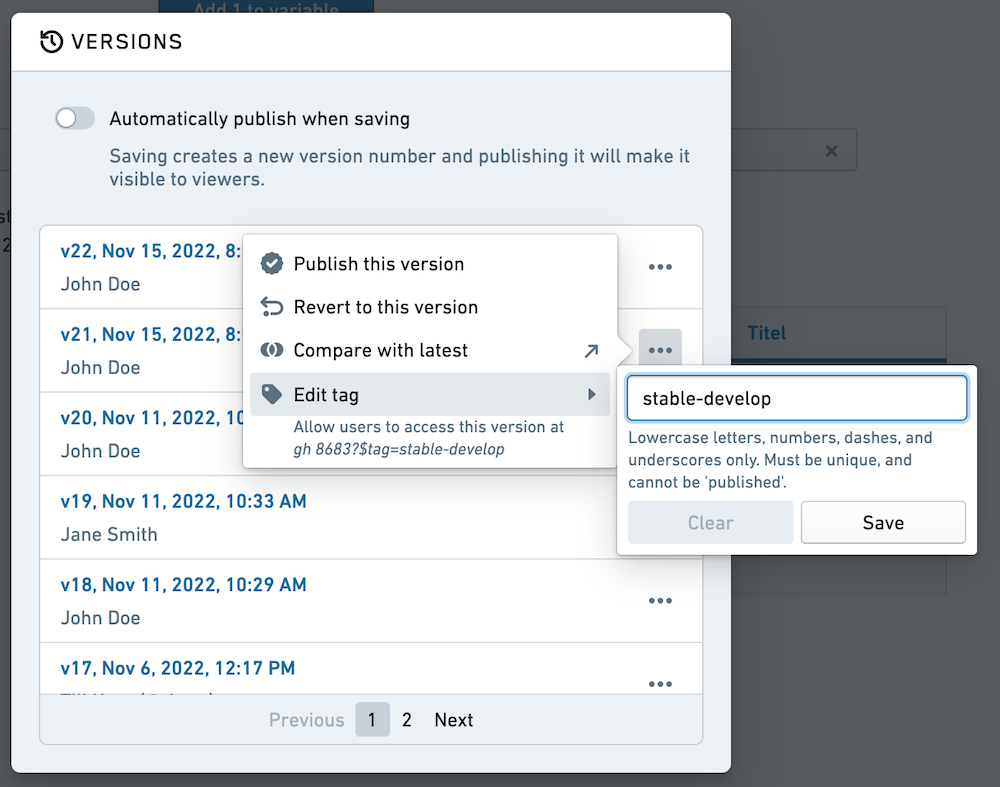
To further manage version access, you can apply tags to a given version that allows end users to view the version by appending the application URL with ?$tag={<<tag-name>>}.
All tagged versions are available to users who have Viewer permissions on the Slate application. Viewers cannot open non-tagged versions.
:::callout{theme="neutral"}
By default, the platform uses the published tag to identify the currently published version. For this reason, you cannot apply a published tag to any versions. Additionally, you cannot apply the same tag on multiple versions of the application at the same time.
:::
中文翻译
管理应用版本
编辑器(Editor)能够控制Slate应用的版本,决定哪个版本为已发布(Published)状态并对最终用户可见。这种控制机制允许在已上线的Slate应用上继续进行开发,而无需在保存应用时将更改暴露给最终用户。
要查看Slate应用的版本,请选择屏幕右上角(应用名称下方)蓝色勾选图标旁的蓝色数字。
此时将弹出版本(Versions)窗口,列出应用的所有历史版本,包括当前已发布的版本。
编辑器(Editor)可以从这些版本中进行选择,并执行以下操作:
- 启用自动发布。
- 在查看模式(View mode)下打开版本。
- 回滚到指定版本。
- 将某个版本与最新版本进行比较。
- 管理应用于指定版本的标签(Tag)。
启用自动发布
开启保存时始终发布(Always publish when saving)选项,可在保存时自动发布新版本。此选项可确保最终用户始终看到最新版本。这反映了默认行为:导航到Slate永久链接(Permalink)时,始终会重定向到隐式标签(Implicit tag)。当该选项关闭时,永久链接会将用户重定向到已发布的版本。
查看版本
要打开某个版本进行查看,请选择版本名称右侧的三个点...,然后选择查看此版本(View this version)。
当您查看未发布或未标记的版本时,页面顶部会显示一个警告横幅。如果应用的最新版本未发布或未手动标记,查看该版本时也会显示此横幅。
回滚到某个版本
除了查看指定版本外,您还可以选择回滚到某个版本。回滚到某个版本会将您正在查看的历史版本保存为应用的最新版本。
例如,如果您当前处于应用的第55版,但需要回滚到第51版,您可以从版本(Versions)弹出窗口中打开第51版,然后选择回滚到此版本(Revert to this version)。回滚操作会将您正在查看的版本(51)保存为最新版本(56)。现在,第56版与第51版完全一致,保持了线性的版本历史,使您始终能够返回到特定的已保存版本。
比较版本
您可能会发现将应用的某个版本与另一个版本进行比较很有用。您可以通过选择版本名称右侧的三个点...,然后选择与最新版本比较(Compare with latest)来比较版本。
随后您将看到应用在两个版本历史节点上的并排比较(差异对比(diff))。对组件(Widget)所做的任何更改都会高亮显示,您还可以选择查看底层JSON定义的更改,以审查新增或修改的函数(Function)、查询(Query)、事件(Event)和变量(Variable)。
在此比较视图中,您还可以通过调整页面顶部的版本号来比较其他版本。
管理标签(Tag)
为进一步管理版本访问权限,您可以为指定版本应用标签(Tag),最终用户可以通过在应用URL后附加?$tag={<<标签名称>>}来查看该版本。
所有带标签的版本对拥有Slate应用查看者(Viewer)权限的用户均可见。查看者(Viewer)无法打开未标记的版本。
:::callout{theme="neutral"}
默认情况下,平台使用published标签来标识当前已发布的版本。因此,您不能将published标签应用于任何版本。此外,您不能同时将同一个标签应用于应用的多个版本。
:::