Available events and actions(可用事件与操作)
The page lists all available events and actions in Slate at the query, function, variable, widget, and application levels. Learn how to configure and use these events and actions in our additional documentation.
Global events
Global events are events that occur at the application level and are not specific to individual components or queries.
slate.ready
The slate.ready event triggers once the page framework is loaded and queries have begun to run. Any actions you wish to trigger immediately on page load (for example, firing some manual queries) should happen here.
slate.resize
The slate.resize event triggers whenever the browser window is resized. If any widgets are sized based on the size of the browser window, they will also be resized. However, some widgets (such as Charts) have a redraw action that you can trigger to ensure that widgets are redrawn to the correct size, even as the browser window size changes.
slate.onNavigate[page_name]
slate.onNavigate[page_name] is triggered whenever a user navigates to the page to which the event is added.
slate.onPrint
slate.onPrint is triggered whenever the user closes the printing modal that was previously opened with the slate.print action.
slate.userStorageChanged
slate.userStorageChanged detects when the userStorage was updated with the slate.setUserStorage action. This event is also supported if the user storage was updated through another browser tab or window.
slate.getMessage
slate.getMessage is for Slate applications that live inside iframes in other applications, like Workshop. The slate.getMessage event triggers whenever Slate receives a postMessage from the parent iframe of the form:
{ "target": "slate-parent-iframe-event", "message": <payload> }
The slate.getMessage event is also triggered if a child window or parent window sends a postMessage that contains an object with the following target property set:
{ "target": "SLATE_MESSAGING_SERVICE", ...<payload> }
The event will be triggered. Then, inside the JavaScript pane for this event, <payload> will be available as {{slEventValue}} so the data in the message can be used appropriately.
Messages sent to Slate can also perform actions, such as setting variables:
{
    "slateActionOption": {
        "type": "SET_VARIABLES",
        "payload": {
            "v_variable": 123
        }
    }
}
You can also run actions:
{
    "slateActionOption": {
        "type": "TRIGGER_ACTION",
        "payload": <payload for action>
    }
}
slate.getBroadcast
slate.getBroadcast is triggered whenever Slate receives a message from a BroadcastChannel that Slate has opened. To open a BroadcastChannel, use the slate.createBroadcastChannel action. A channel will need to be opened before receiving a message.
The message payload will be available as {{slEventValue}}, which has the following structure:
{
  "channel": "channel_name",
  "data": <payload>
}
slate.onCloseCheckpoint
slate.onCloseCheckpoint is triggered whenever the user closes a Checkpoint. It provides information about the Checkpoint that was closed, which is available as {{slEventValue}} and has the following structure:
{
    "slateCheckpointId": string,
    "status": "cancelled" | "no-checkpoint" | "success",
    "interactionRid": string (optional - if Checkpoint was successful);
}
slateCheckpointId is a user-defined string that identifies the Checkpoint. It is defined when using the slate.showCheckpoint action.
You can read more about Checkpoints in the Checkpoints documentation.
slate.onChildWindowClosed
slate.onChildWindowClosed is triggered when a child window that was opened with the slate.redirectToUrl global action, is closed. The window must have been assigned an id using the windowSharingOptions property when calling slate.redirectToUrl, otherwise this event will not fire.
The message payload {{slEventValue}} has the following structure, where id is the ID of the closed window:
{
    "id": string | number
}
slate.viewSaved
slate.viewSaved is triggered after a shareable view is saved through the Actions dropdown menu or the slate.saveView action. The {{slEventValue}} contains the view ID (string) of the newly created view.
This event can be paired with the slate.loadView action to build save-and-load workflows. For example, you can store the view ID from {{slEventValue}} and later pass it to slate.loadView to restore that view.
Query events
Query events are events related to queries in Slate applications that are triggered when a query is completed or when a query fails to complete successfully due to reasons such as timeout, a badly formatted query, or some other server issue. Each query has its own instance of these events.
QUERY_NAME.success
This event triggers whenever the query specified by QUERY_NAME completes successfully. Each query has its own instance of this event.
QUERY_NAME.failure
This event triggers whenever the query specified by QUERY_NAME fails to successfully complete, due to reasons such as timeout, a badly formatted query, or some other server issue. Each query has their own instance of this event.
Function events
Function events are events related to Slate functions execution. Each function has its own instance of these events.
FUNCTION_NAME.ran
This event triggers whenever the function specified by FUNCTION_NAME has finished running. Each function has its own instance of this event.
Variable events
Variable events are events related to Slate variables interaction. Each variable has its own instance of these events.
VARIABLE_NAME.changed
This event triggers whenever the variable specified by VARIABLE_NAME has changed. The changed value will be available as {{slEventValue}}. Each variable has its own instance of this event.
Widget events
Widget events are triggers that are used to cause actions or activities within your Slate application. They can be used to create interactivity and automate processes within your application. Each widget has its own instance of these events.
WIDGET_ID.cssClassesUpdated
This event triggers whenever the “Additional CSS Classes” property belonging to the specified widget's WIDGET_ID is changed. This event triggers once the DOM is updated but before it is painted; this means means that if you are using CSS classes to change the size of different widgets, using this event to trigger redraw actions on those widgets will work exactly as expected. Each widget has its own instance of this event.
WIDGET_ID.transitionend
This event triggers whenever a JavaScript transitioned event happens from directly inside the widget specified by WIDGET_ID. In this case, "directly" means not from a child widget; only one event is triggered per transitioned. To be more specific, you can use CSS transitions to animate elements on the page, like having a sidebar slide in and out as opposed to popping up and out. Whenever one of these transitions completes, JavaScript will fire a transitioned event that Slate captures and passes along. This way, you can trigger other changes to occur on the page when transitions complete, or prompt a resize action on widgets that may have changed size.
Whenever this event is triggered, {{slEventValue}} is a JavaScript object that holds the following properties:
elapsedTime: The amount of time the transition tookpropertyName: The name of the property being animatedtargetId: If the DOM element being animated had an ID property, it is available here
These properties may be useful to discern specific transitions from others; make sure that your code is responding to the correct one. Each widget has its own instance of this event.
WIDGET_ID.INTERACTION_PROPERTY.changed
This event triggers whenever the INTERACTION_PROPERTY property that belongs to the widget specified by WIDGET_ID changes. The changed value will be available as {{slEventValue}}. Note that this event is not available on every single property of each widget, but only on the “interaction properties" (meaning the properties of the widget that are changeable by user interaction, such as selectedValue). Each widget interaction property has its own instance of this event.
Global actions
Global actions control behavior changes at the application level such as page or window modifications, data exports and cross application messaging.
slate.navigateTo[page_name]
The slate.navigateTo[page_name] action will change the page in scope to page_name and will also update the URL route to point to the target page. Shared variables will maintain their state across page changes.
slate.scrollToId
The slate.scrollToId action will scroll the page (and any other scrollable containers in the page) to the DOM element with a given ID (the ID returned in the JavaScript code in the events panel). This action can be used to scroll the page to specific elements programmatically or return to a remembered place in a scrollable table or list.
slate.setWindowTitle
The slate.setWindowTitle action allows you to rename the current browser window's title and update the tab name. Call the action and return a string to set the tab name. If this action is not called on page load, Slate defaults the tab title to the document name.
slate.print
The slate.print action will open the browser's print dialog to allow the user to select their printer options before printing.
slate.downloadBlob
The slate.downloadBlob action allows you to download arbitrary data blobs while following Slate's export restrictions. To use this action, add a return statement as below:
return {
    fileName: "my_file.txt",
    blob: new Blob(["Hello, world!"], { type: "text/plain;charset=utf-8" }),
};
An example use case is to download Excel files with conditional formatting by using a library like ExcelJS in the Functions tab and then send to slate.downloadBlob for the user to download. For more information on Blobs, see the MDN web docs ↗.
slate.exportWidget
The slate.exportWidget action allows you to export widgets as a PNG or PDF file. To use this action, add a return statement as below:
return {
    widgetId: "my_chart",
    exportType: "download",
    outputType: "png",
    fileName: "exported_chart",
};
Using this event will trigger the slate.onExportWidget event, which will have an slEventValue containing:
widgetId: The ID of the widget that was exported.base64: The base64 encoded string of the exported widget (either as PNG or PDF).
Set the exportType to eventOnly to trigger the slate.onExportWidget event without copying/downloading the file.
slate.sendMessage
The slate.sendMessage action is for Slate applications that live inside iframes in other applications. Specifically, this action will take the value it is passed (returned from the JavaScript code in the panel) and send a postMessage of the following form to the parent iframe:
{"source": "slate-parent-iframe-action", "message": <payload>}
The <payload> is the value returned from the JavaScript code in the panel.
The slate.sendMessage action can also be used to send messages to other windows, even when Slate does not live inside of an iframe.
For example, you can use the slate.redirectToUrl to open a child window in a new tab or browser window, and set an ID for that window.
You can then send messages to a specific window using the slate.sendMessage action:
return {
    "targetOptions": {
        "targetWindow": "child" | "opener" | "parent",
        "children": ["child-id1", "child-id2"] // (optional)
    },
    "message": <payload>
}
If the target window is set to child, you can provide an array of the children window IDs that were set when using slate.redirectToUrl. If this is not provided, all the child windows will have the message sent to them.
The targetWindow for opener and parent will perform the postMessage to window.opener and window.parent respectively.
slate.createBroadcastChannel
The slate.createBroadcastChannel action will create a BroadcastChannel with the specified name. This channel can be used to send/receive messages to/from all broadcast channels with the same channel name.
To use this action, add a return statement as below:
return {
    channel: "my_new_channel",
};
For more information on BroadcastChannel, see the MDN web docs ↗.
slate.closeBroadcastChannel
The slate.closeBroadcastChannel action will close and delete the BroadcastChannel with the specified name. No messages will be received or sent if the channel is closed.
To use this action, add a return statement as below:
return {
    channel: "channel_to_close",
};
slate.broadcastMessage
The slate.broadcastMessage action will post a message to the broadcast channel with the specified name. A channel will need to be opened with the slate.createBroadcastChannel action before a message will be sent.
To use this action, add a return statement as below:
return {
    channel: "my_channel",
    message: <payload>
};
slate.showCheckpoint
The slate.showCheckpoint action will open a the specified Checkpoint modal. You can read more about Checkpoints in the Checkpoints documentation.
To use this action, add a return statement as below:
return {
    slateCheckpointId: string;
    checkpointType: CheckpointTypeV1;
    primaryCheckpointedItemId?: {
        id: string;
        type: CheckpointedItemIdType;
    };
    additionalCheckpointedItemIds?: {
        id: string;
        type: CheckpointedItemIdType;
    }[];
};
slateCheckpointId is a user-defined string that identifies the Checkpoint and is returned in the response of the onCloseCheckpoint event.
checkpointType should be the Checkpoint type of the configured checkpoint. View the types of Checkpoint types.
Export configuration
| Property | Type | Description |
|---|---|---|
| widgetId | string |
The ID of the widget (as shown in the widgets list) to export. |
| exportType | "copy" \| "download" |
Download the widget as a file or save it to clipboard. |
| outputType | "png" \| "pdf" |
Export the widget as a PNG or PDF file. |
| fileName | string (optional) |
The name of the downloaded file if exportType is "download". |
Unsupported widgets
The iframe, code sandbox, and multiselect box widgets, as well as containers that contain any of the previously mentioned widgets, cannot be exported.
slate.openAppsPortal
The slate.openAppsPortal action will open the Applications Portal. You can specify the part of the Applications Portal you want to navigate to by optionally passing an argument. The argument must be of the following form:
| Part of the Applications Portal | Argument |
|---|---|
| No specification | No argument |
| All applications | { type: "allResultsNavItem" } |
| Platform applications | { type: "platformAppsNavItem" } |
| Promoted apps | { type: "promotedAppsNavItem" } |
| Platform applications with specified category | { type: "platformAppsCategoryNavItem", title: string } |
| Promoted applications with specified collection | { type: "promotedAppsCollectionNavItem", title: string, rid: string } |
slate.askAIPAssist
The slate.askAIPAssist action will open the AIP Assist support tool. You can specify an optional prompt string argument, which will be sent as the user's message in the AIP Assist chat. The prompt can be derived from the current user's state in the application to allow for targeted questions to AIP Assist.
return {
  "prompt": "How do I interact with widgets in Slate?"
};
slate.logout
The slate.logout action will open a browser dialog to confirm if the user wants to log out. If the user confirms, they will be logged out of Foundry.
slate.copyToClipboard
The slate.copyToClipboard action will copy the value returned from the JavaScript code in the panel to the user's clipboard.
slate.redirectToUrl
The slate.redirectToUrl Action will redirect the user to the URL passed to the Action.
:::callout{theme="warning"}
We do not recommend using this Action with the slate.ready event as doing so will redirect the user as soon as the page loads, making editing difficult. If your use case does require using the slate.redirectToUrl action with the slate.ready event, we recommend adding a query parameter to disable the Action.
:::
Configuration
| Property | Type | Description |
|---|---|---|
| url | string |
The target URL of the redirect. |
| target | string (optional) |
The name of the browsing context the resource is being loaded into. Alias for the target parameter in window.open. |
| popup | boolean (optional) |
Specifies whether the url should be opened in a popup window. |
| windowSharingOptions | { id: string; } (optional) |
Enables sending or receiving of postMessages from the child windows you open. The id property specifies a unique ID for the child. You can then communicate with this window using the slate.sendMessage action. |
For example, the following code will open a new tab for the specified website:
return {
  "url": "https://www.palantir.com/",
  "target": "_blank"
};
Multiple URLs can also be returned to open multiple tabs or pages. This can be done by returning a list of the configuration objects. For example, the following code will open a new tab for both websites:
return [{
  "url": "https://www.palantir.com/",
  "target": "_blank"
}, {
  "url": "https://www.palantir.com/uk",
  "target": "_blank"
}];
slate.saveView
The slate.saveView action saves the current application state as a new shareable view. No parameters are needed.
After the view is saved, the slate.viewSaved event fires with the new view ID available as {{slEventValue}}.
slate.loadView
The slate.loadView action loads a previously saved shareable view by ID. Return the view ID string from the event JavaScript to specify which view to load.
return "view-id-string";
When the view is loaded, the application navigates to display the specified view, applying the saved widget interaction properties and variable values.
Query actions
Query actions operate on a specific query or its result set. They enable application builders to run a query or export the query result set when a specific event is triggered.
QUERY_NAME.run
This action will immediately run the query specified by QUERY_NAME. This action works whether the query is manual or not. Each query has its own instance of this action.
QUERY_NAME.export, QUERY_NAME.exportXlsx, QUERY_NAME.exportCsv
QUERY_NAME.export will export the results of the query specified by QUERY_NAME as an .xlsx file. It will run the query on the server, generate a file, and download it to the user’s computer. Each query has its own instance of this action.
The QUERY_NAME.export action can be added as a trigger to an event from the Export on dropdown menu in the Queries tab.
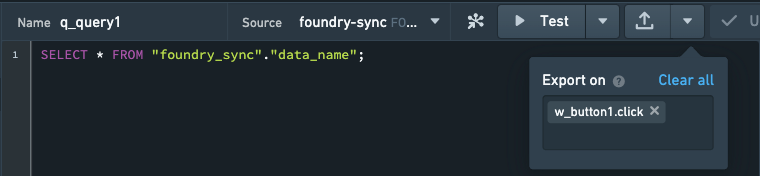
By default, the file will be named QUERY_NAME.xlsx. To change this, navigate to the Events tab and select QUERY_NAME.export. You can then add a return statement to configure the file name. For example, return "january_data" or return {fileName: "january_data"} will download an .xlsx file called january_data.xlsx. A valid file name should not be empty and must only contain letters, numbers, underscores, or spaces. If the file name in the return statement is invalid, the query's name will be used as the file name.
You can select the QUERY_NAME.exportXlsx or QUERY_NAME.exportCsv actions from the Actions dropdown menu in the Events tab. Then, you can add a return statement to change the file name to a valid file name.
QUERY_NAME.exportCsv, QUERY_NAME.exportXlsx
These actions download the output of the query specified by QUERY_NAME to the user's local machine. The result can either be downloaded as a CSV or Excel file. By default, the file will take on the query's name, although you can customize the name by returning an { fileName: <<custom_string>> } object in the event.
Function actions
Function actions operate on a specific function or its result set. They enable application builders to run a function or export the function result set when a specific event is triggered.
FUNCTION_NAME.run
This action will immediately run the function specified by FUNCTION_NAME. Each function has its own instance of this action.
FUNCTION_NAME.export, FUNCTION_NAME.exportXlsx, FUNCTION_NAME.exportCsv
FUNCTION_NAME.export will export the results of the function specified by FUNCTION_NAME as an .xlsx file. It will run the function, send the results to the server, generate a file, and download it to the user’s computer. Each function has its own instance of this action.
The FUNCTION_NAME.export action can be added as a trigger to an event from the Export on dropdown menu in the Functions tab.
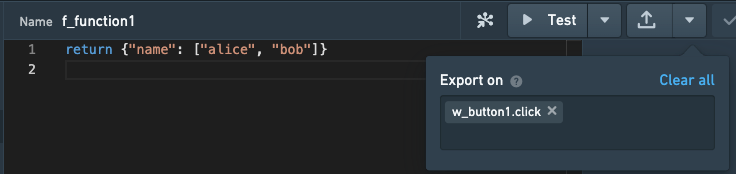
By default, the file will be named FUNCTION_NAME.xlsx. To change this, navigate to the Events tab and select FUNCTION_NAME.export. You can then add a return statement to configure the file name. For example, return "january_data" or return {fileName: "january_data"} will download an .xlsx file called january_data.xlsx. A valid file name should not be empty and must only contain letters, numbers, underscores, or spaces. If the file name in the return statement is invalid, the function's name will be used as the file name.
You can select the FUNCTION_NAME.exportXlsx or FUNCTION_NAME.exportCsv actions from the Actions dropdown menu in the Events tab. Then, you can add a return statement to change the file name to a valid file name.
:::callout{theme="neutral"}
For function export to work, the function must return an object where every property represents a column name and every property value is an array of equal length representing the value of each cell in the column. This means that if you are working with query results, you must delete the ._results property from the query; this property is added by Slate to provide information on whether a query ran successfully, but it will block exports from a function.
:::
Variable actions
Variable actions operate on a specific variable. They enable application builders to modify with the value of the variable when a specific event is triggered.
VARIABLE_NAME.set
This action will set the variable specified by VARIABLE_NAME to whatever value the action passed (the return value of the JavaScript code in the Action panel). Note that the old/current value of the variable will still be available as {{VARIABLE_NAME}}, allowing you to use the previous value to determine what you will set the new value to. Each variable has its own instance of this action.
中文翻译
可用事件与操作
本文列出了 Slate 中查询、函数、变量、组件和应用级别所有可用的事件与操作。请参阅我们的附加文档,了解如何配置和使用这些事件与操作。
全局事件
全局事件是在应用级别发生的事件,不特定于单个组件或查询。
slate.ready
slate.ready 事件在页面框架加载完成且查询开始运行后触发。任何希望在页面加载时立即触发的操作(例如,触发一些手动查询)都应在此处进行。
slate.resize
slate.resize 事件在浏览器窗口大小改变时触发。如果任何组件的大小基于浏览器窗口大小,它们也会随之调整。然而,某些组件(如图表 Chart)具有 redraw 操作,您可以触发该操作以确保组件在浏览器窗口大小变化时重新绘制为正确尺寸。
slate.onNavigate[page_name]
当用户导航到添加了该事件的页面时,slate.onNavigate[page_name] 被触发。
slate.onPrint
slate.onPrint 在用户关闭之前通过 slate.print 操作打开的打印模态框时触发。
slate.userStorageChanged
slate.userStorageChanged 检测到用户存储(userStorage)通过 slate.setUserStorage 操作更新时触发。如果用户存储是通过另一个浏览器标签页或窗口更新的,此事件同样支持。
slate.getMessage
slate.getMessage 适用于嵌入在其他应用(如 Workshop)的 iframe 中的 Slate 应用。当 Slate 从父级 iframe 接收到以下格式的 postMessage 时,slate.getMessage 事件触发:
{ "target": "slate-parent-iframe-event", "message": <payload> }
如果子窗口或父窗口发送的 postMessage 包含设置了以下目标属性(target property)的对象,slate.getMessage 事件也会触发:
{ "target": "SLATE_MESSAGING_SERVICE", ...<payload> }
事件将被触发。然后,在该事件的 JavaScript 面板中,<payload> 将作为 {{slEventValue}} 可用,以便适当使用消息中的数据。
发送给 Slate 的消息也可以执行操作,例如设置变量:
{
    "slateActionOption": {
        "type": "SET_VARIABLES",
        "payload": {
            "v_variable": 123
        }
    }
}
您也可以运行操作:
{
    "slateActionOption": {
        "type": "TRIGGER_ACTION",
        "payload": <payload for action>
    }
}
slate.getBroadcast
slate.getBroadcast 在 Slate 接收到来自 Slate 已打开的 BroadcastChannel 的消息时触发。要打开 BroadcastChannel,请使用 slate.createBroadcastChannel 操作。在接收消息之前需要先打开一个频道。
消息负载将作为 {{slEventValue}} 可用,其结构如下:
{
  "channel": "channel_name",
  "data": <payload>
}
slate.onCloseCheckpoint
slate.onCloseCheckpoint 在用户关闭检查点(Checkpoint)时触发。它提供有关已关闭检查点的信息,该信息作为 {{slEventValue}} 可用,结构如下:
{
    "slateCheckpointId": string,
    "status": "cancelled" | "no-checkpoint" | "success",
    "interactionRid": string (optional - if Checkpoint was successful);
}
slateCheckpointId 是用户定义的字符串,用于标识检查点。它是在使用 slate.showCheckpoint 操作时定义的。
您可以在检查点文档中了解更多关于检查点的信息。
slate.onChildWindowClosed
slate.onChildWindowClosed 在使用 slate.redirectToUrl 全局操作打开的子窗口关闭时触发。该窗口必须在使用 slate.redirectToUrl 时通过 windowSharingOptions 属性分配了一个 id,否则此事件不会触发。
消息负载 {{slEventValue}} 的结构如下,其中 id 是已关闭窗口的 ID:
{
    "id": string | number
}
slate.viewSaved
slate.viewSaved 在通过操作下拉菜单或 slate.saveView 操作保存可共享视图后触发。{{slEventValue}} 包含新创建视图的视图 ID(字符串)。
此事件可与 slate.loadView 操作配合使用,以构建保存和加载工作流。例如,您可以存储来自 {{slEventValue}} 的视图 ID,稍后将其传递给 slate.loadView 以恢复该视图。
查询事件
查询事件是与 Slate 应用中的查询相关的事件,在查询完成或因超时、查询格式错误或其他服务器问题而未能成功完成时触发。每个查询都有自己的事件实例。
QUERY_NAME.success
此事件在由 QUERY_NAME 指定的查询成功完成时触发。每个查询都有自己的事件实例。
QUERY_NAME.failure
此事件在由 QUERY_NAME 指定的查询因超时、查询格式错误或其他服务器问题而未能成功完成时触发。每个查询都有自己的事件实例。
函数事件
函数事件是与 Slate 函数执行相关的事件。每个函数都有自己的事件实例。
FUNCTION_NAME.ran
此事件在由 FUNCTION_NAME 指定的函数运行完毕时触发。每个函数都有自己的事件实例。
变量事件
变量事件是与 Slate 变量交互相关的事件。每个变量都有自己的事件实例。
VARIABLE_NAME.changed
此事件在由 VARIABLE_NAME 指定的变量发生更改时触发。更改后的值将作为 {{slEventValue}} 可用。每个变量都有自己的事件实例。
组件事件
组件事件是用于在 Slate 应用中触发操作或活动的触发器。它们可用于在应用中创建交互性和自动化流程。每个组件都有自己的事件实例。
WIDGET_ID.cssClassesUpdated
此事件在属于指定组件 WIDGET_ID 的“附加 CSS 类”属性发生更改时触发。此事件在 DOM 更新后但在绘制前触发;这意味着如果您使用 CSS 类来更改不同组件的大小,使用此事件触发这些组件的 redraw 操作将完全按预期工作。每个组件都有自己的事件实例。
WIDGET_ID.transitionend
此事件在由 WIDGET_ID 指定的组件内部直接发生 JavaScript transitioned 事件时触发。在这种情况下,“直接”意味着不是来自子组件;每次 transitioned 仅触发一个事件。更具体地说,您可以使用 CSS 过渡(transitions)来为页面上的元素添加动画效果,例如让侧边栏滑入滑出而不是弹出。每当这些过渡之一完成时,JavaScript 将触发一个 transitioned 事件,Slate 会捕获并传递该事件。这样,您可以在过渡完成时触发页面上的其他更改,或对可能已更改大小的组件提示执行 resize 操作。
每当此事件触发时,{{slEventValue}} 是一个包含以下属性的 JavaScript 对象:
elapsedTime:过渡所花费的时间propertyName:正在动画化的属性名称targetId:如果正在动画化的 DOM 元素具有 ID 属性,则在此处可用
这些属性可能有助于区分不同的过渡;确保您的代码响应的是正确的过渡。每个组件都有自己的事件实例。
WIDGET_ID.INTERACTION_PROPERTY.changed
此事件在属于由 WIDGET_ID 指定的组件的 INTERACTION_PROPERTY 属性发生更改时触发。更改后的值将作为 {{slEventValue}} 可用。请注意,此事件并非在每个组件的每个属性上都可用,而仅在“交互属性”(即用户交互可更改的组件属性,如 selectedValue)上可用。每个组件交互属性都有自己的事件实例。
全局操作
全局操作控制应用级别的行为更改,例如页面或窗口修改、数据导出以及跨应用消息传递。
slate.navigateTo[page_name]
slate.navigateTo[page_name] 操作会将当前页面更改为 page_name,并同时更新 URL 路由以指向目标页面。共享变量将在页面更改期间保持其状态。
slate.scrollToId
slate.scrollToId 操作会将页面(以及页面中任何其他可滚动容器)滚动到具有给定 ID 的 DOM 元素(该 ID 在事件面板的 JavaScript 代码中返回)。此操作可用于以编程方式将页面滚动到特定元素,或返回到可滚动表格或列表中记住的位置。
slate.setWindowTitle
slate.setWindowTitle 操作允许您重命名当前浏览器窗口的标题并更新标签页名称。调用该操作并返回一个字符串以设置标签页名称。如果在页面加载时未调用此操作,Slate 默认将标签页标题设置为文档名称。
slate.print
slate.print 操作将打开浏览器的打印对话框,允许用户在打印前选择其打印机选项。
slate.downloadBlob
slate.downloadBlob 操作允许您在遵循 Slate 导出限制的情况下下载任意数据 blob。要使用此操作,请添加如下 return 语句:
return {
    fileName: "my_file.txt",
    blob: new Blob(["Hello, world!"], { type: "text/plain;charset=utf-8" }),
};
一个示例用例是使用 Functions 选项卡中的 ExcelJS 等库下载带有条件格式的 Excel 文件,然后将其发送到 slate.downloadBlob 供用户下载。有关 Blob 的更多信息,请参阅 MDN 网络文档 ↗。
slate.exportWidget
slate.exportWidget 操作允许您将组件导出为 PNG 或 PDF 文件。要使用此操作,请添加如下 return 语句:
return {
    widgetId: "my_chart",
    exportType: "download",
    outputType: "png",
    fileName: "exported_chart",
};
使用此事件将触发 slate.onExportWidget 事件,该事件的 slEventValue 将包含:
widgetId:已导出组件的 ID。base64:已导出组件(PNG 或 PDF)的 base64 编码字符串。
将 exportType 设置为 eventOnly 以触发 slate.onExportWidget 事件,而无需复制/下载文件。
slate.sendMessage
slate.sendMessage 操作适用于嵌入在其他应用的 iframe 中的 Slate 应用。具体来说,此操作将获取传递给它的值(从面板中的 JavaScript 代码返回),并向父级 iframe 发送以下格式的 postMessage:
{"source": "slate-parent-iframe-action", "message": <payload>}
<payload> 是从面板中的 JavaScript 代码返回的值。
slate.sendMessage 操作也可用于向其他窗口发送消息,即使 Slate 不在 iframe 中也是如此。
例如,您可以使用 slate.redirectToUrl 在新标签页或浏览器窗口中打开一个子窗口,并为该窗口设置一个 ID。
然后,您可以使用 slate.sendMessage 操作向特定窗口发送消息:
return {
    "targetOptions": {
        "targetWindow": "child" | "opener" | "parent",
        "children": ["child-id1", "child-id2"] // (optional)
    },
    "message": <payload>
}
如果目标窗口设置为 child,您可以提供一个子窗口 ID 数组,这些 ID 是在使用 slate.redirectToUrl 时设置的。如果未提供,消息将发送给所有子窗口。
targetWindow 为 opener 和 parent 将分别向 window.opener 和 window.parent 执行 postMessage。
slate.createBroadcastChannel
slate.createBroadcastChannel 操作将创建一个具有指定名称的 BroadcastChannel。此频道可用于向/从所有具有相同频道名称的广播频道发送/接收消息。
要使用此操作,请添加如下 return 语句:
return {
    channel: "my_new_channel",
};
有关 BroadcastChannel 的更多信息,请参阅 MDN 网络文档 ↗。
slate.closeBroadcastChannel
slate.closeBroadcastChannel 操作将关闭并删除具有指定名称的 BroadcastChannel。如果频道关闭,将不会接收或发送任何消息。
要使用此操作,请添加如下 return 语句:
return {
    channel: "channel_to_close",
};
slate.broadcastMessage
slate.broadcastMessage 操作将向具有指定名称的广播频道发布一条消息。在发送消息之前,需要使用 slate.createBroadcastChannel 操作打开一个频道。
要使用此操作,请添加如下 return 语句:
return {
    channel: "my_channel",
    message: <payload>
};
slate.showCheckpoint
slate.showCheckpoint 操作将打开指定的检查点模态框。您可以在检查点文档中了解更多关于检查点的信息。
要使用此操作,请添加如下 return 语句:
return {
    slateCheckpointId: string;
    checkpointType: CheckpointTypeV1;
    primaryCheckpointedItemId?: {
        id: string;
        type: CheckpointedItemIdType;
    };
    additionalCheckpointedItemIds?: {
        id: string;
        type: CheckpointedItemIdType;
    }[];
};
slateCheckpointId 是用户定义的字符串,用于标识检查点,并在 onCloseCheckpoint 事件的响应中返回。
checkpointType 应为已配置检查点的检查点类型。查看检查点类型列表。
导出配置
| 属性 | 类型 | 描述 |
|---|---|---|
| widgetId | string |
要导出的组件 ID(如组件列表中所示)。 |
| exportType | "copy" \| "download" |
将组件下载为文件或保存到剪贴板。 |
| outputType | "png" \| "pdf" |
将组件导出为 PNG 或 PDF 文件。 |
| fileName | string (optional) |
如果 exportType 为 "download",则为下载文件的名称。 |
不支持的组件
iframe、code sandbox 和 multiselect box 组件,以及包含上述任何组件的容器,无法导出。
slate.openAppsPortal
slate.openAppsPortal 操作将打开应用门户。您可以通过可选地传递一个参数来指定要导航到的应用门户部分。参数必须采用以下形式:
| 应用门户部分 | 参数 |
|---|---|
| 无指定 | 无参数 |
| 所有应用 | { type: "allResultsNavItem" } |
| 平台应用 | { type: "platformAppsNavItem" } |
| 推广应用 | { type: "promotedAppsNavItem" } |
| 具有指定类别的平台应用 | { type: "platformAppsCategoryNavItem", title: string } |
| 具有指定集合的推广应用 | { type: "promotedAppsCollectionNavItem", title: string, rid: string } |
slate.askAIPAssist
slate.askAIPAssist 操作将打开 AIP Assist 支持工具。您可以指定一个可选的 prompt 字符串参数,该参数将作为用户在 AIP Assist 聊天中的消息发送。prompt 可以从应用中当前用户的状态派生,以便向 AIP Assist 提出有针对性的问题。
return {
  "prompt": "How do I interact with widgets in Slate?"
};
slate.logout
slate.logout 操作将打开一个浏览器对话框,确认用户是否要注销。如果用户确认,他们将退出 Foundry。
slate.copyToClipboard
slate.copyToClipboard 操作将从面板中的 JavaScript 代码返回的值复制到用户的剪贴板。
slate.redirectToUrl
slate.redirectToUrl 操作会将用户重定向到传递给该操作的 URL。
:::callout{theme="warning"}
我们不建议将此操作与 slate.ready 事件一起使用,因为这样做会在页面加载后立即重定向用户,从而使编辑变得困难。如果您的用例确实需要将 slate.redirectToUrl 操作与 slate.ready 事件一起使用,我们建议添加一个查询参数来禁用该操作。
:::
配置
| 属性 | 类型 | 描述 |
|---|---|---|
| url | string |
重定向的目标 URL。 |
| target | string (optional) |
资源加载到的浏览上下文的名称。window.open 中 target 参数的别名。 |
| popup | boolean (optional) |
指定 url 是否应在弹出窗口中打开。 |
| windowSharingOptions | { id: string; } (optional) |
启用从您打开的子窗口发送或接收 postMessages。id 属性为子窗口指定一个唯一 ID。然后,您可以使用 slate.sendMessage 操作与此窗口通信。 |
例如,以下代码将为指定网站打开一个新标签页:
return {
  "url": "https://www.palantir.com/",
  "target": "_blank"
};
也可以返回多个 URL 以打开多个标签页或页面。这可以通过返回一个配置对象列表来实现。例如,以下代码将为两个网站各打开一个新标签页:
return [{
  "url": "https://www.palantir.com/",
  "target": "_blank"
}, {
  "url": "https://www.palantir.com/uk",
  "target": "_blank"
}];
slate.saveView
slate.saveView 操作将当前应用状态保存为新的可共享视图。无需参数。
保存视图后,slate.viewSaved 事件触发,新视图 ID 作为 {{slEventValue}} 可用。
slate.loadView
slate.loadView 操作通过 ID 加载先前保存的可共享视图。从事件 JavaScript 中返回视图 ID 字符串以指定要加载的视图。
return "view-id-string";
加载视图时,应用会导航以显示指定的视图,并应用保存的组件交互属性和变量值。
查询操作
查询操作对特定查询或其结果集进行操作。它们使应用构建者能够在特定事件触发时运行查询或导出查询结果集。
QUERY_NAME.run
此操作将立即运行由 QUERY_NAME 指定的查询。无论查询是否为手动查询,此操作均有效。每个查询都有自己此操作的实例。
QUERY_NAME.export, QUERY_NAME.exportXlsx, QUERY_NAME.exportCsv
QUERY_NAME.export 会将由 QUERY_NAME 指定的查询结果导出为 .xlsx 文件。它将在服务器上运行查询,生成文件,并将其下载到用户的计算机。每个查询都有自己此操作的实例。
QUERY_NAME.export 操作可以从查询选项卡中的导出时机下拉菜单添加为事件的触发器。
默认情况下,文件将命名为 QUERY_NAME.xlsx。要更改此设置,请导航到事件选项卡并选择 QUERY_NAME.export。然后,您可以添加一个 return 语句来配置文件名。例如,return "january_data" 或 return {fileName: "january_data"} 将下载一个名为 january_data.xlsx 的 .xlsx 文件。有效的文件名不应为空,且只能包含字母、数字、下划线或空格。如果 return 语句中的文件名无效,则将使用查询的名称作为文件名。
您可以从事件选项卡的操作下拉菜单中选择 QUERY_NAME.exportXlsx 或 QUERY_NAME.exportCsv 操作。然后,您可以添加一个 return 语句将文件名更改为有效的文件名。
QUERY_NAME.exportCsv, QUERY_NAME.exportXlsx
这些操作将由 QUERY_NAME 指定的查询输出下载到用户的本地计算机。结果可以下载为 CSV 或 Excel 文件。默认情况下,文件将采用查询的名称,但您可以通过在事件中返回一个 { fileName: <<custom_string>> } 对象来自定义名称。
函数操作
函数操作对特定函数或其结果集进行操作。它们使应用构建者能够在特定事件触发时运行函数或导出函数结果集。
FUNCTION_NAME.run
此操作将立即运行由 FUNCTION_NAME 指定的函数。每个函数都有自己此操作的实例。
FUNCTION_NAME.export, FUNCTION_NAME.exportXlsx, FUNCTION_NAME.exportCsv
FUNCTION_NAME.export 会将由 FUNCTION_NAME 指定的函数结果导出为 .xlsx 文件。它将运行函数,将结果发送到服务器,生成文件,并将其下载到用户的计算机。每个函数都有自己此操作的实例。
FUNCTION_NAME.export 操作可以从函数选项卡中的导出时机下拉菜单添加为事件的触发器。
默认情况下,文件将命名为 FUNCTION_NAME.xlsx。要更改此设置,请导航到事件选项卡并选择 FUNCTION_NAME.export。然后,您可以添加一个 return 语句来配置文件名。例如,return "january_data" 或 return {fileName: "january_data"} 将下载一个名为 january_data.xlsx 的 .xlsx 文件。有效的文件名不应为空,且只能包含字母、数字、下划线或空格。如果 return 语句中的文件名无效,则将使用函数的名称作为文件名。
您可以从事件选项卡的操作下拉菜单中选择 FUNCTION_NAME.exportXlsx 或 FUNCTION_NAME.exportCsv 操作。然后,您可以添加一个 return 语句将文件名更改为有效的文件名。
:::callout{theme="neutral"}
要使函数导出正常工作,函数必须返回一个对象,其中每个属性代表一个列名,每个属性值是一个等长数组,代表该列中每个单元格的值。这意味着如果您正在处理查询结果,必须从查询中删除 ._results 属性;该属性由 Slate 添加,用于提供查询是否成功运行的信息,但它会阻止从函数导出。
:::
变量操作
变量操作对特定变量进行操作。它们使应用构建者能够在特定事件触发时修改变量的值。
VARIABLE_NAME.set
此操作会将由 VARIABLE_NAME 指定的变量设置为传递给操作的值(操作面板中 JavaScript 代码的返回值)。请注意,变量的旧/当前值仍将作为 {{VARIABLE_NAME}} 可用,允许您使用先前的值来确定将新值设置为什么。每个变量都有自己此操作的实例。