Configure Events and Actions(配置事件与操作)
The Events panel in Slate allow application builders to configure actions that execute when specific events happen.
Actions are changes to the behavior of the application, including opening or closing dialogs/toasts, running queries, or setting variable values.
Events are triggers, such as a user interaction with the application (a user click, change of value, or opening and closing of dialogs) or data loading state (query run completion) that execute an action.
The Events panel shows all event/action pairs configured in a Slate application. You can also define custom logic for events using Handlebar references and JavaScript to control which values are sent to the triggered actions. Just like with functions, event JavaScript does not have access to the DOM or the Slate space, and no state is saved.
Events and actions allow for much more robust application behavior control than when using Handlebar references alone.

:::callout{theme="neutral"} The events editor does not accept helpers of any kind. :::
- Examples
- Example 1: Trigger a manual query on button click
- Example 2: Set a variable to be double the value of a dropdown
- Example 3: Keep track of a list of objects in a variable, accumulated over time
- Example 4: Triggering a manual query on button click, conditionally
Examples
Example 1: Trigger a manual query on button click
This event will run a query when the button is clicked on:
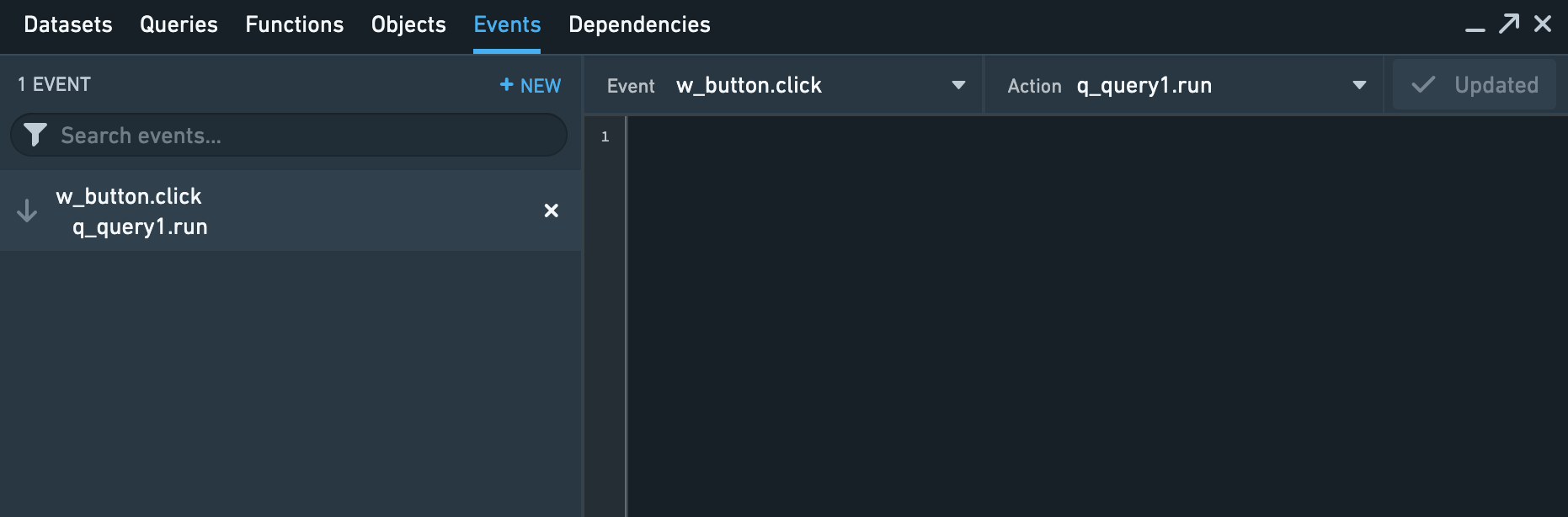
Open the events panel and create a new event:
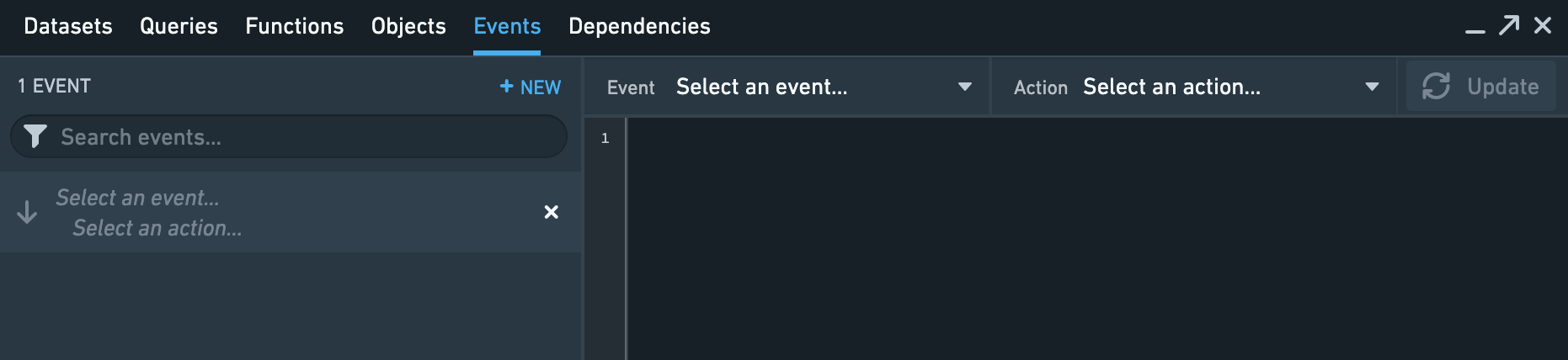
Choose w_button.click for the triggering event, and q_query.run for the triggered action, and select Update to persist your change. No JavaScript is necessary for this pairing.
Now, whenever the button is clicked, the query will run again, fetching new data for use in other slate functions and widgets.
Example 2: Set a variable to be double the value of a dropdown
This event will set a variable to double whatever the amount chosen in a dropdown is. Note: this example is for illustration purposes only; normally this sort of thing should be done using slate functions.
Assume there is a dropdown widget named w_selectionDropdown which has various numbers that the user can choose among, and a variable v_doubleSelection that is meant to contain double the selected value. Then in order to create this, open the events panel and create a new event. Pick w_selectionDropdown.selectedValue.changed for the event, and v_doubleSelection.set for the action. Then fill in the code in the events panel as follows:
var dropdownSelectionValue = {{slEventValue}};
return 2 * dropdownSelectionValue;
The end result should look something like
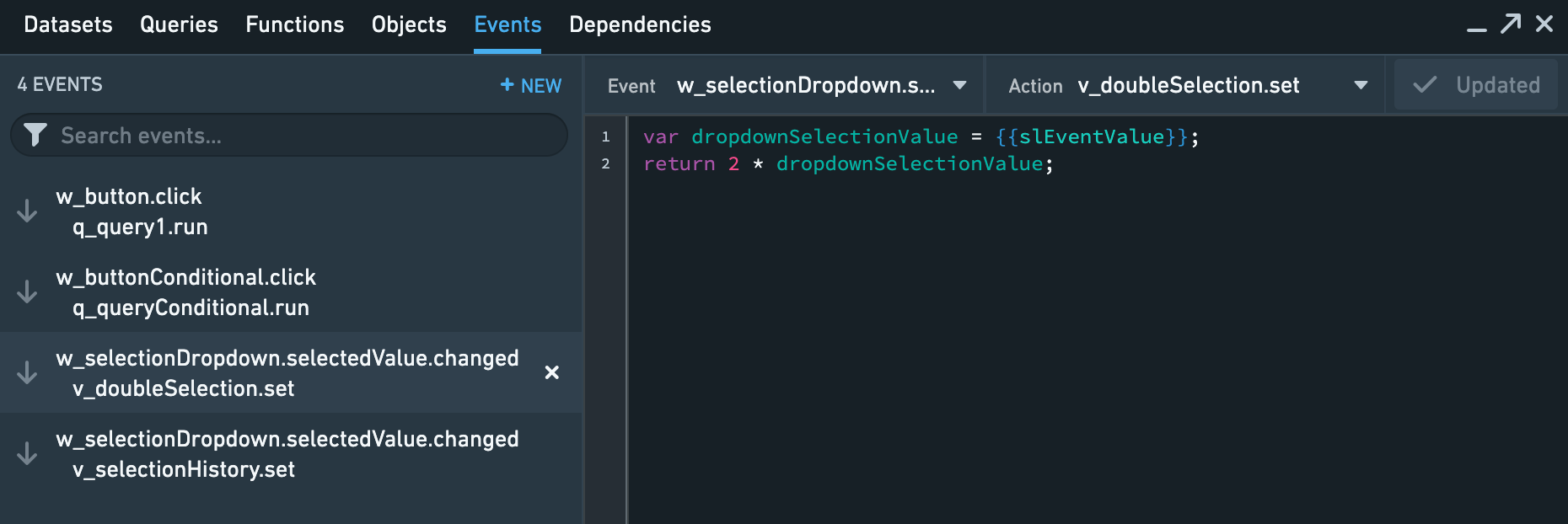
{{slEventValue}} is a special handlebars value in the events panel. If the triggering action has some associated value, then {{slEventValue}} will be whatever that associated value is. In the case of .changed actions, the {{slEventValue}} is the value of whatever the associated widget property has changed to.
Therefore, whenever the dropdown is changed, the code will take the value the dropdown was changed to, double it, and return it. The return value is used by the .set action to set the variable to the returned value. The upshot is, whenever the dropdown is changed, the code will take the new value of the dropdown, double it, and set the variable to this doubled value.
Example 3: Keep track of a list of objects in a variable, accumulated over time
This event will keep a history of all the values that a user has chosen in a dropdown, so that this list of values can be used in some fashion elsewhere in the application.
Assume there is a dropdown widget named w_selectionDropdown which has choices that the user can choose among, and a variable v_selectionHistory that is meant to contain the selection history. Then in order to create this, open the events panel and create a new event. Pick w_selectionDropdown.selectedValue.changed for the event, and v_selectionHistory.set for the action. Then fill in the code in the events panel as follows:
var history = {{v_selectionHistory}};
var newValue = {{slEventValue}};
history.push(newValue);
return history;
The end result should look something like
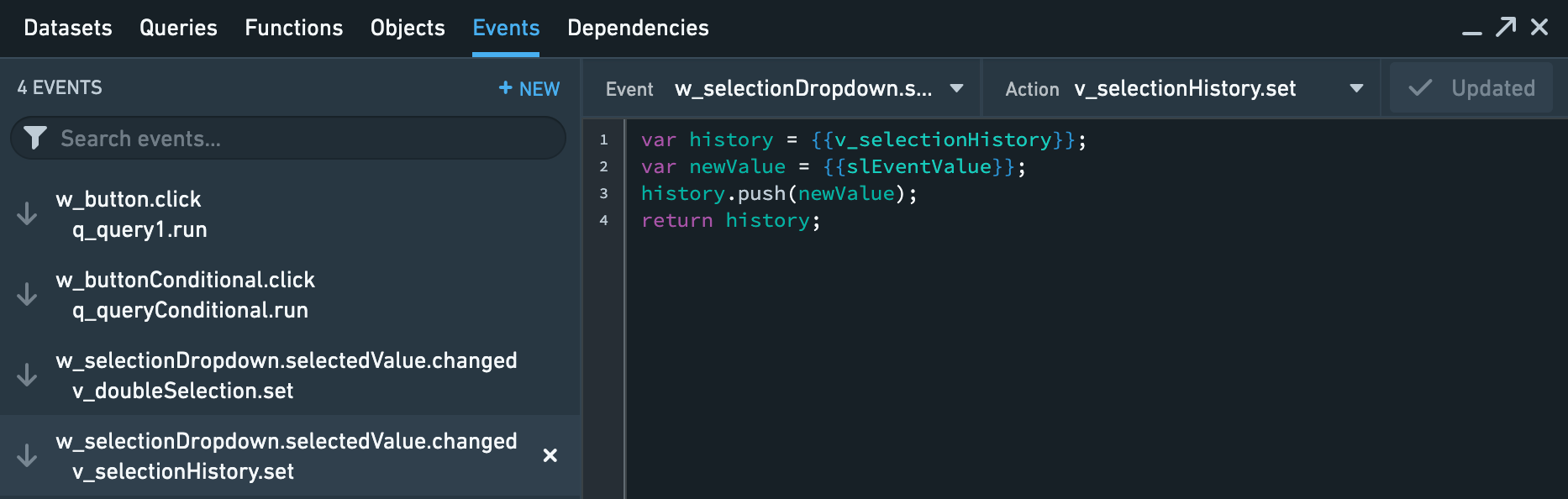
Now, whenever the user selects something from the dropdown, the event will be triggered. The code will take the current value in v_selectionHistory, and push onto the end of the list, the newly selected value, which is passed in by {{slEventValue}}, and then return the newly augmented history. Because the action is v_selectionHistory.set, the variable v_selectionHistory will be set to this new array, adding the newly selected item to the accumulated history.
Example 4: Triggering a manual query on button click, conditionally
This event will run a query when the button is clicked on – but only if the user has entered data into the needed input widgets w_input1 and w_input2.
Assume there are two input widgets (user-enterable text fields) named w_input1 and w_input2. Additionally, assume there is a button named w_buttonConditional and a manual query q_queryConditional.
Assume further that the query depends on the user-entered values into the input boxes, that is to say, w_input1.text and w_input2.text and it would be useless to run the query without these two having values – so we don’t want to run the query if these are blank, even if the button is clicked. We can implement this in the following way. Create a new event, and then choose w_buttonConditional.click for the event, and q_queryConditional.run for the action. Then fill in the code in the events panel as follows:
var input1Text = {{w_input1.text}};
var input2Text = {{w_input2.text}};
if (input1Text === "" || input2Text === "") {
  return {{slDisableAction}};
}
The end result should look something like
{{slDisableAction}} is a special handlebars value in the events panel. Returning this value from the code in the panel will disable the triggered action. So in other words – if either w_input1 or w_input2 are empty, this special value will be returned, and the query q_query will not be run. If both of these inputs do have values however, then nothing will be returned, and the action will proceed as normal.
中文翻译
配置事件与操作
Slate中的事件面板(Events panel)允许应用程序构建者配置在特定事件(Events)发生时执行的操作(Actions)。
操作(Actions)是对应用程序行为的更改,包括打开或关闭对话框/提示条、运行查询或设置变量值。
事件(Events)是触发器,例如用户与应用程序的交互(用户点击、值更改或对话框的打开和关闭)或数据加载状态(查询运行完成),这些触发器会执行操作。
事件面板(Events panel)显示在Slate应用程序中配置的所有事件/操作对。您还可以使用Handlebars引用和JavaScript为事件定义自定义逻辑,以控制哪些值被发送到触发的操作。与函数(Functions)一样,事件JavaScript无法访问DOM或Slate空间(Space),并且不会保存任何状态。
与单独使用Handlebars引用相比,事件和操作可以实现更强大的应用程序行为控制。
:::callout{theme="neutral"} 事件编辑器不接受任何类型的辅助函数(Helpers)。 :::
示例
示例1:在按钮点击时触发手动查询
此事件将在按钮被点击时运行查询:
打开事件面板并创建一个新事件:
选择w_button.click作为触发事件,选择q_query.run作为触发的操作,然后点击更新(Update)以保存更改。此配对不需要任何JavaScript。
现在,每当按钮被点击时,查询将重新运行,获取新数据以供其他Slate函数和小部件使用。
示例2:将变量设置为下拉菜单值的两倍
此事件将变量设置为下拉菜单中选择的任意金额的两倍。注意:此示例仅用于说明目的;通常这类操作应使用Slate函数完成。
假设有一个名为w_selectionDropdown的下拉菜单小部件,其中包含用户可以选择的各种数字,以及一个名为v_doubleSelection的变量,该变量应包含所选值的两倍。要创建此功能,请打开事件面板并创建一个新事件。选择w_selectionDropdown.selectedValue.changed作为事件,选择v_doubleSelection.set作为操作。然后在事件面板中填写如下代码:
var dropdownSelectionValue = {{slEventValue}};
return 2 * dropdownSelectionValue;
最终结果应类似于:
{{slEventValue}}是事件面板中的一个特殊Handlebars值。如果触发操作有关联值,那么{{slEventValue}}就是该关联值。对于.changed操作,{{slEventValue}}是关联小部件属性已更改为的值。
因此,每当下拉菜单发生变化时,代码将获取下拉菜单更改后的值,将其加倍,然后返回该值。返回值由.set操作用于将变量设置为返回的值。最终结果是,每当下拉菜单发生变化时,代码将获取下拉菜单的新值,将其加倍,并将变量设置为这个加倍后的值。
示例3:在变量中跟踪随时间累积的对象列表
此事件将保留用户在下拉菜单中选择的所有值的历史记录,以便此值列表可以在应用程序的其他地方以某种方式使用。
假设有一个名为w_selectionDropdown的下拉菜单小部件,其中包含用户可以选择的选择项,以及一个名为v_selectionHistory的变量,该变量应包含选择历史记录。要创建此功能,请打开事件面板并创建一个新事件。选择w_selectionDropdown.selectedValue.changed作为事件,选择v_selectionHistory.set作为操作。然后在事件面板中填写如下代码:
var history = {{v_selectionHistory}};
var newValue = {{slEventValue}};
history.push(newValue);
return history;
最终结果应类似于:
现在,每当用户从下拉菜单中选择某项时,事件将被触发。代码将获取v_selectionHistory中的当前值,并将新选择的值(通过{{slEventValue}}传入)推送到列表末尾,然后返回新增的历史记录。由于操作是v_selectionHistory.set,变量v_selectionHistory将被设置为这个新数组,从而将新选择的项添加到累积的历史记录中。
示例4:有条件地在按钮点击时触发手动查询
此事件将在按钮被点击时运行查询——但仅当用户已在所需的输入小部件w_input1和w_input2中输入数据时。
假设有两个输入小部件(用户可输入的文本字段),分别名为w_input1和w_input2。此外,假设有一个名为w_buttonConditional的按钮和一个手动查询q_queryConditional。
进一步假设该查询依赖于用户在输入框中输入的值,即w_input1.text和w_input2.text,如果这两个值没有输入,运行查询将毫无意义——因此,即使按钮被点击,如果这些值为空,我们也不想运行查询。我们可以通过以下方式实现这一点。创建一个新事件,然后选择w_buttonConditional.click作为事件,选择q_queryConditional.run作为操作。然后在事件面板中填写如下代码:
var input1Text = {{w_input1.text}};
var input2Text = {{w_input2.text}};
if (input1Text === "" || input2Text === "") {
  return {{slDisableAction}};
}
最终结果应类似于:
{{slDisableAction}}是事件面板中的一个特殊Handlebars值。从面板中的代码返回此值将禁用触发的操作。换句话说——如果w_input1或w_input2中的任何一个为空,将返回此特殊值,查询q_query将不会运行。然而,如果这两个输入都有值,则不会返回任何内容,操作将正常进行。