Store values in variables(在变量中存储值)
Variables that you define in the Variables editor are accessible throughout an entire Slate application. You can reference them in queries and widgets, and even set their values through events or URLs.
The valid types for variables are Number, String, Boolean, Array, Object, and Null.
Creating a variable
To create a variable, follow the instructions below:
- On the left sidebar, select the (x) icon to open the Variables editor. Hovering over the (x) icon will display the word Variables.
- Select + Add new variable.
- Select the variable page scope - shared (accessible on every page), or local (accessible only on the page edited when creating the variable).
- Select the text in the Name column and enter a new name for the variable.
:::callout{theme="neutral"} Slate will detect when variable name clashes exist and will prevent users from saving the variable until a valid name is entered. Shared variable names must be unique across all pages, widgets, events, queries, and functions. Local variables names must be unique within the page and cannot name clash with an environment variable. :::
- Enter a default value for the variable. Slate will infer the variable type based on value entered.
:::callout{theme="neutral"} The values of variables do not persist across page loads. When the Slate application is reloaded, it will use the default variable values. To persist variable values across page loads, use the user storage variable. :::
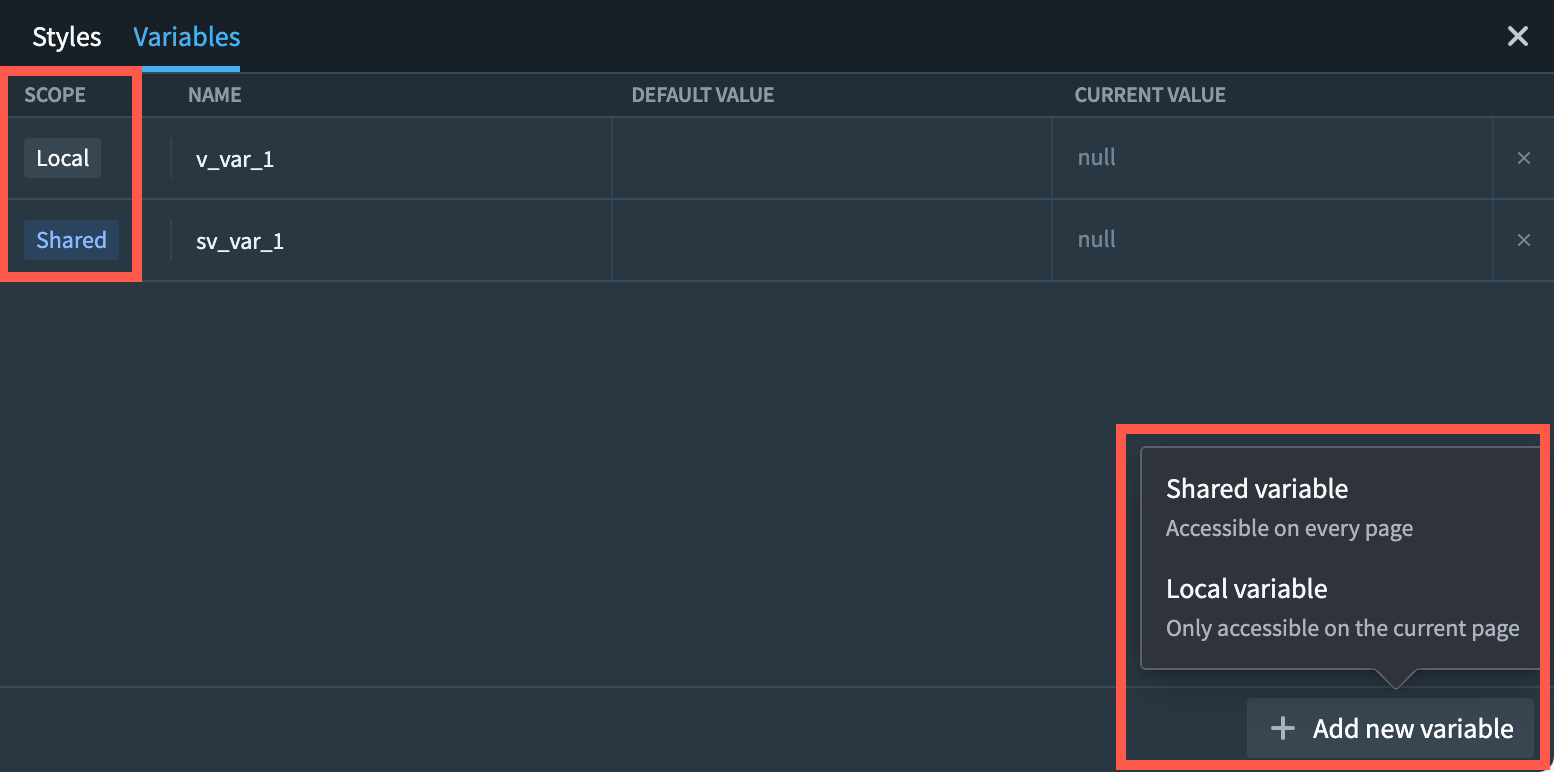
The variable editor not only displays the page scope, name, and default value of every variable, but also provides a read-only view of the variable's current value, in case it was changed using events or right from the URL.
Tabular variables
:::callout{theme="neutral"} The Datasets panel has been migrated to the Variables panel. Datasets are now stored as shared variables, but their functionality remains the same. :::
The Variables panel supports storing tabular data as variables. You can enter data directly using the spreadsheet editor or upload a CSV file.
Create a tabular variable
Follow the instructions below to create a tabular variable:
- On the left sidebar, select the X icon to open the variables editor.
- Select + Add new variable.
- Select the variable page scope (shared or local).
- Enter a name for the variable.
- In the default value field, enter column-oriented JSON to initialize the table structure, for example:
{"column1": ["row1", "row2"], "column2": ["row1", "row2"]}, or select the Table tab directly if the value is empty.
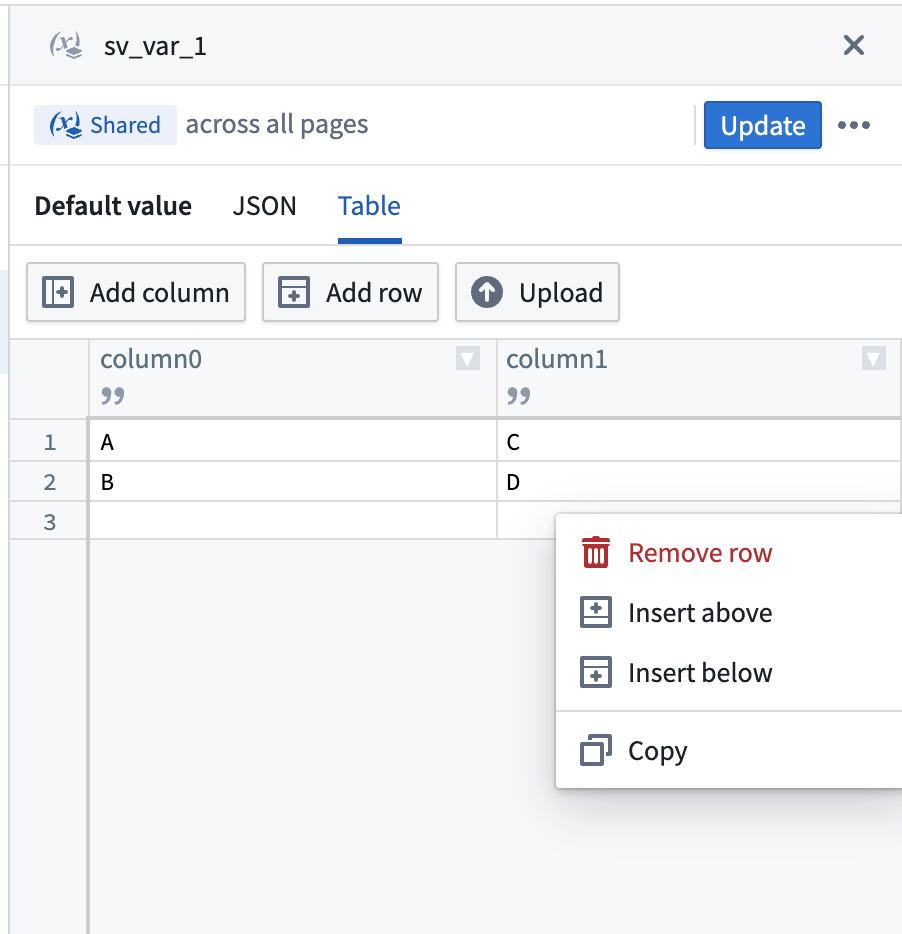
The Table tab provides a spreadsheet editor allowing you to edit the data directly.
:::callout{theme="note"}
The Table tab is enabled when the variable value is empty, {}, or contains column-oriented JSON in the format { columnName: [value1, value2, ...], ... }. All columns must have arrays of equal length. If your variable contains a different format (such as row-oriented JSON like [{...}, {...}]), the Table tab will be disabled.
:::
Upload CSV files
You can upload a CSV file to populate a tabular variable with the following steps:
- Select an existing tabular variable or create a new one.
- Open the Table tab.
- Use the upload option to select a CSV file from your computer.
- The CSV data will be parsed and displayed in the spreadsheet editor.
The spreadsheet editor supports the following features:
- Editing cell values directly
- Right-clicking context menus for additional options
- Adding and deleting rows and columns
:::callout{theme="warning"} Slate applications have a default size limit of 2 MB. Avoid uploading large CSV files, as they count toward this limit. If your application exceeds the size limit, you will not be able to save changes. For large datasets, consider using queries or the OSDK to fetch data. :::
Updating a variable through events
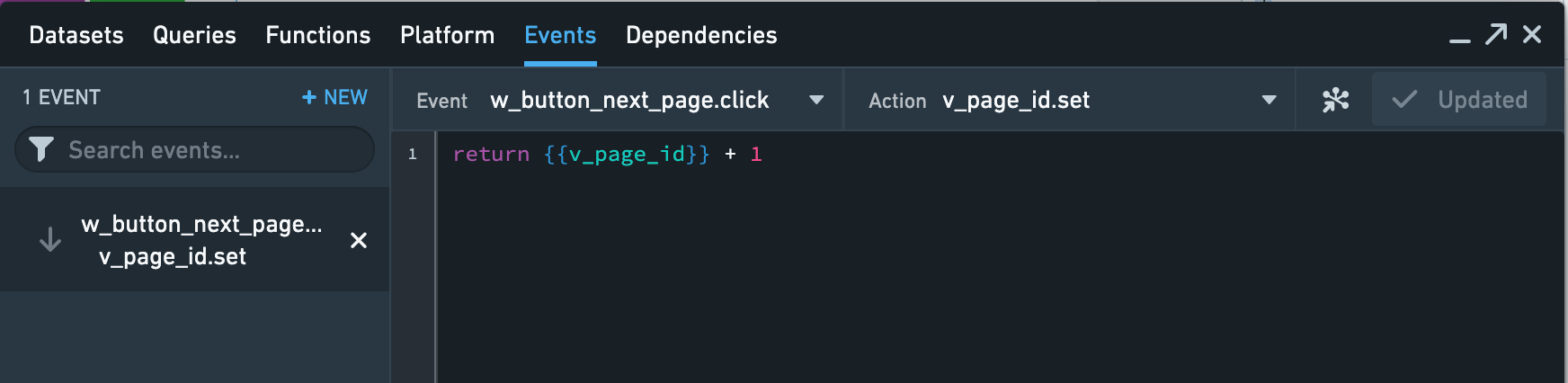
Events can be used to set a new value of a variable. Every variable automatically provides a .set event. To update the value of a variable, simply return a new, legal value in the event content. The event logic can also use the current value of the variable as an input. You can also change the type of the variable value when updating it (e.g. from a String to a Number); however, this might break the variable's dependencies.
In the example below, the v_page_number variable is updated every time the user clicks the w_button_next_page button:
Variables in URLs
You can use variables in URL query parameters (additional information added to a URL to help set the state of the Slate page). URL parameters always override default parameters.
In general, use the following syntax to add variables to the URL:
- Single variable:
?variableName=value - Multiple variables:
?variableName=value&otherVariableName=otherValue
Note that query parameters are case sensitive. Additionally, variable values retrieved from URL query parameters will be strings even if the passed value is a number, boolean, or object. These values can be converted to the desired type using Handlebar helpers, or through Functions.
Example: Using variables in a widget
The following example uses variables in a dropdown widget and assumes a notional dataset about asteroids.
- Create a new application called
Dropdown variables example. - Create a new query called
asteroidNames, set the data source toasteroids, and enter the following query statement:
SELECT name FROM allnamed;
- Select Update to save the query.
- Open the Variables editor and add a new variable. Name it
astroand give it the default variable""(an empty string). - Add a Dropdown widget to your application.
- Populate the dropdown by pulling the name of the asteroid from the query you just wrote:

- Change to the Raw tab by selecting the button
</>and update the value ofselectedValuefromnullto"{{astro}}". Notice that the dropdown menu initially does not present a value becauseselectedValueis assigned to the astro variable, which is an empty string at the moment.

- Save the application.
- To specify a
selectedValuefor the dropdown to start with, we can set a value for the variableastroin the URL. Append?astro=Florato the URL and use the Enter key. Note that the asteroid name is case-sensitive. The URL now looks likehttps://<HOSTNAME>:<PORT>/edit/documents/dropdown-global-variables?astro=Floraand the dropdown now displays “Flora” initially.
Slate system variables
Slate offers two types of system variables:
- The environment variable.
- The user storage variable.
:::callout{theme="neutral"} System variables have special behaviors and cannot be set via the URL. :::
Environment variable
The $global variable gives access to environment specific information.
| Attribute | Description |
|---|---|
| locale | Returns the language locale of the user's session. |
| app.isEditMode | Returns true if the app is in Edit mode or false if the app is in View mode. |
| app.rid | Returns the RID of the Slate document. |
| user.domain | Returns the user’s authentication domain. |
| user.email | Returns the user’s email address. |
| user.familyName | Returns the user’s last name. |
| user.firstName | Returns the user’s first name. |
| user.groups | Returns a list of all the auth groups to which the user belongs. |
| user.id | Returns the user’s unique identifier. |
| user.username | Returns the user’s username. |
| window.origin | Returns the origin of the current URL. |
Example: Using the environment variable in a function
The following example uses different attributes of the $global variable to greet the user in the appropriate language:
// 'de' represents the German locale
// English is the default language
if ({{$global.locale}} == 'de') {
    return "Willkommen " + {{$global.user.firstName}}
} else {
    return "Welcome " + {{$global.user.firstName}}
}
User storage variable
The sl_user_storage variable in Slate maintains its value for each user across application loads, unlike other variables that reset to default upon page loading.
The user storage variable allows application builders to store information in the application context for individual users, such as user preferences on a specific application.
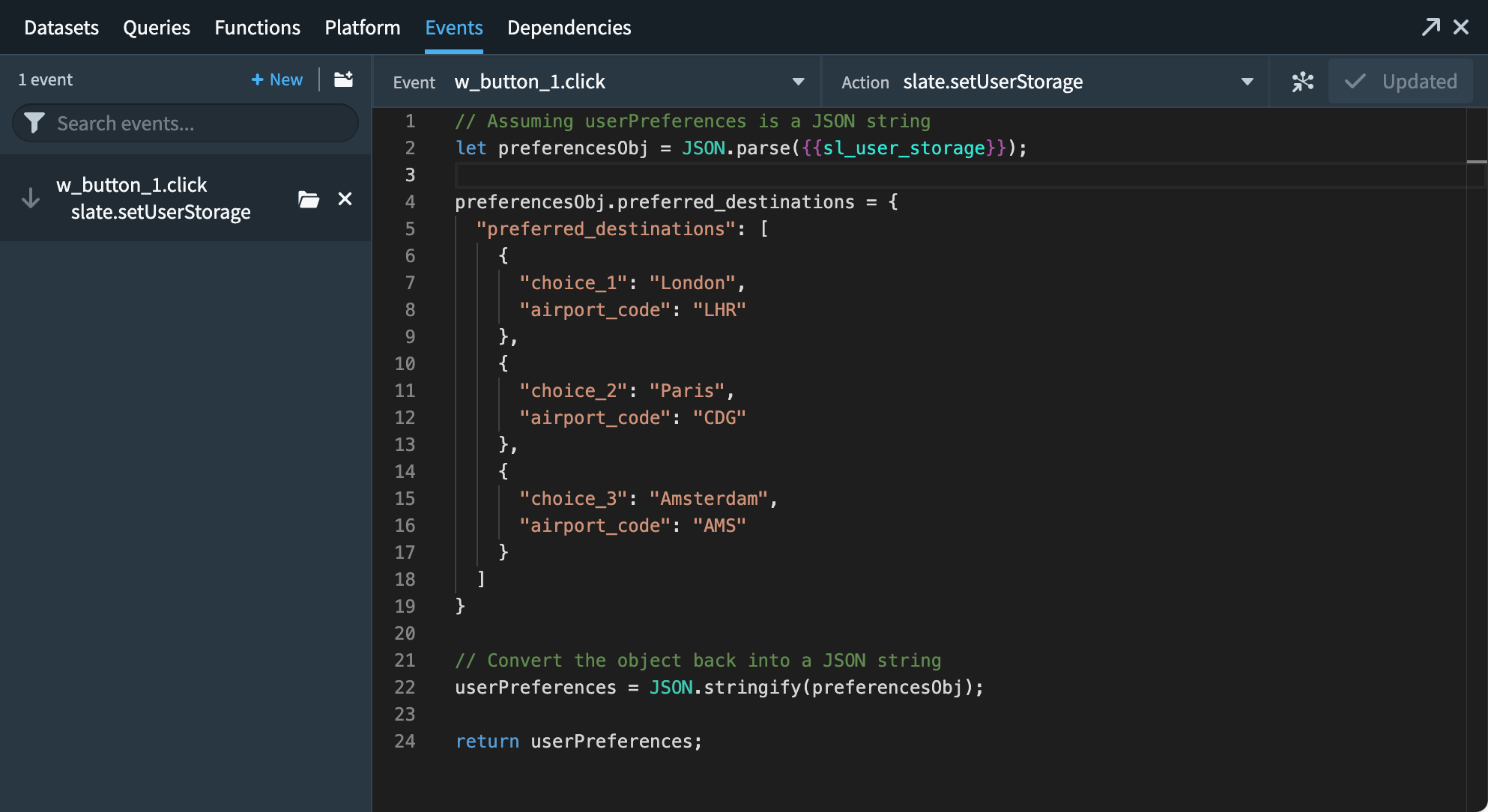
Using events, values can be stored in the user storage which can be accessed across sessions in the application. The user storage is limited to 10 kB and can be set via the slate.setUserStorage action. slate.refreshUserStorage can be called when users are working on an application across multiple browser tabs or windows. When setting the storage to a new value in one tab or window, this value can be pulled into the other window by calling the refresh action.
Example: Updating user preferences in the user storage variable
In the example below, user-preferred destinations are written into a userPreferences JSON object. The user preferences are then loaded during application load to present users with their personal preferred destinations on the application landing page.
Marketplace parameter variables
Local variables can be marked as Marketplace parameters, allowing users to customize their values when installing a Slate application through Marketplace. This is useful for making applications configurable without requiring code changes after installation.
中文翻译
在变量中存储值
在变量编辑器中定义的变量可在整个 Slate 应用中访问。您可以在查询和微件中引用这些变量,甚至可以通过事件或 URL 设置它们的值。
变量的有效类型包括 Number(数字)、String(字符串)、Boolean(布尔值)、Array(数组)、Object(对象)和 Null(空值)。
创建变量
请按照以下说明创建变量:
- 在左侧边栏中,选择 (x) 图标以打开变量编辑器。将鼠标悬停在 (x) 图标上会显示 Variables(变量)字样。
- 选择 + Add new variable(+ 添加新变量)。
- 选择变量页面作用域——共享(可在每个页面上访问)或本地(仅在创建变量时编辑的页面上可访问)。
- 选择 Name(名称)列中的文本,为变量输入新名称。
:::callout{theme="neutral"} 当检测到变量名称冲突时,Slate 会阻止用户保存变量,直到输入有效名称。 共享变量名称必须在所有页面、微件、事件、查询和函数中保持唯一。 本地变量名称必须在页面内保持唯一,且不能与环境变量名称冲突。 :::
- 为变量输入默认值。Slate 会根据输入的值推断变量类型。
:::callout{theme="neutral"} 变量的值不会在页面加载之间持久保存。当 Slate 应用重新加载时,将使用变量的默认值。 要在页面加载之间持久保存变量值,请使用用户存储变量。 :::
变量编辑器不仅显示每个变量的页面作用域、名称和默认值,还提供变量当前值的只读视图,以便在变量通过事件或直接从 URL 更改时查看。
表格变量
:::callout{theme="neutral"} Datasets(数据集)面板已迁移至 Variables(变量)面板。数据集现在作为共享变量存储,但其功能保持不变。 :::
Variables(变量)面板支持将表格数据存储为变量。您可以直接使用电子表格编辑器输入数据,或上传 CSV 文件。
创建表格变量
请按照以下说明创建表格变量:
- 在左侧边栏中,选择 X 图标以打开变量编辑器。
- 选择 + Add new variable(+ 添加新变量)。
- 选择变量页面作用域(共享或本地)。
- 为变量输入名称。
- 在默认值字段中,输入面向列的 JSON 以初始化表格结构,例如:
{"column1": ["row1", "row2"], "column2": ["row1", "row2"]},或者如果值为空,直接选择 Table(表格)选项卡。
Table(表格)选项卡提供了一个电子表格编辑器,允许您直接编辑数据。
:::callout{theme="note"}
当变量值为空、{} 或包含格式为 { columnName: [value1, value2, ...], ... } 的面向列 JSON 时,Table(表格)选项卡处于启用状态。所有列必须具有等长的数组。如果变量包含其他格式(例如面向行的 JSON,如 [{...}, {...}]),则 Table(表格)选项卡将被禁用。
:::
上传 CSV 文件
您可以按照以下步骤上传 CSV 文件以填充表格变量:
- 选择一个现有的表格变量或创建一个新的表格变量。
- 打开 Table(表格)选项卡。
- 使用上传选项从您的计算机中选择一个 CSV 文件。
- CSV 数据将被解析并显示在电子表格编辑器中。
电子表格编辑器支持以下功能:
- 直接编辑单元格值
- 右键单击上下文菜单以获取更多选项
- 添加和删除行与列
:::callout{theme="warning"} Slate 应用的默认大小限制为 2 MB。避免上传大型 CSV 文件,因为它们会计入此限制。如果您的应用超出大小限制,将无法保存更改。对于大型数据集,请考虑使用查询或 OSDK 来获取数据。 :::
通过事件更新变量
事件可用于设置变量的新值。每个变量都会自动提供一个 .set 事件。要更新变量的值,只需在事件内容中返回一个新的合法值。事件逻辑也可以使用变量的当前值作为输入。您还可以在更新变量值时更改其类型(例如,从 String 更改为 Number);但这可能会破坏变量的依赖关系。
在以下示例中,每次用户点击 w_button_next_page 按钮时,v_page_number 变量都会被更新:
URL 中的变量
您可以在 URL 查询参数(添加到 URL 以帮助设置 Slate 页面状态的附加信息)中使用变量。URL 参数始终会覆盖默认参数。
通常,使用以下语法将变量添加到 URL:
- 单个变量:
?variableName=value - 多个变量:
?variableName=value&otherVariableName=otherValue
请注意,查询参数区分大小写。此外,从 URL 查询参数中检索到的变量值将是字符串,即使传递的值是数字、布尔值或对象。这些值可以使用 Handlebars 辅助函数或通过函数转换为所需类型。
示例:在微件中使用变量
以下示例在下拉微件中使用变量,并假设有一个关于小行星的概念性数据集。
- 创建一个名为
Dropdown variables example的新应用。 - 创建一个名为
asteroidNames的新查询,将数据源设置为asteroids,并输入以下查询语句:
SELECT name FROM allnamed;
- 选择 Update(更新)以保存查询。
- 打开 Variables(变量)编辑器并添加一个新变量。将其命名为
astro,并设置默认变量为""(空字符串)。 - 向您的应用添加一个 Dropdown(下拉)微件。
- 通过从您刚刚编写的查询中提取小行星名称来填充下拉菜单:
- 选择按钮
</>切换到 Raw(原始)选项卡,并将selectedValue的值从null更新为"{{astro}}"。请注意,下拉菜单最初不显示任何值,因为selectedValue被分配给了 astro 变量,而该变量目前是一个空字符串。
- 保存应用。
- 要为下拉菜单指定一个起始的
selectedValue,我们可以在 URL 中为变量astro设置一个值。在 URL 后追加?astro=Flora并按 Enter 键。请注意,小行星名称区分大小写。URL 现在看起来像https://<HOSTNAME>:<PORT>/edit/documents/dropdown-global-variables?astro=Flora,下拉菜单现在初始显示"Flora"。
Slate 系统变量
Slate 提供两种类型的系统变量:
:::callout{theme="neutral"} 系统变量具有特殊行为,不能通过 URL 设置。 :::
环境变量
$global 变量提供对环境特定信息的访问。
| 属性 | 描述 |
|---|---|
| locale | 返回用户会话的语言区域设置。 |
| app.isEditMode | 如果应用处于编辑模式,返回 true;如果应用处于查看模式,返回 false。 |
| app.rid | 返回 Slate 文档的 RID。 |
| user.domain | 返回用户的认证域。 |
| user.email | 返回用户的电子邮件地址。 |
| user.familyName | 返回用户的姓氏。 |
| user.firstName | 返回用户的名字。 |
| user.groups | 返回用户所属的所有认证组列表。 |
| user.id | 返回用户的唯一标识符。 |
| user.username | 返回用户的用户名。 |
| window.origin | 返回当前 URL 的来源。 |
示例:在函数中使用环境变量
以下示例使用 $global 变量的不同属性,以适当的语言向用户打招呼:
// 'de' 表示德语区域设置
// 英语为默认语言
if ({{$global.locale}} == 'de') {
    return "Willkommen " + {{$global.user.firstName}}
} else {
    return "Welcome " + {{$global.user.firstName}}
}
用户存储变量
Slate 中的 sl_user_storage 变量在每次应用加载时为每个用户保持其值,而其他变量在页面加载时会重置为默认值。
用户存储变量允许应用构建者在应用上下文中为单个用户存储信息,例如用户在特定应用上的偏好设置。
通过事件,可以将值存储在用户存储中,这些值可以在应用中的不同会话之间访问。用户存储限制为 10 kB,可以通过 slate.setUserStorage 操作进行设置。当用户在多个浏览器标签页或窗口中处理同一个应用时,可以调用 slate.refreshUserStorage。当在一个标签页或窗口中设置存储为新值时,可以通过调用刷新操作将该值拉取到另一个窗口中。
示例:在用户存储变量中更新用户偏好
在以下示例中,用户偏好的目的地被写入一个 userPreferences JSON 对象中。然后在应用加载期间加载用户偏好,以在应用登录页面上向用户展示其个人偏好的目的地。
Marketplace 参数变量
本地变量可以标记为 Marketplace 参数,允许用户在通过 Marketplace 安装 Slate 应用时自定义其值。这对于使应用可配置而无需在安装后进行代码更改非常有用。