Navigation(导航)
There are four main areas of Slate in edit mode:
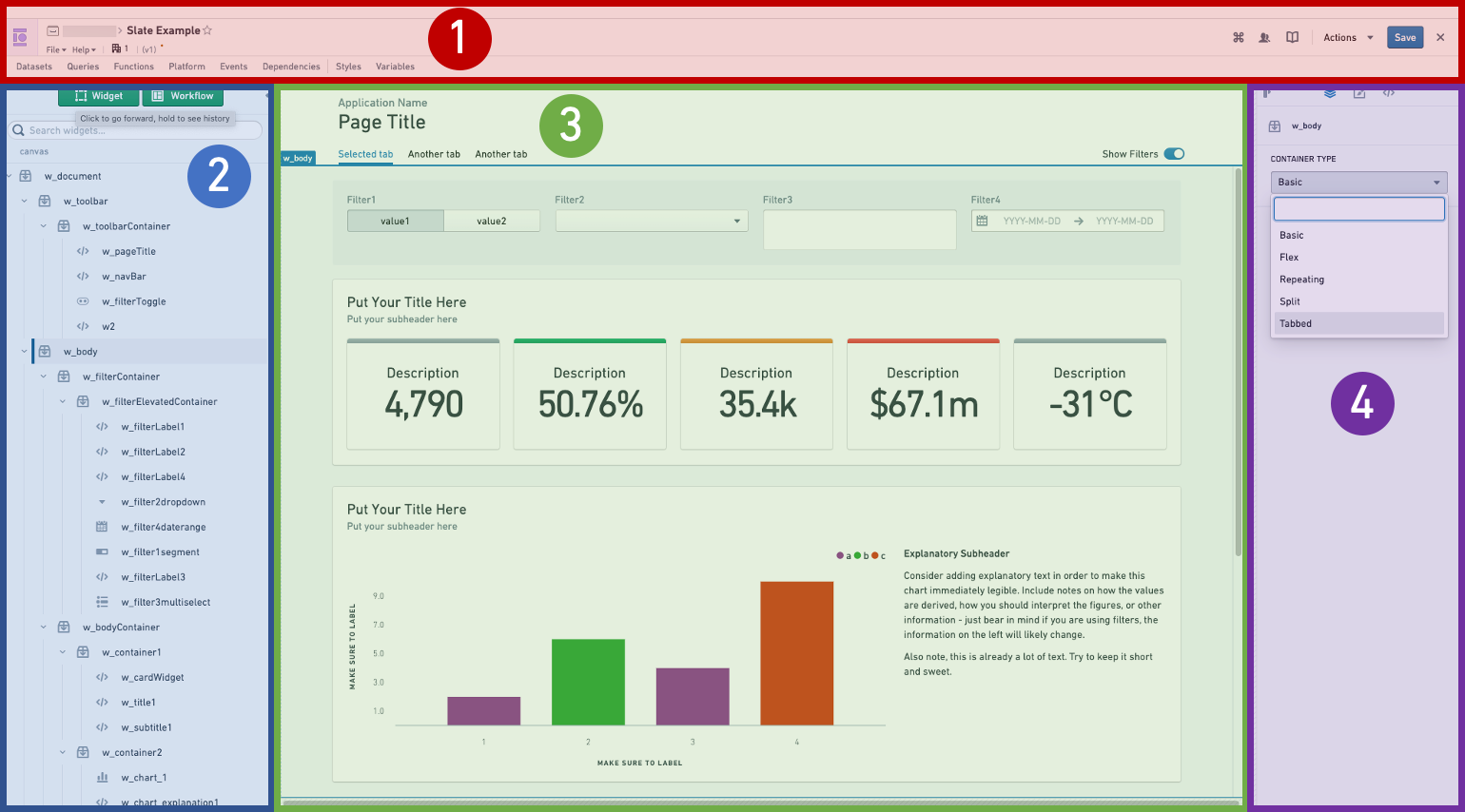
- Action bar: This is where you’ll find the application name, the Actions dropdown, exit to view mode, and buttons to open various editing panels.
- Widget List: The Widget List is where all the widgets in your application are listed. If you have a toolbar in your application, the list is divided into toolbar widgets and canvas widgets.
- Canvas: This is the workspace for your application. Here you can rearrange widgets and test layout options. You can change the screen size using the dropdown at the top right to preview how your application will look on different screens.
- Widget Editor: When you select a widget, either from the list or from the canvas, the Widget Editor lets you configure that widget.
Additionally, there are panels that pop out in front of the canvas:
- Queries editor
- Functions editor
- Platform editor
- Object sets
- Object context
- Foundry Functions
- Events editor
- Dependency graph
- Styles editor
- Variables editor
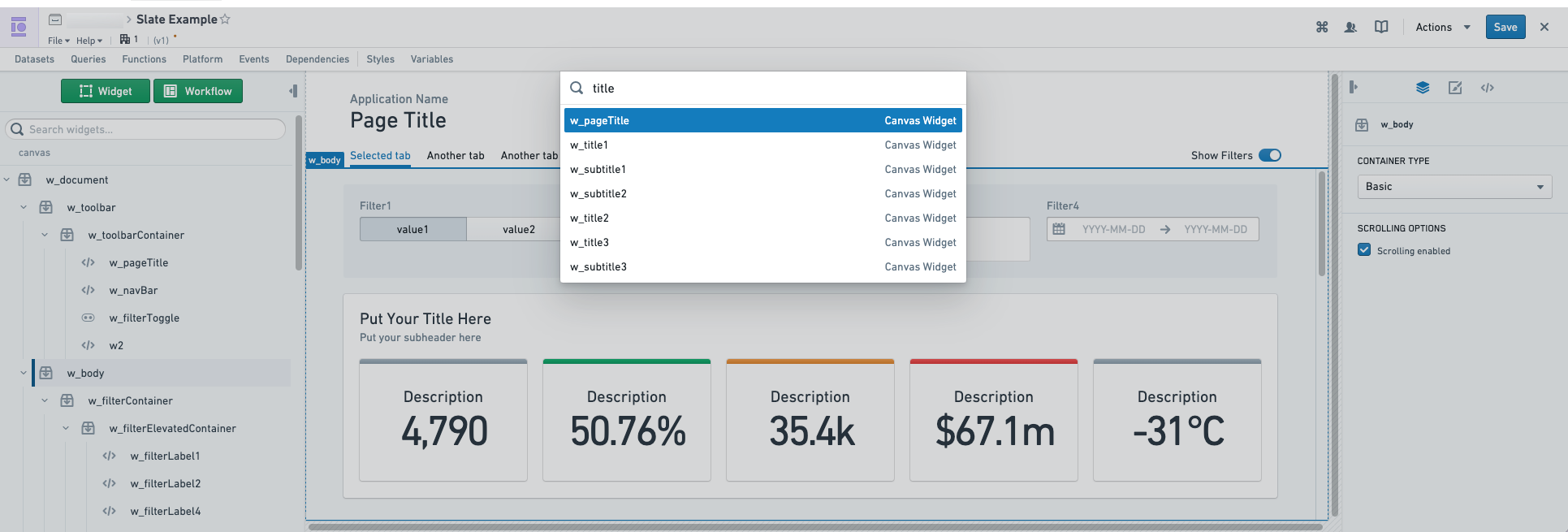
The global search in editor mode, accessed with the keyboard shortcut Ctrl+K on Windows or Cmd+K on macOS, allows you to search and go to Slate queries, functions, objects, variables and widgets. Slate's global search will also keep a history of your searches to prioritize recent results. Selecting the result will open up the appropriate Slate editor panel.
Widget Editor
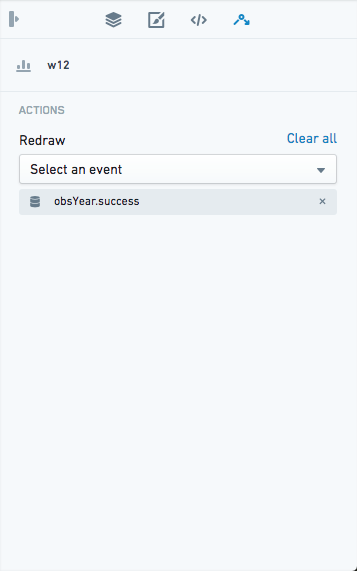
The Widget Editor has three tabs with editing options for the selected widget.
Property tab: This is the main editing tab. Use this tab to change the widget’s properties. The options available vary by type of widget.
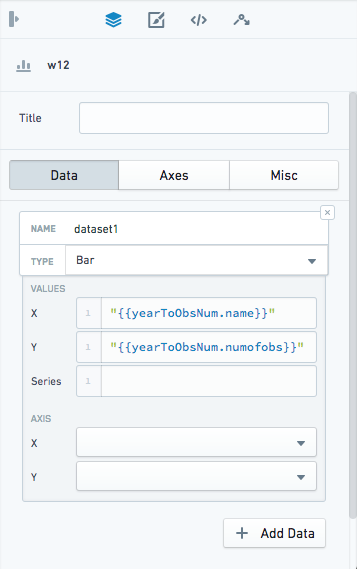
Layout tab: Set the position and size of your widget, and apply custom styling.

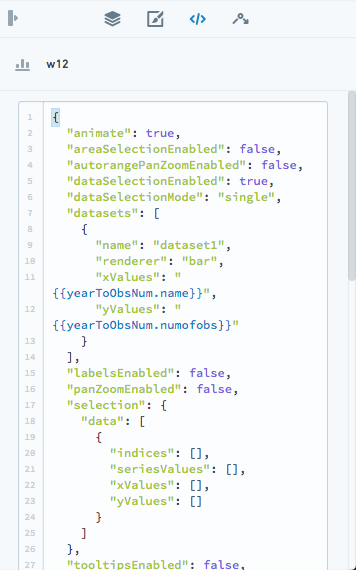
JSON tab: If the changes you would like to apply are not possible using the settings available in the Property tab, you can edit the raw JSON configuration of the widget in this tab. Each widget starts with template code containing the most commonly-used attributes, and any fields you change in the Property tab are also added to the JSON tab.
:::callout{theme="warning"} State that is not exposed through the Property tab is managed internally by Slate, so you should closely review any modifications you make to Slate's default values in the JSON tab to avoid unexpected behavior. :::
Events tab: Some widgets have associated events, which you can configure here.
中文翻译
导航
Slate 的编辑模式包含四个主要区域:
- 操作栏 (Action bar): 您可以在此找到应用程序名称、操作 (Actions) 下拉菜单、退出至查看模式的按钮,以及打开各种编辑面板的按钮。
- 组件列表 (Widget List): 组件列表列出了应用程序中的所有组件。如果您的应用程序包含工具栏,该列表将分为工具栏组件和画布组件。
- 画布 (Canvas): 这是您应用程序的工作区。您可以在此重新排列组件并测试布局选项。您可以使用右上角的下拉菜单更改屏幕尺寸,以预览应用程序在不同屏幕上的显示效果。
- 组件编辑器 (Widget Editor): 当您从列表或画布中选择一个组件时,组件编辑器 允许您配置该组件。
此外,还有一些面板会从画布前方弹出:
- 查询编辑器 (Queries editor)
- 函数编辑器 (Functions editor)
- 平台编辑器 (Platform editor)
- 对象集 (Object sets)
- 对象上下文 (Object context)
- Foundry 函数 (Foundry Functions)
- 事件编辑器 (Events editor)
- 依赖关系图 (Dependency graph)
- 样式编辑器 (Styles editor)
- 变量编辑器 (Variables editor)
在编辑模式下,使用键盘快捷键 Ctrl+K(Windows)或 Cmd+K(macOS)可访问全局搜索 (global search),允许您搜索并跳转到 Slate 的查询、函数、对象、变量和组件。Slate 的全局搜索还会保留您的搜索历史,以优先显示最近的结果。选择搜索结果将打开相应的 Slate 编辑器面板。
组件编辑器 (Widget Editor)
组件编辑器包含三个选项卡,提供对所选组件的编辑选项。
属性 (Property) 选项卡: 这是主要的编辑选项卡。使用此选项卡可更改组件的属性。可用的选项因组件类型而异。
布局 (Layout) 选项卡: 设置组件的位置和大小,并应用自定义样式。
JSON 选项卡: 如果您希望进行的更改无法通过属性 (Property) 选项卡中的设置实现,则可以在此选项卡中编辑组件的原始 JSON 配置。每个组件都从包含最常用属性的模板代码开始,您在属性 (Property) 选项卡中更改的任何字段也会被添加到JSON选项卡中。
:::callout{theme="warning"} 未通过属性 (Property) 选项卡暴露的状态由 Slate 内部管理,因此您应仔细审查在JSON选项卡中对 Slate 默认值所做的任何修改,以避免意外行为。 :::
事件 (Events) 选项卡: 某些组件具有关联的事件,您可以在此处进行配置。