Advanced(高级)
The advanced widget category consists of the following widgets:
Code Sandbox
The Code Sandbox widget is a secure sandbox for you to implement your own custom widget to extend the functionality of Slate. You are able to build your own custom visualizations, take advantage of third-party JavaScript libraries, or build advanced workflow interactions. You can define the rendering, the widget model, and the event interactions so that your widget integrates with the rest of your application. External JavaScript libraries can be loaded into a folder in your Project and referenced in your widget.
:::callout{theme="warning" title="Warning"} The Code Sandbox widget unlocks advanced, custom development capabilities within your Slate application. Implementing custom functionality through the Code Sandbox widget should be done with a clear understanding of the technical complexity involved and long-term maintenance required for successful development. Widget development is at your own discretion and risk; support is not provided for debugging custom code. :::
Summary of interaction
A summary of interaction with Slate and functions that can be used can be found below:

JavaScript tab
This tab has the fields for the JavaScript, as well as any JavaScript libraries you might wish to load.
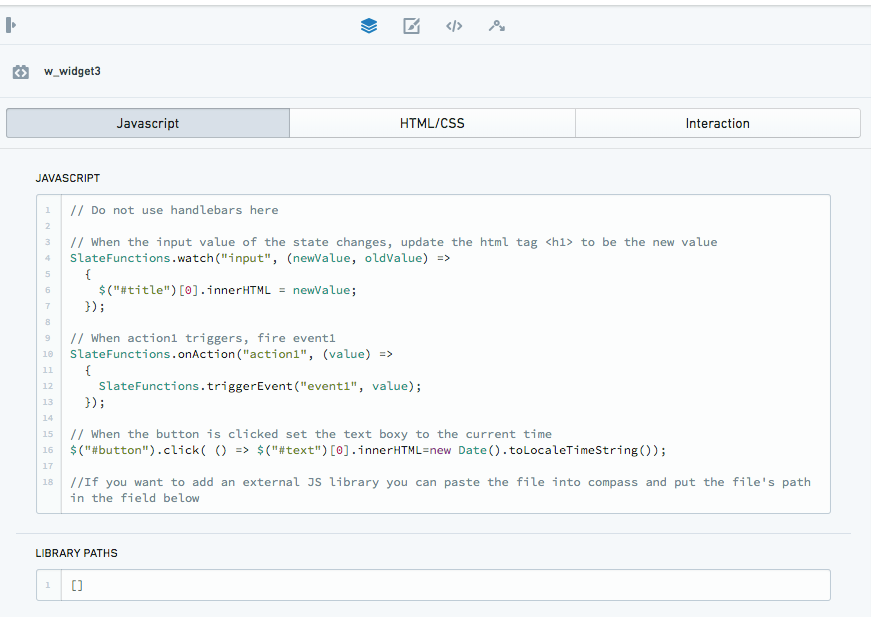
JavaScript
This is a string of JavaScript that will get executed when the widget loads. Making any change to this JavaScript will cause the entire widget to reload. The JavaScript in this field will be executed after the JavaScript from the libraries field. See the JavaScript libraries section for instructions on loading third party libraries.
:::callout{theme="neutral"}
Do not use Handlebars here. We recommend that you pass in data using SlateFunctions through the Javascript tab to interact with state in the interaction tab.
:::
:::callout{theme="warning" title="Warning"}
Network requests and references (for example, the usage of fetch) are not supported in the Code Sandbox for JavaScript, JavaScript libraries, or HTML. Any network requests must be proxied to configured Queries via SlateFunctions.
:::
Available functions
The following native functions can be invoked to interact with Slate specific functionality. These functions allow you to interact with the rest of the Slate application through the use of events, actions, and state changes. The functions are exposed to the JavaScript running within the widget. More information and examples can be found below.
- SlateFunctions.onAction
- SlateFunctions.watch
- SlateFunctions.getState
- SlateFunctions.setState
- SlateFunctions.triggerEvent
JavaScript libraries
This is an array of Project paths which will be downloaded and then executed in order within the widget, or an array of URLs that is allowed by both CORS and CSP policy (where you can mix and match).
Downloading will use the browser, so the URL must be allowed by
the CORS and CSP policy. If you wish to host libraries within Foundry,
you can either host them in Blobster and use the cookie-authenticated APIs or put the script in the asset server. Making changes to this field will cause the entire widget to reload and refresh. (The libraries can themselves invoke the SlateFunctions to allow them to interact with the Slate-specific functionality).
:::callout{theme="neutral"}
Imported JavaScript libraries must assign their functionality to a globally available scope to be referenced via the JavaScript tab (such as being bundled as a UMD module, or explicitly assigning functionality to the window).
:::
Example
To use the d3.min.js library, downloaded it from
https://d3js.org/d3.v5.min.js and save it to a Foundry directory by
dragging-and-dropping the file. Once the file is uploaded, copy its
Project path and paste it into the library array.
["/Users/admin/d3.min.js"]
You can alternatively use the RID for the resource. For example:
["ri.blobster.main.code.7a4a12a8-e9f5-46ef-8008-5c3f4bbd4abc"]
You can obtain the Project path/RID for a resource by looking at its file's directory. Alternatively, you can right-click on the file once while in its folder and copying the Location / RID.
HTML/CSS tab
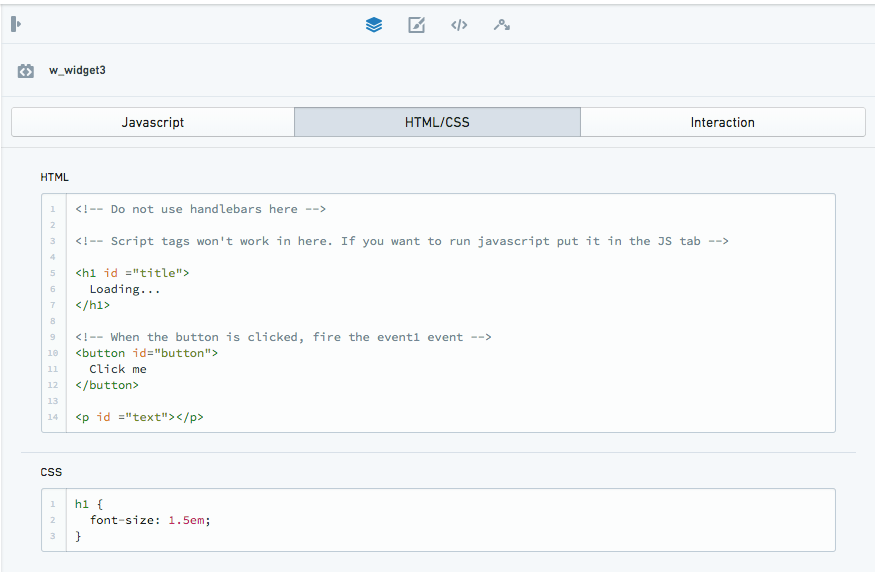
HTML
This is a string of HTML that will get rendered when the widget loads.
:::callout{theme="neutral"}
Do not use Handlebars here. The HTML tag <script> will not
function, and you need to extract any JavaScript into the
JavaScript tab.
:::
CSS
This is a string of CSS that will get rendered when the widget loads.
:::callout{theme="neutral"} Do not use Handlebars here. The specified CSS will allow you to overwrite CSS rendered in the border of the iframe and not in the frame. The same border styling can also be applied via the Additional CSS Classes and Custom Styles in the widget's top-level Styling tab. :::
CSS libraries
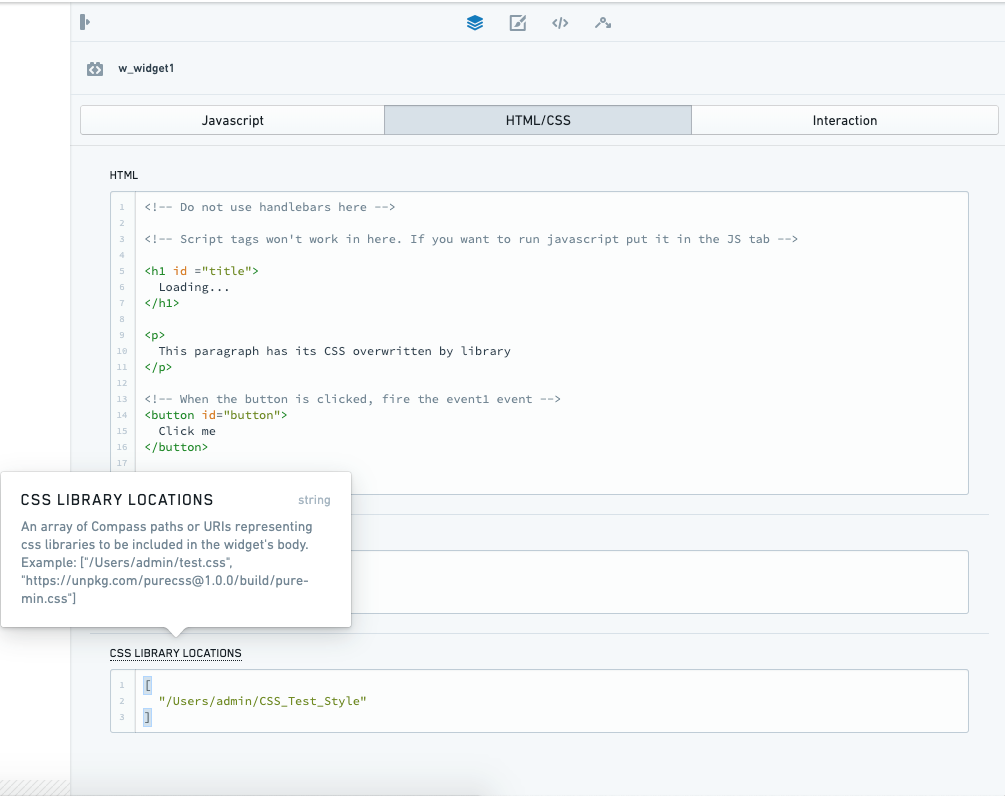
The CSS libraries feature allows you to load CSS so you can use CSS styles (e.g. Blueprint) to create your custom widget. You can access it in the HTML/CSS tab of the widget.
CSS libraries works like Code Sandbox’s JavaScript libraries. The CSS library takes an array of Project paths which will be downloaded and then rendered in order within the widget, or an array of URLs that is allowed by both CORS and CSP policy (where you can mix and match). Downloading will use the browser, so the URL must be allowed by the CORS and CSP policy. If you wish to host CSS libraries within Foundry, you can either host them in Blobster and use the cookie authenticated APIs or put the script in the asset server. Making changes to this field will cause the entire widget to reload and refresh.
:::callout{theme="neutral"}
Plain CSS is sufficient for the contents of the CSS library file; ensure that you do not have the HTML <style> tag surrounding the CSS style.
:::
Interactions tab
This is the control that lets the widget interact with the Slate paradigm. All the interactions between the Code Sandbox widget and the rest of Slate should be passed through one of the state, events, or actions.
:::callout{theme="neutral"}
We recommend that you pass in the Handlebars through this interaction tab only. Using the Handlebars directly in the JavaScript box will still work (e.g. to pass in some state without using the SlateFunctions.watch or SlateFunctions.getState), but this is not recommended since the entire widget will reload and refresh each time.
:::
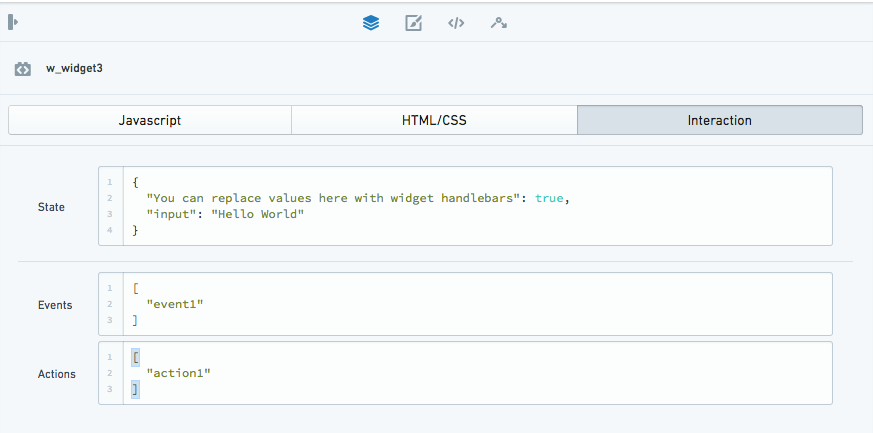
State
This is a JSON blob that represents the current configuration of the widget. This is similar to the state that other widgets in Slate use except that it is nested under this field to allow the other meta-fields. The state can be modified from either inside the widget or from the usual practice of putting Handlebars in the state.
To modify the state from the widget, use SlateFunctions.setState
within the JavaScript. The other Slate functions passing state to the
widget are SlateFunctions.watch and SlateFunctions.getState (see the example below).
:::callout{theme="neutral"} There are certain ways to use this field to load additional runtime code into the Code Sandbox widget (e.g. pass in JavaScript into the state and load it in later). However, these ways are not recommended as the purpose of the field is to represent the state of the widget. :::
Events
This is an array of strings that are the names of the events that this
widget will be able to trigger. These triggers must be explicitly
invoked from the JavaScript within the widget using the functions
provided below. Events will be named custom.{event_name} when
displayed in the events tab. The event name does not need to be separately typed in the triggerEvent parameter.
To trigger an event, use SlateFunctions.triggerEvent(“event”) within
your JavaScript, as shown in the example below.
Actions
This is an array of strings that are the names of Actions that this
widget will allow to be triggered by other widgets. The JavaScript within the widget should be listening for the Action using the functions provided below. Actions will be named custom.{action_name} when displayed in the events tab.The Action name does not need to be separately typed in the onAction parameter.
To have a widget respond to an Action created in the Slate context, use
SlateFunctions.onAction(“action_name”,(value)=>{put JavaScript here})
within your JavaScript, as shown in the example below.
Slate functions
These native functions allow you to interact with Slate-specific functionality and are exposed to the JavaScript running within the widget. These functions will allow you to interact with the rest of the Slate application through the use of events, Actions, and state changes.
onAction
Data direction: Slate context → widget
SlateFunctions.onAction allows you to register a callback for when an
Action gets invoked on your widget. Its arguments are the name of the
Action and the function to be invoked when the Action is received. The
function will be invoked with the sole argument being the 'body'
passed along with the Action.
You then need to list your Action in the Interaction tab below.
Example

This example uses the Slate Checkbox widget which causes the Code Sandbox widget to update when clicked:
- An event emanates from the Checkbox widget when the Checkbox widget is clicked.
- In Slate's event panel, this Slate event has been registered to trigger an Action (custom.checkbox) in the Code Sandbox widget.
- The event panel is able to detect this Action because the Action has been registered in the Code Sandbox widget's Interaction Action box.
JavaScript:
SlateFunctions.onAction("checkbox", (value) => {
    var checkbox = document.createElement("div")
    checkbox.innerHTML = value;
    document.body.appendChild(checkbox);
});
Interaction Action:
[
    "checkbox"
]
New event-Action pair registered:
Event: Slate_widget.selectedValues.changed
Action: Code_Sandbox_widget.custom.checkbox
watch
Data direction: Slate context → widget (continuous watching)
SlateFunctions.watch is meant to help you detect changes to the state
field in a way similar to watching in AngularJS. SlateFunctions.watch takes in a string and a function as its arguments. When the portion of the state
represented by the string changes, the function provided will be invoked
with the new state and the old state provided as arguments. This is
possibly the most useful function and is how you can pass data into the
widget by using Handlebars passed into the Interaction tab (e.g."First
Argument": "{{handlebars}}").
For example, if your state has two fields - height and width - and you want
to invoke a function when the height changes, you would call
SlateFunctions.watch("height", <insert function here>). If the
initial string is blank, then the function will be invoked on any state
changes.
Example
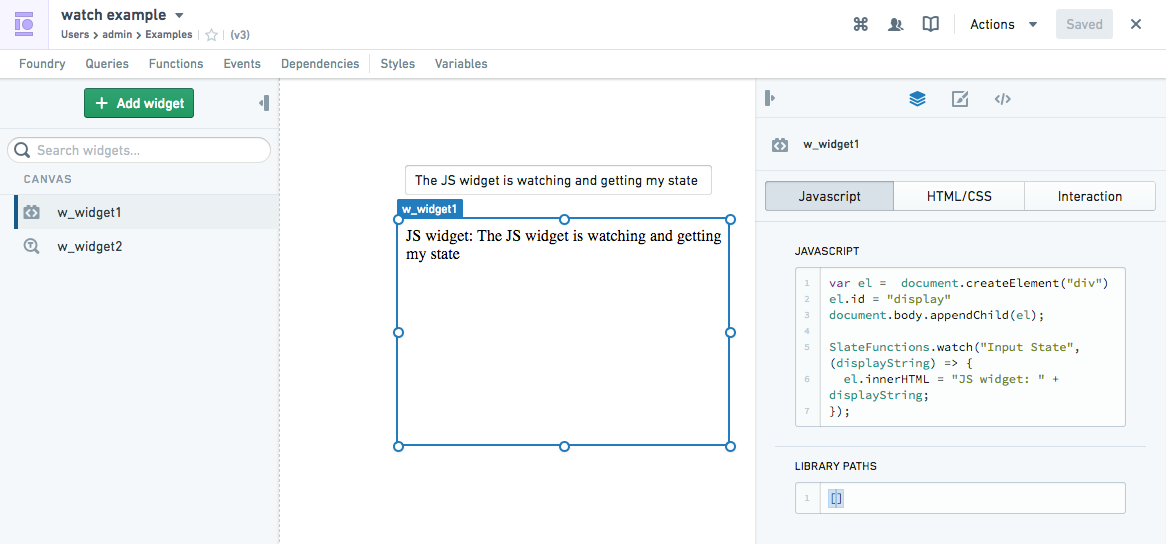
This example uses Slate's Input widget which passes the state to the Code Sandbox widget and displays it:
- The Slate Input widget generates text state as a data output
{{w_widget2.text}} - This state has been fed into the Code Sandbox widget's Interaction state box, so now you can use the state in the Code Sandbox widget. You use
SlateFunctions.watch("State Name", (data) =>...to use the state/data in the widget.
JavaScript:
var el =  document.createElement("div")
el.id = "display"
document.body.appendChild(el);

SlateFunctions.watch("Input State", (data) => {
    el.innerHTML = "Code Sandbox widget: " + data;
});
Interaction Action:
{
  "Input State": "{{w_widget2.text}}"
}
getState
Data direction: Slate context → widget (non-continuous, once-off 'get')
This function returns the current state of the widget that is initially populated by the state field.
SlateFunctions.getState returns a JSON object of the current state of the widget that is initially populated by the state field. You can access different properties of the object (i.e. the different 'states').
SlateFunctions.getState will return a JSON object of your state field,
and you can access different properties of the object (i.e. the different
'states').
SlateFunctions.getState will only get the state once called. In contrast,
SlateFunctions.watch will constantly "watch" for updates to the state field.
You can use this SlateFunctions.getState function in a SlateFunctions.watch to get particular attributes of the full state object.
For example, if your state is:
{
  "a": "cat",
  "b": "hat"
}
SlateFunctions.getState().a will return cat.
Example
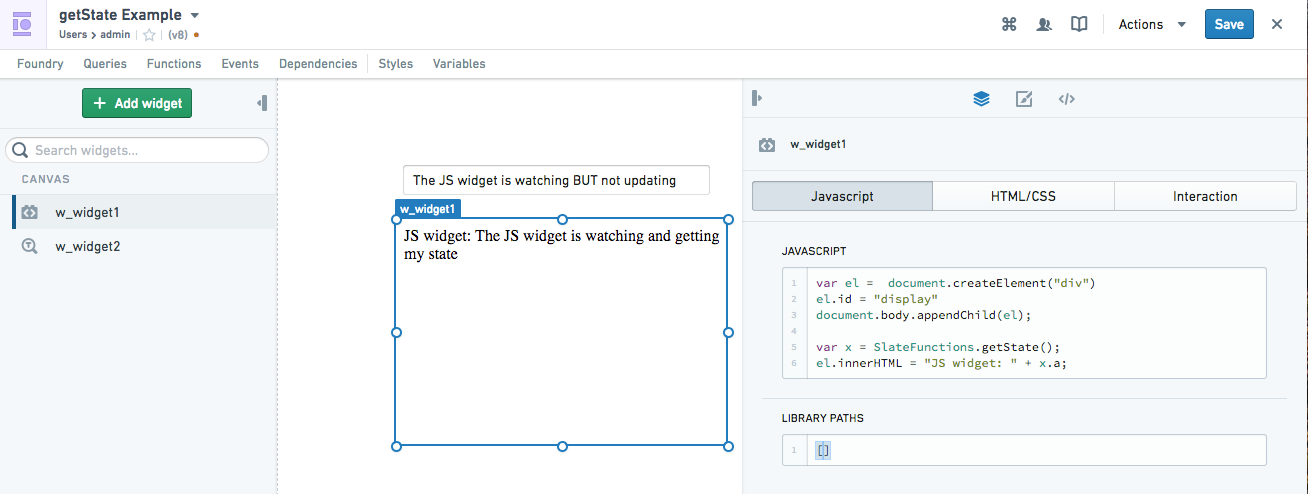
This example uses Slate's Input widget which passes the state to
the Code Sandbox widget. The entire state is called through the use of
the getState function (assigned to x), a particular attribute in this
"entire state" object is then displayed: "a" in this case.
JavaScript:
var el =  document.createElement("div")
el.id = "display"
document.body.appendChild(el);
var x = SlateFunctions.getState();
el.innerHTML = "Code Sandbox widget: " + x.a;
Interaction Action:
  "a": "{{w_widget2.text}}",
  "b": "random_state"
}
setState
Data direction: Widget → Slate context.
SlateFunctions.setState modifies the state of the widget both for
external widgets that reference the state of this widget using Handlebars and for future getState calls. It takes two arguments: the string
representing the portion of the state to modify and a JSON blob
representing the new value of that portion.
For example, if you wish to set the view's height of your widget to 4
but leave all other properties, you'd call
SlateFunctions.setState("view.height", 4). If you want to overwrite
the whole state (as opposed to only height), you can pass in "" to the
first argument instead of "view.height".
Example
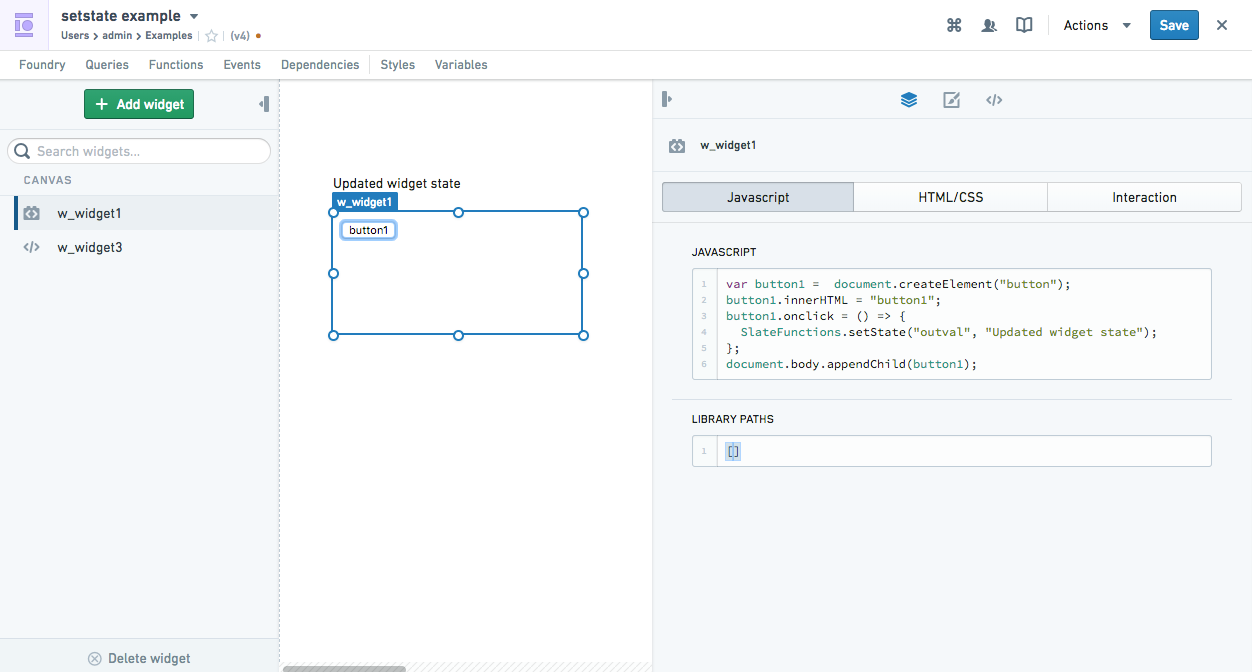
This example uses a generated button in the Code Sandbox widget to update the state of a Slate "HTML widget" from "Initial widget state" to "Updated widget state".
- An interaction with the Code Sandbox widget when the button is
clicked triggers the
SlateFunctions.setState. This updates the state of "outval" from "Initial widget state" to "Changed widget state". - This updated state is able to be detected in Slate because the state has been registered in the Code Sandbox widget's Interaction "state".
JavaScript:
var button1 =  document.createElement("button");
button1.innerHTML = "button1";

button1.onclick = () => {
    SlateFunctions.setState("outval", "Updated widget state");
};

document.body.appendChild(button1);
Interaction state:
{
  "outval": "Initial Widget State"
}
triggerEvent
Data direction: Widget → Slate context.
SlateFunctions.triggerEvent triggers an event. The two arguments are
the name of the event to trigger and the message to be passed as the
body of the event.
Example
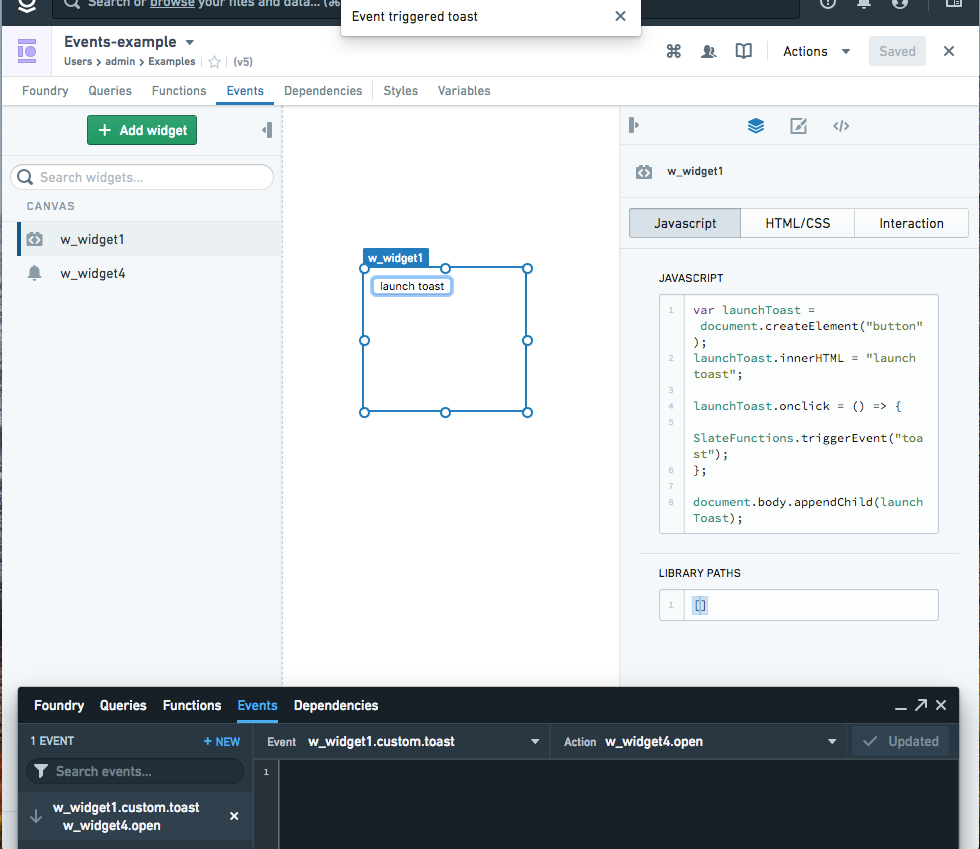
In this example, when the Code Sandbox widget is interacted with by a click of the button, a Slate Toast widget is launched in the Slate context.
- When the button is clicked, the function
launchToast.onclickruns which triggers theSlateFunctions.triggerEvent. - An event emanates from the Code Sandbox widget because this event has been further registered in the Code Sandbox widget's Interaction "event".
- In Slate's event panel, this Code Sandbox widget event has been registered to trigger an Action (Slate_widget.open) in the Slate widget.
JavaScript
var launchToast =  document.createElement("button");
launchToast.innerHTML = "launch toast";

launchToast.onclick = () => {
    SlateFunctions.triggerEvent("toast");
};

document.body.appendChild(launchToast);
Interaction event:
[
  "toast"
]
New event registered:
Event: Code_Sandbox_widget.custom.toast
Action: Slate_widget.open
Load order
The Code Sandbox widget loads in the following order:
- Slate (the parent frame context containing the widget) loads, then the widget iframe loads.
- Slate sends the widget "state" to the widget (see Interactions below for more details), followed by CSS, HTML, libraries, and JavaScript.
- The iframe receives and sets up the following:
- The CSS and HTML are appended.
- The libraries are executed
- The JavaScript is executed
- The appropriate "SlateFunctions" are triggered (input).
- The user interacts with the widget frame (updating the state, triggering events, creating actions, etc.). These, in turn, can modify or produce "SlateFunctions" which are sent from the widget to the parent Slate frame. These widget outputs can then be used in the rest of Slate if they are specified as Interactions (output).
Security
The security model for this widget is very similar to that of Slate functions. The code will be executed in a sandboxed iframe with inputs and outputs being transferred using postMessage. This allows us to safely execute untrusted JavaScript code. The only modification is that the iframe is visible on the page, which doesn't change the security model.
Debugging tips
When in the Chrome console, you can select the dropdown that defaults to the top and select codeSandboxIframe.html. This will cause any JavaScript you type into the console to be executed in the environment of the widget. This can be useful when you are trying to figure out how to get your widget to work since changes to the JavaScript field will force a reload of the widget.
Third party code
We recommend following this general approach when using third party code:
- Check the license to ensure that you can use it.
- Minimize the code complexity by finding examples with as few separate chunks of JavaScript as possible.
- If the JavaScript uses any libraries, proceed to download the .js file from the source and put the Foundry Project path of the uploaded file into the library section. You can also link the URL directly and test it after to ensure that it does not conflict with CSP or CORS policy.
- Ensure that all JavaScript in the HTML \ tags are refactored out and placed into the JavaScript section.
- Use Slate functions for your interactions:
- Pass any data you need into the custom Code Sandbox from Slate using
SlateFunctions.getState. - To convey an interaction within the widget to the rest of Slate, you can tag
SlateFunctions.triggerEventto the function. - To have the widget respond to an Action emanating from the rest of Slate, you can tag
SlateFunctions.onActionto the function.
File Import
The File Import widget enables users to upload files which can then be referenced and processed in the Slate application. This allows applications to incorporate file-based data and functionality directly within Slate.
Properties
| Attribute | Description | Type | Required | Changed By |
|---|---|---|---|---|
| buttonCssClasses | CSS classes to apply to the browse button | string[] | Yes | Direct Edit |
| buttonText | The text of the browse button | string | Yes | Direct Edit |
| message | The message to display in the upload pane | string | Yes | Direct Edit |
| fileNames | The names of the files that the user imported | string[] | Yes | User Interaction |
| fileTypes | The MIME types of the files that the user imported | string[] | Yes | User Interaction |
| fileContents | The user's imported files as binary strings | string[] | Yes | User Interaction |
| fileDataUrls | The user's imported files as base64-encoded data URLs | string[] | Yes | User Interaction |
Iframe
The following tables offer usage details about the properties available to iframe widgets. Several examples follow the tables.
:::callout{theme="neutral"}
If you are embedding something that is loaded via workspace, you need to add ?embedded=true to the end of the URL
:::
Properties
| Attribute | Description | Type | Required | Changed By |
|---|---|---|---|---|
| uri | The iframe src URI | string | No | Direct Edit |
Actions
| Action Name | Description |
|---|---|
| sendMessage | Triggering this Action causes the widget to send a message to the inner iframe in the format of { source: ‘slate-iframe-action’, message: {…}}. |
| reload | Triggering this Action reloads the iframe. |
Events
| Event Name | Description |
|---|---|
| getMessage | This event is triggered when the widget’s inner iframe post message to Slate is in the format of { target: ‘slate-iframe-event’, message: {…}}. |
中文翻译
高级
高级小部件类别包含以下小部件:
代码沙盒(Code Sandbox)
代码沙盒小部件是一个安全的沙盒环境,供您实现自定义小部件以扩展 Slate 的功能。您可以构建自己的自定义可视化、利用第三方 JavaScript 库,或构建高级工作流交互。您可以定义渲染、小部件模型和事件交互,使您的小部件能够与应用程序的其他部分集成。外部 JavaScript 库可以加载到项目文件夹中,并在小部件中引用。
:::callout{theme="warning" title="警告"} 代码沙盒小部件在您的 Slate 应用程序中解锁了高级的自定义开发能力。通过代码沙盒小部件实现自定义功能时,应清楚了解所涉及的技术复杂性以及成功开发所需的长期维护。小部件的开发由您自行决定并承担风险;不提供自定义代码的调试支持。 :::
交互概述
与 Slate 的交互以及可用函数的概述如下:
JavaScript 标签页
此标签页包含 JavaScript 的字段,以及您可能希望加载的任何 JavaScript 库。
JavaScript
这是一个 JavaScript 字符串,将在小部件加载时执行。对此 JavaScript 的任何更改都将导致整个小部件重新加载。此字段中的 JavaScript 将在库字段中的 JavaScript 之后执行。有关加载第三方库的说明,请参阅 JavaScript 库 部分。
:::callout{theme="neutral"}
请勿在此处使用 Handlebars。我们建议您通过 JavaScript 标签页使用 SlateFunctions 传入数据,以便与交互标签页中的 状态(state) 进行交互。
:::
:::callout{theme="warning" title="警告"}
代码沙盒中的 JavaScript、JavaScript 库 或 HTML 不支持网络请求和引用(例如,使用 fetch)。任何网络请求都必须通过 SlateFunctions 代理到已配置的 查询(Queries)。
:::
可用函数
可以调用以下原生函数来与 Slate 的特定功能进行交互。这些函数允许您通过事件、动作(Actions)和状态更改与 Slate 应用程序的其他部分进行交互。这些函数暴露给小部件内运行的 JavaScript。更多信息和示例如下。
- SlateFunctions.onAction
- SlateFunctions.watch
- SlateFunctions.getState
- SlateFunctions.setState
- SlateFunctions.triggerEvent
JavaScript 库
这是一个项目路径数组,这些路径对应的文件将被下载并按顺序在小部件内执行;或者是一个 URL 数组,这些 URL 必须同时被 CORS 和 CSP 策略允许(可以混合使用)。
下载将使用浏览器,因此 URL 必须被 CORS 和 CSP 策略允许。如果您希望在 Foundry 内托管库,可以将其托管在 Blobster 中并使用 cookie 认证的 API,或者将脚本放在资产服务器中。对此字段的更改将导致整个小部件重新加载和刷新。(库本身可以调用 SlateFunctions,以便与 Slate 的特定功能进行交互)。
:::callout{theme="neutral"}
导入的 JavaScript 库必须将其功能分配给全局可用的作用域,以便通过 JavaScript 标签页引用(例如,作为 UMD 模块打包,或显式地将功能分配给 window)。
:::
示例
要使用 d3.min.js 库,请从 https://d3js.org/d3.v5.min.js 下载,并通过拖放文件将其保存到 Foundry 目录中。文件上传后,复制其项目路径并粘贴到库数组中。
["/Users/admin/d3.min.js"]
您也可以使用资源的 RID。例如:
["ri.blobster.main.code.7a4a12a8-e9f5-46ef-8008-5c3f4bbd4abc"]
您可以通过查看文件的目录来获取资源的项目路径/RID。或者,您可以在文件夹中右键单击文件,然后复制位置/RID。
HTML/CSS 标签页
HTML
这是一个 HTML 字符串,将在小部件加载时渲染。
:::callout{theme="neutral"}
请勿在此处使用 Handlebars。HTML 标签 <script> 将无法工作,您需要将所有 JavaScript 提取到 JavaScript 标签页中。
:::
CSS
这是一个 CSS 字符串,将在小部件加载时渲染。
:::callout{theme="neutral"} 请勿在此处使用 Handlebars。指定的 CSS 允许您覆盖在 iframe 边框内渲染的 CSS,而不是在框架内。相同的边框样式也可以通过小部件顶层样式标签页中的附加 CSS 类和自定义样式来应用。 :::
CSS 库
CSS 库功能允许您加载 CSS,以便使用 CSS 样式(例如 Blueprint)创建自定义小部件。您可以在小部件的 HTML/CSS 标签页中访问它。
CSS 库的工作方式与代码沙盒的 JavaScript 库类似。CSS 库接受一个项目路径数组,这些路径对应的文件将被下载并按顺序在小部件内渲染;或者是一个 URL 数组,这些 URL 必须同时被 CORS 和 CSP 策略允许(可以混合使用)。下载将使用浏览器,因此 URL 必须被 CORS 和 CSP 策略允许。如果您希望在 Foundry 内托管 CSS 库,可以将其托管在 Blobster 中并使用 cookie 认证的 API,或者将脚本放在资产服务器中。对此字段的更改将导致整个小部件重新加载和刷新。
:::callout{theme="neutral"}
纯 CSS 足以满足 CSS 库文件的内容要求;请确保不要使用 HTML <style> 标签包围 CSS 样式。
:::
交互标签页
这是让小部件与 Slate 范式进行交互的控制项。代码沙盒小部件与 Slate 其他部分之间的所有交互都应通过状态、事件或动作之一传递。
:::callout{theme="neutral"}
我们建议您仅通过此交互标签页传入 Handlebars。直接在 JavaScript 框中使用 Handlebars 仍然有效(例如,在不使用 SlateFunctions.watch 或 SlateFunctions.getState 的情况下传入某些状态),但不推荐这样做,因为每次都会导致整个小部件重新加载和刷新。
:::
状态(State)
这是一个 JSON 对象,表示小部件的当前配置。这类似于 Slate 中其他小部件使用的状态,不同之处在于它嵌套在此字段下,以允许其他元字段。状态可以从小部件内部修改,也可以通过通常的做法(在状态中放置 Handlebars)进行修改。
要从 widget 修改状态,请在 JavaScript 中使用 SlateFunctions.setState。其他向小部件传递状态的 Slate 函数包括 SlateFunctions.watch 和 SlateFunctions.getState(参见下面的示例)。
:::callout{theme="neutral"} 有某些方法可以使用此字段将额外的运行时代码加载到代码沙盒小部件中(例如,将 JavaScript 传入状态并在之后加载)。但是,不推荐这些方法,因为该字段的目的是表示小部件的状态。 :::
事件(Events)
这是一个字符串数组,表示此小部件能够触发的事件名称。必须使用下面提供的函数从小部件内的 JavaScript 显式调用这些触发器。事件在事件标签页中显示时将命名为 custom.{event_name}。事件名称无需在 triggerEvent 参数中单独输入。
要触发事件,请在 JavaScript 中使用 SlateFunctions.triggerEvent(“event”),如下例所示。
动作(Actions)
这是一个字符串数组,表示此小部件允许其他小部件触发的动作名称。小部件内的 JavaScript 应使用下面提供的函数监听该动作。动作在事件标签页中显示时将命名为 custom.{action_name}。动作名称无需在 onAction 参数中单独输入。
要使小部件响应在 Slate 上下文中创建的动作,请在 JavaScript 中使用 SlateFunctions.onAction(“action_name”,(value)=>{put JavaScript here}),如下例所示。
Slate 函数
这些原生函数允许您与 Slate 的特定功能进行交互,并暴露给小部件内运行的 JavaScript。这些函数将允许您通过事件、动作和状态更改与 Slate 应用程序的其他部分进行交互。
onAction
数据方向:Slate 上下文 → 小部件
SlateFunctions.onAction 允许您注册一个回调函数,用于当动作被调用到您的小部件时。其参数是动作的名称以及接收到动作时要调用的函数。该函数将被调用,其唯一参数是随动作传递的“主体(body)”。
然后,您需要在下面的交互标签页中列出您的动作。
示例
此示例使用 Slate 复选框小部件,当点击时会导致代码沙盒小部件更新:
- 当复选框小部件被点击时,会发出一个事件。
- 在 Slate 的事件面板中,此 Slate 事件已被注册为触发代码沙盒小部件中的一个动作(custom.checkbox)。
- 事件面板能够检测到此动作,因为该动作已在代码沙盒小部件的交互动作框中注册。
JavaScript:
SlateFunctions.onAction("checkbox", (value) => {
    var checkbox = document.createElement("div")
    checkbox.innerHTML = value;
    document.body.appendChild(checkbox);
});
交互动作:
[
    "checkbox"
]
新注册的事件-动作对:
事件:Slate_widget.selectedValues.changed
动作:Code_Sandbox_widget.custom.checkbox
watch
数据方向:Slate 上下文 → 小部件(持续监视)
SlateFunctions.watch 旨在帮助您检测状态字段的变化,方式类似于 AngularJS 中的监视。SlateFunctions.watch 接受一个字符串和一个函数作为参数。当字符串表示的状态部分发生变化时,提供的函数将被调用,并将新状态和旧状态作为参数提供。这可能是最有用的函数,也是您通过将 Handlebars 传入交互标签页来将数据传递到小部件的方式(例如,"第一个参数": "{{handlebars}}")。
例如,如果您的状态有两个字段——高度和宽度——并且您希望在高度变化时调用一个函数,您可以调用 SlateFunctions.watch("height", <在此插入函数>)。如果初始字符串为空,则函数将在任何状态更改时被调用。
示例
此示例使用 Slate 的输入小部件,该小部件将状态传递给代码沙盒小部件并显示它:
- Slate 输入小部件生成文本状态作为数据输出
{{w_widget2.text}} - 此状态已被输入到代码沙盒小部件的交互状态框中,因此您现在可以在代码沙盒小部件中使用该状态。您使用
SlateFunctions.watch("State Name", (data) =>...在小部件中使用状态/数据。
JavaScript:
var el =  document.createElement("div")
el.id = "display"
document.body.appendChild(el);

SlateFunctions.watch("Input State", (data) => {
    el.innerHTML = "Code Sandbox widget: " + data;
});
交互动作:
{
  "Input State": "{{w_widget2.text}}"
}
getState
数据方向:Slate 上下文 → 小部件(非持续,一次性“获取”)
此函数返回小部件的当前状态,该状态最初由状态字段填充。
SlateFunctions.getState 返回一个 JSON 对象,表示小部件的当前状态,该状态最初由状态字段填充。您可以访问对象的不同属性(即不同的“状态”)。
SlateFunctions.getState 将返回您状态字段的 JSON 对象,您可以访问对象的不同属性(即不同的“状态”)。
SlateFunctions.getState 仅在调用时获取状态。相比之下,SlateFunctions.watch 会持续“监视”状态字段的更新。您可以在 SlateFunctions.watch 中使用此 SlateFunctions.getState 函数来获取完整状态对象的特定属性。
例如,如果您的状态是:
{
  "a": "cat",
  "b": "hat"
}
SlateFunctions.getState().a 将返回 cat。
示例
此示例使用 Slate 的输入小部件,该小部件将状态传递给代码沙盒小部件。通过使用 getState 函数(分配给 x)调用整个状态,然后显示此“整个状态”对象中的特定属性:本例中为 "a"。
JavaScript:
var el =  document.createElement("div")
el.id = "display"
document.body.appendChild(el);
var x = SlateFunctions.getState();
el.innerHTML = "Code Sandbox widget: " + x.a;
交互动作:
  "a": "{{w_widget2.text}}",
  "b": "random_state"
}
setState
数据方向:小部件 → Slate 上下文
SlateFunctions.setState 修改小部件的状态,既影响使用 Handlebars 引用此小部件状态的外部小部件,也影响未来的 getState 调用。它接受两个参数:表示要修改的状态部分的字符串,以及表示该部分新值的 JSON 对象。
例如,如果您希望将小部件的视图高度设置为 4,但保留所有其他属性,您可以调用 SlateFunctions.setState("view.height", 4)。如果您想覆盖整个状态(而不是仅高度),可以将 "" 传递给第一个参数,而不是 "view.height"。
示例
此示例使用代码沙盒小部件中生成的按钮,将 Slate“HTML 小部件”的状态从“初始小部件状态”更新为“已更新小部件状态”。
- 当按钮被点击时,与代码沙盒小部件的交互会触发
SlateFunctions.setState。这将把 "outval" 的状态从 "Initial widget state" 更新为 "Changed widget state"。 - 此更新后的状态能够在 Slate 中被检测到,因为该状态已在代码沙盒小部件的交互“状态”中注册。
JavaScript:
var button1 =  document.createElement("button");
button1.innerHTML = "button1";

button1.onclick = () => {
    SlateFunctions.setState("outval", "Updated widget state");
};

document.body.appendChild(button1);
交互状态:
{
  "outval": "Initial Widget State"
}
triggerEvent
数据方向:小部件 → Slate 上下文
SlateFunctions.triggerEvent 触发一个事件。两个参数是要触发的事件的名称以及作为事件主体传递的消息。
示例
在此示例中,当通过点击按钮与代码沙盒小部件交互时,会在 Slate 上下文中启动一个 Slate Toast 小部件。
- 当按钮被点击时,运行
launchToast.onclick函数,该函数触发SlateFunctions.triggerEvent。 - 一个事件从代码沙盒小部件发出,因为此事件已在代码沙盒小部件的交互“事件”中进一步注册。
- 在 Slate 的事件面板中,此代码沙盒小部件事件已被注册为触发 Slate 小部件中的一个动作(Slate_widget.open)。
JavaScript
var launchToast =  document.createElement("button");
launchToast.innerHTML = "launch toast";

launchToast.onclick = () => {
    SlateFunctions.triggerEvent("toast");
};

document.body.appendChild(launchToast);
交互事件:
[
  "toast"
]
新注册的事件:
事件:Code_Sandbox_widget.custom.toast
动作:Slate_widget.open
加载顺序
代码沙盒小部件按以下顺序加载:
- Slate(包含小部件的父框架上下文)加载,然后小部件 iframe 加载。
- Slate 将小部件“状态”发送给小部件(有关更多详细信息,请参阅下面的交互),然后是 CSS、HTML、库和 JavaScript。
- iframe 接收并设置以下内容:
- 附加 CSS 和 HTML。
- 执行库。
- 执行 JavaScript。
- 触发相应的“SlateFunctions”(输入)。
- 用户与小部件框架交互(更新状态、触发事件、创建动作等)。这些反过来可以修改或生成“SlateFunctions”,这些函数从小部件发送到父 Slate 框架。如果这些小部件输出被指定为交互(输出),则可以在 Slate 的其余部分中使用。
安全性
此小部件的安全模型与 Slate 函数非常相似。代码将在沙盒化的 iframe 中执行,输入和输出通过 postMessage 传输。这使我们能够安全地执行不受信任的 JavaScript 代码。唯一的修改是 iframe 在页面上可见,这不会改变安全模型。
调试技巧
在 Chrome 控制台中,您可以选择默认为顶部的下拉菜单,然后选择 codeSandboxIframe.html。这将导致您输入到控制台中的任何 JavaScript 都在小部件的环境中执行。当您试图弄清楚如何使小部件工作时,这非常有用,因为对 JavaScript 字段的更改将强制重新加载小部件。
第三方代码
我们建议在使用第三方代码时遵循以下通用方法:
- 检查许可证以确保您可以使用它。
- 通过查找尽可能少的独立 JavaScript 块的示例来最小化代码复杂性。
- 如果 JavaScript 使用任何库,请从源下载 .js 文件,并将上传文件的 Foundry 项目路径放入库部分。您也可以直接链接 URL,并在之后进行测试,以确保它不与 CSP 或 CORS 策略冲突。
- 确保 HTML \ 标签中的所有 JavaScript 都被重构出来并放入 JavaScript 部分。
- 为您的交互使用 Slate 函数:
- 使用
SlateFunctions.getState将您需要的任何数据从 Slate 传递到自定义代码沙盒中。 - 要将小部件内的交互传达给 Slate 的其余部分,您可以将
SlateFunctions.triggerEvent附加到函数上。 - 要使小部件响应来自 Slate 其余部分的动作,您可以将
SlateFunctions.onAction附加到函数上。
文件导入(File Import)
文件导入小部件使用户能够上传文件,这些文件随后可以在 Slate 应用程序中被引用和处理。这允许应用程序直接在 Slate 中整合基于文件的数据和功能。
属性
| 属性 | 描述 | 类型 | 必需 | 更改方式 |
|---|---|---|---|---|
| buttonCssClasses | 应用于浏览按钮的 CSS 类 | string[] | 是 | 直接编辑 |
| buttonText | 浏览按钮的文本 | string | 是 | 直接编辑 |
| message | 在上传窗格中显示的消息 | string | 是 | 直接编辑 |
| fileNames | 用户导入的文件名称 | string[] | 是 | 用户交互 |
| fileTypes | 用户导入的文件的 MIME 类型 | string[] | 是 | 用户交互 |
| fileContents | 用户导入的文件,以二进制字符串形式 | string[] | 是 | 用户交互 |
| fileDataUrls | 用户导入的文件,以 base64 编码的数据 URL 形式 | string[] | 是 | 用户交互 |
内联框架(Iframe)
下表提供了有关 iframe 小部件可用属性的使用详细信息。表格后面有几个示例。
:::callout{theme="neutral"}
如果您要嵌入通过工作区加载的内容,需要在 URL 末尾添加 ?embedded=true。
:::
属性
| 属性 | 描述 | 类型 | 必需 | 更改方式 |
|---|---|---|---|---|
| uri | iframe 的 src URI | string | 否 | 直接编辑 |
动作
| 动作名称 | 描述 |
|---|---|
| sendMessage | 触发此动作会导致小部件向内部 iframe 发送一条消息,格式为 { source: 'slate-iframe-action', message: {…}}。 |
| reload | 触发此动作会重新加载 iframe。 |
事件
| 事件名称 | 描述 |
|---|---|
| getMessage | 当小部件的内部 iframe 向 Slate 发送 post 消息时触发此事件,格式为 { target: 'slate-iframe-event', message: {…}}。 |