Platform(平台)
The Platform Widget category consists of the following widgets:
Object Card
The object card widget takes ObjectRID as its input. It will render the mini object-views (cards) as they have been defined in the Ontology app. The object cards will be linked to their Object Explorer object view.
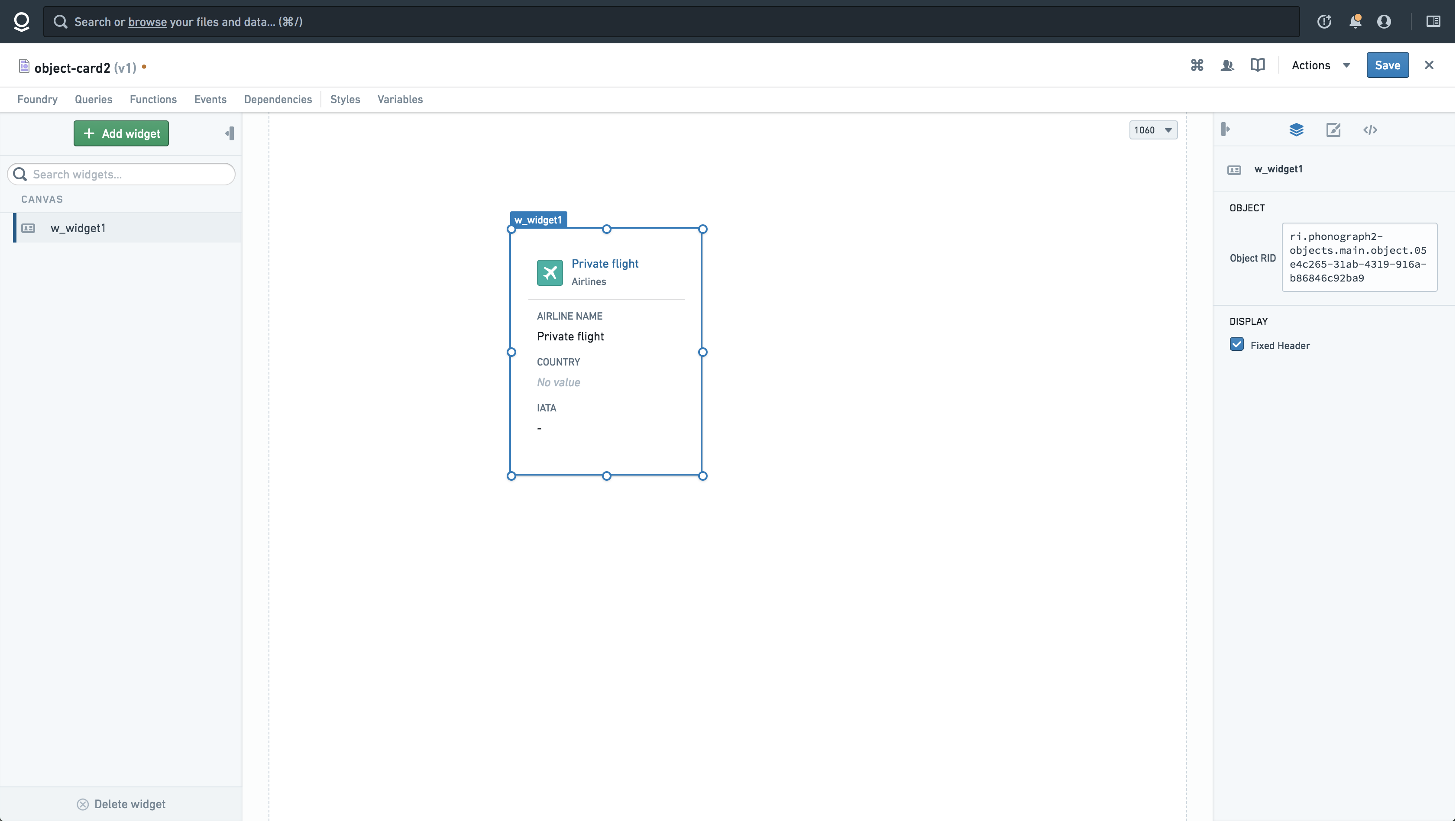
Table Format
It is possible to populate a table of object views using this widget in conjunction with repeatable containers.
For example, assume that you have a Slate function that returns an array of RIDs. You can insert the object card widget into the repeating container to create a "table view". You need to index the Object Widget with the repeatable container’s index so in the “Object RID” you will specify: {{lookup f_function1 w_repeating_container.index}}.
This sets up a list of cards based on the RID from your function and the index of the repeatable container using the lookup built-in function.
Get Object RID
To obtain the ObjectRID input, you have a few options:
Option 1: Slate provides a point-and-click UI, the Object Set panel, where you can make object queries without having to construct the queries manually.
Option 2: You can obtain the ObjectRid of a specific object by navigating to its Object View and selecting the Actions dropdown. In the clipboard, it will allow you to copy a URL link. Copy the last section of the URL link, that is, the portion after ?objectId={ObjectRID} (for example if the URL is ...?objectId=ri.phonograph2-objects.main.object.09d2e0e9-dd3c-49b2-8b96-0cb1bf005c1d your ObjectRID = ri.phonograph2-objects.main.object.09d2e0e9-dd3c-49b2-8b96-0cb1bf005c1d).
Option 3: To obtain the ObjectRID from the ObjectTypeId and ObjectPrimaryKey, you will need to use the Get Object by Locator endpoint. While ObjectTypeId and ObjectPrimaryKey can be use in other places to parameterize Object Explorer URL links, they need to be resolved into ObjectRIDs in Slate. You can make dynamic combinations of ObjectTypeId and ObjectPrimaryKey and pass this into a Slate query to retrieve the ObjectRID (provided the endpoints are exposed on your instance and you have set it up as a data source).
Attribute |
Description |
Type |
Required |
Changed By |
|---|---|---|---|---|
cardStyles |
Indicates if the Object Card should appear with card styles (e.g. shadow and hover styles) |
boolean |
Yes |
Direct Edit |
objectRid |
The object’s RID (Resource ID) for looking up properties and rendering an object card view. An RID is an identifier for an object stored on the Foundry Platform (for example: ri.phonograph2-objects.main.object.f32b778d-b789-49e8-8041-ec14b4c5c5b9). |
string |
Yes |
Direct Edit |
fixedHeader |
Indicates if the Object Card’s header should remain frozen when the content overflows the container size. |
boolean |
Yes |
Direct Edit |
Resource Selector
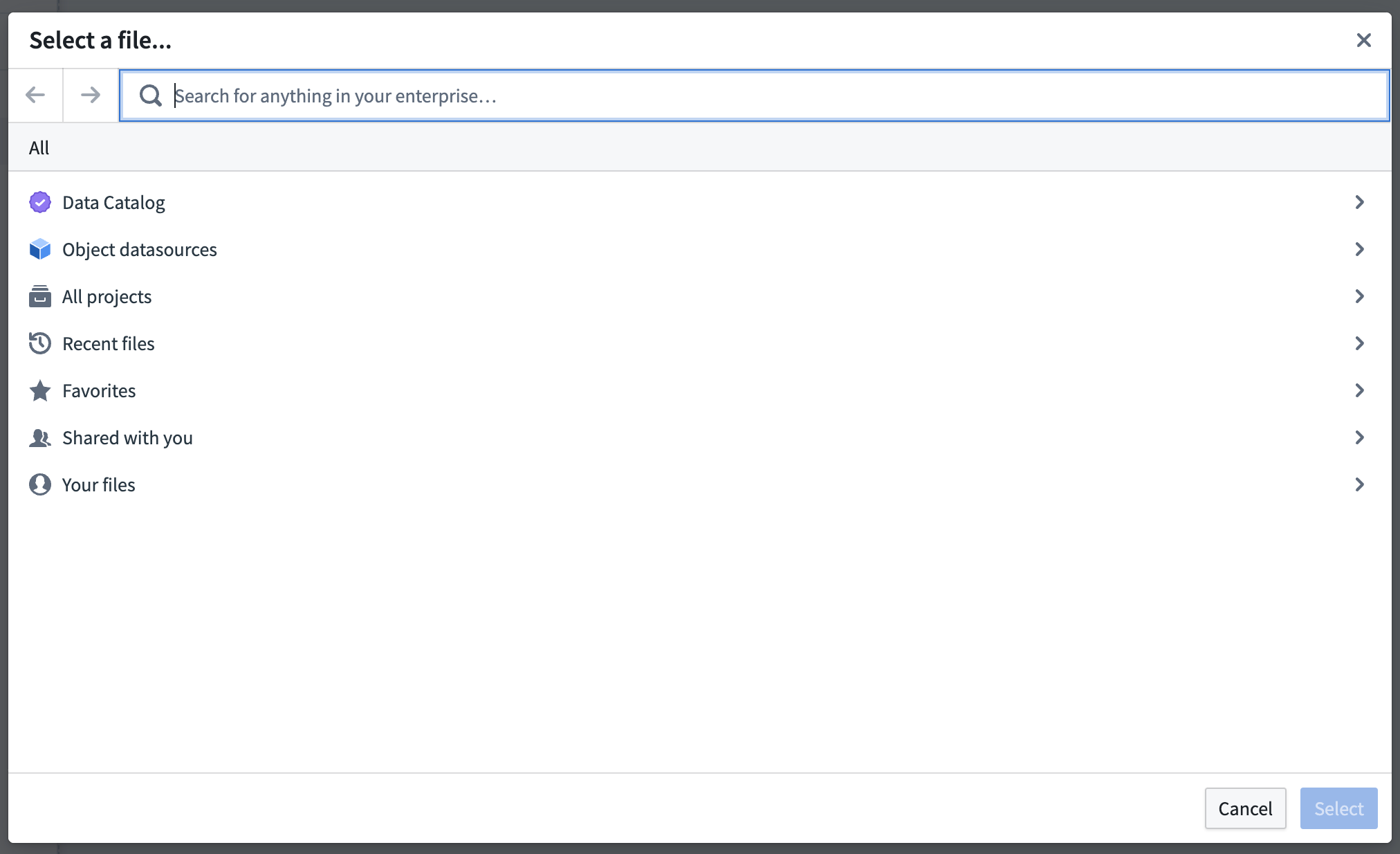
The Resource Selector widget allows you to select a file in Compass.
This widget does not create a visual element on your page. Instead, it exposes an Action to open the resource selector, and some events to handle the selected resource.
Events
- w_resource_selector_1.didClose: This event is triggered when the resource selector is closed.
- w_resource_selector_1.selectedRid.changed: This event is triggered when a resource is selected in the resource selector.
{{sl_event_value}}is set to the RID of the selected resource.
Actions
| Action Name | Description |
|---|---|
| w_resource_selector_1.open | Triggering this action opens the resource selector dialog. |
Time Series
Slate’s Time Series widget provides a convenient way to visualize time series graphs. You can add multiple series into the same chart using the Series ID. You can also configure the visualization by:
- Specifying the Title, Unit and Color, or by disabling the Crosshairs or Legends.
- Dynamically defining the Time Range to specify the view window.
- Turning on “streaming mode” for the data.
Action
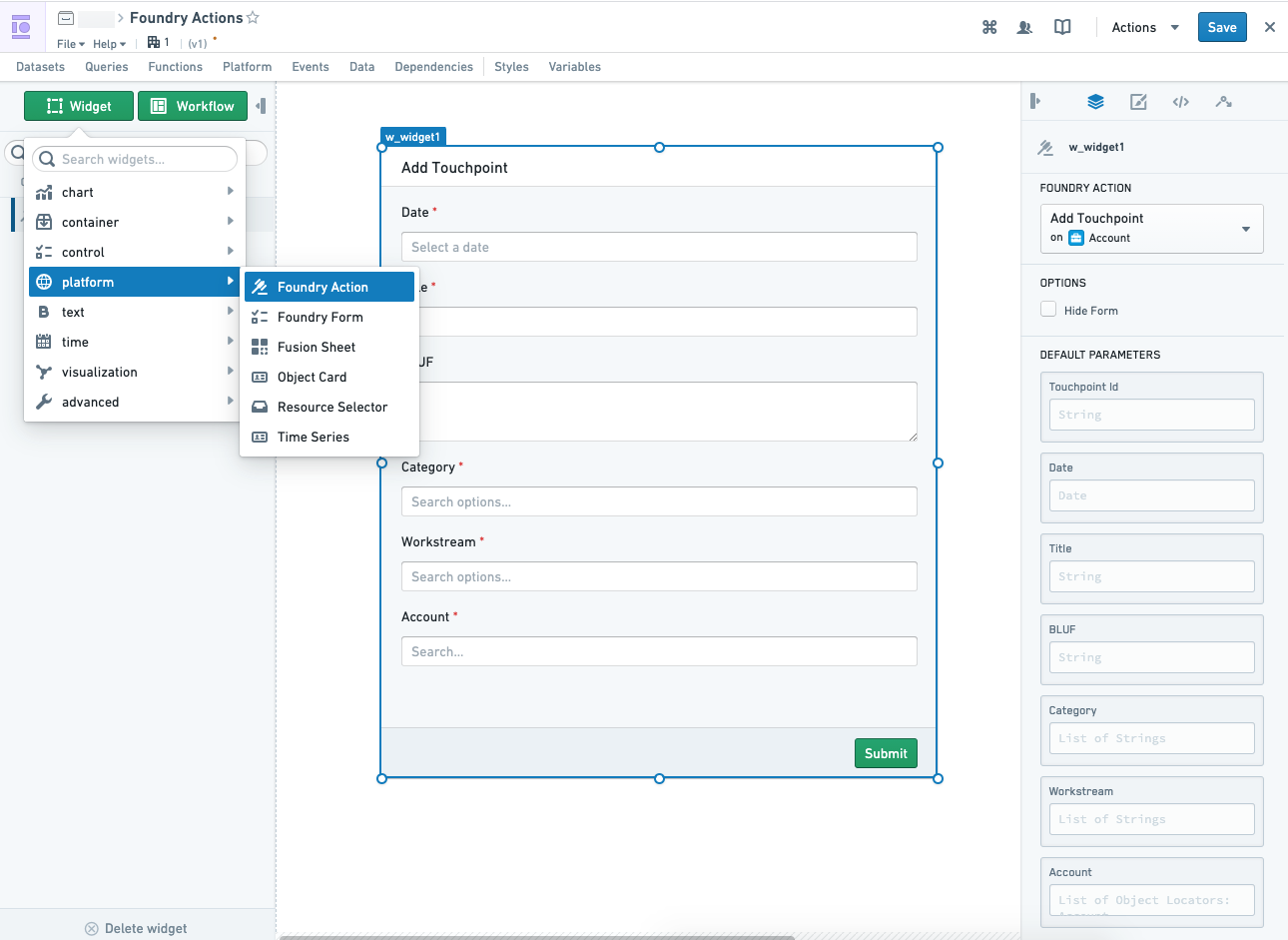
Slate's Action Widget allows Slate to execute business logic pre-configured in an Action. After adding the widget onto your page, you can:
- Select a Foundry Action you have access to,
- Pass in Default Parameters into your Action form directly or via Slate's handlebars, and
- Submit the Action form directly with the
Submitbutton, or indirectly with the Slate event-action pairw_widget.submit.
Additionally, Slate provides the following Slate events in relation to the Action Forms:
- Submission (
w_widget.success/w_widget.failure) - Validation state (
w_widget.ValidationSuccess/w_widget.ValidationFailure), and - Rendered changes (
w_widget.transitionedandw_widget.cssClassesUpdated).
Finally, you can also prevent the Action Form from displaying via a toggle control if you need abstract away the UI from the user and trigger submission via Slate events. Refer to the Slate events for more information.
The Foundry Action will need to be created before being used in Slate. Refer to the Actions documentation for more information.
Default Parameters
The parameters for a Foundry Action can be provided directly by the user or programmatically by using default parameters, which can be set in the configuration of the widget.
Object Locator Prefill
To provide an object reference, you can use the code snippet below. The values of typeId and primaryKey can be found in the Ontology Manager: typeID is the ID of the object and primaryKey is the Property ID of the object's primary key.
{
  "typeId": "<object typeId here>",
  "primaryKey": {
    "<optional primary keys here>": "<values>"
  }
}
If the Object parameter for the relevant Action supports multiple inputs, provide a list of object locators as the default value.
[{
  "typeId": "<object typeId here>",
  "primaryKey": {
    "<optional primary keys here>": "<values>"
  }
},{
  "typeId": "<object typeId here>",
  "primaryKey": {
    "<optional primary keys here>": "<values>"
  }
}]
Date Prefill
Dates are expected to be in ISO 8601 format; for example, YYYY-MM-DD (e.g. 1990-01-12) is a valid date format.
Timestamp Prefill
Timestamps are expected to follow ISO 8601 format: YYYY-MM-DD[T]HH:mm:ss.SSS[Z] (1990-01-12T23:00:00.000Z, for example).
中文翻译
平台
平台(Platform)微件类别包含以下微件:
对象卡片
对象卡片(Object Card)微件以 ObjectRID 作为输入。它将渲染在 Ontology 应用中定义的迷你对象视图(卡片)。这些对象卡片将链接到其对应的对象资源管理器(Object Explorer)视图。
表格格式
通过将此微件与可重复容器(repeatable containers)结合使用,可以填充对象视图的表格。
例如,假设您有一个返回 RID 数组的 Slate 函数。您可以将对象卡片微件插入到可重复容器中,以创建"表格视图"。您需要使用可重复容器的索引来索引对象微件,因此在"对象 RID"中,您需要指定:{{lookup f_function1 w_repeating_container.index}}。
这将根据函数中的 RID 和使用内置函数 lookup 的可重复容器索引,设置一个卡片列表。
获取对象 RID
要获取 ObjectRID 输入,您有以下几种选择:
选项 1:Slate 提供了一种点击式 UI,即对象集面板,您可以在其中进行对象查询,而无需手动构建查询。
选项 2:您可以通过导航到特定对象的对象视图并选择"操作"下拉菜单来获取该对象的 ObjectRid。在剪贴板中,它将允许您复制一个 URL 链接。复制 URL 链接的最后一部分,即 ?objectId={ObjectRID} 之后的部分(例如,如果 URL 是 ...?objectId=ri.phonograph2-objects.main.object.09d2e0e9-dd3c-49b2-8b96-0cb1bf005c1d,则您的 ObjectRID = ri.phonograph2-objects.main.object.09d2e0e9-dd3c-49b2-8b96-0cb1bf005c1d)。
选项 3:要从 ObjectTypeId 和 ObjectPrimaryKey 获取 ObjectRID,您需要使用"通过定位器获取对象"(Get Object by Locator)端点。虽然 ObjectTypeId 和 ObjectPrimaryKey 可以在其他地方用于参数化对象资源管理器 URL 链接,但在 Slate 中需要将它们解析为 ObjectRID。您可以动态组合 ObjectTypeId 和 ObjectPrimaryKey,并将其传递给 Slate 查询以检索 ObjectRID(前提是这些端点已在您的实例上公开,并且您已将其设置为数据源)。
属性 |
描述 |
类型 |
必需 |
修改方式 |
|---|---|---|---|---|
cardStyles |
指示对象卡片是否应显示卡片样式(例如阴影和悬停样式) |
布尔值 |
是 |
直接编辑 |
objectRid |
用于查找属性和渲染对象卡片视图的对象 RID(资源 ID)。RID 是存储在 Foundry 平台上的对象的标识符(例如:ri.phonograph2-objects.main.object.f32b778d-b789-49e8-8041-ec14b4c5c5b9)。 |
字符串 |
是 |
直接编辑 |
fixedHeader |
指示当内容溢出容器大小时,对象卡片的标题是否应保持固定。 |
布尔值 |
是 |
直接编辑 |
资源选择器
资源选择器(Resource Selector)微件允许您在 Compass 中选择一个文件。
此微件不会在页面上创建视觉元素。相反,它会公开一个用于打开资源选择器的操作(Action),以及一些用于处理所选资源的事件。
事件
- w_resource_selector_1.didClose: 当资源选择器关闭时触发此事件。
- w_resource_selector_1.selectedRid.changed: 当在资源选择器中选中一个资源时触发此事件。
{{sl_event_value}}被设置为所选资源的 RID。
操作
| 操作名称 | 描述 |
|---|---|
| w_resource_selector_1.open | 触发此操作将打开资源选择器对话框。 |
时间序列
Slate 的时间序列(Time Series)微件提供了一种便捷的方式来可视化时间序列图。您可以使用系列 ID(Series ID)将多个序列添加到同一图表中。您还可以通过以下方式配置可视化:
- 指定标题、单位和颜色,或禁用十字准线或图例。
- 动态定义时间范围以指定视图窗口。
- 为数据开启"流式模式"。
操作
Slate 的操作微件(Action Widget)允许 Slate 执行在操作中预先配置的业务逻辑。将微件添加到页面后,您可以:
- 选择您有权访问的 Foundry 操作,
- 直接或通过 Slate 的 Handlebars 将默认参数传递到您的操作表单中,以及
- 直接使用"提交"按钮提交操作表单,或间接使用 Slate 事件-操作对
w_widget.submit提交。
此外,Slate 还提供了以下与操作表单相关的 Slate 事件:
- 提交(
w_widget.success/w_widget.failure) - 验证状态(
w_widget.ValidationSuccess/w_widget.ValidationFailure),以及 - 渲染更改(
w_widget.transitioned和w_widget.cssClassesUpdated)。
最后,如果您需要向用户隐藏 UI 并通过 Slate 事件触发提交,您还可以通过切换控件来阻止操作表单显示。有关更多信息,请参阅 Slate 事件。
在 Slate 中使用 Foundry 操作之前,需要先创建该操作。有关更多信息,请参阅操作文档。
默认参数
Foundry 操作的参数可以由用户直接提供,也可以通过使用默认参数以编程方式提供,这些默认参数可以在微件的配置中设置。
对象定位器预填充
要提供对象引用,您可以使用下面的代码片段。typeId 和 primaryKey 的值可以在 Ontology 管理器中找到:typeID 是对象的 ID,primaryKey 是对象主键的属性 ID。
{
  "typeId": "<在此处填写对象 typeId>",
  "primaryKey": {
    "<在此处填写可选的主键>": "<值>"
  }
}
如果相关操作的对象参数支持多个输入,请提供一个对象定位器列表作为默认值。
[{
  "typeId": "<在此处填写对象 typeId>",
  "primaryKey": {
    "<在此处填写可选的主键>": "<值>"
  }
},{
  "typeId": "<在此处填写对象 typeId>",
  "primaryKey": {
    "<在此处填写可选的主键>": "<值>"
  }
}]
日期预填充
日期应采用 ISO 8601 格式;例如,YYYY-MM-DD(如 1990-01-12)是有效的日期格式。
时间戳预填充
时间戳应遵循 ISO 8601 格式:YYYY-MM-DD[T]HH:mm:ss.SSS[Z](例如 1990-01-12T23:00:00.000Z)。