App Pairing(应用配对)
App Pairing powers cross-application workflows by enabling you to connect supported Palantir platform applications and synchronize multiple views, ensuring that data or object changes in one application automatically update in the other, and vice versa. You can leverage App Pairing's capabilities within AIP Chatbots you create to execute commands, Workshop modules through the App Pairing widget, or Notepad documents to configure inline commands.
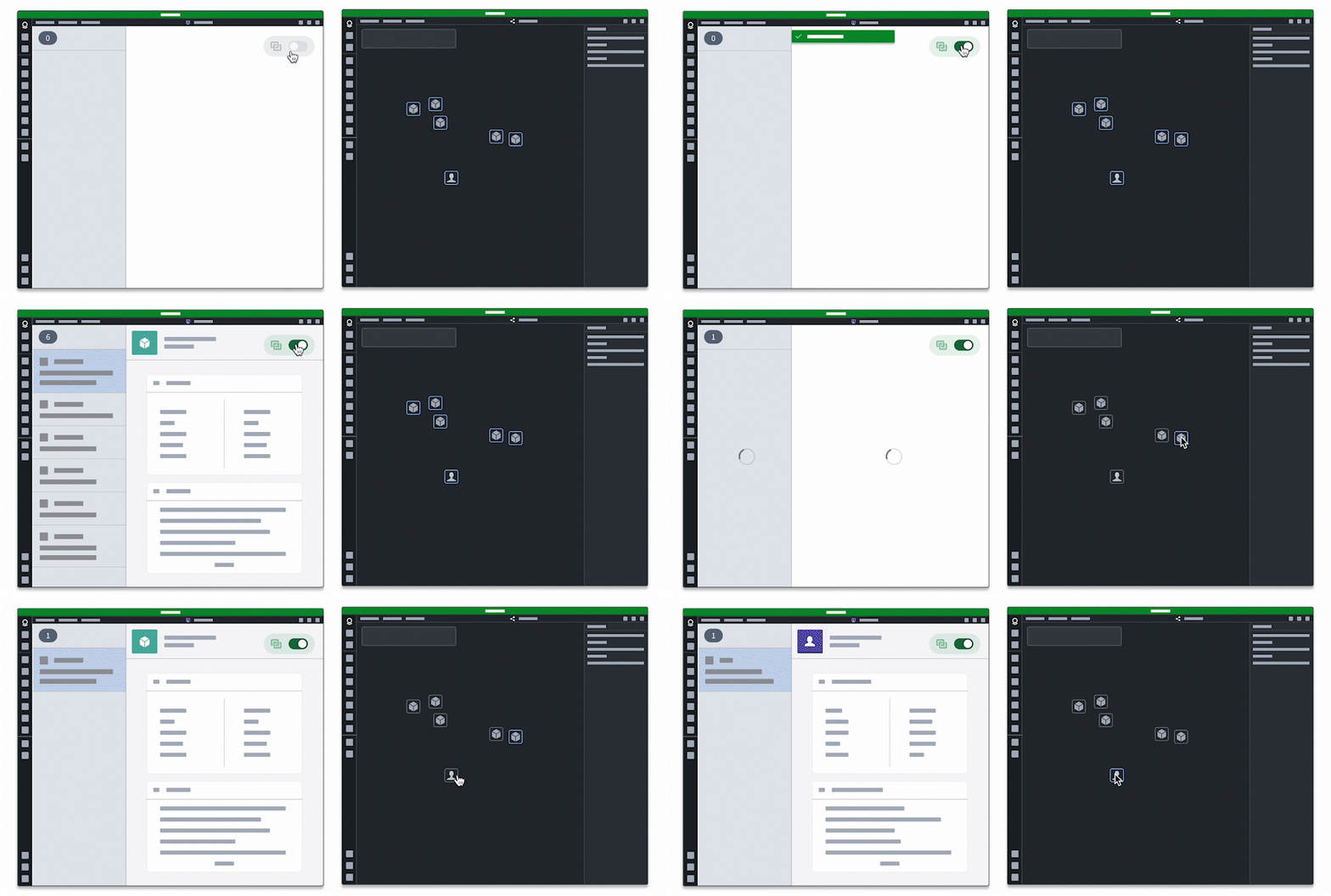
For example, you or another user can make changes to data in the Graph application that will update the corresponding data in a paired Workshop module. To establish this connection, add the App Pairing widget to a Workshop module that pairs to a Graph application. This connection enables you to select an object in Graph which will highlight in the paired Workshop module's object list.
Set up the App Pairing widget
Add the App Pairing widget to a Workshop module
To add the App Pairing widget to a Workshop module, navigate to Workshop and select + New Module. Similar to other Workshop widgets, you will have the option to add a widget in a Workshop section or in the module header. This functionality works when the widget is visible, so you should add it to your Workshop application header to ensure it remains visible.
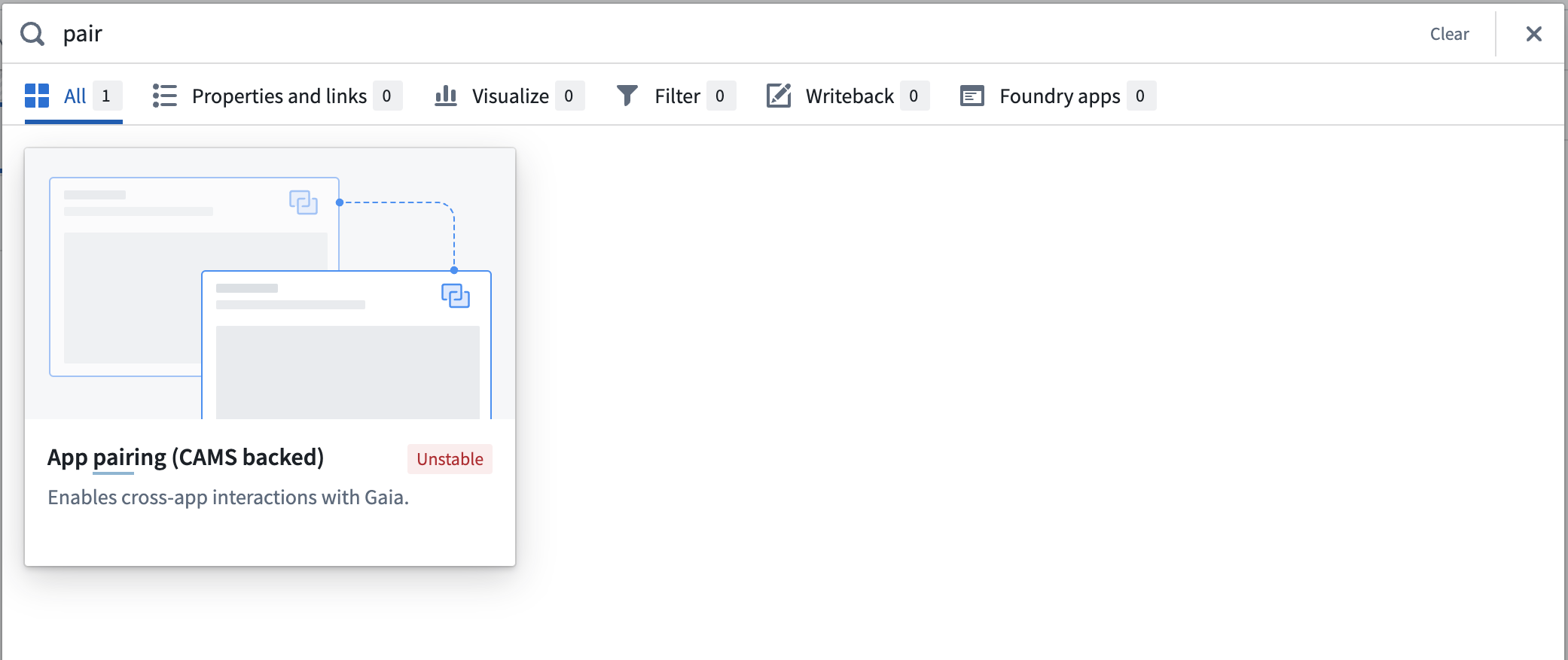
Give your widget a name after you add it to the Workshop application's header. Every widget must have a user-facing name to enable its identification and discovery by other applications. Additional configuration is optional, and you can refer to the advanced configuration section below for more details.
Create variables with shared state from other applications
After you add the App Pairing widget to your Workshop module, navigate to the right panel to update its configurations so it uses one of two built-in shared state types: Selection or Open data. Shared state types define which variables App Pairing will share across applications.
- Selection: Allows sharing a selection of data between Workshop and the connected application. When you select objects in an application, then the same objects and their metadata will be selected in Workshop.
- Open data: Allows sharing of visible data in a supported application with Workshop. For example, if a user opens a graph with 10 objects and pairs the Graph application with their Workshop module, then all 10 objects on the graph will be populated in the workshop module at the time of pairing.
:::callout{theme="neutral"} App Pairing via the Open data state type is only supported in Graph. :::
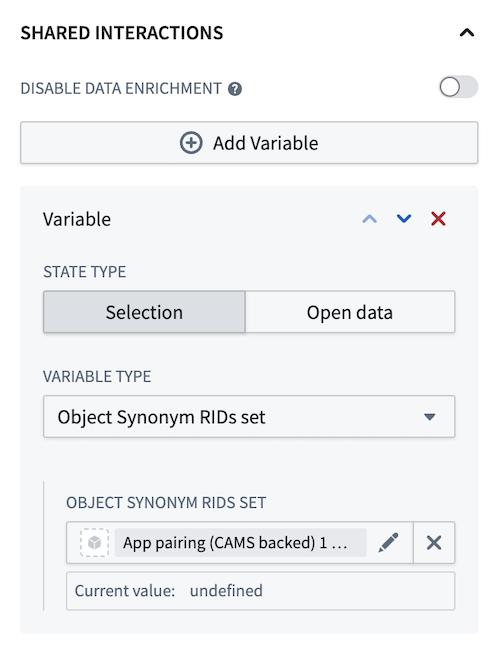
By default, there will be a pre-configured selected objects variable, since this is the most commonly used variable type. The default value will record the currently selected objects in Gaia or Graph when the widget is paired with a Gaia map or Graph analysis.
You can select Add Variable to add multiple Selection or Open data variables for your module's required data types, which you can learn more about in the advanced configurations section below.
Once configured, any updates from the paired application will update Workshop variables. When using the Selection variable, any updates to variables from within a user’s Workshop module will send an update to the paired application.
Pair the widget
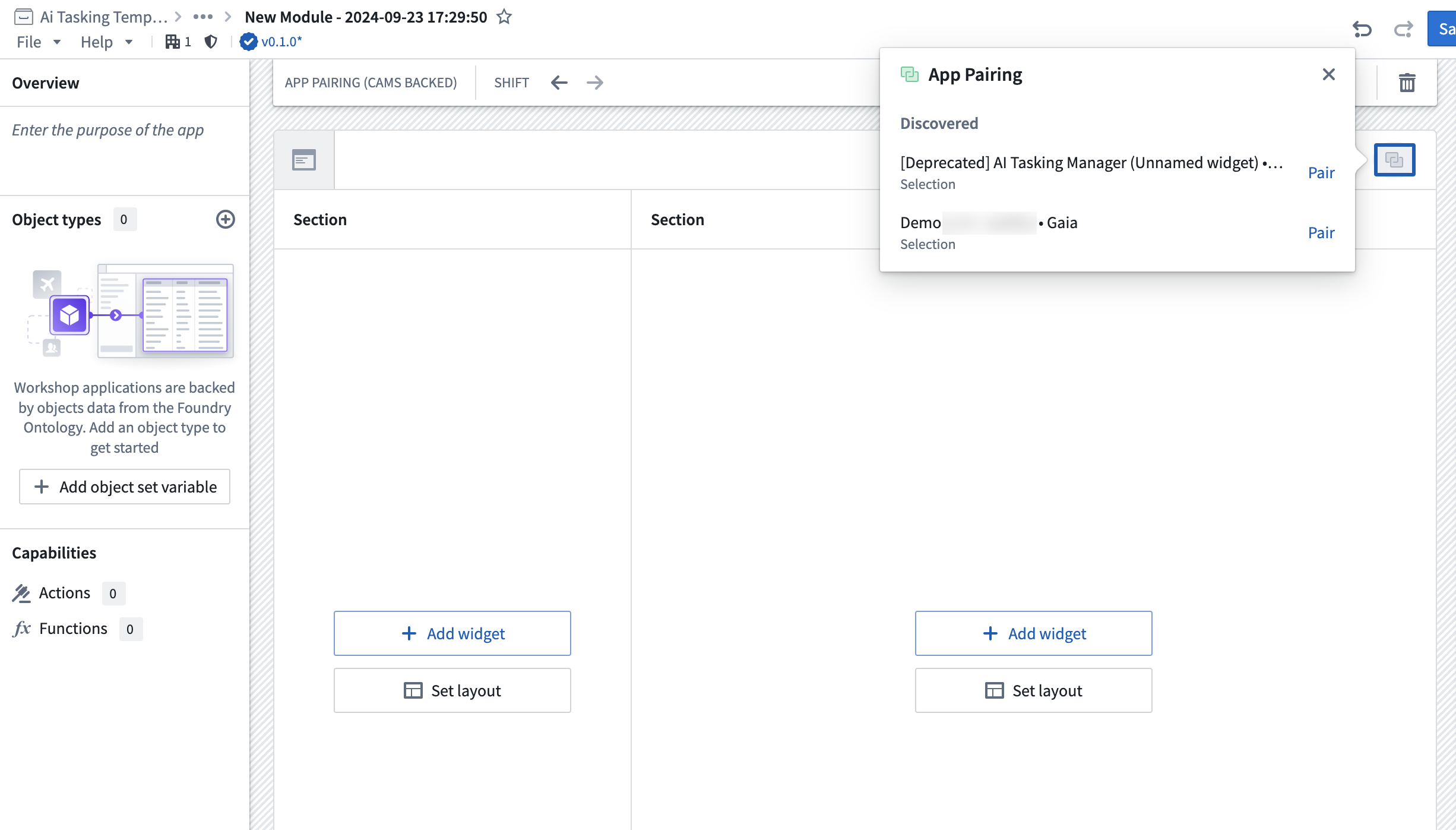
You must pair the widget with an application for the shared state variables to update. To pair the widget, open the application you would like to pair with your Workshop module. Once open, the application displays as Discovered in the App Pairing menu added to the Workshop alongside the App Pairing widget.
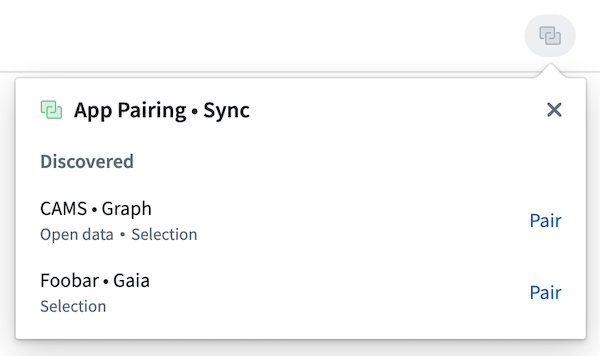
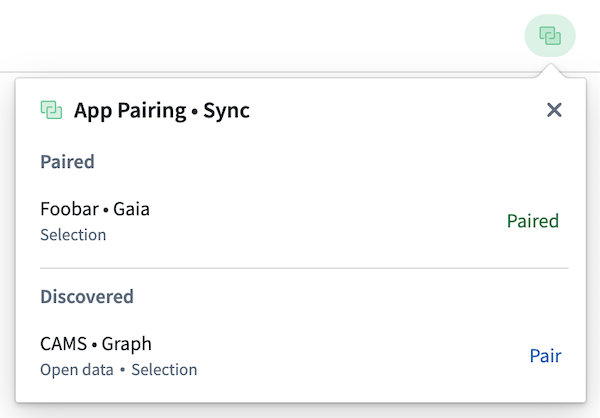
Select Pair next to the application you would like to pair with your Workshop module. The chosen application will display in the Paired section of the pairing menu.
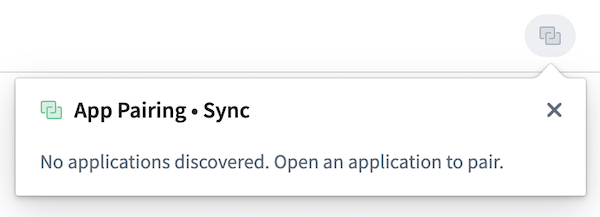
If no supported applications are discovered, the App Pairing widget will display the following message:
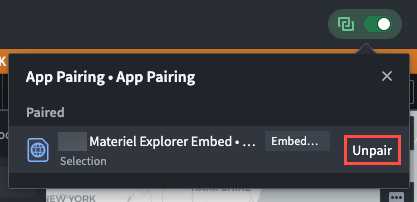
If you are using the Iframe widget to embed an external or another Palantir application (such as a Gaia map) within Workshop, then your application will automatically discover and pair with the embedded application. To unpair an embedded application from Workshop, navigate to the App Pairing widget icon and choose Paired application to render and select Unpair.
Learn more about complex pairing logic in the advanced configurations section below.
Configure the App Pairing widget's appearance
The Appearance section of the Widget setup panel in the App Pairing widget's configuration menu enables you to customize the widget's rendering behavior in your Workshop application.
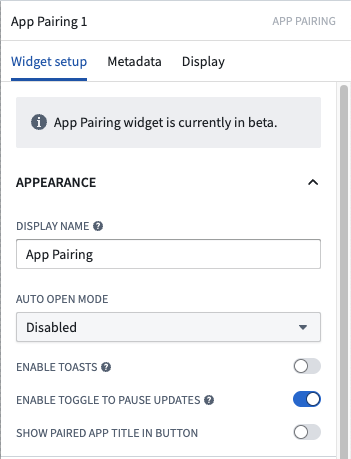
Display name: Set the name of the widget for its discovery in other applications when pairing. The Workshop application's name is shown by default.
Auto open mode: Disabled by default so the App Pairing menu opens only on selection, you can enable Auto open mode if you would like the App Pairing menu to open automatically and prompt users to choose the application to pair. Other configuration options include the following:
Enabled: The menu opens both initially and on application pairing change.Only initially: The menu opens only when the application loads.Only on pairing change: The menu opens every time the currently paired application changes.
Enable toasts: Disabled by default, you can enable toasts to notify your application's users when another application pairs with the current application.
:::callout{theme="neutral"} Toasts which provide error identification and troubleshooting instructions will always render even if you toggle off Enable toasts. :::
Enable toggle to pause updates: Disabled by default, you can enable to pause and resume sending and receiving state updates in your widget. When updates resume after a pause, the widget synchronizes to the latest state.
Trigger commands when variables update
Use the Trigger commands on variable update section of the Widget setup panel in the App Pairing widget's configuration menu to trigger commands issued to other applications when variables in your application update.
Apply advanced configurations
You can customize the App Pairing experience through the following advanced configurations accessible through the widget configuration panel, offering you control over its otherwise automated features. You can also create custom variables if the existing built-in variables do not suit your use case, manually manage which applications pair with one another using the scope variable, or disable data enrichment between Workshop and your paired Gaia map or Graph analysis.
Within the Shared state variables section of the Widget setup panel, you can create Custom variables for data passed in your application that does not comply with the widget's default variable types.
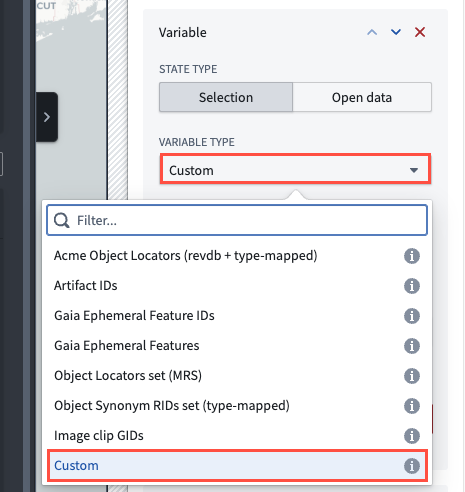
Describe the custom data type in the Media type string text box by entering a media type string or another variable data type.
Workshop supports the following variable data types:
- Boolean
- Date
- Numeric
- Numeric array
- String
- String array
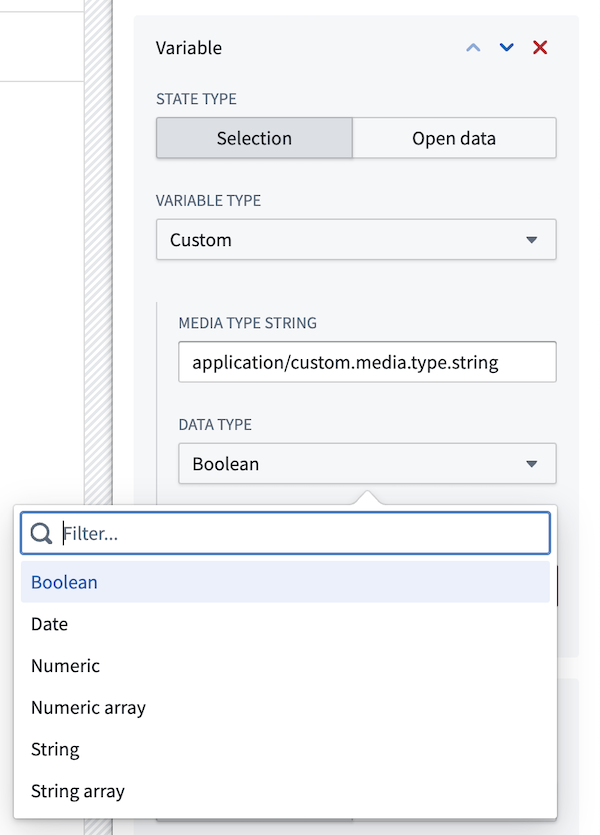
Additionally, custom state variable configuration enables the App Pairing widget to support future application integrations without Palantir-made updates to its existing presets.
Within the Advanced section of the Widget setup panel, you can Disable data enrichment if you are certain that the paired application and Workshop pass compatible state payloads between one another. Both Gaia and Graph require enrichment to synchronize Object Synonym RIDs set variable types with Workshop.

Additionally, you can configure a Scope Id if you would like to manually coordinate which applications pair with one another. Use the Scope Id variable automatically generated by Workshop to ensure all applications are part of the same scope to enable pairing. You can add Workshop widgets to a scope using the Scope Id variable and link non-Workshop applications to a scope by adding &appPairingScopeId=[scope-id] to their URL. Manually pairing or unpairing an application alters the scope.
中文翻译
应用配对
应用配对(App Pairing)通过连接受支持的 Palantir 平台应用程序并同步多个视图,实现跨应用工作流,确保一个应用中的数据或对象变更会自动更新到另一个应用中,反之亦然。您可以在创建的 AIP Chatbots 中利用应用配对的功能来执行命令,通过应用配对小部件(App Pairing widget)在 Workshop 模块 中使用,或在 Notepad 文档 中配置内联命令。
例如,您或其他用户可以在 Graph 应用中对数据进行更改,这些更改将更新已配对的 Workshop 模块中的相应数据。要建立此连接,请将应用配对小部件添加到与 Graph 应用配对的 Workshop 模块中。此连接使您能够在 Graph 中选择一个对象,该对象将在配对的 Workshop 模块的对象列表中高亮显示。
设置应用配对小部件
将应用配对小部件添加到 Workshop 模块
要将应用配对小部件添加到 Workshop 模块,请导航至 Workshop 并选择 + New Module。与其他 Workshop 小部件类似,您可以选择将小部件添加到 Workshop 区域或模块标题中。此功能在小部件可见时生效,因此建议将其添加到 Workshop 应用程序标题中,以确保其始终保持可见。
将小部件添加到 Workshop 应用程序标题后,为其命名。每个小部件必须有一个面向用户的名称,以便其他应用程序识别和发现。其他配置为可选,详情请参阅下面的高级配置部分。
创建与其他应用程序共享状态的变量
将应用配对小部件添加到 Workshop 模块后,导航至右侧面板更新其配置,使其使用两种内置共享状态类型之一:Selection 或 Open data。共享状态类型定义了应用配对将在应用程序之间共享哪些变量。
- Selection: 允许在 Workshop 和连接的应用程序之间共享数据选择。当您在一个应用程序中选择对象时,相同的对象及其元数据将在 Workshop 中被选中。
- Open data: 允许将受支持应用程序中的可见数据与 Workshop 共享。例如,如果用户打开一个包含 10 个对象的图表,并将 Graph 应用程序与其 Workshop 模块配对,则在配对时,图表上的所有 10 个对象都将填充到 Workshop 模块中。
:::callout{theme="neutral"} 通过 Open data 状态类型进行的应用配对仅在 Graph 中受支持。 :::
默认情况下,会有一个预配置的选定对象变量,因为这是最常用的变量类型。当小部件与 Gaia 地图或 Graph 分析配对时,默认值将记录当前在 Gaia 或 Graph 中选定的对象。
您可以选择 Add Variable 为模块所需的数据类型添加多个 Selection 或 Open data 变量,更多信息请参阅下面的高级配置部分。
配置完成后,来自配对应用程序的任何更新都将更新 Workshop 变量。当使用 Selection 变量时,用户 Workshop 模块内变量的任何更新都将向配对应用程序发送更新。
配对小部件
您必须将小部件与应用程序配对,共享状态变量才能更新。要配对小部件,请打开您希望与 Workshop 模块配对的应用程序。打开后,该应用程序会在 App Pairing 菜单中显示为 Discovered,该菜单与 App Pairing 小部件一起添加到 Workshop 中。
选择您希望与 Workshop 模块配对的应用程序旁边的 Pair。所选应用程序将显示在配对菜单的 Paired 部分中。
如果未发现受支持的应用程序,应用配对小部件将显示以下消息:
如果您使用 Iframe 小部件在 Workshop 中嵌入外部或其他 Palantir 应用程序(例如 Gaia 地图),则您的应用程序将自动发现并配对嵌入的应用程序。要取消 Workshop 与嵌入应用程序的配对,请导航至应用配对小部件图标,选择 Paired 应用程序进行渲染,然后选择 Unpair。
在下面的高级配置部分中了解有关复杂配对逻辑的更多信息。
配置应用配对小部件的外观
应用配对小部件配置菜单中 Widget setup 面板的 Appearance 部分允许您自定义小部件在 Workshop 应用程序中的渲染行为。
Display name: 设置小部件的名称,以便其他应用程序在配对时发现。默认显示 Workshop 应用程序的名称。
Auto open mode: 默认 Disabled,因此应用配对菜单仅在选中时打开。如果您希望应用配对菜单自动打开并提示用户选择要配对的应用程序,可以启用 Auto open mode。其他配置选项包括:
Enabled:菜单在初始加载和应用程序配对更改时均打开。Only initially:菜单仅在应用程序加载时打开。Only on pairing change:菜单在每次当前配对的应用程序更改时打开。
Enable toasts: 默认禁用,您可以启用 toast 通知,以在另一个应用程序与当前应用程序配对时通知应用程序的用户。
:::callout{theme="neutral"} 即使您关闭了 Enable toasts,提供错误识别和故障排除说明的 toast 通知也始终会渲染。 :::
Enable toggle to pause updates: 默认禁用,您可以启用此功能以暂停和恢复小部件中状态更新的发送和接收。当更新在暂停后恢复时,小部件会同步到最新状态。
在变量更新时触发命令
使用 应用配对小部件配置菜单 中 Widget setup 面板的 Trigger commands on variable update 部分,可以在应用程序中的变量更新时触发向其他应用程序发出的命令。
应用高级配置
您可以通过小部件配置面板中的以下高级配置来自定义应用配对体验,从而控制其原本自动化的功能。如果现有的内置变量不适合您的用例,您还可以创建自定义变量,使用作用域变量(scope variable)手动管理哪些应用程序相互配对,或禁用 Workshop 与配对的 Gaia 地图或 Graph 分析之间的数据丰富(data enrichment)。
在 Widget setup 面板的 Shared state variables 部分中,您可以为应用程序中传递的不符合小部件默认变量类型的数据创建 Custom 变量。
通过在 Media type string 文本框中输入媒体类型字符串或其他变量数据类型来描述自定义数据类型。
Workshop 支持以下变量数据类型:
- 布尔值(Boolean)
- 日期(Date)
- 数值(Numeric)
- 数值数组(Numeric array)
- 字符串(String)
- 字符串数组(String array)
此外,自定义状态变量配置使应用配对小部件能够支持未来的应用程序集成,而无需 Palantir 对其现有预设进行更新。
在 Widget setup 面板的 Advanced 部分中,如果您确定配对应用程序和 Workshop 之间传递兼容的状态负载,则可以 Disable data enrichment。Gaia 和 Graph 都需要数据丰富才能将 Object Synonym RIDs set 变量类型与 Workshop 同步。
此外,如果您希望手动协调哪些应用程序相互配对,可以配置一个 Scope Id。使用 Workshop 自动生成的 Scope Id 变量,确保所有应用程序属于同一作用域以实现配对。您可以使用 Scope Id 变量将 Workshop 小部件添加到某个作用域,并通过将 &appPairingScopeId=[scope-id] 添加到其 URL 来将非 Workshop 应用程序链接到某个作用域。手动配对或取消配对应用程序会更改作用域。