Navigation(导航)
To make the best use of Solution Designer, we recommend familiarizing yourself with the various capabilities and navigation. The following numbered sections correspond to the numbers in the image below:
- New diagram
- Reference architecture library
- Search bar
- Pattern selection
- Interactive diagram preview
- Preview controls
- Diagram metadata and diagram controls
- Node toolbar
- Upload diagrams
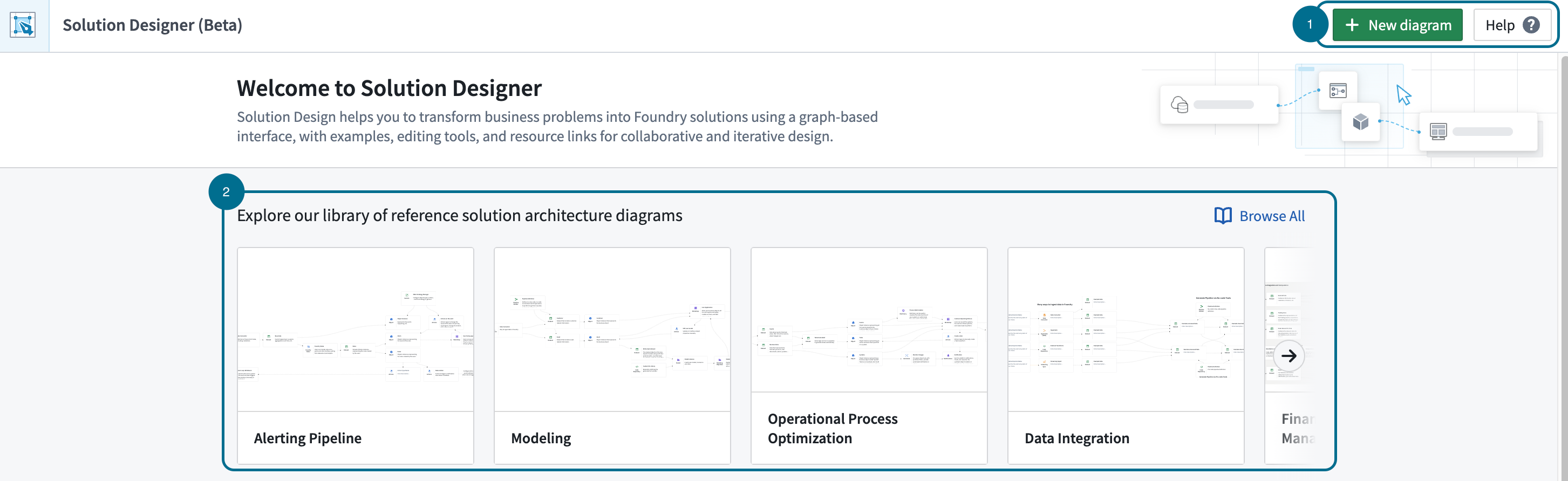
1. New diagram
Get started with Solution Designer by opening a blank canvas or existing data lineage graph, or choose an existing architecture diagram.
2. Reference architecture diagrams
Our library of reference diagrams provide a foundation for creating your own solution diagrams by showcasing common architectural patterns and best practices that can be adapted to specific use cases and requirements.
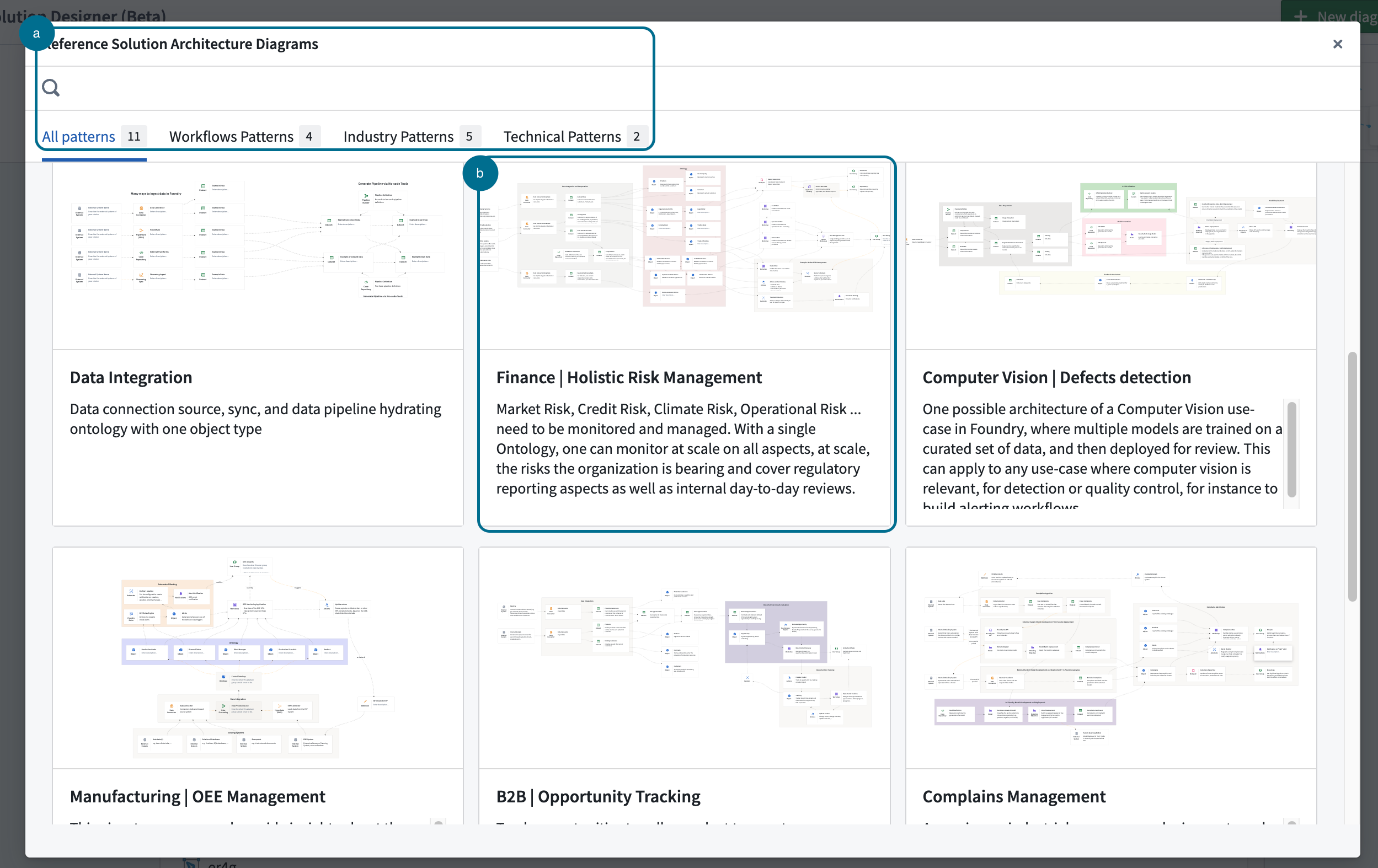
A. Search bar
Search for patterns of interest through the search functionality or associated categories. Categories are split into the following:
- Workflow patterns: Generalized solutions to common problems or challenges found in the design, modeling, and execution of workflow processes. These patterns capture the best practices and proven techniques for structuring, coordinating, and managing tasks, resources, and information flow within a process.
- Industry patterns: Standardized and proven solutions to common challenges or problems found in specific industries or business domains. These patterns are derived from best practices and successful strategies.
- Technical patterns: Reusable solutions to common problems or challenges encountered in software development, system architecture, or technology implementation. These patterns include best practices and effective techniques for designing, developing, and maintaining technical systems.
B. Pattern selection
Select from the available patterns to open the pre-built diagram. Each pattern contains a title, short description and preview of the diagram.
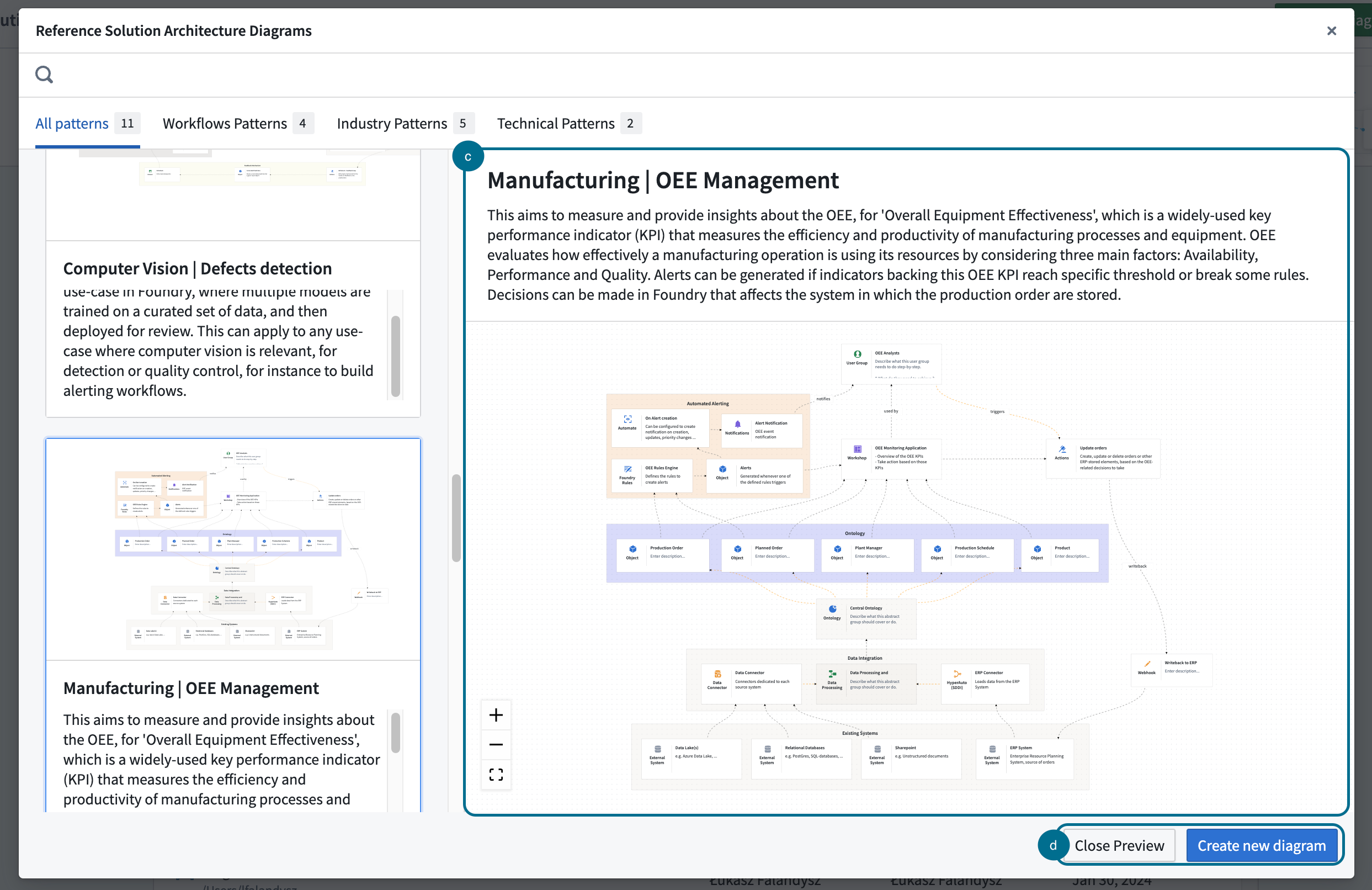
C. Interactive diagram preview
The diagram preview is a read-only version of the actual diagram. In preview mode, you can zoom in/out and pan across to review the graph. To enable edit mode, you must load and open the pattern.
D. Preview controls
- Close preview: Close the current preview and return to Reference architecture diagrams view.
- Create new diagram: Load the pattern into Solution Design and enable edit mode.
- Add pattern to existing diagram (edit-only): The pattern will be added to the bottom of the existing diagram.
- Override existing diagram (edit-only): Replace the current diagram with one from the Reference architecture diagrams.
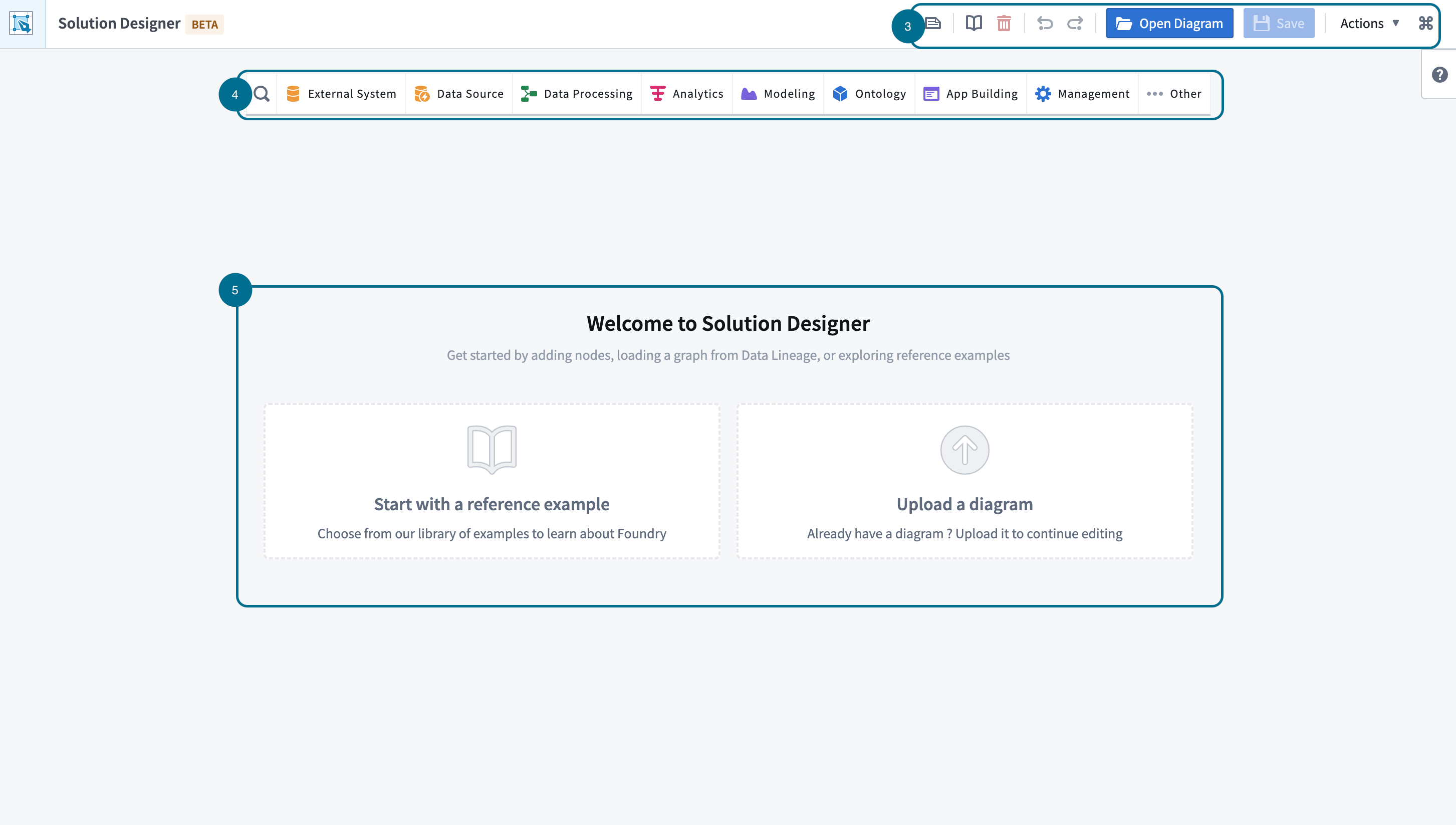
3. Diagram metadata and controls
Diagram description (optional) Add a brief explanation that outlines your use case at a high level.
- Reference architecture diagrams: Explore a variety of Palantir-designed patterns that represent common use cases.
- Load from data lineage: Load an existing data lineage graph into Solution Design.
- Undo/redo: Revert or reapply your most recent changes.
- Open filesystem dialog: Load an existing resource from your Palantir filesystem.
- Save current diagram: Secure your work by saving the diagram in your filesystem.
- Actions:
- Import diagram: The import capability supports diagrams in JSON format.
- Export diagram: Export functionality is enabled once your diagram is saved.
- Export as JSON file
- Copy to clipboard
- Export image: Export PNG image representation of your diagram. This capability is enabled once your diagram is saved.
4. Node toolbar
Search: Browse though available platform components.
- Node categories: Explore nodes by their respective categories. Each entry includes the component's name as it appears on the platform along with a brief description.
- Abstract nodes [Beta]: Nodes representing a conceptual idea in Palantir. Each node category contains a set of abstract nodes, represented by different shading. These nodes may not have a one-to-one correspondence. Review the abstract nodes section for more detail.
5. Upload diagrams
Select an upload option to add a diagram. Choose from the Reference architecture diagram: options, or upload a saved diagram.
中文翻译
导航
为充分利用 Solution Designer,建议您熟悉其各项功能及导航方式。下方编号部分与下图中编号一一对应:
1. 新建图表
通过打开空白画布或现有数据血缘图(data lineage graph),或选择现有架构图,即可开始使用 Solution Designer。
2. 参考架构图
我们的参考图库提供了常见架构模式与最佳实践,可针对特定用例和需求进行调整,为创建您自己的解决方案图奠定基础。
A. 搜索栏
通过搜索功能或关联类别查找感兴趣的模式。类别分为以下三种:
- 工作流模式(Workflow patterns): 针对工作流流程设计、建模和执行中常见问题或挑战的通用解决方案。这些模式总结了构建、协调和管理流程中任务、资源及信息流的最佳实践与成熟技术。
- 行业模式(Industry patterns): 针对特定行业或业务领域常见问题或挑战的标准化成熟解决方案。这些模式源自最佳实践与成功策略。
- 技术模式(Technical patterns): 针对软件开发、系统架构或技术实施中常见问题或挑战的可复用解决方案。这些模式包含设计、开发及维护技术系统的最佳实践与有效技术。
B. 模式选择
从可用模式中选择一项,即可打开预构建图表。每个模式均包含标题、简短描述及图表预览。
C. 交互式图表预览
图表预览为实际图表的只读版本。在预览模式下,您可以缩放和平移查看图表。如需启用编辑模式,必须加载并打开该模式。
D. 预览控件
- 关闭预览:关闭当前预览并返回参考架构图视图。
- 创建新图表: 将模式加载到 Solution Design 中并启用编辑模式。
- 将模式添加到现有图表(仅编辑模式): 该模式将添加至现有图表底部。
- 覆盖现有图表(仅编辑模式): 用参考架构图中的图表替换当前图表。
3. 图表元数据与控件
图表描述(可选) 添加简要说明,从高层概述您的用例。
- 参考架构图: 浏览 Palantir 设计的多种常见用例模式。
- 从数据血缘加载: 将现有数据血缘图加载到 Solution Design 中。
- 撤销/重做: 撤销或重做最近的更改。
- 打开文件系统对话框: 从您的 Palantir 文件系统中加载现有资源。
- 保存当前图表: 将图表保存至文件系统以保存工作成果。
- 操作:
- 导入图表: 导入功能支持 JSON 格式的图表。
- 导出图表: 图表保存后即可启用导出功能。
- 导出为 JSON 文件
- 复制到剪贴板
- 导出图片: 导出图表的 PNG 图片。图表保存后即可启用此功能。
4. 节点工具栏
搜索: 浏览可用的平台组件。
- 节点类别: 按类别浏览节点。每个条目包含组件在平台上的名称及简要描述。
- 抽象节点 [Beta]: 代表 Palantir 中概念性想法的节点。每个节点类别包含一组抽象节点,以不同底色区分。这些节点可能并非一一对应。详情请参阅抽象节点部分。
5. 上传图表
选择上传选项以添加图表。可从参考架构图选项中选择,或上传已保存的图表。