Export(导出)
Notepad documents are designed for printing and exporting as a PDF or DOCX with support for modifying page orientation, defining page headers and footers, and print-specific settings for widgets.
:::callout{theme="neutral," title="Beta"}
DOCX export in Notepad is in the beta phase of development. Functionality may change during active development.
Notepad currently supports the following widgets for DOCX export:
- Clip
- Code Workbook Chart
- Contour Chart
- File Reference (Compass)
- Image
- Object Card
- Object Media Preview
- Object Property
- Page break
- Quiver Analysis Chart
- Quiver Dashboard Chart
- Solution Designer Diagram
- Table
- Vertex Graph
- Map :::
Export a document
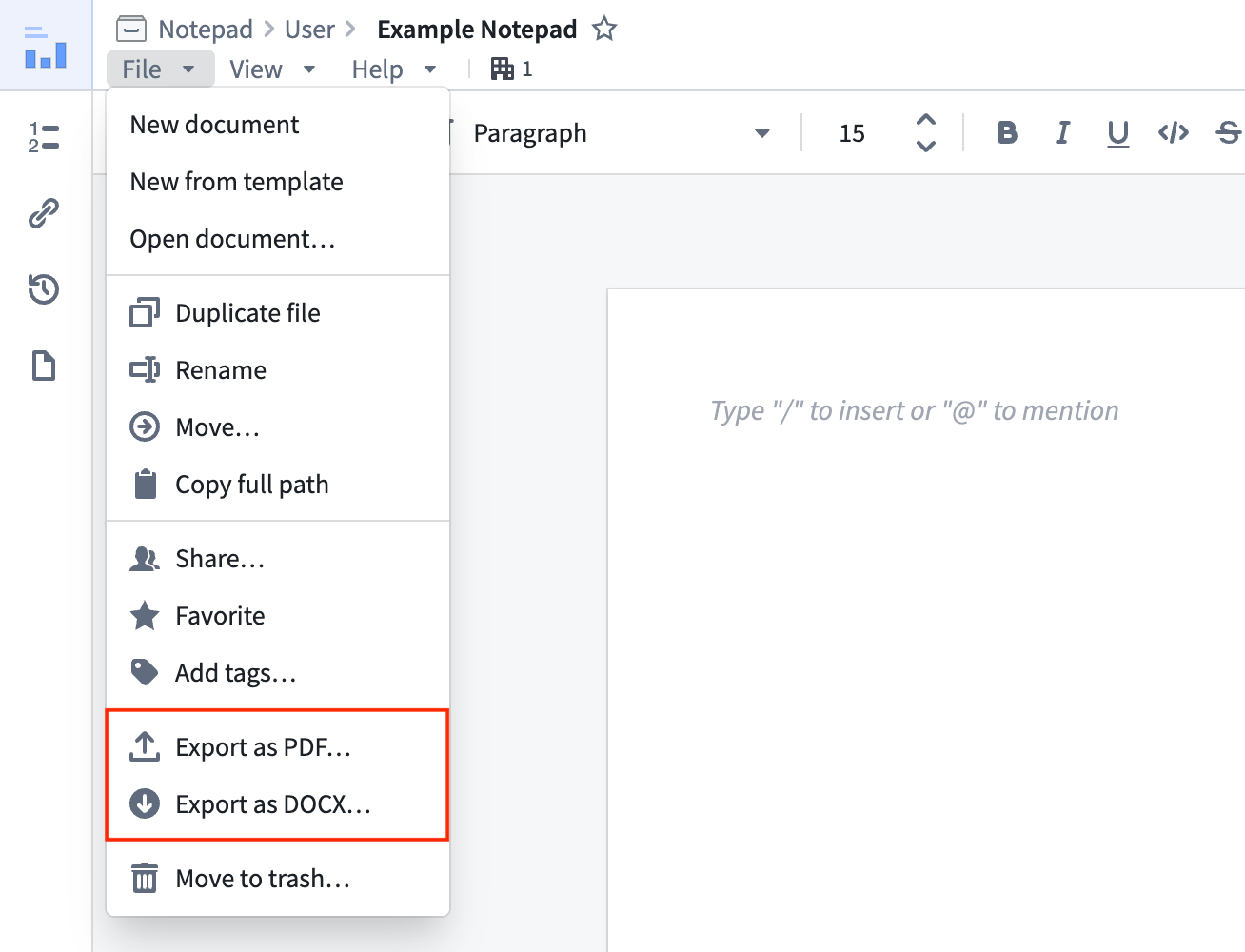
Export a document by using the File menu on the top right, Export, then Export as PDF or Export as DOCX. Notepad will save your document in the selected file format once the document has been rendered.
:::callout{theme="warning" title="Render Timeout"} The background rendering time is capped when exporting. Should the document contain many charts that require long computations, the limit may be reached and prevent your chart from fully loading. In these cases, use the Open in print mode option discussed below. :::
Alternatively, you can open the document in a print-friendly view with the Open in print mode button. Once the page and all your charts have fully loaded, you can either use the Ctrl+P (Windows)/Cmd + P (macOS) keyboard shortcut or the print button on the upper right to save as PDF or print the page.
Be sure to set the print layout to Portrait or Landscape based on the page orientation of your document. Make sure that the page size matches your selected Notepad page size. Select the default margin options to ensure content is aligned.
Specific page settings
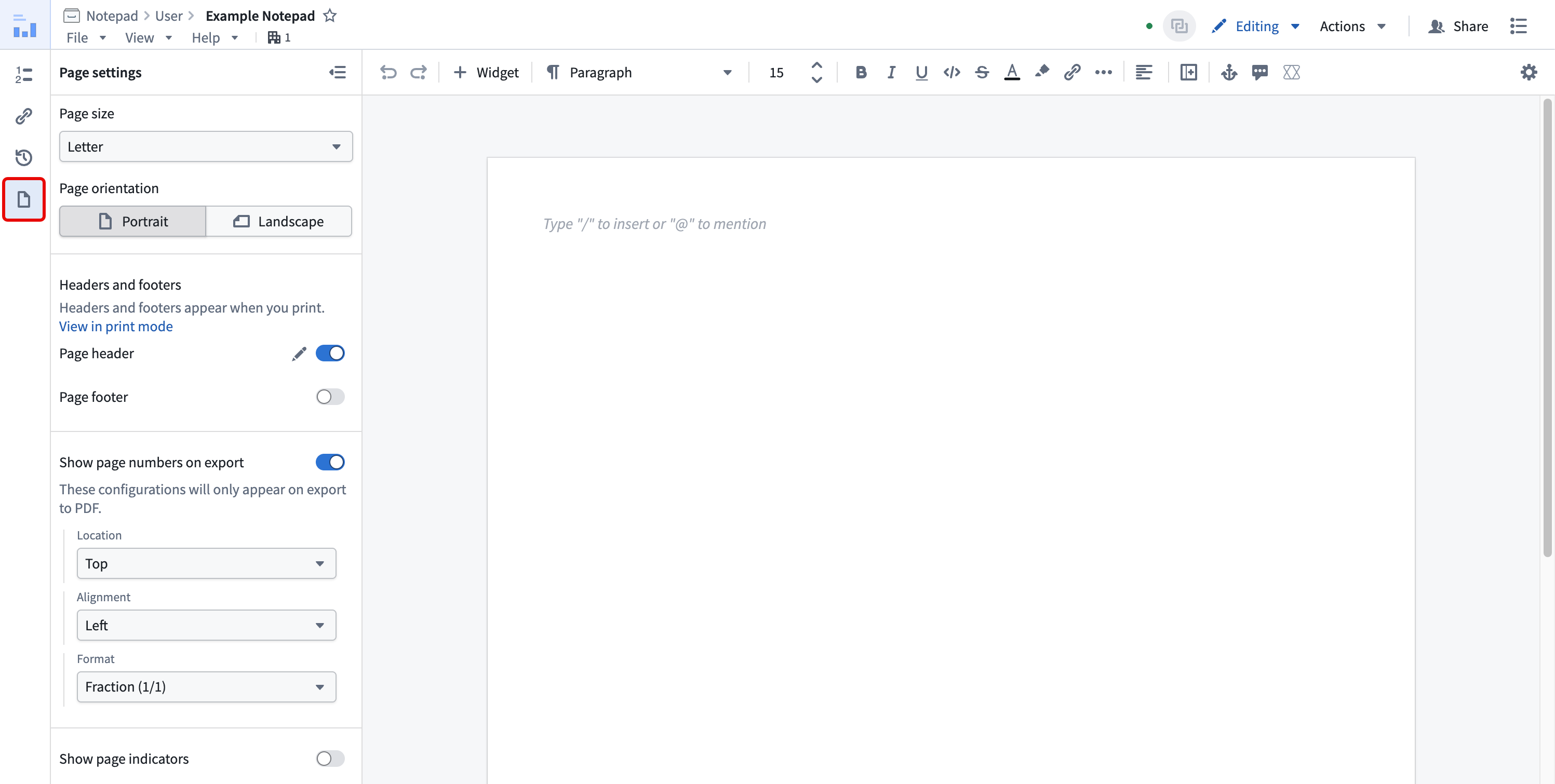
Notepad provides additional page settings for fine-tuning your document before exporting it. To configure page settings, select Page settings in the Notepad left panel.
Page size
The default page size for Notepad documents is Letter (8.5 x 11 inches). Use the Page size dropdown menu to select a different size.
The available page size options are:
- Letter
- Legal
- Tabloid
- A3
- A4
- A5
Page orientation
By default, documents are displayed in portrait mode. To change a document to landscape mode, select Portrait or Landscape under Page orientation.
Page headers and footers
Page headers and footers are only visible for document print or export. To enable page headers or footers, enable the Page header or Page footer option.
Page break widget
Use the page break widget to insert custom page breaks. Page breaks will only be shown when printing.
Widget printing configuration
Some widgets support print-specific configuration options. When available, access these by selecting a widget, opening the Widget Properties panel, and selecting Print Configuration.
Options include zoom, print on new page, and expanding scrollbars.
Zoom
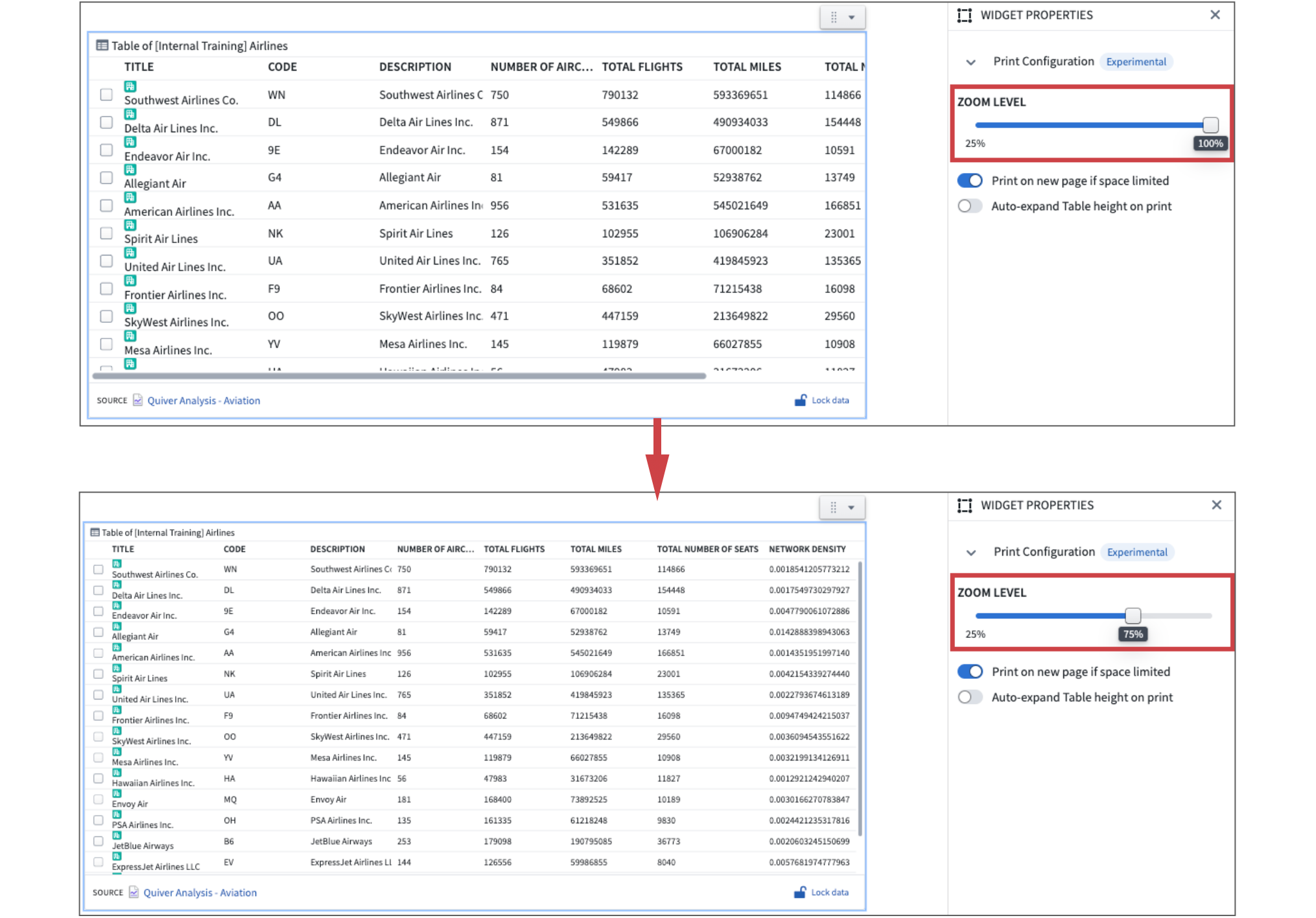
Exporting the document may limit the horizontal space available (even in landscape mode), which is not well-suited for some visualizations. For example, wide tables which can be scrolled horizontally on screen will need to be adjusted to fit. The Zoom Level config allows you to do this by scaling down the content shown.
Print on new page
By default, widgets print on a new page if space is limited. This may not be the preferred behavior for widgets that display tables or span more than a page. In these cases, you can disable printing on a new page.
Expanding scrollbars
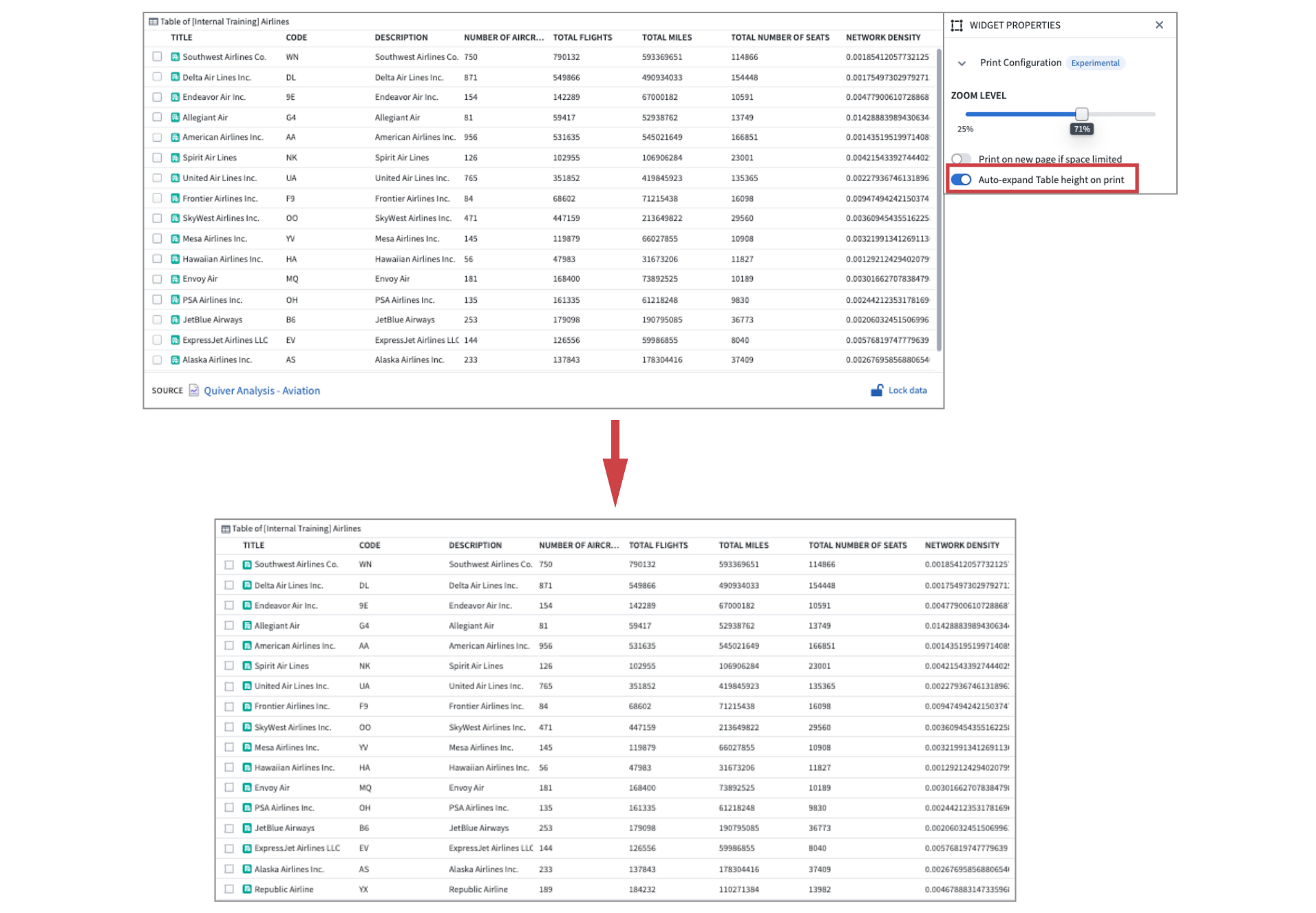
Use Auto-expand Table height on print to fully expand scrollbars on print to ensure vertically scrolled sections are fully expanded. This feature is currently only supported for Contour tables and Quiver object and pivot tables.
中文翻译
导出
Notepad 文档专为打印和导出为 PDF 或 DOCX 格式而设计,支持修改页面方向、定义页眉页脚以及针对小部件的打印特定设置。
:::callout{theme="neutral," title="Beta"}
Notepad 中的 DOCX 导出功能正处于开发阶段的 beta 阶段。功能在活跃开发期间可能会发生变化。
Notepad 目前支持以下小部件进行 DOCX 导出:
- 剪辑(Clip)
- 代码工作簿图表(Code Workbook Chart)
- 等高线图(Contour Chart)
- 文件引用(Compass)
- 图像(Image)
- 对象卡片(Object Card)
- 对象媒体预览(Object Media Preview)
- 对象属性(Object Property)
- 分页符(Page break)
- 箭袋分析图表(Quiver Analysis Chart)
- 箭袋仪表板图表(Quiver Dashboard Chart)
- 解决方案设计器图表(Solution Designer Diagram)
- 表格(Table)
- 顶点图(Vertex Graph)
- 地图(Map) :::
导出文档
通过右上角的 文件(File) 菜单导出文档,选择 导出(Export),然后选择 导出为 PDF(Export as PDF) 或 导出为 DOCX(Export as DOCX)。文档渲染完成后,Notepad 将以所选文件格式保存您的文档。
:::callout{theme="warning" title="渲染超时"} 导出时后台渲染时间有上限。如果文档包含许多需要长时间计算的图表,可能会达到此限制,导致图表无法完全加载。在这种情况下,请使用下面讨论的 在打印模式下打开(Open in print mode) 选项。 :::
或者,您可以使用 在打印模式下打开(Open in print mode) 按钮,以适合打印的视图打开文档。当页面和所有图表完全加载后,您可以使用 Ctrl+P(Windows)/Cmd + P(macOS)键盘快捷键或右上角的打印按钮,将文档保存为 PDF 或打印页面。
请根据文档的页面方向将打印布局设置为 纵向(Portrait) 或 横向(Landscape)。确保页面大小与您选择的 Notepad 页面大小相匹配。选择 默认(default) 边距选项以确保内容对齐。
特定页面设置
Notepad 提供了额外的页面设置,用于在导出前对文档进行微调。要配置页面设置,请选择 Notepad 左侧面板中的 页面设置(Page settings)。
页面大小
Notepad 文档的默认页面大小为 Letter(8.5 x 11 英寸)。使用 页面大小(Page size) 下拉菜单选择其他尺寸。
可用的页面大小选项包括:
- Letter
- Legal
- Tabloid
- A3
- A4
- A5
页面方向
默认情况下,文档以纵向模式显示。要将文档更改为横向模式,请在 页面方向(Page orientation) 下选择 纵向(Portrait) 或 横向(Landscape)。
页眉和页脚
页眉和页脚仅在文档打印或导出时可见。要启用页眉或页脚,请启用 页眉(Page header) 或 页脚(Page footer) 选项。
分页符小部件
使用分页符小部件插入自定义分页符。分页符仅在打印时显示。
小部件打印配置
某些小部件支持特定于打印的配置选项。当可用时,通过选择小部件,打开 小部件属性(Widget Properties) 面板,然后选择 打印配置(Print Configuration) 来访问这些选项。
缩放
导出文档可能会限制可用的水平空间(即使在横向模式下),这对于某些可视化效果来说并不理想。例如,可以在屏幕上水平滚动的宽表格需要进行调整以适应。缩放级别(Zoom Level) 配置允许您通过缩小显示内容来实现这一点。
在新页面上打印
默认情况下,如果空间有限,小部件会在新页面上打印。对于显示表格或跨越多页的小部件,这可能不是首选行为。在这种情况下,您可以禁用在新页面上打印。
展开滚动条
使用 打印时自动展开表格高度(Auto-expand Table height on print) 可在打印时完全展开滚动条,以确保垂直滚动的部分完全展开。此功能目前仅支持 Contour 表格以及 Quiver 对象和数据透视表。