Lock widget data(锁定小组件数据)
:::callout{theme="warning" title="Lock Data Permissions"}
Locking data on a widget creates a static snapshot of the widget as it appears to the user who clicks Lock data. This snapshot will be visible to any user who has access to the Notepad document and meets the mandatory security controls (markings) for the widget's source and for any resources that supply data to the widget.
For all lockable widgets other than Contour widgets, note that it is not possible to "lock data" in cases when a restricted view supplies data to the visualization or when appropriate access controls cannot be reliably determined. Review the Interactive locking for Contour widgets callout below for additional information.
Also, like other derived artifacts in Foundry, users are not required to have a role on the source resource or on the other resources that supply data to the visualization.
Foundry administrators can require users to provide justification before locking data by configuring the Notepad lock data checkpoint.
Updated February 2024
:::
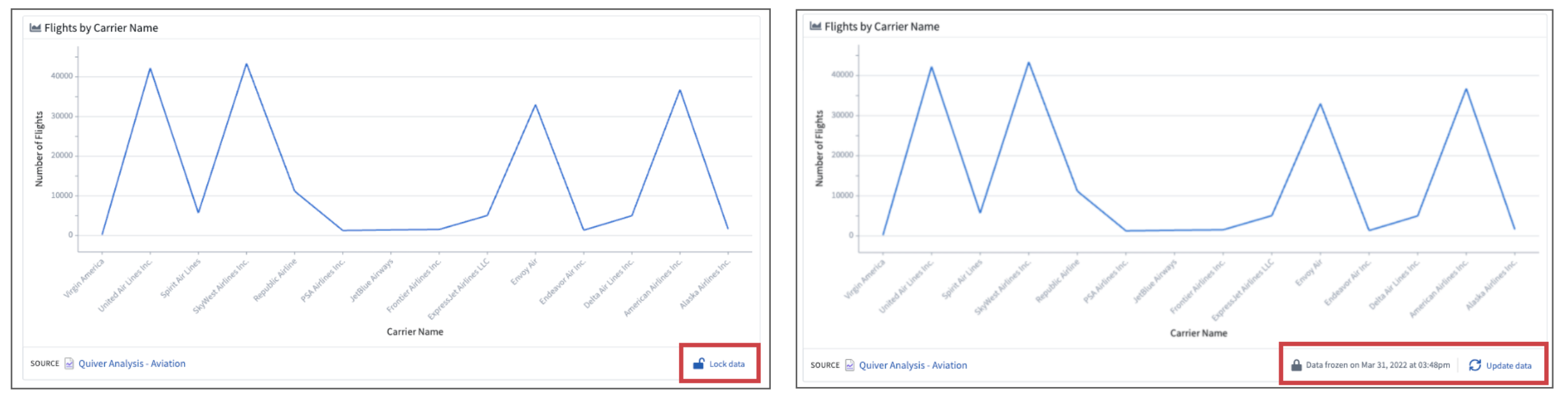
By default, Notepad will update embedded charts and tables in a document as the underlying source data changes. If you do not want a widget to display updated data, you can create a static snapshot of a widget by clicking the Lock data button in the widget footer; the Lock data button appears when a widget is selected and hovered over.
:::callout{theme="neutral" title="Interactive locking for Contour widgets"}
The lock data feature on the Contour widget functions differently from other widgets. When applied, it locks both the visualization and data of the Contour widget while still allowing user interaction. Interactively locked widgets will not load the locked visual if the backing transactions have been deleted either manually or by a retention policy. Contour widgets will not lock if they are configured with Notepad template input parameters.
For more information about the Contour chart widget, refer to the widget documentation.
:::
Locked widgets display the preserved snapshot of the widget along with a lock symbol and the time of snapshot creation. You can unlock a widget again by clicking the Update data button in the footer. Note that unlocking will cause the current snapshot to be lost.
Lock or unlock all widgets
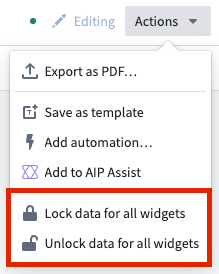
Users can select the Actions menu in the top-right of their screen to lock or unlock data for widgets in their Notepad.
中文翻译
锁定小组件数据
:::callout{theme="warning" title="锁定数据权限"}
锁定小组件上的数据会创建一个静态快照,该快照显示的是点击锁定数据按钮时用户所看到的小组件内容。任何有权访问 Notepad 文档且满足小组件数据源及所有为小组件提供数据的资源的强制性安全控制(标记)的用户,均可查看此快照。
对于除 Contour 小组件之外的所有可锁定小组件,请注意:当受限视图为可视化提供数据,或无法可靠确定适当的访问控制时,无法执行"锁定数据"操作。有关更多信息,请参阅下方Contour 小组件的交互式锁定说明。
此外,与 Foundry 中其他衍生制品一样,用户无需在源资源或为可视化提供数据的其他资源上拥有角色。
Foundry 管理员可以通过配置 Notepad 锁定数据 检查点,要求用户在锁定数据前提供理由。
2024 年 2 月更新
:::
默认情况下,Notepad 会随着底层源数据的变化而更新文档中嵌入的图表和表格。如果您不希望小组件显示更新后的数据,可以点击小组件页脚中的锁定数据按钮来创建小组件的静态快照;选中并悬停小组件时,锁定数据按钮会显示出来。
:::callout{theme="neutral" title="Contour 小组件的交互式锁定"}
Contour 小组件的锁定数据功能与其他小组件不同。应用该功能后,它会锁定 Contour 小组件的可视化和数据,同时仍允许用户进行交互。如果底层事务已被手动删除或根据保留策略删除,则交互式锁定的小组件将不会加载锁定的可视化内容。如果 Contour 小组件配置了 Notepad 模板输入参数,则不会锁定。
有关 Contour 图表小组件的更多信息,请参阅小组件文档。
:::
锁定的小组件会显示保存的快照,同时带有一个锁定符号和快照创建时间。您可以通过点击页脚中的更新数据按钮再次解锁小组件。请注意,解锁将导致当前快照丢失。
锁定或解锁所有小组件
用户可以选择屏幕右上角的操作菜单,来锁定或解锁其 Notepad 中小组件的数据。