Publish a template(发布模板)
Once you are done configuring your Notepad template, publish it to begin using it.
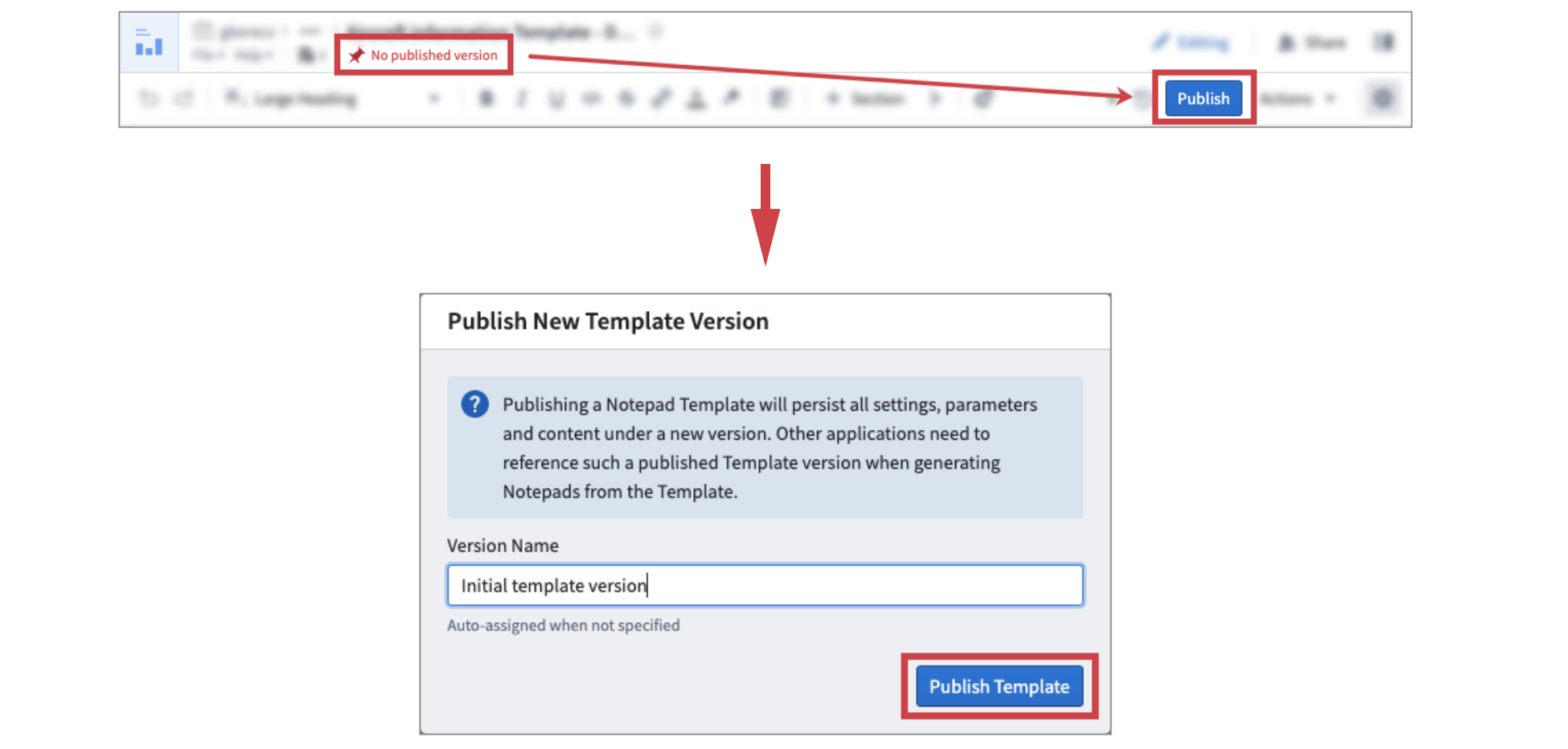
Publishing a template will save the current content, settings, and input parameters under a new version number. To publish a version, select Publish in the top right toolbar, optionally specify a name for the new version, and click the Publish Template button.
Template versioning ensures changes do not impact production workflows where the template is already in use. When adding templates to Workshop applications, you will need to explicitly reference the version number to be used. To accept template updates in production workflows, update your configuration to reference the new version number.
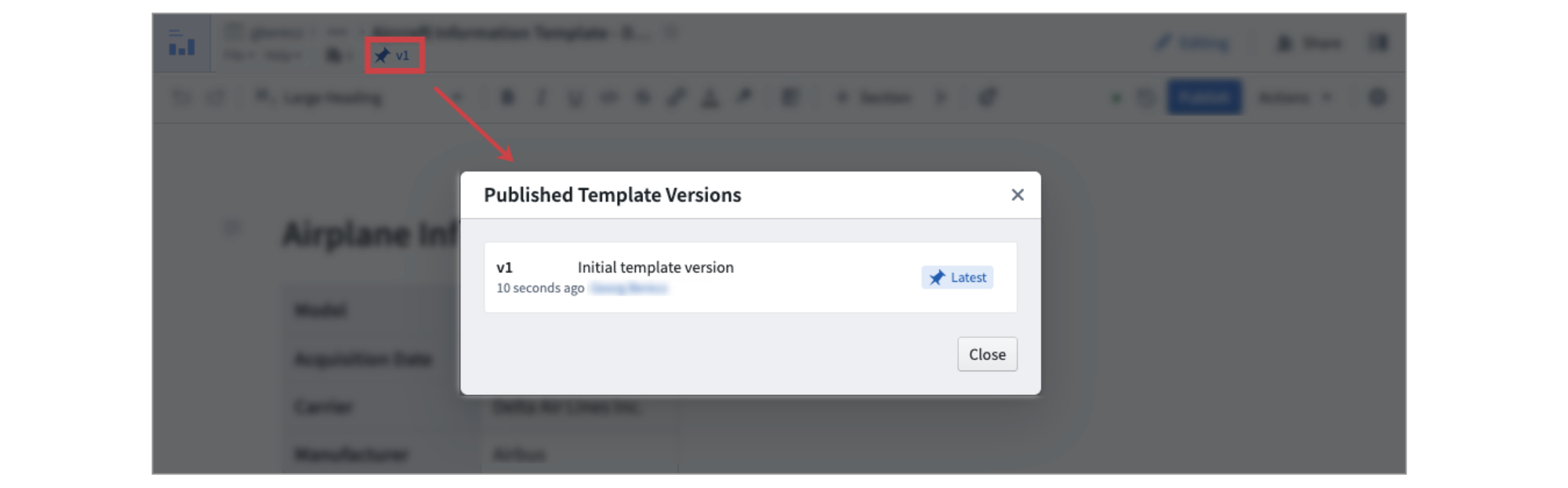
To inspect the history of published versions, click the pin icon in the top toolbar. This will open a table with all published versions as well as the dates and the users who published them.
中文翻译
发布模板
完成记事本模板配置后,请发布模板以开始使用。
发布模板会将当前内容、设置和输入参数保存为一个新版本号。要发布版本,请选择右上角工具栏中的 发布,可选地指定新版本的名称,然后点击 发布模板 按钮。
模板版本控制可确保更改不会影响已使用该模板的生产工作流。将模板添加到 Workshop 应用时,需要显式引用要使用的版本号。要在生产工作流中接受模板更新,请更新配置以引用新的版本号。
要查看已发布版本的历史记录,请点击顶部工具栏中的图钉图标。这将打开一个表格,其中包含所有已发布的版本以及发布日期和发布用户。