Version history(版本历史(Version history))
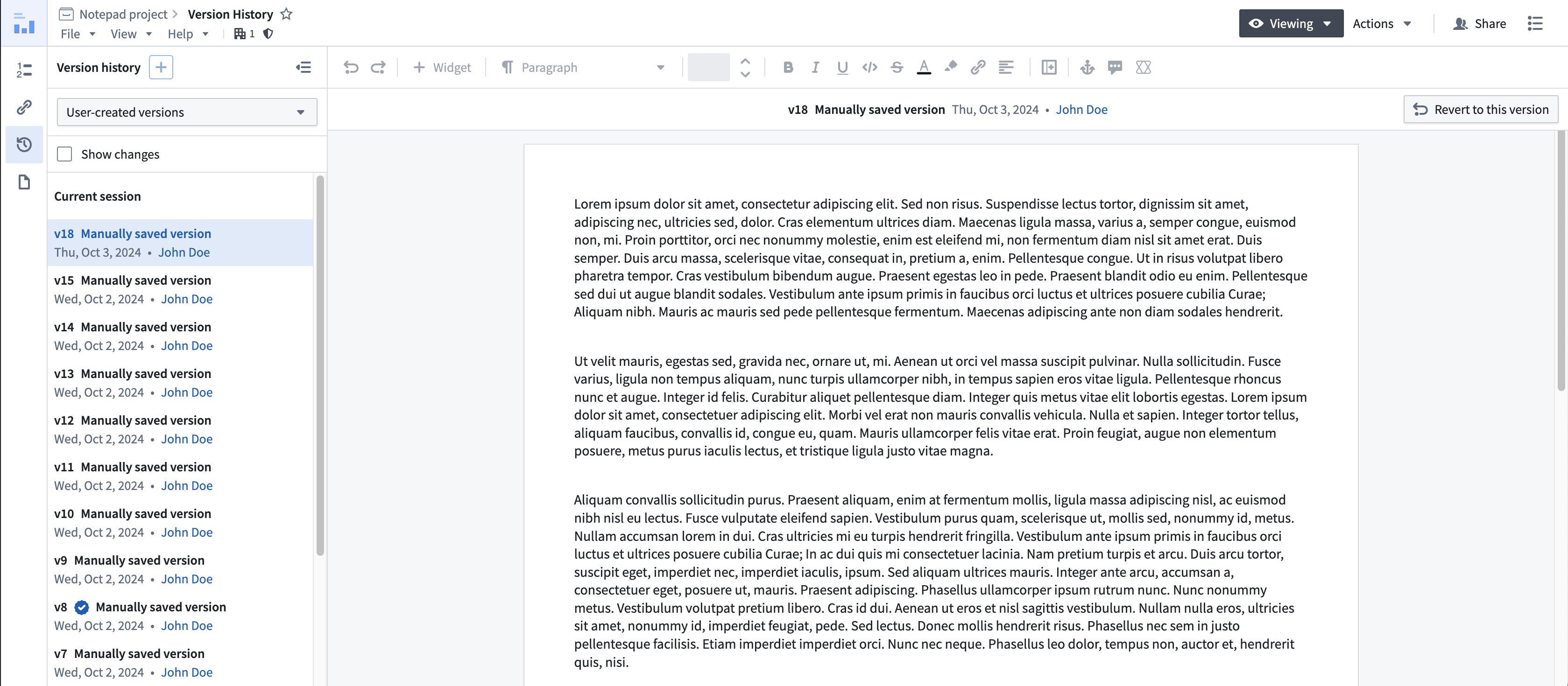
You can explore all existing versions in the Version history panel on the left. A version is a snapshot of the current state of the document that you can revisit or even restore at a later point in time. You can also manually save versions. By default, only user-created versions will be shown. Switch the filter at the top right of the panel to All versions to view all autosaved and manual versions.
Autosave versions
By default, Notepad automatically saves versions every 5 minutes while you edit the document. These are known as autosave versions. All changes to a Notepad document are regularly captured as autosave versions as long as you are online.
User-created versions
In addition to autosave versions, you can also create manual versions.
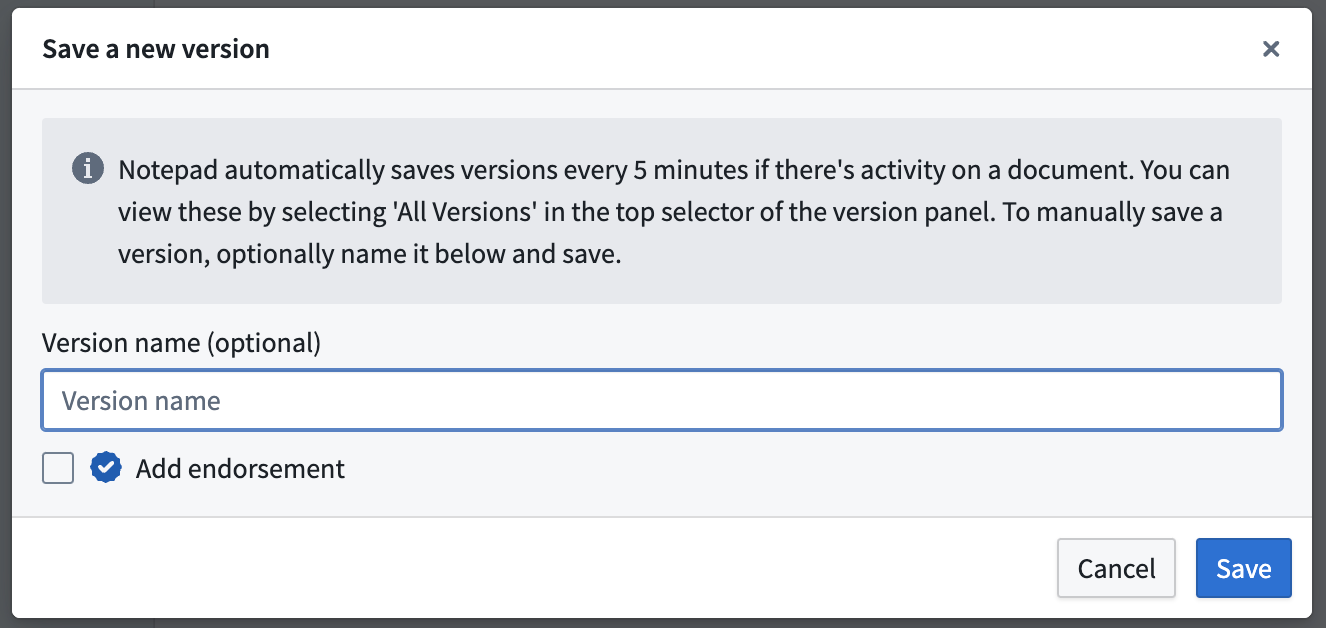
To do so, open the Version history panel on the left and select the + button to save a new version. You will be able to name the version and mark it as endorsed, which will highlight it among other saved versions. Endorsing versions can be used to mark specific releases of a document.
Rollback to a previous version
You can select a past version to view it or roll back to a previous document version. Rolling back to a previous version will automatically save a version with the current document state and then update to the selected version. Past versions are shown in read-only mode by default. To view and edit the current version of the document, select Current session at the top of the Version history panel on the left.

Show changes
Select the Show changes option and choose a past version to compare with the current version. This will display a comparison of the contents of the selected versions.
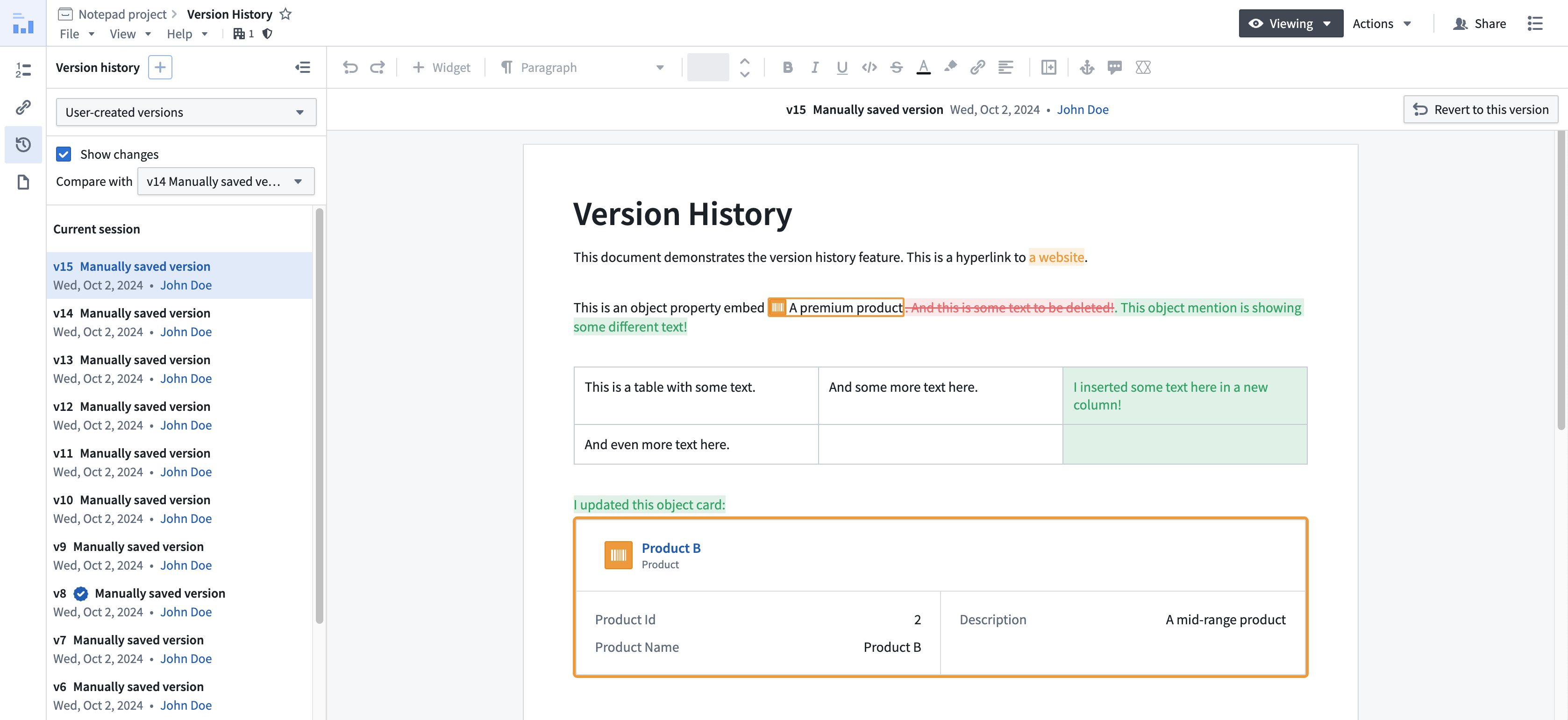
Note that formatting changes are excluded from the comparison. Examples of formatting changes include:
- Text formatting such as bolding, italics, underlining, strikethrough, color, highlight, and font size.
- Image size changes.
- Table formatting such as column width and table density.
- Image size.
- Alignment changes.
- List item nest level.
中文翻译
版本历史(Version history)
您可以在左侧的版本历史面板中浏览所有现有版本。版本是文档当前状态的快照,您可以随时回溯甚至恢复。您也可以手动保存版本。默认情况下,仅显示用户创建的版本。将面板右上角的筛选器切换为所有版本,即可查看所有自动保存和手动保存的版本。
自动保存版本(Autosave versions)
默认情况下,Notepad 会在您编辑文档时每 5 分钟自动保存一次版本,这些版本称为自动保存版本。只要您处于在线状态,Notepad 文档的所有更改都会定期以自动保存版本的形式被捕获。
用户创建版本(User-created versions)
除自动保存版本外,您还可以创建手动版本。
具体操作:打开左侧的版本历史面板,选择 + 按钮保存新版本。您可以为版本命名,并将其标记为已认可(endorsed),这样该版本会在其他保存的版本中高亮显示。认可版本可用于标记文档的特定发布版本。
回滚到先前版本(Rollback to a previous version)
您可以选择一个过往版本进行查看,或回滚到之前的文档版本。回滚到先前版本时,系统会自动保存当前文档状态的版本,然后更新到所选版本。过往版本默认以只读模式显示。要查看和编辑文档的当前版本,请选择左侧版本历史面板顶部的当前会话。
显示更改(Show changes)
选择显示更改选项,并选择一个过往版本与当前版本进行比较。系统将显示所选版本之间的内容对比。
请注意,格式更改不包含在比较范围内。格式更改的示例包括:
- 文本格式,如加粗、斜体、下划线、删除线、颜色、高亮和字号。
- 图片尺寸更改。
- 表格格式,如列宽和表格密度。
- 图片尺寸。
- 对齐方式更改。
- 列表项嵌套层级。