Anchor link(锚点链接(Anchor link))
Notepad allows you to create anchor links to reference particular pieces of a document. Sharing this link with other users ensures that they will be taken to this specific part of the Notepad document upon accessing the link. Similarly, you can also use anchor links in larger documents to create a custom outline.
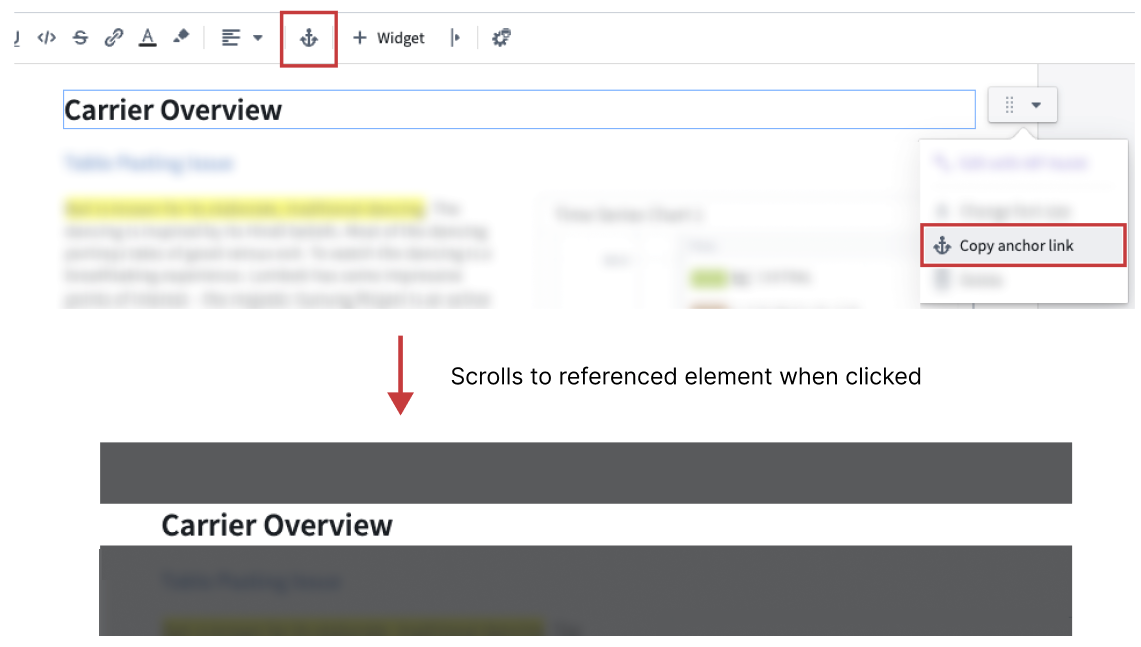
To copy an anchor link, move your cursor to the content you want to reference and select Copy anchor link in the drag handle menu on the right. You can alternatively select the content first and then select the anchor icon in the toolbar. You can then paste your link to share it with other users.
Display text
Anchor links pasted into the same document they are copied from will display either the text or widget type of the copied element. Anchor links pasted into a separate document will also show the title of the source document. All anchor links will display their source document RID in a tooltip.

中文翻译
锚点链接(Anchor link)
Notepad 允许您创建锚点链接,以引用文档中的特定内容。与其他用户分享此链接后,他们访问该链接时将直接跳转到 Notepad 文档中的这一具体位置。同样,您也可以在大型文档中使用锚点链接来创建自定义大纲。
要复制锚点链接,请将光标移至您要引用的内容处,然后在右侧的拖拽手柄菜单中选择复制锚点链接(Copy anchor link)。您也可以先选中内容,再在工具栏中选择锚点图标。随后即可粘贴链接,与其他用户分享。
显示文本(Display text)
将锚点链接粘贴到其来源文档中时,链接将显示所复制元素的文本或微件类型。将锚点链接粘贴到其他文档中时,链接还会显示来源文档的标题。所有锚点链接均会在工具提示中显示其来源文档的 RID。