Command(命令(Command))
Use the Command widget to embed an inline command into a Notepad document. Select + Widget or type / in a paragraph field to add a command, enabling you to execute operations in other Palantir applications from Notepad. The Command widget works in tandem with App Pairing to connect application state and enable cross-application workflows throughout the Palantir platform.
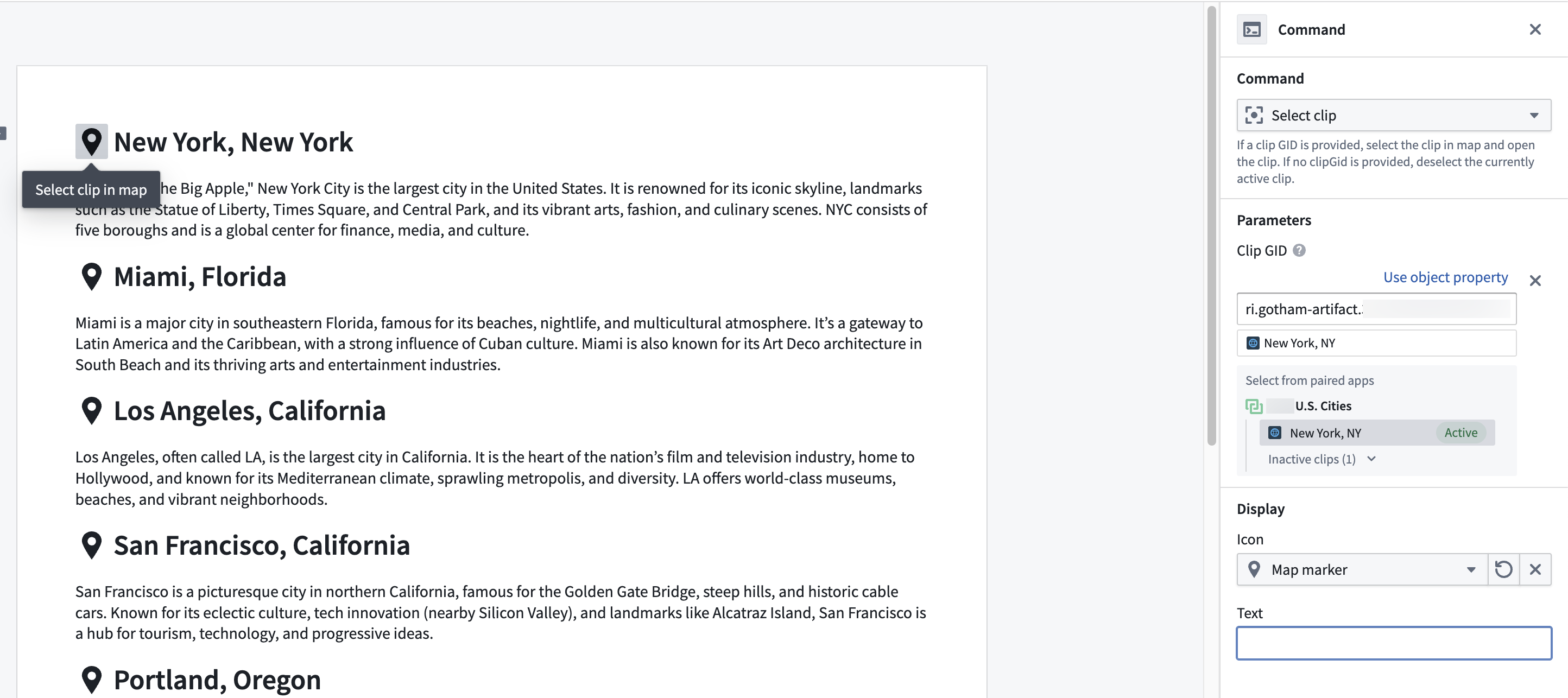
Widget properties
- Command: Select a command to execute. Choose Browse all commands... to launch a modal containing all the available commands across Palantir applications and their supporting documentation.
- Parameters: Configure the command's optional and required parameters, if necessary. As an example, you can optionally configure parameters which map to object property values.
- Display: Customize the icon and/or text label for the widget shown within the document.
Example: Build a briefing workflow with a paired Gaia map
:::callout{theme="neutral"} To execute the workflow below, your enrollment must use both Foundry and Gotham. Contact Palantir Support with questions about Gotham's availability on your enrollment. :::
Create a new Notepad document and open your Gaia map in another browser tab before following the instructions below to pair the two and use the Command widget's Select clip command to build a briefing workflow.
- Select the App Pairing icon in the top right ribbon to pair your Notepad document with your Gaia map.
- Insert the Command widget into your Notepad document by pressing
/and selecting Insert.
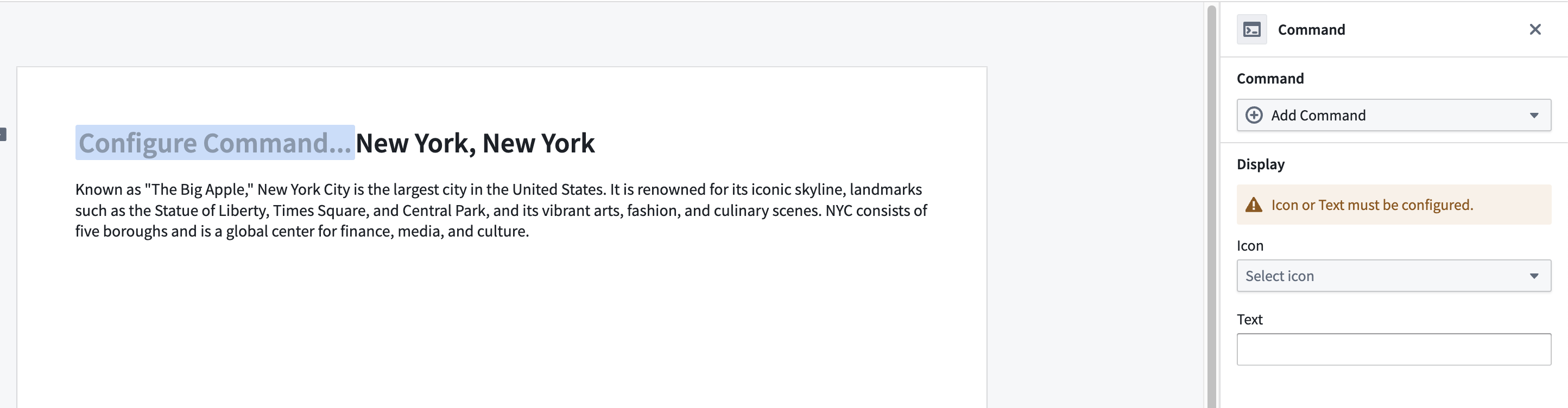
- Choose Gaia > Clips > Select clip in the configuration panel's Add Command dropdown menu.
- Select Add an optional parameter... and choose Clip GID.
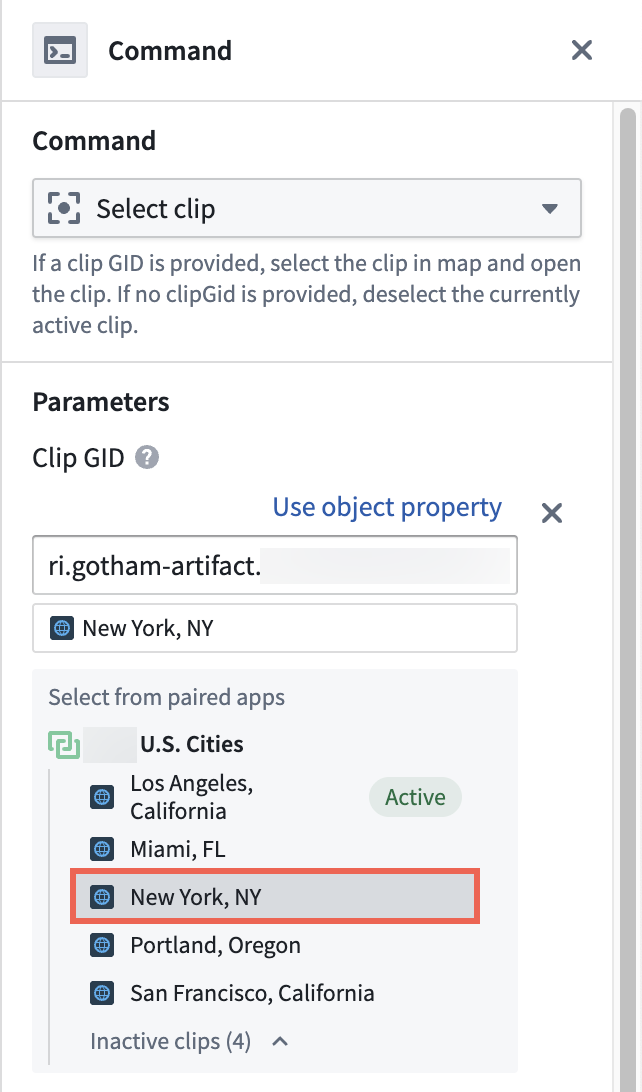
- Select the existing clip on your Gaia map from the Select from paired apps menu.
- Choose an Icon and set the Text that will display alongside the icon in your Notepad document.
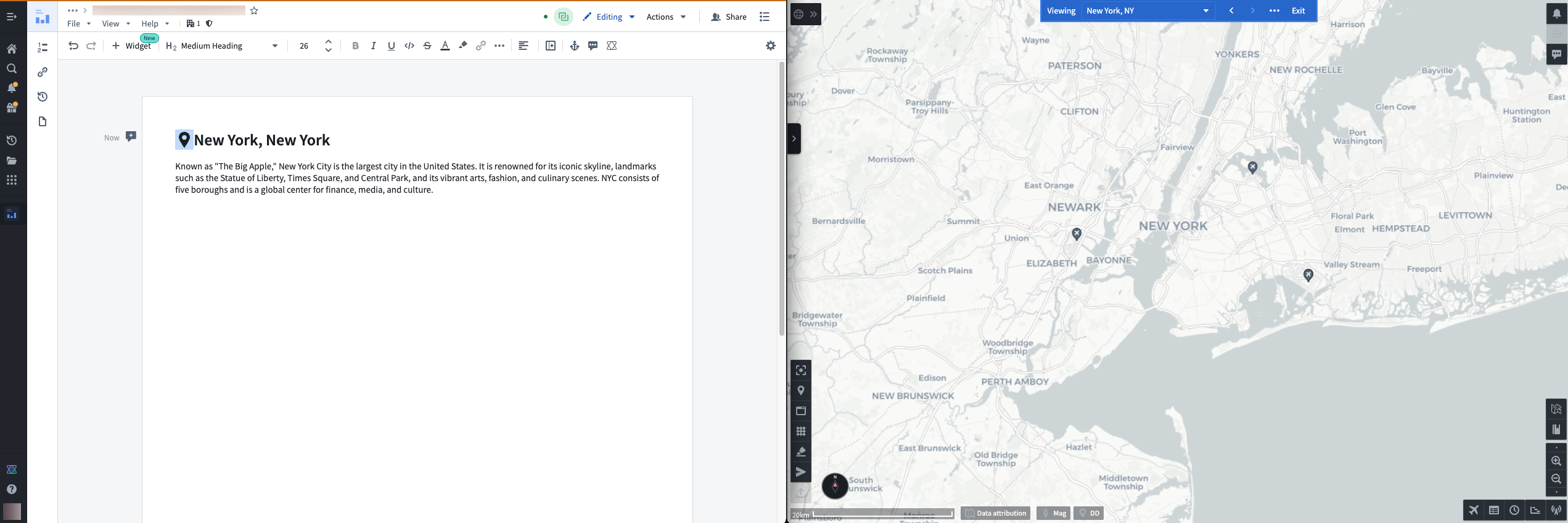
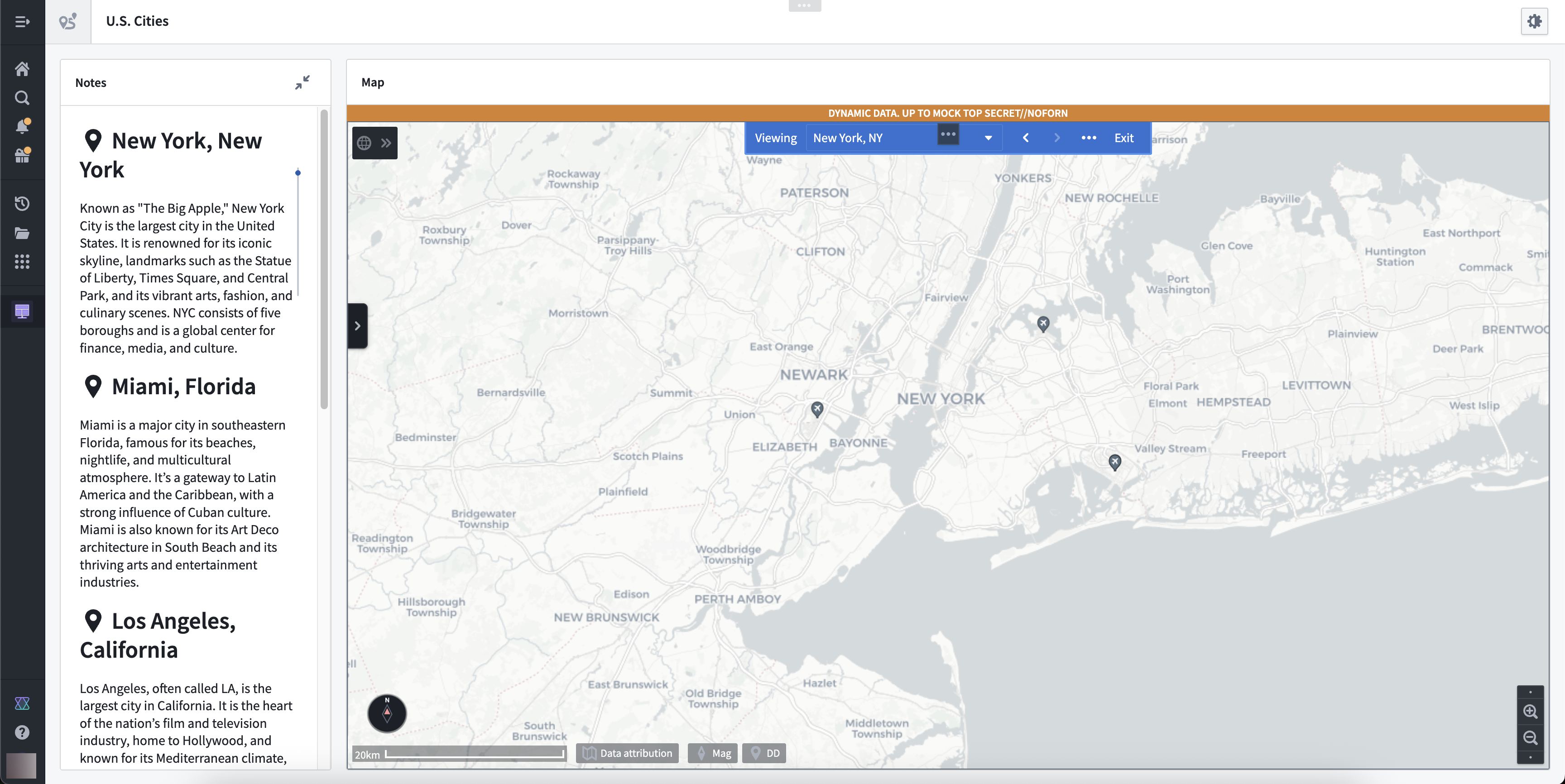
With Select clip configured, you can position your Notepad document and Gaia map next to each other and select the icon you set to open the clip in Gaia.
Additionally, you can use the following widgets in a Workshop module to create a unified briefing workflow within the same window.
中文翻译
命令(Command)
使用命令(Command) 组件可在记事本(Notepad)文档中嵌入内联命令。在段落字段中选择 + 组件 或输入 / 即可添加命令,从而在记事本中执行其他 Palantir 应用的操作。命令组件与应用配对(App Pairing)协同工作,可连接应用状态并在整个 Palantir 平台实现跨应用工作流。
组件属性(Widget properties)
- 命令(Command): 选择要执行的命令。选择 浏览所有命令... 可打开模态框,其中包含 Palantir 应用中的所有可用命令及其支持文档。
- 参数(Parameters): 根据需要配置命令的可选参数和必填参数。例如,您可以配置映射到对象属性值的参数。
- 显示(Display): 自定义文档中显示的组件图标和/或文本标签。
示例:使用配对的 Gaia 地图构建简报工作流
:::callout{theme="neutral"} 要执行以下工作流,您的环境必须同时使用 Foundry 和 Gotham。如有关于 Gotham 在您环境中可用性的问题,请联系 Palantir 支持团队。 :::
按照以下说明操作前,请先创建一个新的记事本文档,并在另一个浏览器标签页中打开您的 Gaia 地图,然后将两者配对,并使用命令组件的选择剪辑(Select clip)命令构建简报工作流。
- 选择顶部右侧功能区中的应用配对图标,将您的记事本文档与 Gaia 地图配对。
- 按
/键并选择插入,在记事本文档中插入命令组件。
- 在配置面板的添加命令下拉菜单中选择 Gaia > 剪辑(Clips) > 选择剪辑(Select clip)。
- 选择添加可选参数...,然后选择剪辑 GID(Clip GID)。
- 从从配对应用中选择菜单中选择 Gaia 地图上现有的剪辑。
- 选择图标并设置将在记事本文档中与图标一同显示的文本。
配置好选择剪辑后,您可以将记事本文档和 Gaia 地图并排放置,然后选择您设置的图标,即可在 Gaia 中打开该剪辑。
此外,您还可以在工作坊(Workshop)模块中使用以下组件,在同一窗口内创建统一的简报工作流。