Conditional section(条件区块 (Conditional Section))
:::callout{theme="neutral"} This widget is only available for document templates. :::
Conditional sections in Notepad templates allow you to selectively include content in a generated document based on the value of a string template input.
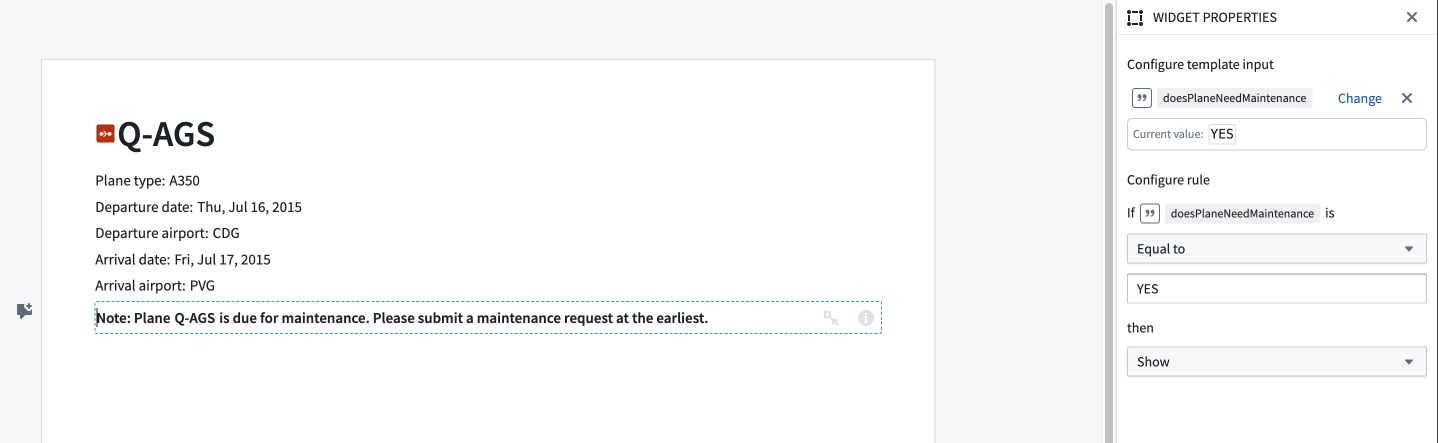
Add a conditional section
You can add a conditional section to a Notepad template by clicking + Add Widget or typing / in a paragraph field to open the widget insertion menu, then choosing the Conditional Section option under Generator.
First, select a string template input. You will be able to configure a rule based on the value of this template input.
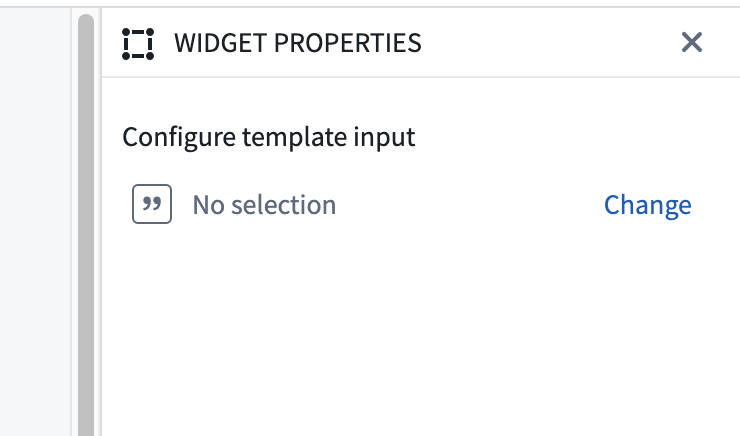
After selecting a string template input, you can configure a rule. The "If" section lets you set the condition of the rule, and the "then" section lets you set the consequence.
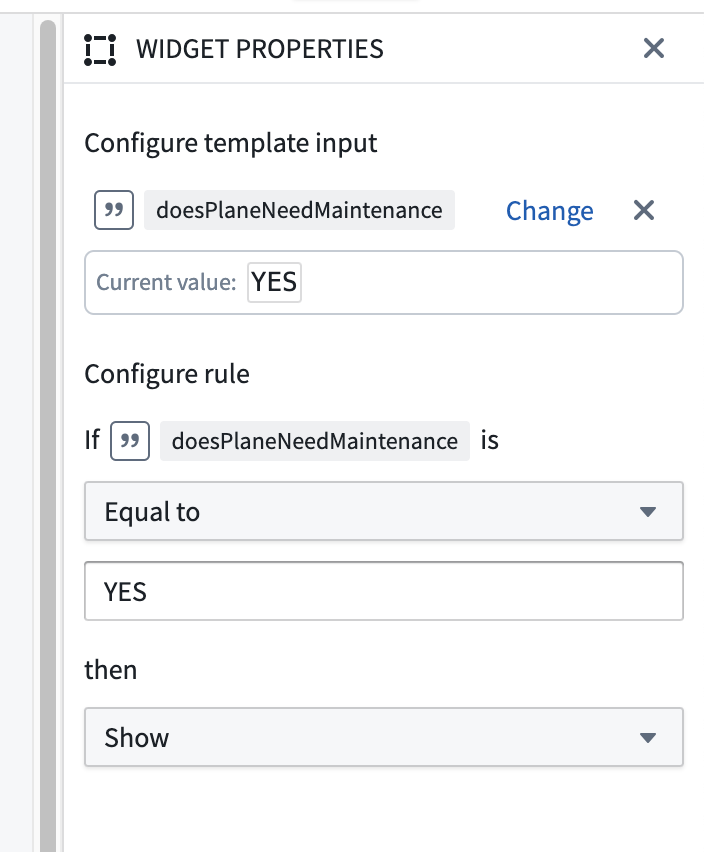
For example, if the doesPlaneNeedMaintenance template input equals YES, the contents of the conditional section will be displayed.
When a document is generated from a template, the rule configured by the user determines whether the conditional section's contents will be included in the generated document.
You can add a preview value to the selected template input to preview the behavior of the conditional section during template generation. The conditional section will have a green border if the contents will be displayed during template generation, and a red border if the contents will not be displayed.
Template configuration
-
Configure template input: Lets users pick a template input. The contents of the conditional section will be displayed if this template input satisfies the configured rule.
-
Configure rule: Lets users configure the rule that determines whether the contents of the conditional section will be displayed.
中文翻译
条件区块 (Conditional Section)
:::callout{theme="neutral"} 此组件仅适用于文档模板。 :::
Notepad 模板中的条件区块 (Conditional Section) 允许您根据字符串模板输入 (string template input) 的值,有选择性地在生成的文档中包含特定内容。
添加条件区块
您可以通过点击 + 添加组件 (+ Add Widget) 或在段落字段中输入 / 来打开组件插入菜单,然后选择 生成器 (Generator) 下的 条件区块 (Conditional Section) 选项,从而在 Notepad 模板中添加条件区块。
首先,选择一个字符串模板输入。您将能够根据此模板输入的值来配置规则。
选择字符串模板输入后,您可以配置规则。"如果 (If)"部分用于设置规则的条件,"则 (then)"部分用于设置结果。
例如,如果 doesPlaneNeedMaintenance 模板输入等于 YES,则会显示条件区块的内容。
当从模板生成文档时,用户配置的规则将决定条件区块的内容是否包含在生成的文档中。
您可以为选定的模板输入添加预览值,以预览条件区块在模板生成期间的行为。如果内容将在模板生成期间显示,条件区块将显示绿色边框;如果内容不会显示,则显示红色边框。
模板配置
-
配置模板输入 (Configure template input): 允许用户选择模板输入。如果此模板输入满足配置的规则,则会显示条件区块的内容。
-
配置规则 (Configure rule): 允许用户配置决定条件区块内容是否显示的规则。