Contour chart(等高线图(Contour chart))
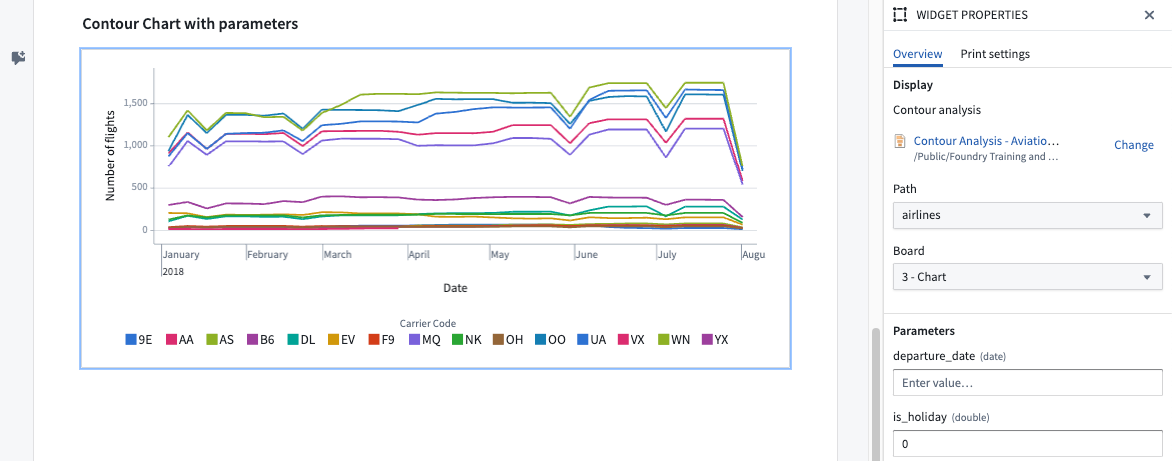
Charts and tables from Contour analyses can be embedded using the Contour chart section. You can add one either by clicking + Add Widget or typing / in a paragraph field to open up the widget insertion menu, or directly via the Copy for Notepad button on the Contour analysis itself.
Note that the source data is updated by Notepad when you open a Notepad document with a Contour board.
:::callout{theme="neutral" title="Interactive locking for the Contour widget"}
The lock data feature on the Contour widget functions differently from other widgets. When applied, it locks both the visualization and data of the Contour widget while still allowing user interaction. On the other hand, locking other widgets produces a non-interactive snapshot of the widget. Interactively locked widgets will not load the locked visual if the backing transactions have been deleted either manually or by a retention policy. Contour widgets will not lock if they are configured with Notepad template input parameters.
For more information, refer to the documentation on the lock data feature.
:::
Widget properties
- Path: Specify a path from the selected Contour Analysis.
- Board: Define which board should be shown from the selected path.
- Parameters: (Case-dependent) The parameters configuration will only be shown if the source Contour analysis defines and uses parameters. The configuration allows overwriting these parameter variable values separately. If no value is specified, the default parameter value from the Contour analysis will be used.
Template configuration
Parameter overrides: (Optional) You can specify Notepad template input parameters to override Contour parameters. These values will be passed to the embedded Contour chart, allowing you to customize the chart's external parameters. To enable this configuration option in Notepad, ensure that the Contour chart is set up to use Contour parameters. If the chart does not use Contour parameters, this configuration option will not be available.
In a Notepad template there are two editing modes for overriding Contour parameters with template input parameters; Use form and Use JSON.
Use form
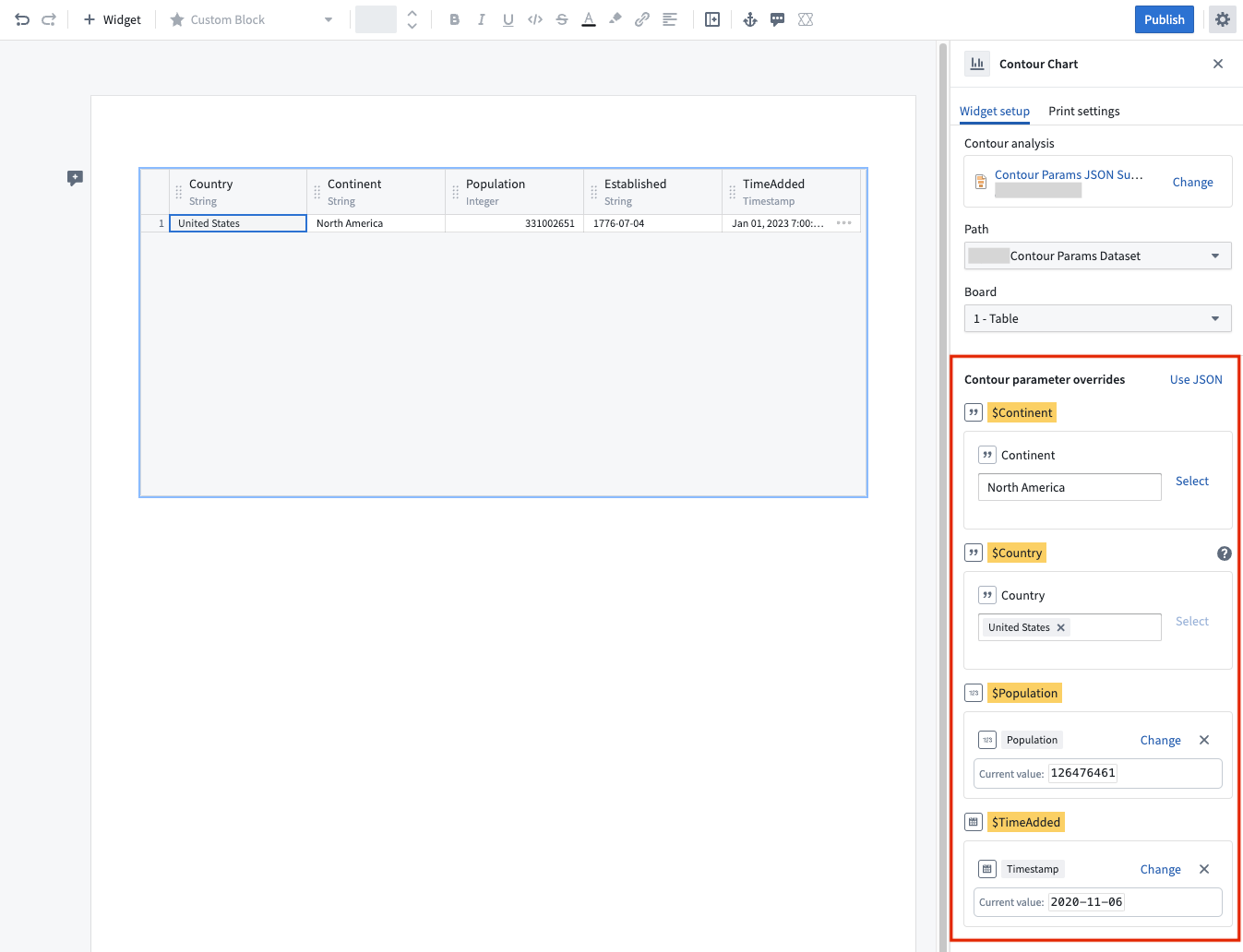
This is the default mode for overriding Contour parameters. You can map individual Contour parameters to Notepad parameters. There are two ways to input override values:
- Static input values: Directly enter values into fields. These values remain static for each Notepad document generated.
- Notepad template input parameters: Use a Notepad template input parameter that matches the type of the Contour parameter.
Note: Contour parameters may be configured to allow multiple values. Since Notepad does not currently support array parameters, you must use the Use JSON editing mode to override these parameters. In Use form mode, these values can be overridden with a single value, but the option to configure a template input parameter is not available.
Use JSON
In this mode, you can specify a single JSON string for Contour parameters and their associated override values. To switch to this mode select Use JSON. The override values will be passed to the embedded Contour chart to override its external parameters.
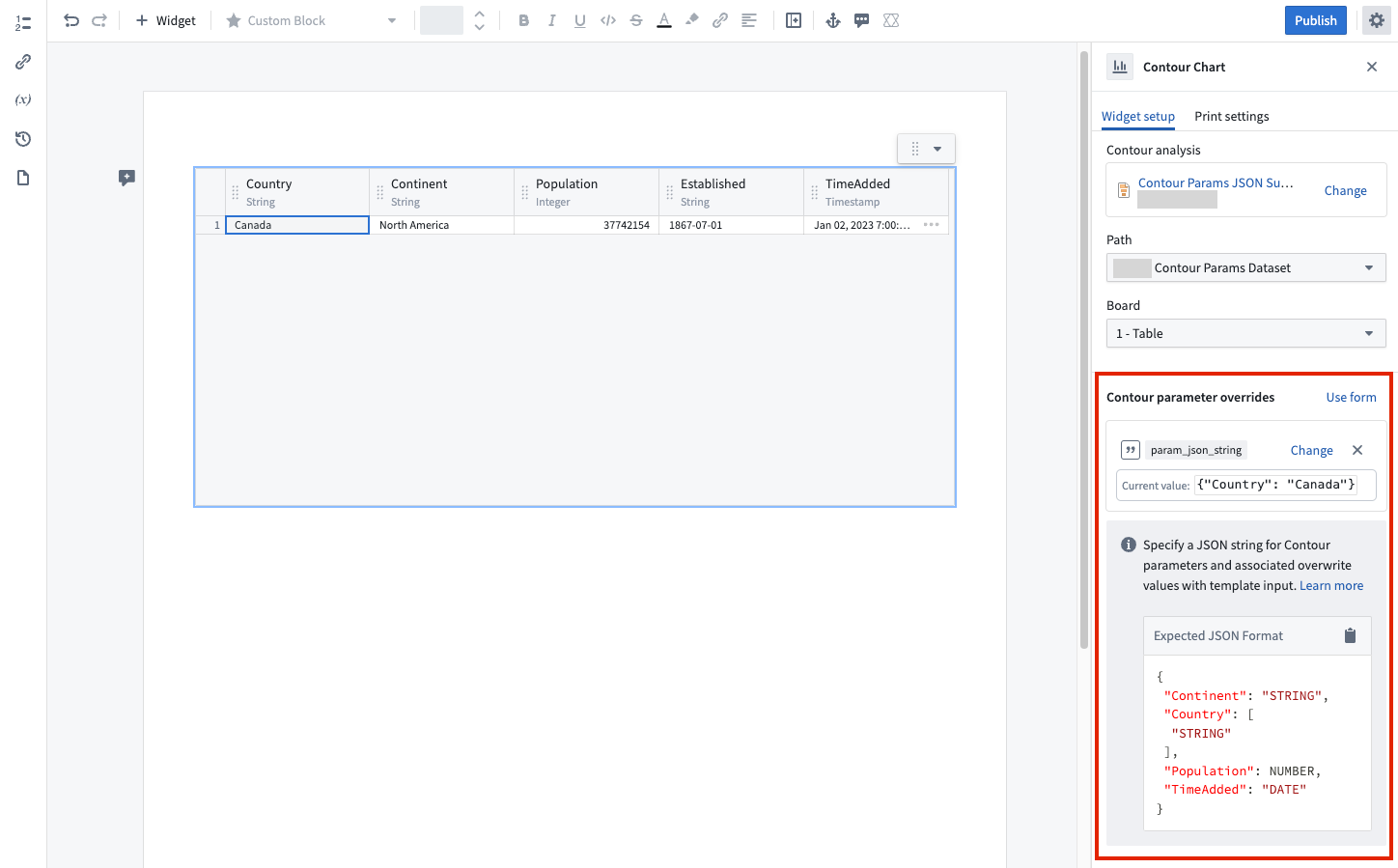
Below are examples of how to provide the required JSON string:
| Contour input type | Example Contour parameter name | Example JSON string |
|---|---|---|
| String | carrier_code |
{"carrier_code": "OO"} |
| Array of String | carrier_codes |
{"carrier_codes": ["OO", "MQ"]} |
| Number | booking_class |
{"booking_class": 2} |
| Array of Number | booking_classes |
{"booking_classes": [1,2]} |
| Date | departure_date |
{"departure_date": "2022-09-01T00:00:00+02:00"} |
You can combine multiple values into a single JSON string as shown below:
{"carrier_code": "OO", "booking_class": 2}
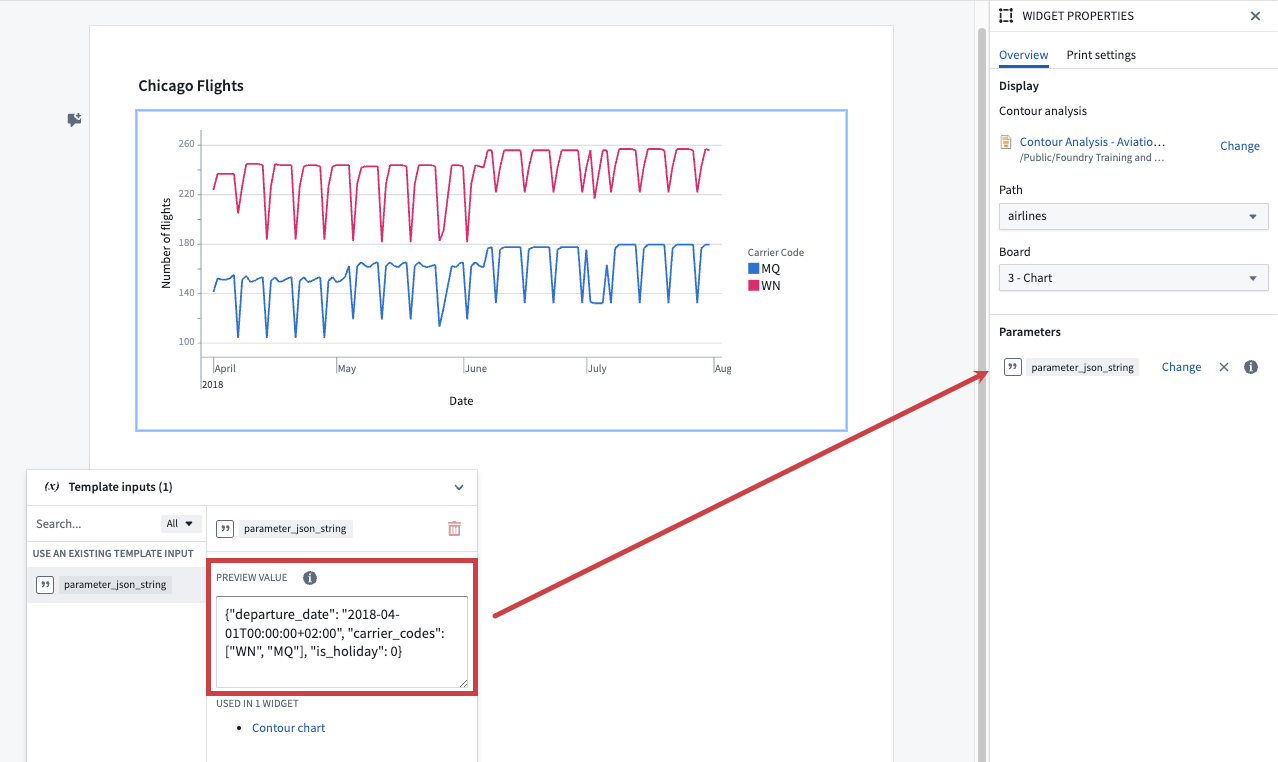
Refer to the example below on how to provide a template input with a preview value and connect it to the Contour parameters.
中文翻译
等高线图(Contour chart)
通过 等高线图(Contour chart) 组件,可以嵌入来自 Contour 分析的图表和表格。添加方式包括:点击 + 添加组件(Add Widget)、在段落字段中输入 / 打开组件插入菜单,或直接在 Contour 分析中使用复制到记事本(Copy for Notepad)按钮。
请注意,当您打开包含 Contour 面板的记事本文档时,记事本(Notepad)会自动更新源数据。
:::callout{theme="neutral" title="Contour 组件的交互锁定"}
Contour 组件的锁定数据(lock data)功能与其他组件不同。启用后,该功能会锁定 Contour 组件的可视化效果和数据,同时仍允许用户交互。而锁定其他组件则会生成一个不可交互的快照。如果底层事务已被手动删除或通过保留策略删除,交互锁定的组件将无法加载锁定的可视化内容。配置了记事本模板输入参数的 Contour 组件将无法锁定。
更多信息,请参阅锁定数据功能文档。
:::
组件属性(Widget properties)
- 路径(Path): 指定所选 Contour 分析中的路径。
- 面板(Board): 定义所选路径中应显示的面板。
- 参数(Parameters): (视情况而定)仅当源 Contour 分析定义并使用了参数时,才会显示参数配置。该配置允许单独覆盖这些参数变量的值。如果未指定值,则使用 Contour 分析中的默认参数值。
模板配置(Template configuration)
参数覆盖(Parameter overrides): (可选)您可以指定记事本模板输入参数来覆盖 Contour 参数。这些值将传递给嵌入的等高线图,从而允许您自定义图表的外部参数。要在记事本中启用此配置选项,请确保等高线图已设置为使用 Contour 参数。如果图表未使用 Contour 参数,则此配置选项不可用。
在记事本模板中,有两种编辑模式可用于通过模板输入参数覆盖 Contour 参数:使用表单(Use form) 和 使用 JSON(Use JSON)。
使用表单(Use form)
这是覆盖 Contour 参数的默认模式。您可以将单个 Contour 参数映射到记事本参数。输入覆盖值有两种方式:
- 静态输入值(Static input values): 直接在字段中输入值。这些值对于生成的每个记事本文档保持静态。
- 记事本模板输入参数(Notepad template input parameters): 使用与 Contour 参数类型匹配的记事本模板输入参数。
注意: Contour 参数可能配置为允许多个值。由于记事本目前不支持数组参数,您必须使用 使用 JSON 编辑模式来覆盖这些参数。在 使用表单 模式下,这些值可以用单个值覆盖,但无法配置模板输入参数。
使用 JSON(Use JSON)
在此模式下,您可以指定一个 JSON 字符串,用于 Contour 参数及其关联的覆盖值。要切换到该模式,请选择 使用 JSON。覆盖值将传递给嵌入的等高线图,以覆盖其外部参数。
以下是提供所需 JSON 字符串的示例:
| Contour 输入类型 | 示例 Contour 参数名称 | 示例 JSON 字符串 |
|---|---|---|
| 字符串(String) | carrier_code |
{"carrier_code": "OO"} |
| 字符串数组(Array of String) | carrier_codes |
{"carrier_codes": ["OO", "MQ"]} |
| 数字(Number) | booking_class |
{"booking_class": 2} |
| 数字数组(Array of Number) | booking_classes |
{"booking_classes": [1,2]} |
| 日期(Date) | departure_date |
{"departure_date": "2022-09-01T00:00:00+02:00"} |
您可以将多个值合并到一个 JSON 字符串中,如下所示:
{"carrier_code": "OO", "booking_class": 2}
请参考以下示例,了解如何提供带有预览值的模板输入并将其连接到 Contour 参数。