Table(表格)
Notepad offers a native Table widget. You can add one by selecting + Add Widget or by using the / keyboard shortcut in a paragraph field to open the widget insertion menu. You can configure your table's dimensions using the sliders in the menu.
When you select the newly inserted table, a specific Table Operations toolbar will appear in the Notepad toolbar. The Table Operations toolbar allows you to insert or remove additional rows and columns, set cell background colors, or switch between default and dense display modes. Delete your selected table by clicking on the bin icon. Alternatively, you can use the right-click menu to insert or remove rows and columns.
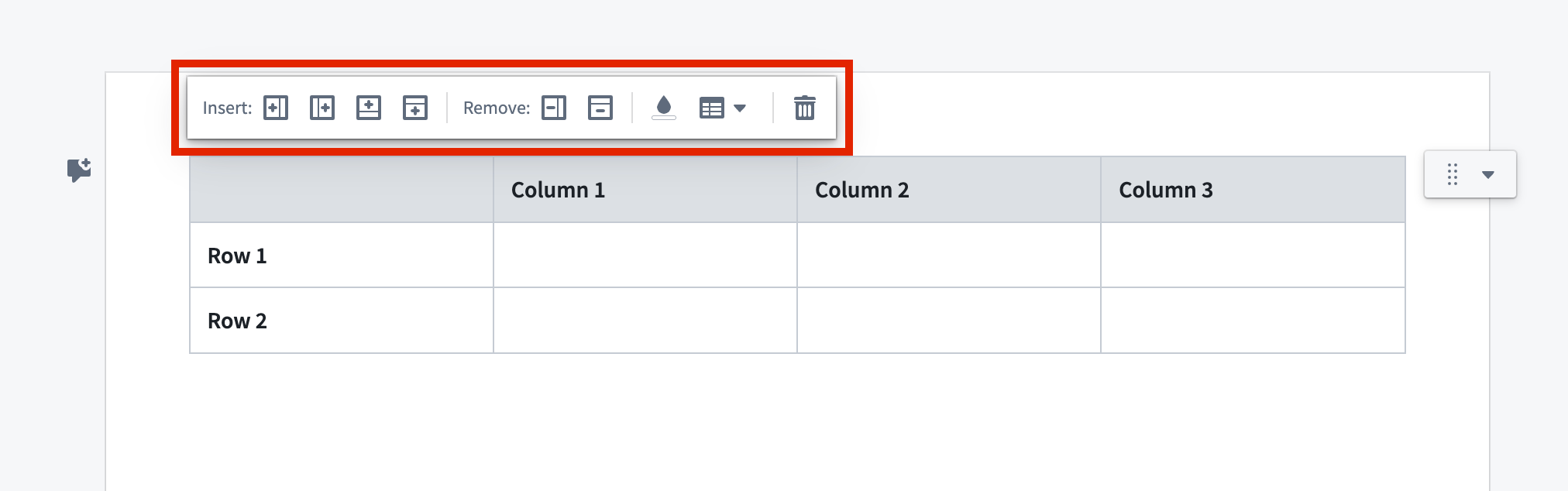
Table row generator
You can dynamically generate table rows based on each object in an object set using the table row generator. Learn more in the table row generator documentation.
中文翻译
表格
Notepad 提供原生表格(Table)组件。您可以通过选择 + 添加组件(+ Add Widget),或在段落字段中使用 / 键盘快捷键打开组件插入菜单来添加表格。您可以使用菜单中的滑块配置表格的尺寸。
选中新插入的表格后,Notepad 工具栏将显示特定的表格操作(Table Operations)工具栏。表格操作工具栏允许您插入或删除额外的行和列、设置单元格背景颜色,或在默认显示模式与紧凑显示模式之间切换。点击垃圾桶图标可删除所选表格。此外,您也可以使用右键菜单来插入或删除行和列。
表格行生成器(Table row generator)
您可以使用表格行生成器,基于对象集中的每个对象动态生成表格行。更多信息请参阅表格行生成器文档。