Generate and export documents(生成并导出文档)
To allow others to generate new documents based on your template or a string variable, use the Notepad: New Notepad Button widget. You can also optionally choose to allow exports of these documents as PDFs.
Notepad: New Notepad Button widget
The Notepad: New Notepad Button widget allows you to create and export Notepad documents from templates or Workshop string variables.
Generate a document from a template
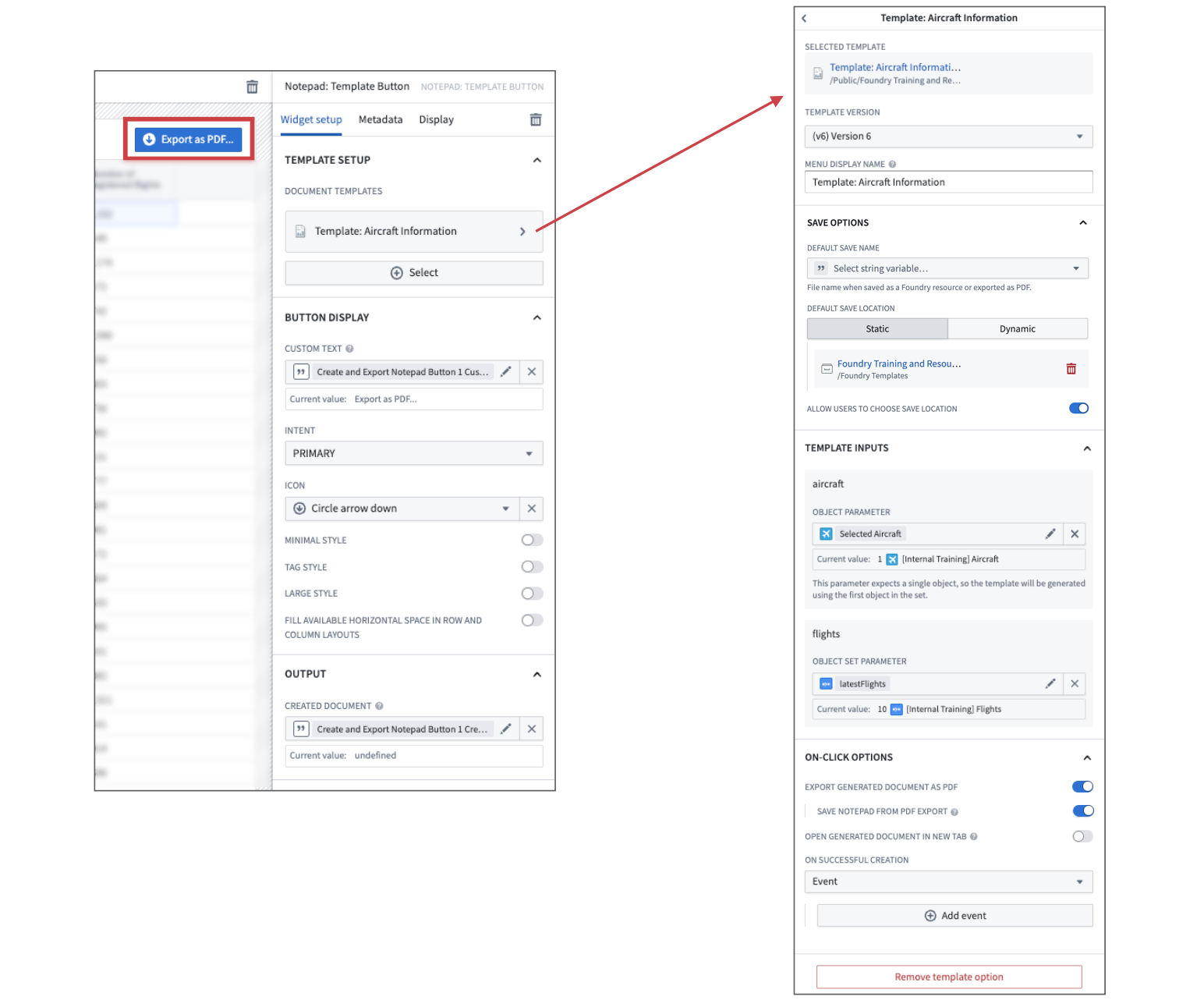
First, add the Notepad: New Notepad Button widget to your Workshop module. Then, from the configuration options on the right of the screen, choose the Template(s) option and then + Select. From the filesystem view, browse for your Notepad template file to add it to the Document templates list. Next, select the new template entry to open its configuration, then choose a Template version. If there is no version available, open the template in a new tab and publish a template version. Selecting a version will automatically load the template's required input parameters in the Template inputs section.
You can specify a Menu display name for your template if you choose. If you do not set a display name, the Custom text from the Button display settings will be used.
Template inputs
Depending on the template and its version, your Notepad template may consume multiple template inputs. For each of these inputs, link a Workshop variable of the same data type (string, number, date, timestamp, object, or object set) that you would like to use as an input to the template. The current values of these variables will be used to generate your document from the template whenever the Notepad: New Notepad Button is selected.
:::callout{theme="neutral"} If your input parameter requires a single object, be sure to link it to a Workshop object set variable that contains one object. :::
Create a document from a string variable
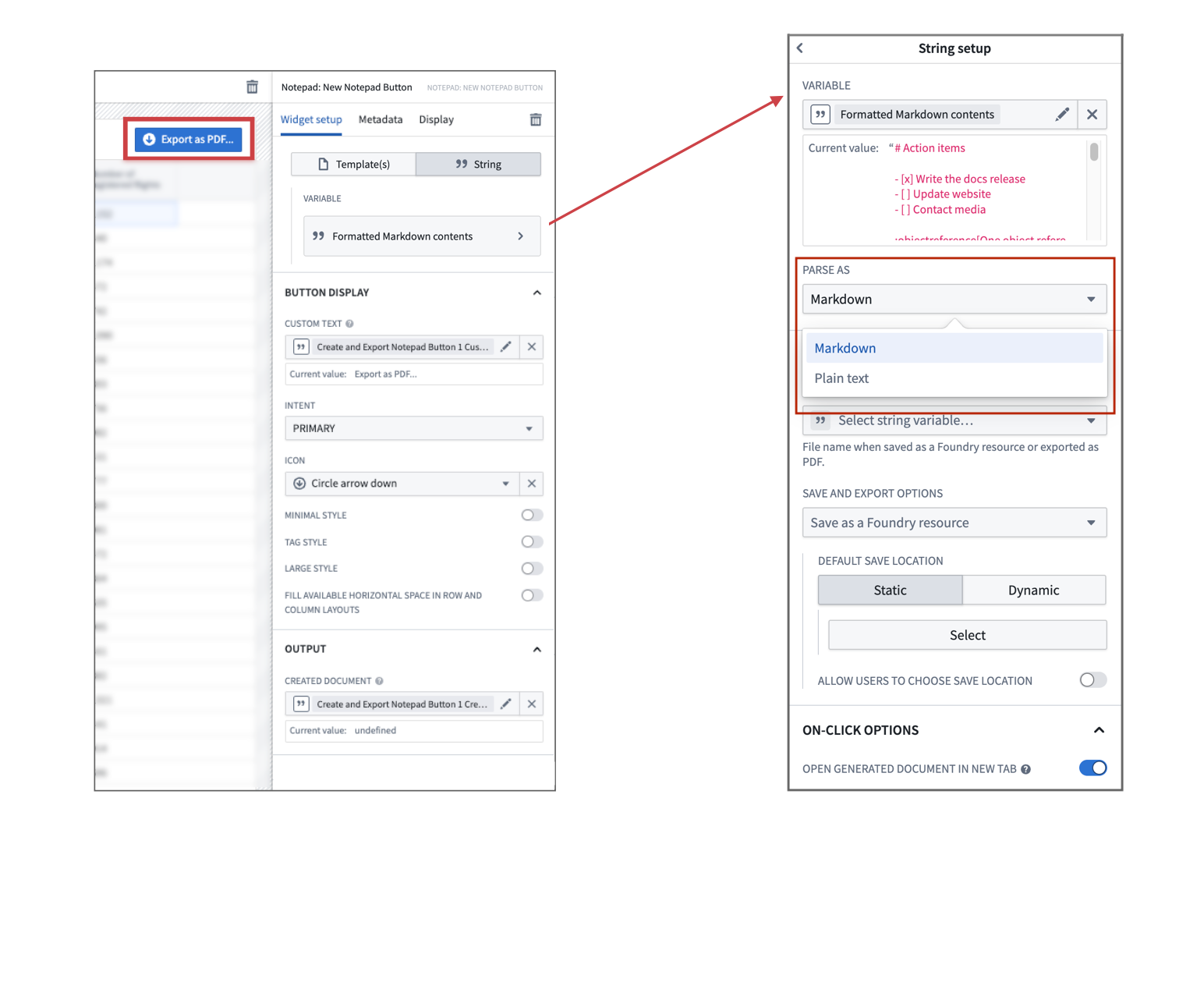
To create a Notepad document from a Workshop string variable instead of a document template, choose the String configuration option from the panel on the right. The variable value may be parsed as Markdown or plain text, in accordance with our existing Markdown features.
Save options
You can set the following options for the different document templates and/or string variables you configure for use with the Notepad: New Notepad Button widget:
- Allow users to choose save location: Allow users to select their own save location and file name before the document is generated. Any pre-defined Default save location is ignored.
- Default save name: Define a default file name for newly generated documents. The value is also used for the PDF file name when Export generated notepad as PDF is set.
- Default save location: Choose where new documents are saved. This can be configured by manually selecting a folder or by passing in a Compass RID through a Workshop string variable. By default, a document will be saved in the home folder of the user generating it.
On-click options
The on-click options allow you to modify certain behavior when using the Notepad: New Notepad Button:
- Export generated Notepad as PDF: Documents will be automatically downloaded as a PDF after they are generated. By default, the generated Notepad documents will not persist in Foundry unless they are created from a string variable. Thus, all save options except the Default save name will be ignored.
- Save Notepad from PDF export: When set, the generated Notepad document used to export to PDF will be saved in Compass as well.
- Open generated Notepad in new tab: Documents will open in a new tab.
Additionally, you can specify Workshop events or actions that should be executed when a document is created. For example, this can be used to persist the RID of the newly generated document as an object property by using the Created document output variable from the Notepad: New Notepad Button.
Use a generated Notepad RID in an action
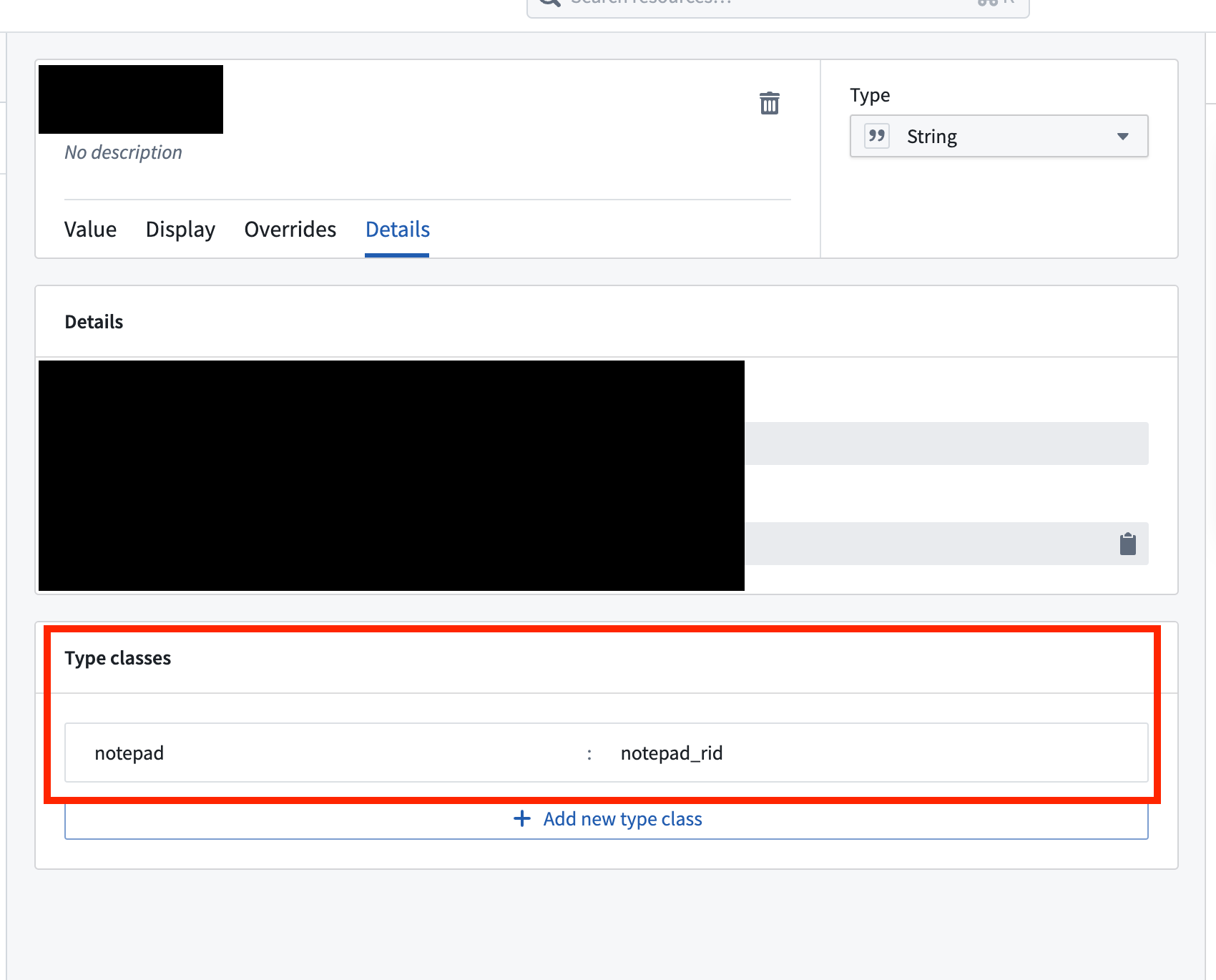
To pass a generated RID to an action, the corresponding parameter must have a configured type class. To do this, open the action parameter in Ontology Manager and add a notepad:notepad_rid type class in the Details tab.
中文翻译
生成并导出文档
若要允许他人基于您的模板或字符串变量生成新文档,请使用 Notepad: New Notepad Button(记事本:新建记事本按钮) 组件。您还可以选择性地允许将这些文档导出为 PDF。
Notepad: New Notepad Button(记事本:新建记事本按钮)组件
Notepad: New Notepad Button 组件允许您从模板或 Workshop 字符串变量创建并导出记事本文档。
从模板生成文档
首先,将 Notepad: New Notepad Button 组件添加到您的 Workshop 模块中。然后,在屏幕右侧的配置选项中,选择 Template(s)(模板) 选项,再点击 + Select(选择)。在文件系统视图中,浏览并选择您的记事本模板文件,将其添加到 Document templates(文档模板) 列表中。
接下来,选择新添加的模板条目以打开其配置,然后选择一个 Template version(模板版本)。如果没有可用版本,请在新标签页中打开模板并发布一个模板版本。选择版本后,系统会自动在 Template inputs(模板输入) 部分加载模板所需的输入参数。
您可以根据需要为模板指定 Menu display name(菜单显示名称)。如果未设置显示名称,则将使用 Button display(按钮显示) 设置中的 Custom text(自定义文本)。
模板输入
根据模板及其版本,您的记事本模板可能使用多个模板输入。对于每个输入,请链接一个相同数据类型(字符串、数字、日期、时间戳、对象或对象集)的 Workshop 变量,作为模板的输入。每当选择 Notepad: New Notepad Button 时,这些变量的当前值将用于从模板生成文档。
:::callout{theme="neutral"} 如果您的输入参数需要单个对象,请确保将其链接到包含一个对象的 Workshop 对象集变量。 :::
从字符串变量创建文档
若要从 Workshop 字符串变量(而非文档模板)创建记事本文档,请选择右侧面板中的 String(字符串) 配置选项。变量值可以解析为 Markdown 或纯文本,具体取决于我们现有的 Markdown 功能。
保存选项
您可以为配置用于 Notepad: New Notepad Button 组件的不同文档模板和/或字符串变量设置以下选项:
- Allow users to choose save location(允许用户选择保存位置): 允许用户在生成文档前自行选择保存位置和文件名。任何预设的 Default save location(默认保存位置) 将被忽略。
- Default save name(默认保存名称): 为新生成的文档定义默认文件名。当 Export generated notepad as PDF(将生成的记事本导出为 PDF) 设置启用时,该值也用于 PDF 文件名。
- Default save location(默认保存位置): 选择新文档的保存位置。可通过手动选择文件夹或通过 Workshop 字符串变量传入 Compass RID 进行配置。默认情况下,文档将保存在生成该文档的用户的主文件夹中。
点击选项
点击选项允许您在使用 Notepad: New Notepad Button 时修改某些行为:
- Export generated Notepad as PDF(将生成的记事本导出为 PDF): 文档生成后将自动下载为 PDF。默认情况下,生成的记事本文档不会保留在 Foundry 中,除非是从字符串变量创建的。因此,除 Default save name 之外的所有保存选项都将被忽略。
- Save Notepad from PDF export(保存 PDF 导出中的记事本): 启用后,用于导出为 PDF 的生成记事本文档也将保存在 Compass 中。
- Open generated Notepad in new tab(在新标签页中打开生成的记事本): 文档将在新标签页中打开。
此外,您可以指定在创建文档时应执行的 Workshop 事件或操作。例如,这可以通过使用 Notepad: New Notepad Button 中的 Created document(已创建文档) 输出变量,将新生成文档的 RID 作为对象属性持久化。
在操作中使用生成的记事本 RID
要将生成的 RID 传递给操作,相应的参数必须配置类型类。为此,请在 Ontology Manager 中打开操作参数,并在 Details(详情) 选项卡中添加 notepad:notepad_rid 类型类。