Excel
This guide will teach you how import a dataset into Excel using the Foundry ODBC driver.
Configure a Foundry Connection
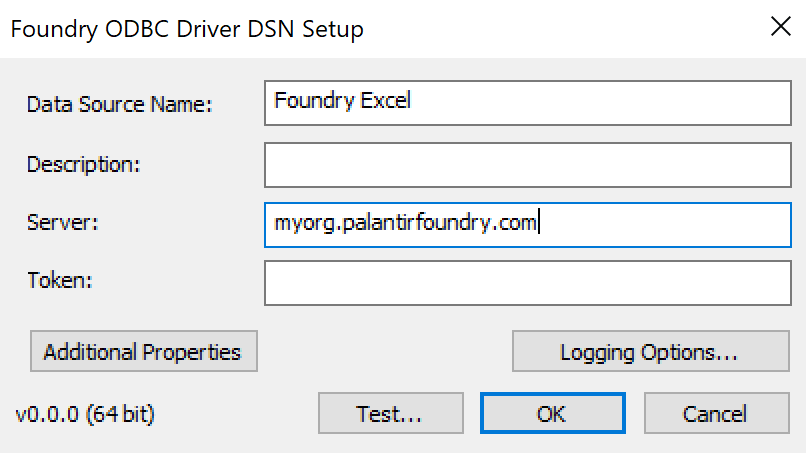
- Open the Windows ODBC Administrator App (search for "odbc" in the Windows search bar and open the 32 or 64 bit version matching your Excel version).
- Create a new User DSN, choosing the FoundrySqlDriver driver. Give it a meaningful name, such as
Foundry Excel. - For the Server, enter your Foundry URL (example:
myorganization.palantirfoundry.com). - Optional: If you're using OAuth to authenticate, set the OAuth properties.
- Optional: You can save an authentication token here, but we recommend entering it later in Excel where you will be prompted when importing data.
- Click OK to save the DSN.
Import data via SQL
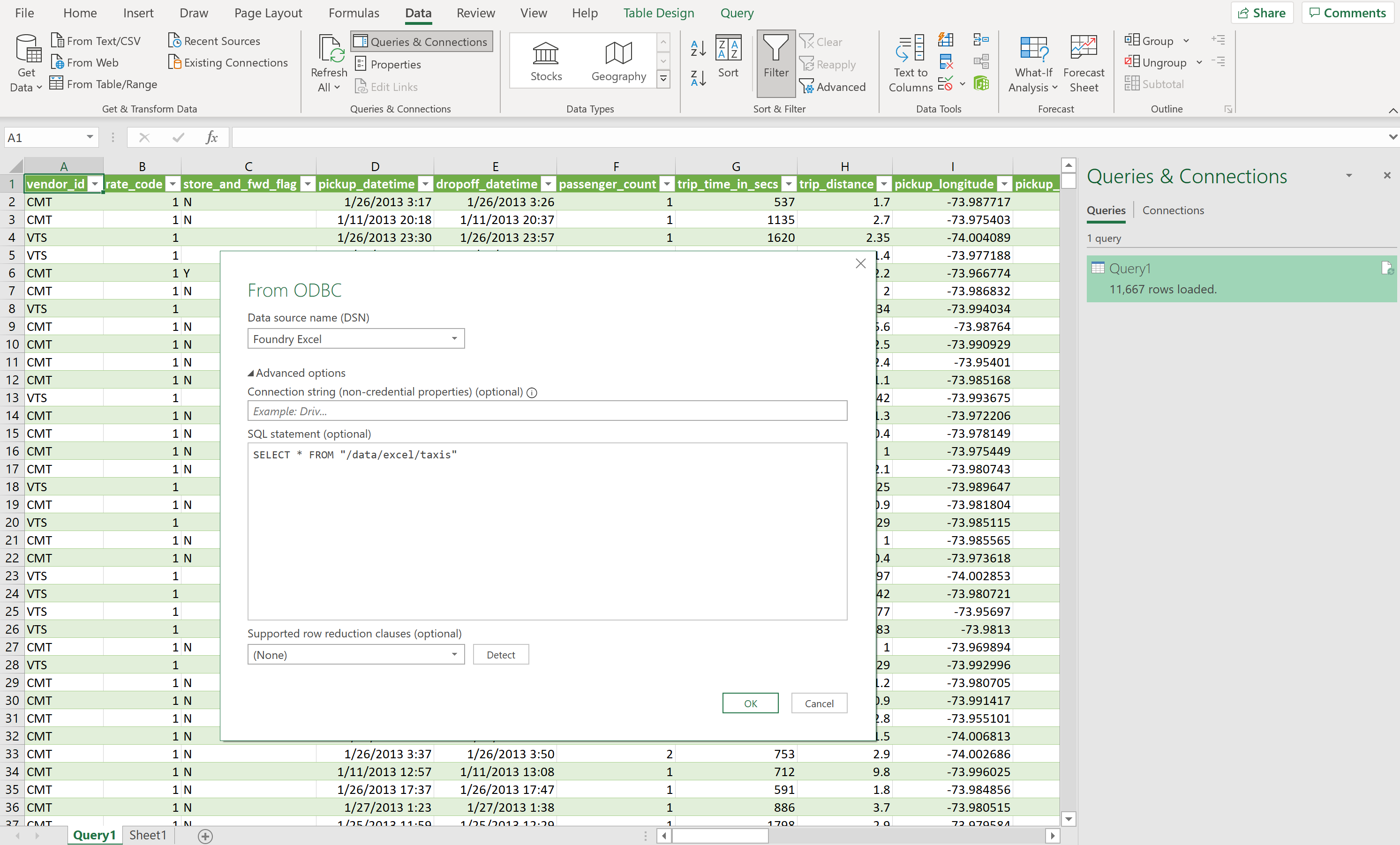
- From Excel, open the Data tab and click on Get data in the ribbon. Select From Other Sources -> From ODBC.
- Choose the DSN you configured in the previous step.
- Under "Advanced Options", enter a SQL query to import data.
- If you want to import the dataset
/YourProject/yourdataset, you would enterSELECT * FROM "/YourProject/yourdataset". - If you are familiar with SQL, you can enter more advanced queries such as filters and aggregates here.
- Click OK.
- If this is your first time importing data, you will be prompted for credentials.
- If using OAuth, select the "Default or Custom" credential type, leave the field blank and click "Connect"
- Otherwise, you will need an authentication token. Choose "Database", and enter your username. In the "password" field, enter your token, not your Foundry password.
- Click Connect.
Import data via the table browser
By default, if you follow the steps above but do not enter a SQL query, the table browser will display an empty state. This can be resolved by restricting the connection to a single project by adding the catalog property in your DSN and setting it to a full project path, such as MyOrg/MyProject. You can do this by clicking on Additional Properties on the Driver DSN Setup window, and then clicking on Add. The table browser should then display correctly, although you will be limited to browsing a single project per DSN.
Import data into Microsoft Access
The same Foundry Connector for Excel can also be used to import data into Access databases.
- From Access, open the External Data tab and click on New Data Source in the ribbon. Select From Other Sources -> ODBC Database.
- Choose whether you want to Import the source data or Link to the source data.
- Under the Machine Data Source tab, select the DSN you configured in the first step of this guide.
- You will need to have saved your authentication token in the Driver DSN Setup window.
- You will need to have set the
catalogproperty as described in the previous step. - Your project path must conform to Access table name restrictions ↗.
- Select your table(s) from the table browser and click OK.
中文翻译
Excel
本指南将教你如何使用 Foundry ODBC 驱动将数据集导入 Excel。
配置 Foundry 连接
- 打开 Windows ODBC 管理应用(在 Windows 搜索栏中搜索 "odbc",然后打开与你的 Excel 版本匹配的 32 位或 64 位版本)。
- 创建一个新的用户 DSN(User DSN),选择 FoundrySqlDriver 驱动。为其指定一个有意义的名称,例如
Foundry Excel。 - 在 服务器(Server) 字段中,输入你的 Foundry URL(示例:
myorganization.palantirfoundry.com)。 - 可选:如果你使用 OAuth 进行身份验证,请设置 OAuth 属性。
- 可选:你可以在此处保存身份验证令牌(authentication token),但我们建议稍后在 Excel 中输入,因为导入数据时会提示你输入。
- 点击 确定(OK) 保存 DSN。
通过 SQL 导入数据
- 在 Excel 中,打开 数据(Data) 选项卡,点击功能区中的 获取数据(Get data)。选择 从其他源(From Other Sources)-> 从 ODBC(From ODBC)。
- 选择你在上一步中配置的 DSN。
- 在 "高级选项(Advanced Options)" 下,输入 SQL 查询以导入数据。
- 如果要导入数据集
/YourProject/yourdataset,请输入SELECT * FROM "/YourProject/yourdataset"。 - 如果你熟悉 SQL,可以在此处输入更高级的查询,例如筛选和聚合。
- 点击 确定(OK)。
- 如果这是你第一次导入数据,系统会提示你输入凭据。
- 如果使用 OAuth,请选择 "默认或自定义(Default or Custom)" 凭据类型,将字段留空,然后点击 "连接(Connect)"。
- 否则,你需要一个身份验证令牌。选择 "数据库(Database)",然后输入你的用户名。在 "密码(password)" 字段中,输入你的令牌,而不是你的 Foundry 密码。
- 点击 连接(Connect)。
通过表浏览器导入数据
默认情况下,如果你按照上述步骤操作但未输入 SQL 查询,表浏览器(table browser)将显示为空状态。可以通过在 DSN 中添加 catalog 属性并将其设置为完整的项目路径(例如 MyOrg/MyProject)来将连接限制到单个项目,从而解决此问题。你可以在驱动 DSN 设置窗口中点击 其他属性(Additional Properties),然后点击 添加(Add) 来完成此操作。之后,表浏览器应能正确显示,但每个 DSN 只能浏览一个项目。
将数据导入 Microsoft Access
相同的 Foundry Excel 连接器也可用于将数据导入 Access 数据库。
- 在 Access 中,打开 外部数据(External Data) 选项卡,点击功能区中的 新建数据源(New Data Source)。选择 从其他源(From Other Sources)-> ODBC 数据库(ODBC Database)。
- 选择是要 导入源数据(Import the source data) 还是 链接到源数据(Link to the source data)。
- 在 机器数据源(Machine Data Source) 选项卡下,选择你在本指南第一步中配置的 DSN。
- 你需要在驱动 DSN 设置窗口中保存你的身份验证令牌。
- 你需要按照上一步所述设置
catalog属性。 - 你的项目路径必须符合 Access 表命名限制 ↗。
- 从表浏览器中选择你的表,然后点击 确定(OK)。