Getting started(入门指南)
This guide will teach you how to authenticate with Foundry via Report Builder, select a dataset, and get started building your first report.
Add Foundry as your data source in Report Builder
- From Report Builder, click into the toolbar in the Report Data pane. Click New, and then click Data Source. The Data Source Properties dialog box opens.
- In the Name text box, type any convenient name e.g.
FoundrySqlServer. Click the "Use a connection embedded in my report" option. - Click into the "Select connection type" dropdown and select ODBC, so that your window looks as follows:

Build your connection string
You'll now need to create your connection string for your Foundry connection by pasting the following Base Connection String into the Connection string text box in Report Builder, and replacing '
- Base Connection String:
DSN=FoundrySql;BaseUrl=<URL>;PWD=<Token> - URL: Add your Foundry connection URL as the "Base URL". Your Foundry connection URL is the link you normally use to access Foundry. To do so, replace the '
' with this path by logging into Foundry, copying the URL, and deleting the https://prefix as well as anything after.com. - Token: Follow the instructions on generating a token to generate a private authentication token inside Foundry. Once you have the token, you can paste it into the '
' section of the Base Connection String. - Your Foundry data source should now be connected. You can now try clicking the "Test Connection" button. If you receive an error at this point, ensure you've completed the installation instructions.
:::callout{theme="neutral"} Your credentials should now be saved in Report Builder and will continue to work as long as they are valid. You won't be prompted for a token again until your token validity has expired. At this point you can follow the above instructions again to generate a new token. :::
Click "OK" and proceed to the next step.
Connect to Foundry and query your dataset
- Use the Report Data pane on the left hand side again to click New, and then click Add Dataset.
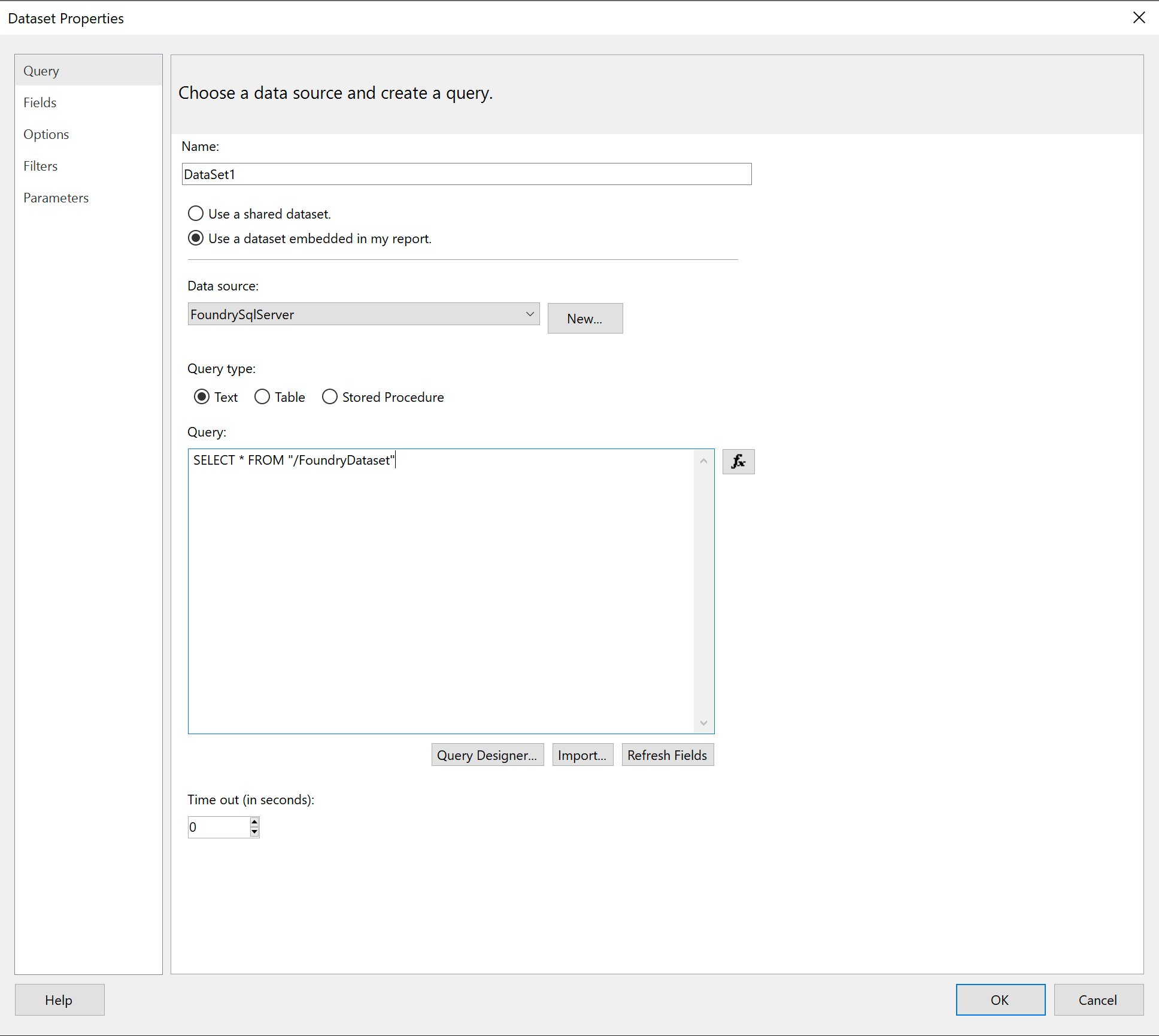
- You will be prompted enter a name for your dataset. Click the "Use a dataset embedded in my report" option, and then select FoundrySqlServer from the dropdown.
- To start working with a specific dataset, copy the dataset filepath or RID into the Query text box. You can locate these values in Foundry by navigating to the desired dataset's "About" page, clicking on "see more", and copying either the "RID" value or the "Location". (See Guides: Identifying a dataset's RID or filepath in Foundry.)
- Construct your SQL Query and proceed with building your report as usual.
中文翻译
入门指南
本指南将教您如何通过 Report Builder 进行 Foundry 身份验证、选择数据集,并开始构建您的第一份报告。
在 Report Builder 中添加 Foundry 作为数据源
- 在 Report Builder 中,点击"报告数据"窗格中的工具栏。点击"新建",然后点击"数据源"。此时将打开"数据源属性"对话框。
- 在"名称"文本框中,输入任意方便的名称,例如
FoundrySqlServer。点击"使用嵌入在我报告中的连接"选项。 - 点击"选择连接类型"下拉菜单,选择 ODBC,使您的窗口显示如下:
构建连接字符串
现在,您需要通过将以下基础连接字符串粘贴到 Report Builder 的"连接字符串"文本框中,并按照下文说明替换'
- 基础连接字符串:
DSN=FoundrySql;BaseUrl=<URL>;PWD=<Token> - URL: 将您的 Foundry 连接 URL 添加为"基础 URL"。您的 Foundry 连接 URL 是您通常用于访问 Foundry 的链接。为此,请登录 Foundry,复制 URL,删除
https://前缀以及.com之后的所有内容,然后用此路径替换''。 - Token: 按照生成令牌的说明,在 Foundry 内部生成一个私有身份验证令牌。获得令牌后,您可以将其粘贴到基础连接字符串的'
'部分。 - 您的 Foundry 数据源现在应该已连接。您可以尝试点击"测试连接"按钮。如果此时收到错误,请确保您已完成安装说明。
:::callout{theme="neutral"} 您的凭据现在应已保存在 Report Builder 中,只要凭据有效,它们就会持续工作。在令牌有效期到期之前,系统不会再次提示您输入令牌。届时,您可以按照上述说明重新生成新令牌。 :::
点击"确定",然后进入下一步。
连接到 Foundry 并查询数据集
- 再次使用左侧的"报告数据"窗格,点击"新建",然后点击"添加数据集"。
- 系统将提示您为数据集输入名称。点击"使用嵌入在我报告中的数据集"选项,然后从下拉菜单中选择 FoundrySqlServer。
- 要开始使用特定数据集,请将数据集文件路径或 RID 复制到"查询"文本框中。您可以在 Foundry 中导航到所需数据集的"关于"页面,点击"查看更多",然后复制"RID"值或"位置"来找到这些值。(请参阅指南:在 Foundry 中识别数据集的 RID 或文件路径。)
- 构建您的 SQL 查询,然后像往常一样继续构建报告。