FAQs(常见问题解答)
:::callout{theme="warning"} The following page discusses implementation of the Power BI® connector to access Foundry resources from the Power Query interface. If you are searching for information on our Microsoft Power BI® XMLA connector for data integration, refer to our data connectivity documentation. :::
General usage tips and guidance
- Is there a size limit on how much data I can transmit?
- How do I optimize usage of the connector across Import and DirectQuery modes?
- How do access controls work across Foundry and Power BI®?
- How do I use the Foundry integration with the Power BI® service?
- How do I use the Foundry integration to create Dataflows in the Power BI® service?
- How do I configure additional ODBC driver settings with the Power BI® connector?
Is there a size limit on how much data I can transmit?
Yes. Consult the documentation on execution engines for information regarding the Foundry-imposed limits on final result size when using the Spark engine, as well as how to bypass these limits by using the direct read engine.
Reference the following additional topics when working with large datasets:
- How do I optimize usage of the connector across Import and DirectQuery modes?
- Slow import or import failure due to table size?
How do I optimize usage of the connector across Import and DirectQuery modes?
The connector offers two connection mode options, which are specified when you set up a data connection.
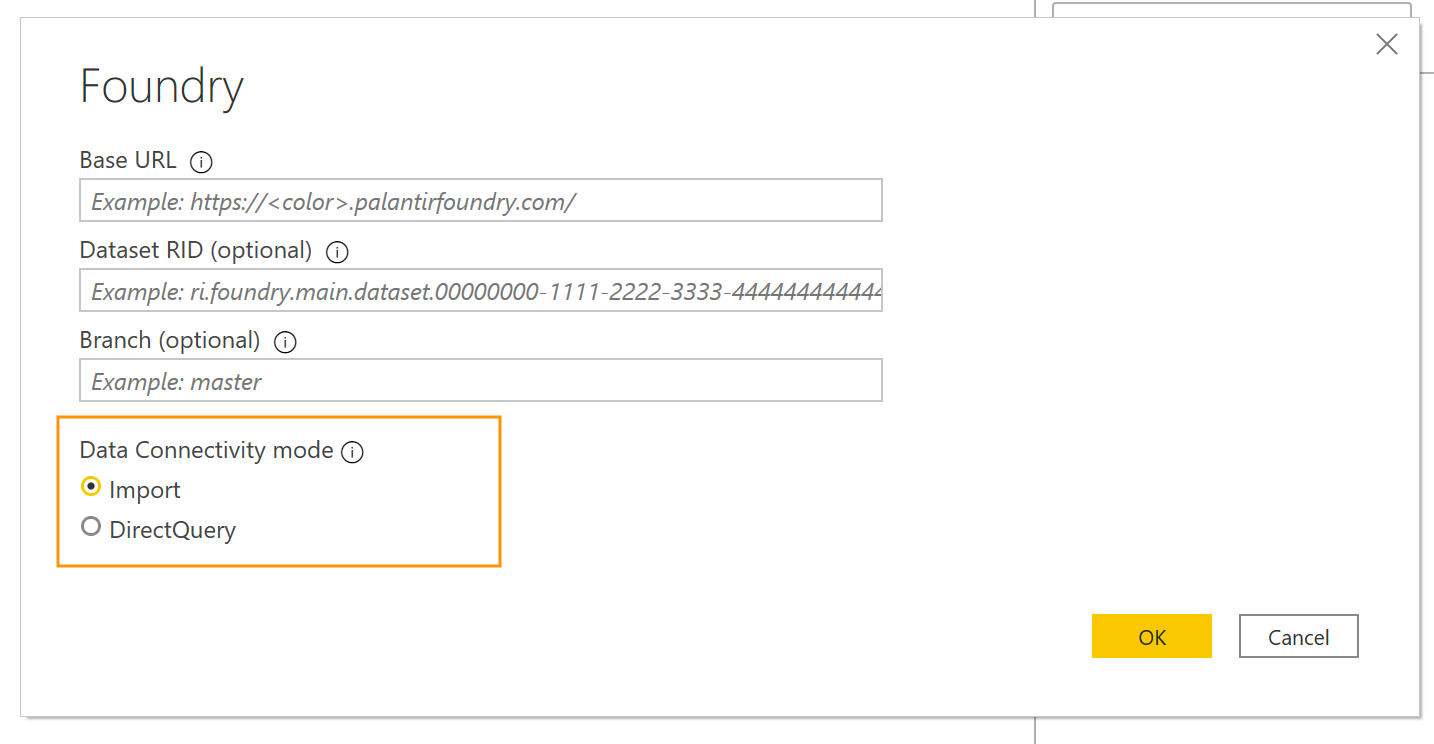
In Import mode, the selected tables and columns are imported into Power BI®. As you create or interact with a visualization, Power BI® uses the imported data. To see underlying data changes since the initial import or the most recent refresh, you must refresh the data either manually or via a scheduled refresh.
- Usage Guidance: Import mode is recommended for dashboards you want to build with fast response times and a lot of interactivity on top of small- to medium-sized Foundry datasets. Import mode is likely preferable for most circumstances unless you are working with very large data, which cannot be pre-filtered in Foundry prior to the dashboard consumption layer.
- Usage Limitations: You may not be able to import large datasets due to the size limit threshold for data transmission via the connector. See Is there a size limit on how much data I can transmit? for more details.
In DirectQuery mode, the data is not imported or copied into Power BI®. As you create or interact with a visualization, Power BI® queries Foundry as the underlying data source, so you’re always viewing current data, and you can push back data transformations and filtering into the Foundry layer.
- Usage Guidance: DirectQuery mode is recommended for simple dashboards with low interactivity that must be built on top of a very large dataset, as you can leverage Foundry’s computation engine to dynamically query and pull in results. However, the performance is slower than import mode, as you are pushing back computation to Foundry’s distributed computation engine. For this reason, we recommend keeping DirectQuery dashboards to relatively few queries.
- Usage Limitations: As with import mode, the user can only return up to the maximum result size to Power BI®. However, they can work with much larger datasets in Foundry, so long as the results returned are within the limit bounds.
Learn more about the difference between Import and DirectQuery ↗.
Broader usage recommendations
We recommend trying to work in import mode where possible. If the data is large, consider whether it is possible to reduce the size in Foundry before importing, for example by filtering unnecessary rows, dropping columns, or pre-aggregating where possible. This Foundry preprocessing can be performed via Foundry transforms or Contour and configured as an automatic build. Alternatively, you can consider breaking your table import into smaller chunks which are within the size limit threshold, e.g. by importing one dataset for each calendar year.
When working in DirectQuery mode, we recommend keeping the dashboards to relatively few queries and simple interactivity. This approach balances the power of DirectQuery to work on very large datasets on the one hand, with end user expectations around performance on the other.
Finally, consider using a composite model ↗ for a “best of both worlds” approach when working with very large data. With the composite model, a report can include both Import and DirectQuery data connections side by side. For example, you can configure an Import connection with pre-aggregated or filtered overview and key statistic data, providing fast loading times when users open the report. In the same report, you can also configure a DirectQuery connection to facilitate deeper dive on-demand analytics.
How do access controls work across Foundry and Power BI®?
Reports developed with the Foundry Power BI® integration will automatically respect the report developer’s access rights as configured in Foundry. For example, a developer building a report in Power BI® Desktop will have access only to those datasets or restricted views in Power BI® that he would normally have access to in Foundry.
Published reports, if using data refresh, will use the credentials of the configured data source on the Power BI® Gateway rather than inheriting any credentials of the consumer of the report.
For more information about managing data sources on a gateway, see Manage your data source - import/scheduled refresh in the Microsoft Power BI® documentation ↗.
How do I use the Foundry integration with the Power BI® service?
Many of Palantir’s customers use the Power BI® service ↗ to publish and distribute reports more broadly throughout their organizations.
In order to leverage the Foundry integration in these reports, use Power BI® Gateway ↗ with the Foundry connector and ODBC driver installed. When creating a connection on the gateway using the Foundry connection type, set the Authentication Method to Key and provide a token generated for a service account in Foundry. The gateway will then have connectivity to Foundry, and can be used by reports hosted in Power BI® service.
:::callout{theme="neutral"} When accessing Foundry through a Power BI® Gateway with the Foundry connector, token authentication is the only supported authentication method. OAuth authentication in the Power BI® service is not yet supported because this functionality is not available for Power BI® connectors developed by third parties. If you have a use case that requires OAuth authentication, consider adding feedback to the Power BI® Ideas ↗ site, and sharing feedback with your Palantir and Microsoft representatives. :::
The Foundry Power BI® integration functions with Power BI® Gateway in much the same way you are used to from Power BI® Desktop. Work with your Power BI® administrator to ensure that installation has been completed on the Gateway.
How do I use the Foundry integration to create Dataflows in the Power BI® service?
The Foundry Power BI® integration is compatible with Power BI® Dataflows, using the Power Query Online editor.
:::callout{theme="neutral"} Before you begin, ensure you have access to an on-premises gateway that is configured with an existing connection to Foundry. Creating a new gateway connection during the Dataflows setup process is currently not supported due to an active Power BI® service issue. :::
To create a Dataflow that pulls data from Foundry, follow these steps:
- From your Power BI® workspace, select New, then select Dataflow from the dropdown menu.
- Select Add new tables.
- On the Choose data source page, select Palantir Foundry in the list of connectors.
- On the Connect to data source page, specify a Base URL that matches a connection already configured on your on-premises data gateway. For example,
https://<subdomain>.palantirfoundry.com/. Optionally, provide a Dataset RID and Branch. - After entering the Base URL, ensure that the Connection dropdown shows the name of your on-premises gateway. If no matching gateway has appeared, check that the Base URL field matches exactly with the URL configured in your gateway connection, including any trailing slash.
- Select Next to continue.
- On the Choose data page, select the tables you require, then select Transform data.
- Proceed with using the Power Query editor to create and save your Dataflow.
"Unexpected Error" when creating a new gateway connection for Dataflows
On the Dataflows Connect to data source page you may receive the following error message when trying to create a new on-premises gateway connection:
Unexpected error (Session ID: <UUID>, Region: <REGION>)
There is an active Power BI® service issue that prevents creating the gateway connection during the Dataflows setup process. To work around this, set up a Foundry connection on your gateway before you create the Dataflow. In Power BI® service, you can manage gateway connections in Settings > Manage connections and gateways > Connections > New.
Once you have a working connection configured on your gateway, the Dataflows Connect to data source page will automatically select your gateway when you provide a matching Base URL.
How do I configure additional ODBC driver settings with the Power BI® connector?
You can configure ODBC driver options that are not displayed in the Power BI® connector interface, such as proxy settings.
When the ODBC driver is installed, it automatically creates a Windows System DSN called FoundrySql. Any additional settings configured on this DSN will be applied to the Power BI® connector (excluding the server name or authentication options which are already specified by the Power BI® connector). This DSN can be configured as normal in the Windows ODBC Data Sources Administrator application.
Authentication FAQs
- What is a token, and why do I need one for token-based authentication?
- Why is OAuth authentication not working?
- How do I switch from token-based to OAuth-based authentication?
- Unable to connect?
- Blank report after downloading from Power BI® Server?
What is a token, and why do I need one for token-based authentication?
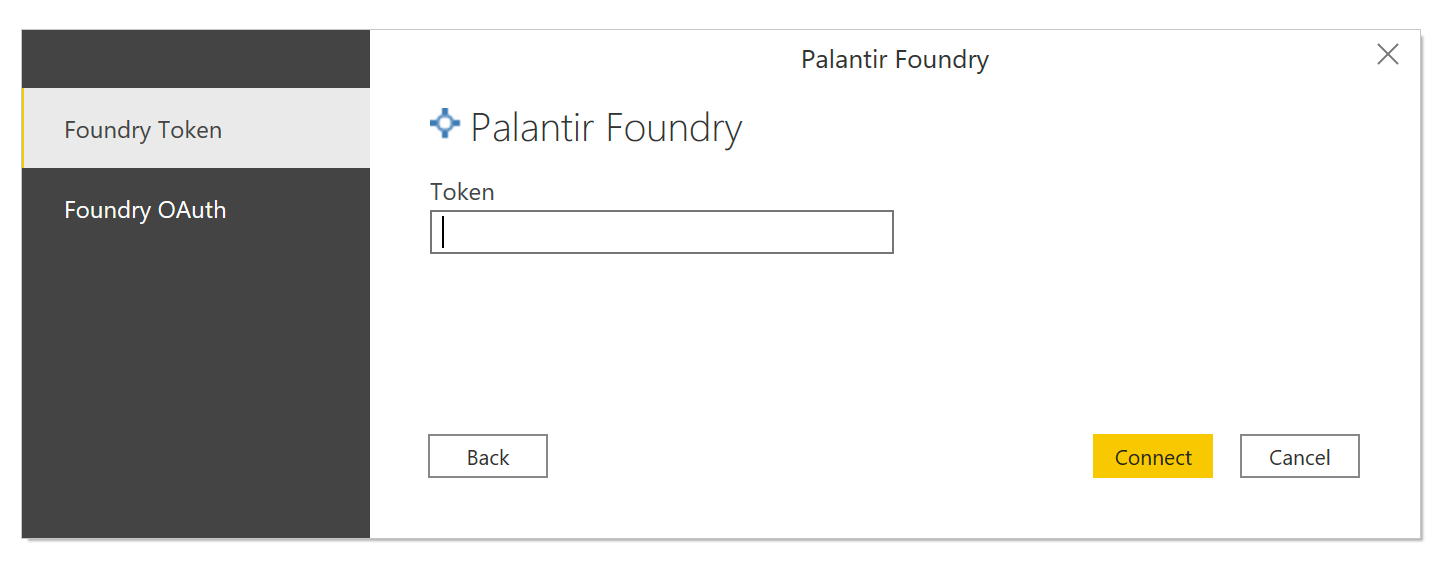
You can think of an authentication token as your own private password that authorizes Power BI® to access Foundry data on your behalf. You can manage existing tokens and create new ones under the Account → Settings → Tokens page as described in the documentation on generating tokens.
Why is OAuth authentication not working?
If you encounter an error message when trying to authenticate via OAuth, it's possible this feature has not been enabled. Your error message may look similar to the screenshot below. In order to use this feature, Power BI® must be enabled as a third-party application. The managing third-party applications security documentation details how a Foundry administrator can enable this integration.
If OAuth authentication is not yet enabled you can continue to connect via the alternative token-based authentication option.

How do I switch from token-based to OAuth-based authentication?
If you have previously authenticated from Power BI® into Foundry and now want to switch proactively to using token-based authentication, you will first need to clear your existing credentials from Power BI®.
You can do so by following the instructions under Unable to connect to clear your existing credentials and reauthenticate.
Unable to connect
If you receive an "Unable to connect" message, it is likely your authentication credentials have expired. Follow the below instructions to clear your existing credentials and configure a new data source.
- In Power BI®, navigate to "File" > "Options and Settings" > "Data Source Settings"
- On the Palantir Foundry connector, select "Clear permissions". (If you have more than one Foundry connection, clear all of them.)
- Configure a new data source and reauthenticate with Foundry. Note that if you are using token-based authentication, you will need to generate a new token.
Blank report after downloading from Power BI® Server
There might be a problem regarding your authentication credentials, or Power BI® might want to ask for your permissions to run a query. In that case, Power BI® might fail silently and display a blank report page with no option to "Apply Changes". In this case, you should click on "Edit Queries". It can give you options to proceed. If it doesn't, contact your Palantir representative and share the error message.
Dataset FAQs
- Why don’t I see my table in the table navigator?
- Slow import or import failure due to table size?
- Data refresh is no longer working for a dataset
Why don’t I see my table in the table navigator?
When selecting a dataset via “Get Data” → “Palantir Foundry”, you may notice that certain tables you have access to in Foundry are not showing up under the folder navigator. This occurs when you have access to the table but not the parent folder structure.
As long as you do have Foundry access to the table, you can still pull it into Power BI® for visualization. Use the optional dialog box on the preceding page to specify the “dataset RID”. The RID is the unique identifier for the dataset and is stable even if you move the dataset. You can locate the correct RID in Foundry by navigating to the desired dataset’s “About” page, clicking on “see more” and copying the RID value.
See more detailed instructions on finding the RID under Guides: Identifying a dataset's RID or filepath in Foundry
Slow import or import failure due to table size
In general, imports will take longer to process the larger the table is. Depending on your Power BI® subscription, “Import mode” in Power BI® may be limited to 1GB. The Palantir Foundry connector for Power BI® also sets limits on import size - see Is there a size limit on how much data I can transmit? for more details.
If your table import is failing or slow due to table size, review How do I optimize usage of the connector across Import and DirectQuery modes? for tips on using large datasets with the connector.
Data refresh is no longer working for a dataset
If you select a dataset through the table navigator in Power BI®, your data source will rely on the dataset existing at this location. If the dataset is renamed or moved in Foundry this can lead to issues with data refresh, as Power BI® will no longer be able to locate the dataset.
If you anticipate a dataset to move it is advised to configure the data source using the dataset RID. See Why don’t I see my table in the table navigator? for more detail on configuring a data source via RID.
Power BI® and the Power BI® logo are trademarks of the Microsoft group of companies.
中文翻译
常见问题解答
:::callout{theme="warning"} 以下页面讨论如何使用 Power BI® 连接器通过 Power Query 界面访问 Foundry 资源。如果您正在寻找有关用于数据集成的 Microsoft Power BI® XMLA 连接器的信息,请参阅我们的数据连接文档。 :::
一般使用技巧与指导
- 传输数据是否有大小限制?
- 如何在导入模式和 DirectQuery 模式之间优化连接器的使用?
- 访问控制如何在 Foundry 和 Power BI® 之间工作?
- 如何将 Foundry 集成与 Power BI® 服务结合使用?
- 如何使用 Foundry 集成在 Power BI® 服务中创建数据流?
- 如何通过 Power BI® 连接器配置额外的 ODBC 驱动程序设置?
传输数据是否有大小限制?
是的。请查阅关于执行引擎的文档,了解使用 Spark 引擎时 Foundry 对最终结果大小施加的限制,以及如何通过使用直接读取引擎绕过这些限制。
处理大型数据集时,请参考以下附加主题:
如何在导入模式和 DirectQuery 模式之间优化连接器的使用?
该连接器提供两种连接模式选项,在设置数据连接时指定。
在导入模式下,选定的表和列会被导入到 Power BI® 中。当您创建或与可视化交互时,Power BI® 使用已导入的数据。要查看自初始导入或最近一次刷新以来的底层数据变化,您必须手动或通过计划刷新来刷新数据。
- 使用指导:对于希望在中小型 Foundry 数据集上构建、具有快速响应时间和高度交互性的仪表板,建议使用导入模式。除非您处理的是无法在仪表板消费层之前在 Foundry 中进行预过滤的非常大的数据,否则在大多数情况下导入模式可能是更优选择。
- 使用限制:由于通过连接器传输数据的大小限制阈值,您可能无法导入大型数据集。详情请参阅传输数据是否有大小限制?。
在 DirectQuery 模式下,数据不会被导入或复制到 Power BI® 中。当您创建或与可视化交互时,Power BI® 将 Foundry 作为底层数据源进行查询,因此您始终查看的是当前数据,并且可以将数据转换和过滤操作推回到 Foundry 层。
- 使用指导:对于必须基于非常大的数据集构建、交互性较低的简单仪表板,建议使用 DirectQuery 模式,因为您可以利用 Foundry 的计算引擎动态查询并拉取结果。然而,由于计算被推回到 Foundry 的分布式计算引擎,其性能比导入模式慢。因此,我们建议将 DirectQuery 仪表板的查询数量保持在相对较少的水平。
- 使用限制:与导入模式一样,用户只能将最大结果大小返回给 Power BI®。但是,只要返回的结果在限制范围内,他们可以在 Foundry 中处理更大的数据集。
了解更多关于导入模式和 DirectQuery 模式的区别 ↗。
更广泛的使用建议
我们建议尽可能尝试使用导入模式。如果数据量很大,请考虑是否可以在导入之前在 Foundry 中减小数据大小,例如通过过滤不必要的行、删除列或在可能的情况下进行预聚合。这种 Foundry 预处理可以通过 Foundry 转换或 Contour 执行,并配置为自动构建。或者,您可以考虑将表导入拆分为在大小限制阈值内的较小块,例如按每个日历年导入一个数据集。
在 DirectQuery 模式下工作时,我们建议将仪表板保持在相对较少的查询数量和简单的交互性。这种方法平衡了 DirectQuery 处理非常大数据集的能力与最终用户对性能的期望。
最后,在处理非常大的数据时,考虑使用复合模型 ↗来实现"两全其美"的方法。使用复合模型,一个报告可以同时包含导入和 DirectQuery 数据连接。例如,您可以配置一个包含预聚合或过滤后的概览和关键统计数据的导入连接,在用户打开报告时提供快速加载时间。在同一报告中,您还可以配置一个 DirectQuery 连接,以促进按需深入分析。
访问控制如何在 Foundry 和 Power BI® 之间工作?
使用 Foundry Power BI® 集成开发的报告将自动尊重报告开发者在 Foundry 中配置的访问权限。例如,在 Power BI® Desktop 中构建报告的开发者在 Power BI® 中只能访问其在 Foundry 中通常有权访问的数据集或受限视图。
已发布的报告,如果使用数据刷新,将使用 Power BI® 网关上配置的数据源凭据,而不是继承报告消费者的任何凭据。
有关管理网关上数据源的更多信息,请参阅 在 Microsoft Power BI® 文档中管理您的数据源 - 导入/计划刷新 ↗。
如何将 Foundry 集成与 Power BI® 服务结合使用?
许多 Palantir 客户使用Power BI® 服务 ↗在其组织内更广泛地发布和分发报告。
为了在这些报告中利用 Foundry 集成,请使用安装了 Foundry 连接器和 ODBC 驱动程序的Power BI® 网关 ↗。在网关上使用 Foundry 连接类型创建连接时,将身份验证方法设置为密钥,并提供为 Foundry 中的服务账户生成的令牌。然后,网关将能够连接到 Foundry,并可供 Power BI® 服务托管的报告使用。
:::callout{theme="neutral"} 当通过带有 Foundry 连接器的 Power BI® 网关访问 Foundry 时,令牌身份验证是唯一支持的身份验证方法。Power BI® 服务中尚不支持 OAuth 身份验证,因为此功能不适用于第三方开发的 Power BI® 连接器。如果您有需要 OAuth 身份验证的用例,请考虑向 Power BI® 创意 ↗ 网站添加反馈,并与您的 Palantir 和 Microsoft 代表分享反馈。 :::
Foundry Power BI® 集成在 Power BI® 网关上的工作方式与您在 Power BI® Desktop 中习惯的方式大致相同。请与您的 Power BI® 管理员合作,确保已在网关上完成安装。
如何使用 Foundry 集成在 Power BI® 服务中创建数据流?
Foundry Power BI® 集成与 Power BI® 数据流兼容,使用 Power Query Online 编辑器。
:::callout{theme="neutral"} 在开始之前,请确保您可以访问一个已配置了与 Foundry 现有连接的本地网关。由于 Power BI® 服务的一个活跃问题,目前在数据流设置过程中创建新的网关连接不受支持。 :::
要创建从 Foundry 拉取数据的数据流,请按照以下步骤操作:
- 从您的 Power BI® 工作区,选择新建,然后从下拉菜单中选择数据流。
- 选择添加新表。
- 在选择数据源页面上,从连接器列表中选择 Palantir Foundry。
- 在连接到数据源页面上,指定一个与您本地数据网关上已配置的连接相匹配的基础 URL。例如,
https://<子域名>.palantirfoundry.com/。可选地,提供数据集 RID 和分支。 - 输入基础 URL 后,确保连接下拉菜单显示您的本地网关名称。如果没有出现匹配的网关,请检查基础 URL 字段是否与网关连接中配置的 URL 完全匹配,包括任何尾部斜杠。
- 选择下一步继续。
- 在选择数据页面上,选择您需要的表,然后选择转换数据。
- 继续使用 Power Query 编辑器创建并保存您的数据流。
为数据流创建新的网关连接时出现"意外错误"
在数据流的连接到数据源页面上,尝试创建新的本地网关连接时,您可能会收到以下错误消息:
意外错误(会话 ID:<UUID>,区域:<REGION>)
存在一个活跃的 Power BI® 服务问题,阻止在数据流设置过程中创建网关连接。要解决此问题,请在创建数据流之前在您的网关上设置一个 Foundry 连接。在 Power BI® 服务中,您可以在设置 > 管理连接和网关 > 连接 > 新建中管理网关连接。
一旦您在网关上配置了一个可用的连接,当您提供匹配的基础 URL 时,数据流的连接到数据源页面将自动选择您的网关。
如何通过 Power BI® 连接器配置额外的 ODBC 驱动程序设置?
您可以配置 Power BI® 连接器界面中未显示的 ODBC 驱动程序选项,例如代理设置。
安装 ODBC 驱动程序时,它会自动创建一个名为 FoundrySql 的 Windows 系统 DSN。在此 DSN 上配置的任何其他设置都将应用于 Power BI® 连接器(不包括已由 Power BI® 连接器指定的服务器名称或身份验证选项)。此 DSN 可以像往常一样在 Windows ODBC 数据源管理器应用程序中进行配置。
身份验证常见问题解答
- 什么是令牌,为什么我需要它进行基于令牌的身份验证?
- 为什么 OAuth 身份验证不起作用?
- 如何从基于令牌的身份验证切换到基于 OAuth 的身份验证?
- 无法连接?
- 从 Power BI® 服务器下载后报告为空白?
什么是令牌,为什么我需要它进行基于令牌的身份验证?
您可以将身份验证令牌视为您自己的私人密码,授权 Power BI® 代表您访问 Foundry 数据。您可以按照生成令牌的文档中的说明,在账户 → 设置 → 令牌页面管理现有令牌并创建新令牌。
为什么 OAuth 身份验证不起作用?
如果您在尝试通过 OAuth 进行身份验证时遇到错误消息,可能是此功能尚未启用。您的错误消息可能类似于下面的截图。要使用此功能,必须将 Power BI® 启用为第三方应用程序。管理第三方应用程序的安全文档详细说明了 Foundry 管理员如何启用此集成。
如果 OAuth 身份验证尚未启用,您可以继续通过替代的基于令牌的身份验证选项进行连接。
如何从基于令牌的身份验证切换到基于 OAuth 的身份验证?
如果您之前已从 Power BI® 通过身份验证进入 Foundry,现在想要主动切换到使用基于令牌的身份验证,您首先需要清除 Power BI® 中的现有凭据。
您可以按照无法连接下的说明清除现有凭据并重新进行身份验证。
无法连接
如果您收到"无法连接"消息,很可能是您的身份验证凭据已过期。请按照以下说明清除现有凭据并配置新的数据源。
- 在 Power BI® 中,导航到"文件" > "选项和设置" > "数据源设置"
- 在 Palantir Foundry 连接器上,选择"清除权限"。(如果您有多个 Foundry 连接,请清除所有连接。)
- 配置新的数据源并重新通过 Foundry 进行身份验证。请注意,如果您使用基于令牌的身份验证,则需要生成一个新令牌。
从 Power BI® 服务器下载后报告为空白
可能存在与您的身份验证凭据相关的问题,或者 Power BI® 可能想要请求您的权限来运行查询。在这种情况下,Power BI® 可能会静默失败并显示空白报告页面,且没有"应用更改"的选项。在这种情况下,您应该点击"编辑查询"。它可能会为您提供继续操作的选项。如果没有,请联系您的 Palantir 代表并分享错误消息。
数据集常见问题解答
为什么在表导航器中看不到我的表?
通过"获取数据" → "Palantir Foundry"选择数据集时,您可能会注意到您在 Foundry 中有权访问的某些表没有显示在文件夹导航器中。当您有权访问该表但无权访问父文件夹结构时,会发生这种情况。
只要您确实拥有对该表的 Foundry 访问权限,您仍然可以将其拉入 Power BI® 进行可视化。使用前一页面上的可选对话框指定"数据集 RID"。RID 是数据集的唯一标识符,即使您移动数据集,它也是稳定的。您可以在 Foundry 中通过导航到所需数据集的"关于"页面,点击"查看更多"并复制 RID 值来找到正确的 RID。
有关查找 RID 的更详细说明,请参阅指南:在 Foundry 中识别数据集的 RID 或文件路径
因表大小导致导入缓慢或导入失败
一般来说,表越大,导入处理所需的时间就越长。根据您的 Power BI® 订阅,"导入模式"可能限制为 1GB。用于 Power BI® 的 Palantir Foundry 连接器也对导入大小设置了限制 - 详情请参阅传输数据是否有大小限制?。
如果您的表导入因表大小而失败或缓慢,请查看如何在导入模式和 DirectQuery 模式之间优化连接器的使用?以获取有关使用连接器处理大型数据集的技巧。
数据集的数据刷新不再工作
如果您通过 Power BI® 中的表导航器选择了一个数据集,您的数据源将依赖于该数据集存在于该位置。如果数据集在 Foundry 中被重命名或移动,可能会导致数据刷新问题,因为 Power BI® 将无法再定位该数据集。
如果您预计数据集会移动,建议使用数据集 RID 配置数据源。有关通过 RID 配置数据源的更多详细信息,请参阅为什么在表导航器中看不到我的表?。
Power BI® 和 Power BI® 徽标是微软公司集团的商标。