Getting started(入门指南)
:::callout{theme="warning"} The following page discusses implementation of the Power BI® connector to access Foundry resources from the Power Query interface. If you are searching for information on our Microsoft Power BI® XMLA connector for data integration, refer to our data connectivity documentation. :::
This guide will teach you how to authenticate with Foundry via Power BI®, select a dataset, and get started building your first report.
Select Foundry as your data source in Power BI®
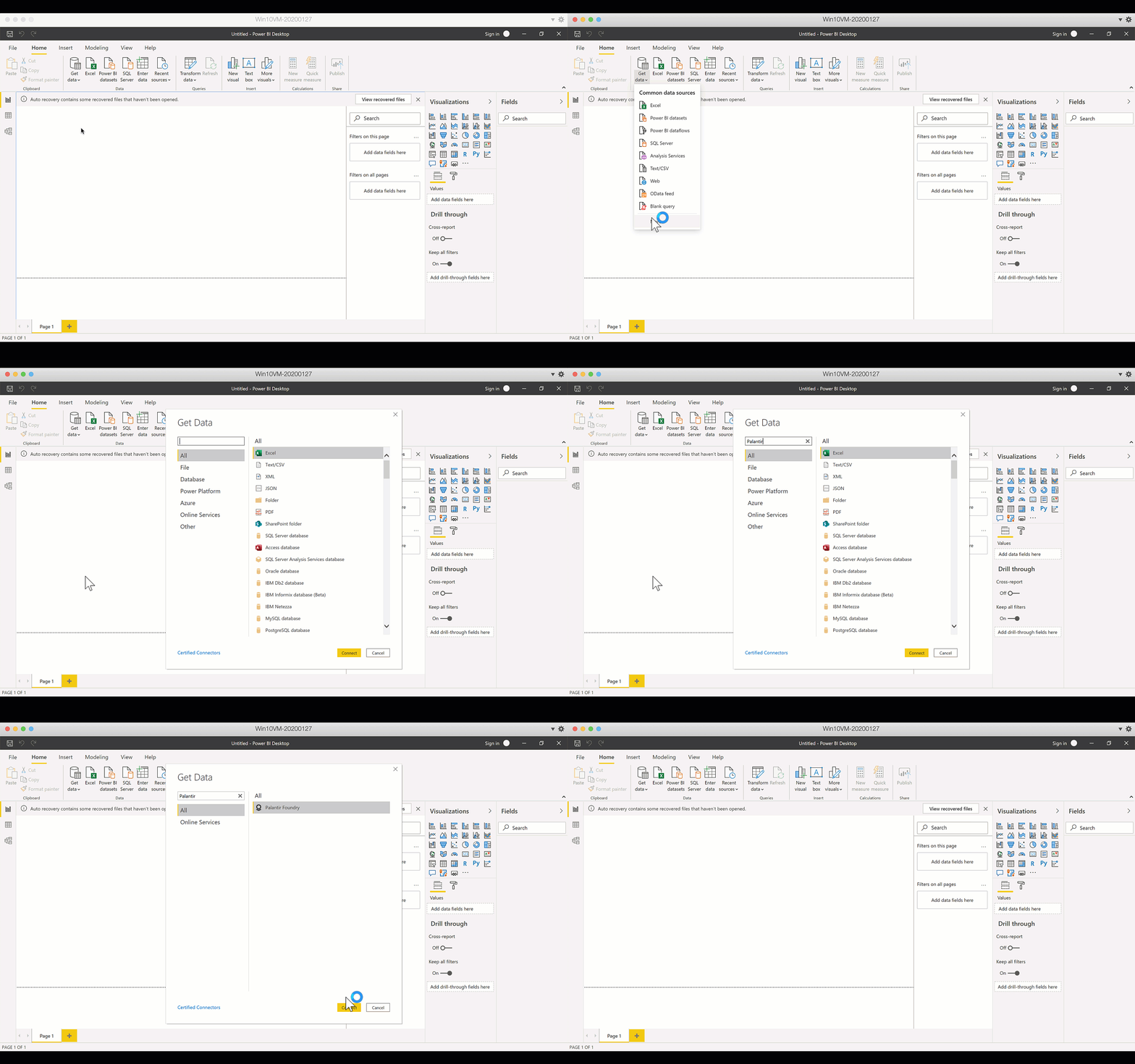
- From Power BI®, click on "Get data" in the ribbon and select "More".
- Search for "Palantir Foundry" in the data sources list, or select it under Online Services.
- If you encounter an error at this point, ensure you've completed the installation instructions.
Configure your connection settings
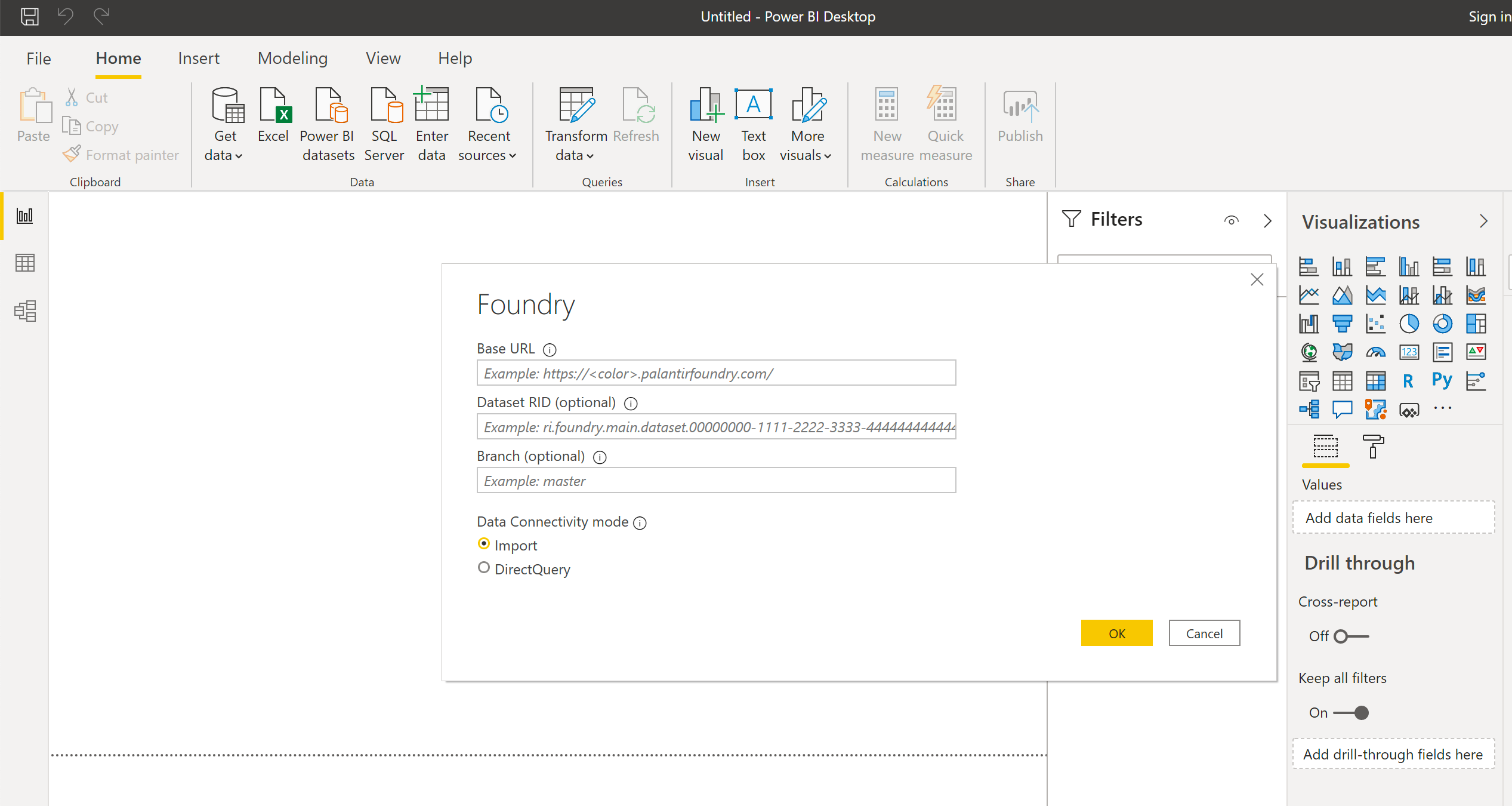
You'll now be prompted for some details about your Foundry connection:
- Base URL: Enter your Foundry connection URL under "Base URL". Your Foundry connection URL is the link you normally use to access Foundry. You should be able to copy-paste this path by right clicking and copying the link address: Base URL. (Note if you load this URL in your browser it may redirect to another page. If this happens, simply delete anything after ".com" in the address, and you will have the base URL again.)
- (Optional) Dataset RID & Branch: If you already know the dataset RID or branch of the dataset you wish to access, you can enter this information here. (See Guides: Identifying a dataset's RID or filepath in Foundry.) Otherwise, leave these fields blank. There will be a dataset browser in a subsequent step where you can select your data.
- Data Connectivity Mode: Select whether you would like to use the "Import" or "DirectQuery" mode.
Click "OK" and proceed to the next step.
Authenticate with Foundry
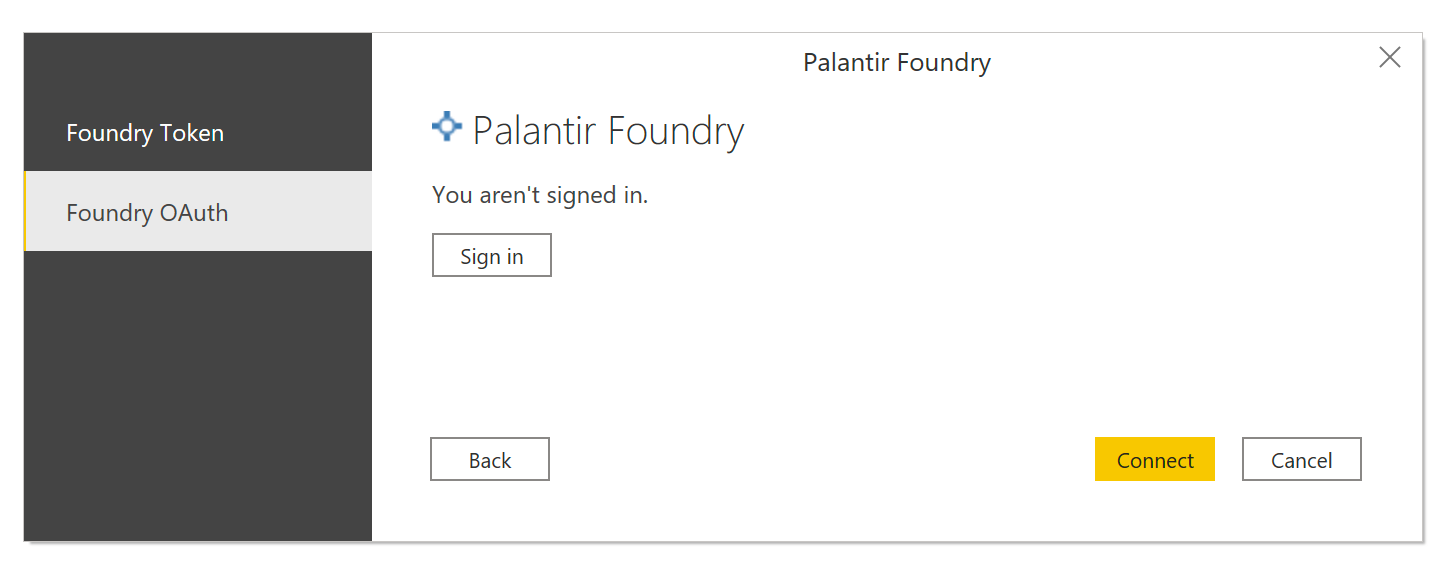
There are three options for authenticating with Foundry: Foundry OAuth, Foundry Token, and Foundry Client Credentials. OAuth is the recommended and simplest authentication method for Power BI® Desktop. Client credentials are recommended for administrators to use when configuring authentication on Power BI® Service.
You can select which method to use from the left side of the Power BI® authentication dialog. Instructions for using these authentication options are described below.
Foundry OAuth authentication (recommended for Power BI® Desktop)
OAuth is the recommended method for authorizing Power BI® Desktop to connect to Foundry. If using OAuth authentication, select Sign in from the Power BI® OAuth dialog. This will then open a new window with your Foundry login screen.
If this is your first time using Power BI® with Foundry, you will be prompted to approve Power BI®'s access to your Foundry account. Click to "allow" Power BI®'s request for access, and then sign in to Foundry as normal.
If you receive an error page logging in via OAuth, it is likely your organization has not yet enabled the OAuth login capability for Power BI®. In this case, contact your Foundry administrator to enable Power BI® as a third-party application. You can also use the alternative token-based authentication option described below in the meantime.
Foundry Token Authentication
If using token-based authentication, follow the instructions on Generating a Token to generate a private authentication token inside Foundry. Once you have the token, you can paste it into the Power BI® prompt.
:::callout{theme="neutral"} Your credentials should now be saved in Power BI® and will continue to work as long as they are valid. You won't be prompted for a token again until your token validity has expired. At this point you can follow the above instructions again to generate a new token. :::
Foundry third-party application client credentials (recommended for Foundry administrators in Power BI® Service)
Third-party application client credentials are the recommended method for Foundry administrators to authorize reports published to Power BI® Service. This type of credential has no expiration.
First, you must configure a third-party application within Foundry. Follow the instructions to configure the application. Choose the confidential client option and ensure the client credentials grant is enabled. Do not enable the Ontology SDK.
Then, grant the appropriate permissions to the service user of the third-party application. Data access within Power BI® will reflect the service user's level of access.
Finally, within Power BI®, choose the Foundry Client Credentials authentication option and enter the client ID and secret from your third-party application.
Connect to Foundry and select your dataset
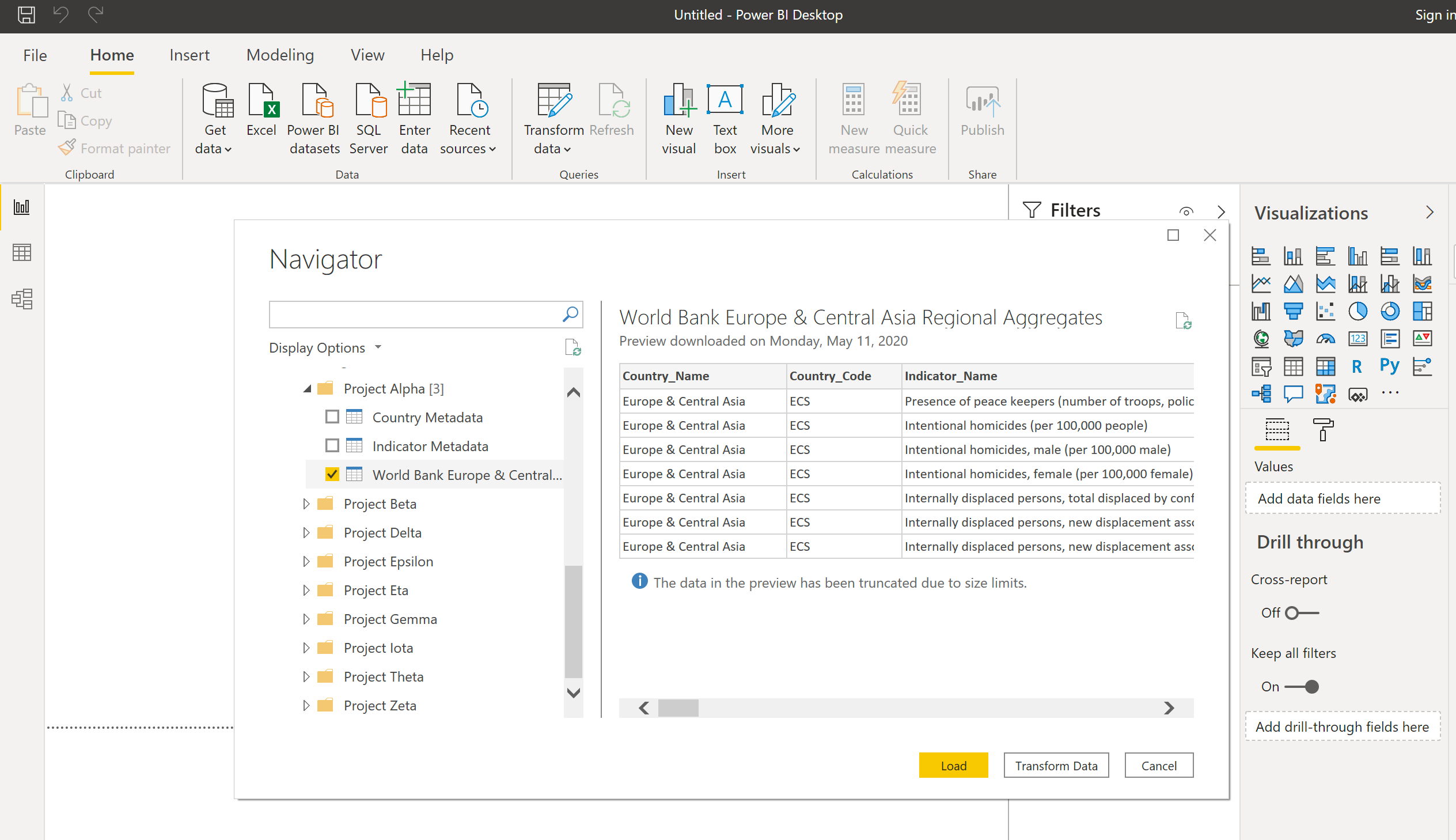
- Use the navigator on the left hand side to select the dataset(s) you'll need for your report.
- Once you've made your selection, choose either "Load" or "Transform Data" and proceed with building your report as usual.
Power BI® and the Power BI® logo are trademarks of the Microsoft group of companies.
中文翻译
入门指南
:::callout{theme="warning"} 以下页面讨论如何实现 Power BI® 连接器,以便从 Power Query 界面访问 Foundry 资源。如果您正在寻找关于 Microsoft Power BI® XMLA 数据集成连接器的信息,请参阅我们的数据连接文档。 :::
本指南将教您如何通过 Power BI® 对 Foundry 进行身份验证、选择数据集,并开始构建您的第一个报告。
在 Power BI® 中选择 Foundry 作为数据源
- 在 Power BI® 中,点击功能区中的"获取数据(Get data)",然后选择"更多(More)"。
- 在数据源列表中搜索"Palantir Foundry",或在"在线服务(Online Services)"下选择它。
- 如果此时遇到错误,请确保您已完成安装说明中的步骤。
配置连接设置
接下来,系统会提示您输入有关 Foundry 连接的一些详细信息:
- 基础 URL(Base URL): 在"基础 URL(Base URL)"下输入您的 Foundry 连接 URL。您的 Foundry 连接 URL 是您通常用于访问 Foundry 的链接。您可以通过右键单击并复制链接地址来粘贴此路径:基础 URL(Base URL)。(注意:如果您在浏览器中加载此 URL,它可能会重定向到另一个页面。如果发生这种情况,只需删除地址中".com"之后的所有内容,您将再次获得基础 URL。)
- (可选)数据集 RID 和分支(Dataset RID & Branch): 如果您已经知道要访问的数据集的数据集 RID 或分支,可以在此处输入这些信息。(请参阅指南:在 Foundry 中识别数据集的 RID 或文件路径。)否则,请将这些字段留空。后续步骤中会有一个数据集浏览器供您选择数据。
- 数据连接模式(Data Connectivity Mode): 选择您希望使用"导入(Import)"模式还是"DirectQuery"模式。
点击"确定(OK)"并进入下一步。
对 Foundry 进行身份验证
有三种对 Foundry 进行身份验证的选项:Foundry OAuth、Foundry 令牌(Foundry Token) 和 Foundry 客户端凭据(Foundry Client Credentials)。OAuth 是 Power BI® Desktop 推荐且最简单的身份验证方法。客户端凭据(Client Credentials)推荐给管理员在 Power BI® Service 上配置身份验证时使用。
您可以从 Power BI® 身份验证对话框的左侧选择要使用的方法。以下描述了使用这些身份验证选项的说明。
Foundry OAuth 身份验证(推荐用于 Power BI® Desktop)
OAuth 是授权 Power BI® Desktop 连接到 Foundry 的推荐方法。如果使用 OAuth 身份验证,请从 Power BI® OAuth 对话框中选择登录(Sign in)。这将打开一个新窗口,显示您的 Foundry 登录界面。
如果这是您第一次将 Power BI® 与 Foundry 一起使用,系统将提示您批准 Power BI® 访问您的 Foundry 账户。点击"允许(allow)" Power BI® 的访问请求,然后正常登录 Foundry。
如果您在通过 OAuth 登录时收到错误页面,很可能是您的组织尚未为 Power BI® 启用 OAuth 登录功能。在这种情况下,请联系您的 Foundry 管理员以将 Power BI® 启用为第三方应用程序。您也可以暂时使用下面描述的基于令牌的替代身份验证选项。
Foundry 令牌身份验证(Foundry Token Authentication)
如果使用基于令牌的身份验证,请按照生成令牌(Generating a Token)中的说明在 Foundry 内部生成一个私有身份验证令牌。获得令牌后,您可以将其粘贴到 Power BI® 的提示框中。
:::callout{theme="neutral"} 您的凭据现在应已保存在 Power BI® 中,只要它们有效,就会继续工作。在令牌有效期到期之前,系统不会再次提示您输入令牌。届时,您可以按照上述说明再次生成新令牌。 :::
Foundry 第三方应用程序客户端凭据(推荐用于 Power BI® Service 中的 Foundry 管理员)
第三方应用程序客户端凭据(Third-party application client credentials)是 Foundry 管理员授权发布到 Power BI® Service 的报告的推荐方法。此类凭据没有过期时间。
首先,您必须在 Foundry 中配置一个第三方应用程序。请按照说明配置该应用程序。选择机密客户端(confidential client)选项,并确保启用了客户端凭据授权(client credentials grant)。不要启用本体论 SDK(Ontology SDK)。
然后,为第三方应用程序的服务用户授予适当的权限。Power BI® 中的数据访问将反映服务用户的访问级别。
最后,在 Power BI® 中,选择 Foundry 客户端凭据(Foundry Client Credentials)身份验证选项,并输入第三方应用程序中的客户端 ID(Client ID)和客户端密钥(Client Secret)。
连接到 Foundry 并选择数据集
- 使用左侧的导航器选择报告所需的数据集。
- 完成选择后,选择"加载(Load)"或"转换数据(Transform Data)",然后像往常一样继续构建报告。
Power BI® 和 Power BI® 徽标是 Microsoft 公司集团的商标。