Create a path(创建路径)
In Contour, there are two types of datasets you can use to begin a new analysis path:
Starting an analysis from datasets in Foundry
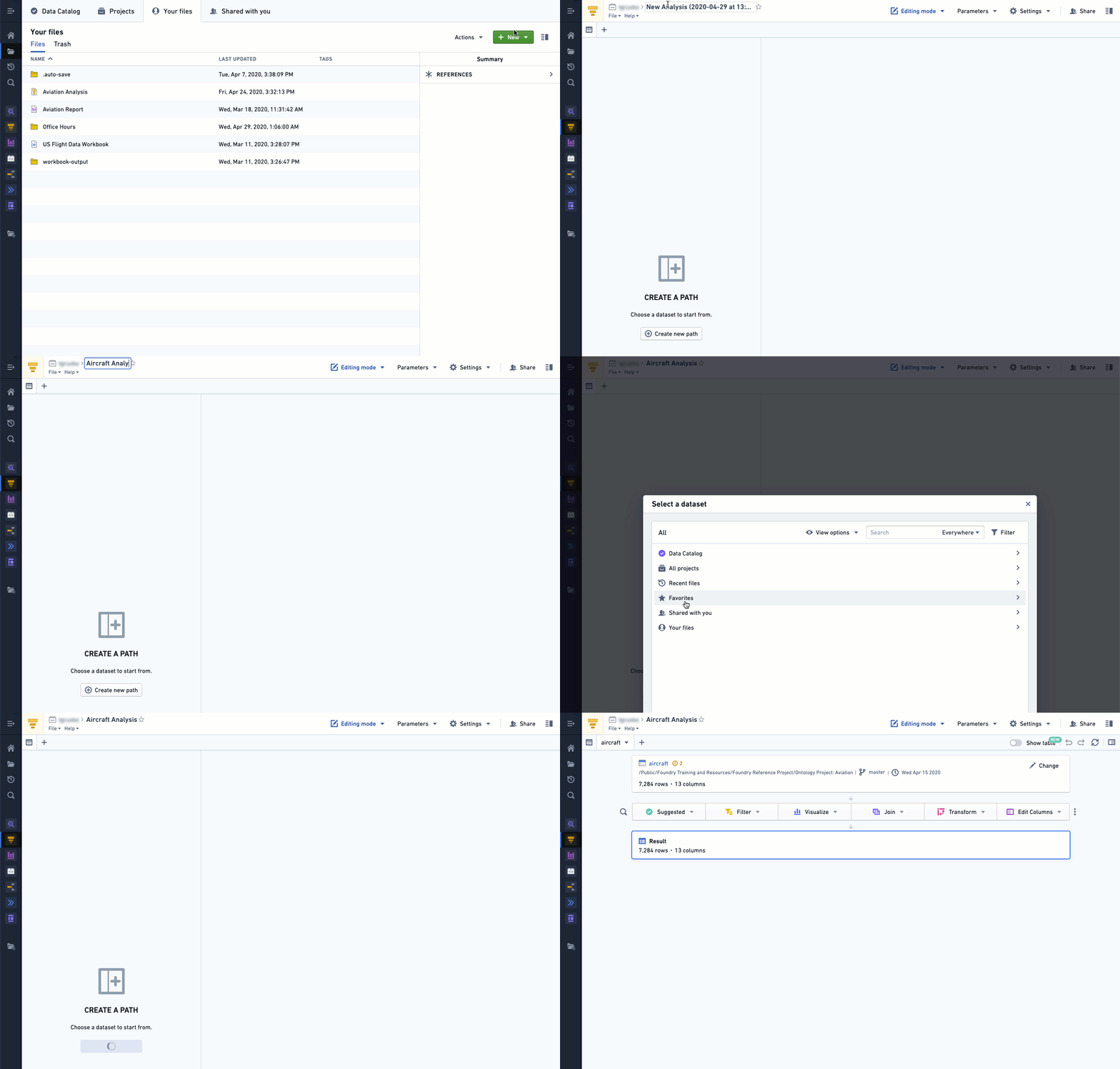
In Foundry, every user has their own folder called Your Files. This is a folder where users can prototype with data and share their results with other users. Once inside the folder, users can create their first analysis:
- Navigate to the Project & Files module.
- Navigate to Your Files.
- Create a new analysis by selecting the green +New action menu and choosing Analysis in the dropdown menu.
- Select +Create a new path after your new analysis is generated.
- Select the dataset that you would like to analyze in the corresponding folder.
Using resulting datasets to begin a new path
A single analysis can contain multiple paths, and it is often valuable to use the results from one path in an analysis as the starting place for a new path. We recommend performing all of the filtering on the dataset in the first path. This allows you to make use of the resulting dataset in other paths to generate visualizations and further transform the dataset of interest. We also recommended consolidating the usage of parameters in your Contour analysis to this primary filtering path.
At the bottom of every path is a resulting dataset, which reflects all the transformations carried out using the boards in the path. You can use the resulting dataset as the starting dataset for a new path in the same Analysis without needing to save the resulting dataset.
:::callout{theme="neutral" title="Note on Resulting Datasets"} Saving the resulting dataset will make it available for use with other Contour analyses as well as other tools on the platform. Saving the resulting dataset is not necessary if you are continuing your analysis in another path of the same Contour analysis. :::
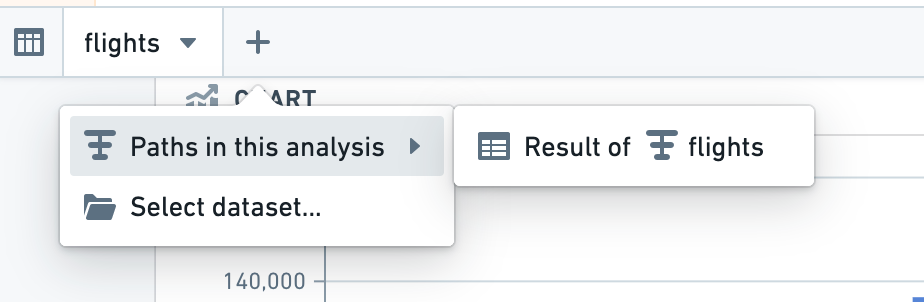
You can add a new path based on a resulting dataset by selecting the + symbol as shown in the screenshot below, or by selecting the  new path icon from within an existing path.
Next, read about adding a board to your Path.
中文翻译
创建路径
在 Contour 中,您可以使用两种数据集来开始新的分析路径:
从 Foundry 中的数据集开始分析
在 Foundry 中,每位用户都有一个名为 Your Files(您的文件)的专属文件夹。用户可以在该文件夹中利用数据进行原型设计,并将结果分享给其他用户。进入文件夹后,用户可以创建第一个分析:
- 导航至 Project & Files(项目与文件)模块。
- 进入 Your Files(您的文件)。
- 点击绿色的 +New(新建)操作菜单,在下拉菜单中选择 Analysis(分析),创建新的分析。
- 新分析生成后,选择 +Create a new path(+创建新路径)。
- 在相应文件夹中选择您要分析的数据集。
使用结果数据集开始新路径
单个分析可以包含多个路径,而将分析中某路径的结果作为新路径的起点通常很有价值。我们建议在第一个路径中对数据集执行所有过滤操作。这样,您就可以在其他路径中使用结果数据集来生成可视化图表,并进一步转换目标数据集。同时,我们也建议将 Contour 分析中的参数使用整合到这一主要过滤路径中。
每个路径的底部都有一个结果数据集,它反映了该路径中所有通过面板执行的转换操作。您可以将该结果数据集作为同一分析中新路径的起始数据集,而无需保存该结果数据集。
:::callout{theme="neutral" title="关于结果数据集的说明"} 保存结果数据集后,它将可用于其他 Contour 分析以及平台上的其他工具。如果您在同一 Contour 分析的另一个路径中继续分析,则无需保存结果数据集。 :::
您可以通过选择 + 符号(如下方截图所示),或从现有路径中选择 新路径图标,基于结果数据集添加新路径。
接下来,请阅读向路径添加面板。