Share and collaborate on an analysis(分享与协作分析)
Sharing a Contour analysis
You can share a Contour analysis directly with other users. If you make changes to an analysis after sharing, the shared analysis will update automatically so that other users will always see the current version.
Sharing a resource with another user requires them having access to the Project you are working in and to the datasets you are working with. Click on the Share button to either send a sharing URL or add a user directly to the resource and notify them. It is also possible to collaborate on an analysis with another user. If you'd like another user to be able to edit your resource, select Editor when generating a sharing URL.
If the user receives a Permission Denied error, they will need to request access. Once that user's access to the Project has been approved, they will be able to see the analysis you shared with them over email.
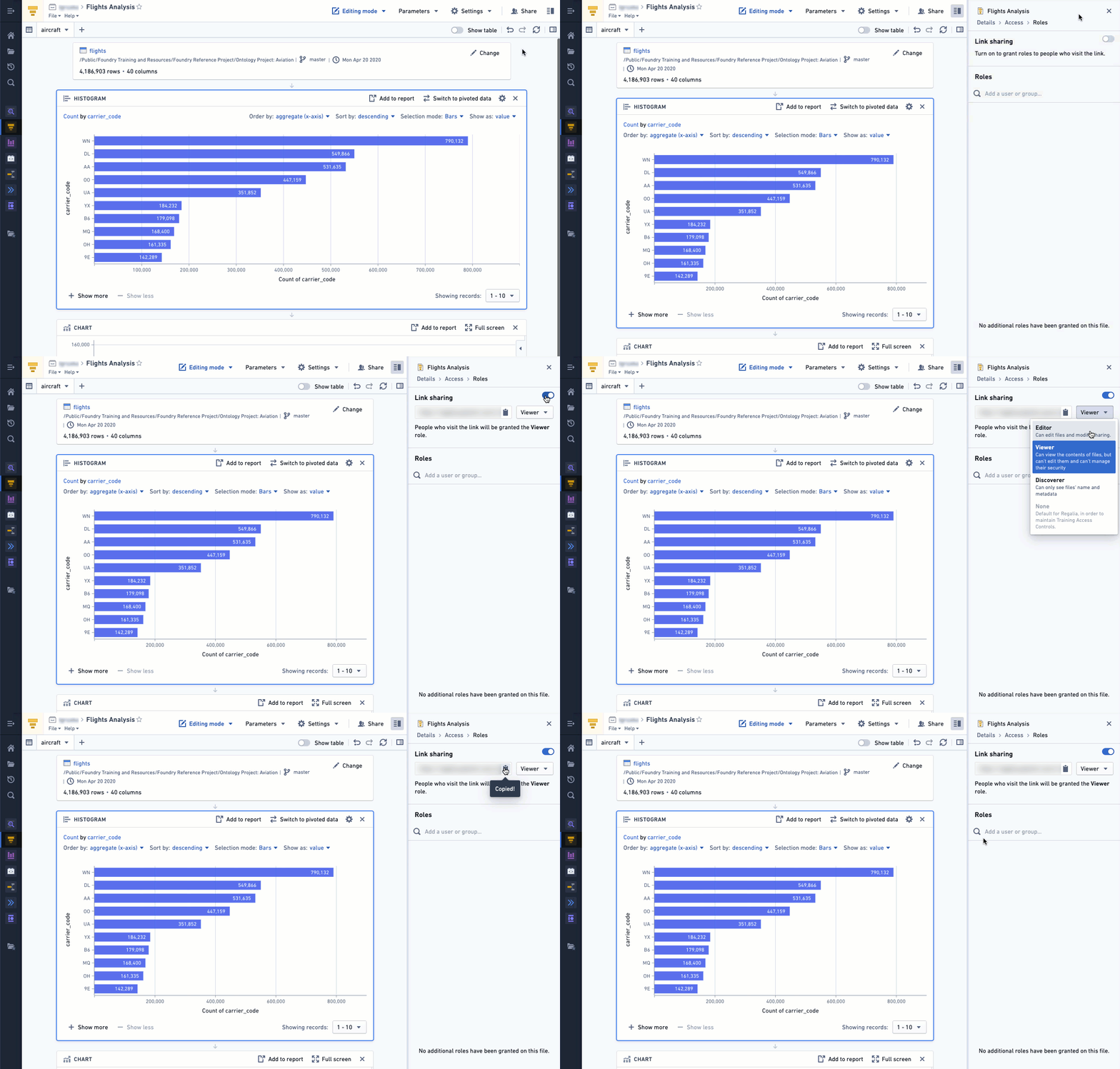
:::callout{theme="success"} If you are joining additional datasets to enrich your Contour analysis, other users will need to have permissions on these joined datasets in order to view the full analysis. :::
Collaborate on a Contour Analysis
When sharing a Contour analysis with another user, you can allow that user to be able to edit your resource by selecting Editor at the time of sharing. This will allow the user to make changes to your analysis, including (but not limited to):
- Adding/Removing/Editing boards
- Adding/Removing/Editing parameters
- Deleting paths
- Changing analysis settings
To prevent concurrent edits to the analysis, Contour uses a locking system that allows only one user in one browser window to use Editing mode on an analysis at a given time. If attempting to open an analysis in Editing mode while another user is already editing that analysis, the view mode selector will change appearance:

The popover will list the user that is currently editing the analysis. You will be unable to access Editing mode until that user finishes editing, either by switching to Viewing mode, or by closing the Contour analysis. Afterwards, you will be able to access editing mode; you will also see a notification at the top of the Contour analysis:

After selecting Reload Analysis, Contour will reload your analysis (to load any changes that may have been made) and attempt to access editing mode again.
Additionally, if you are in editing mode and another user is waiting for the lock, you will be automatically switched to viewing mode after fifteen minutes of inactivity.
:::callout{theme="neutral"} If you have an analysis open in multiple browser tabs, you will only be able to use Editing mode in one of those tabs. All other tabs that attempt to access Editing mode will be placed into "Document is locked" mode. :::
中文翻译
分享与协作分析
分享 Contour 分析
您可以直接与其他用户分享 Contour 分析。如果您在分享后对分析进行了更改,已分享的分析将自动更新,以便其他用户始终看到当前版本。
与其他用户分享资源需要他们拥有您正在使用的项目(Project)以及您正在处理的数据集(dataset)的访问权限。点击分享(Share)按钮,可以发送分享链接或直接将用户添加到资源中并通知他们。您还可以与其他用户协作分析。如果您希望其他用户能够编辑您的资源,请在生成分享链接时选择编辑者(Editor)。
如果用户收到权限被拒绝(Permission Denied)错误,他们需要申请访问权限。一旦该用户对项目的访问获得批准,他们将能够通过电子邮件看到您与他们分享的分析。
:::callout{theme="success"} 如果您正在加入其他数据集来丰富您的 Contour 分析,其他用户需要对这些加入的数据集拥有权限才能查看完整的分析。 :::
协作进行 Contour 分析
在与其他用户分享 Contour 分析时,您可以通过在分享时选择编辑者(Editor)来允许该用户编辑您的资源。这将允许用户对您的分析进行更改,包括(但不限于):
- 添加/删除/编辑面板(board)
- 添加/删除/编辑参数(parameter)
- 删除路径(path)
- 更改分析设置
为防止对分析进行并发编辑,Contour 使用锁定系统,该系统允许在任意给定时间只有一个用户在一个浏览器窗口中使用编辑模式(Editing mode)对分析进行操作。如果尝试在另一个用户正在编辑该分析时以编辑模式打开该分析,视图模式选择器将改变外观:
弹出窗口将列出当前正在编辑该分析的用户。在该用户完成编辑之前,您将无法访问编辑模式——该用户可以通过切换到查看模式(Viewing mode)或关闭 Contour 分析来结束编辑。之后,您将能够访问编辑模式;您还会在 Contour 分析顶部看到一条通知:
选择重新加载分析(Reload Analysis)后,Contour 将重新加载您的分析(以加载可能已做出的任何更改)并再次尝试访问编辑模式。
此外,如果您处于编辑模式而另一个用户正在等待锁定,在十五分钟无活动后,您将自动切换到查看模式。
:::callout{theme="neutral"} 如果您在多个浏览器标签页中打开了同一个分析,您将只能在其中一标签页中使用编辑模式。所有其他尝试访问编辑模式的标签页将被置于"文档已锁定"模式。 :::