Join datasets(连接数据集)
Contour offers several different boards for performing joins. This guide will teach you (1) how to use each board in order to join datasets together, (2) each board's SQL equivalencies, and (3) performance considerations.
Join board
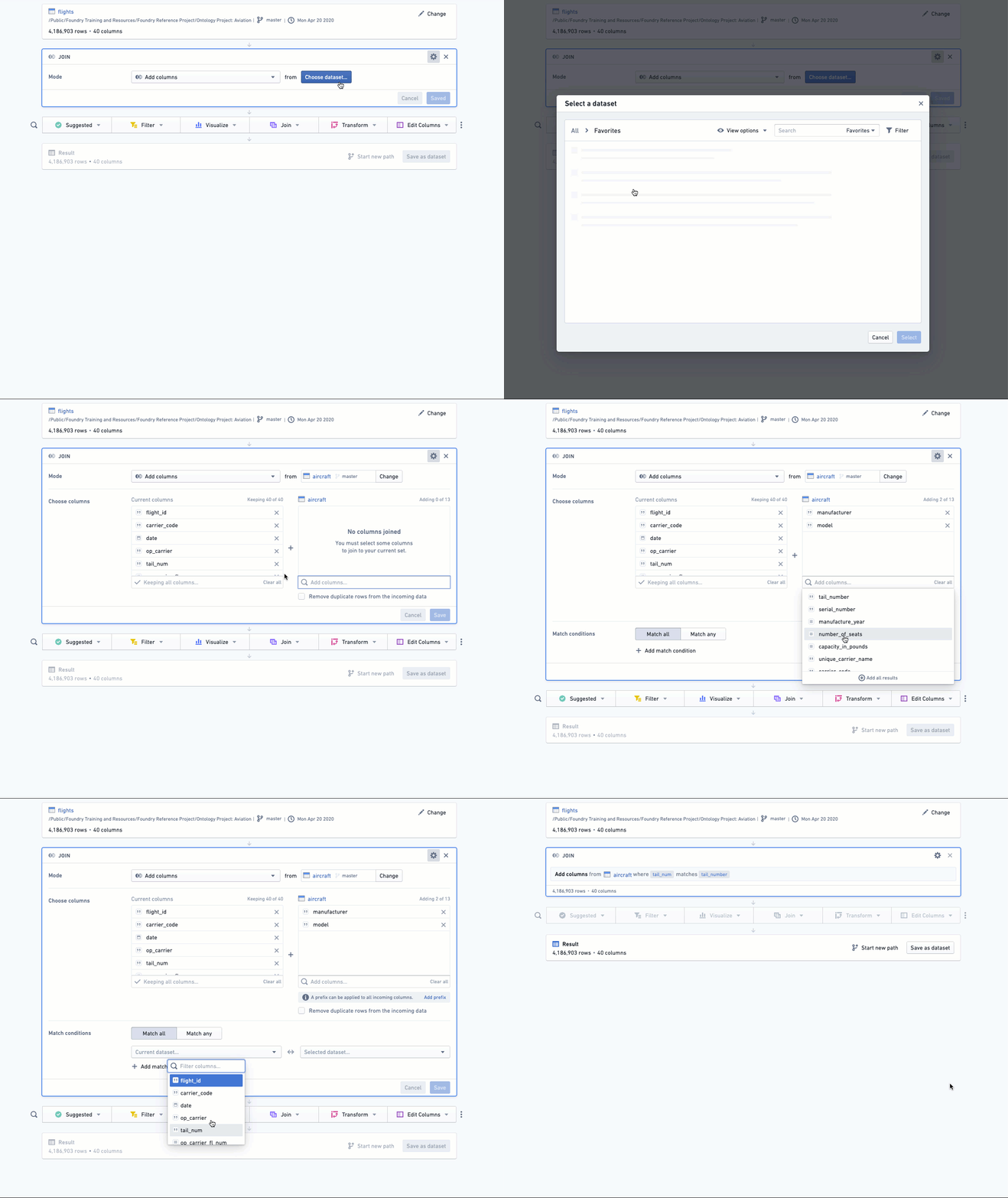
The join board lets you join your current working dataset to another dataset, and merge the matching results into your data. Here is an overview:
Example
Say you have a table with information about purchases made by customers.
| customer_id | item_id | purchase_date | price |
|---|---|---|---|
| 101 | 999 | 1/1/2000 | 50 |
| 121 | 997 | 1/1/2000 | 35 |
| … |
You might have a second table with information on all items in your inventory:
| item_id | item | weight_kg |
|---|---|---|
| 999 | Toaster oven | 1 |
| 997 | Frying pan | 0.5 |
| … |
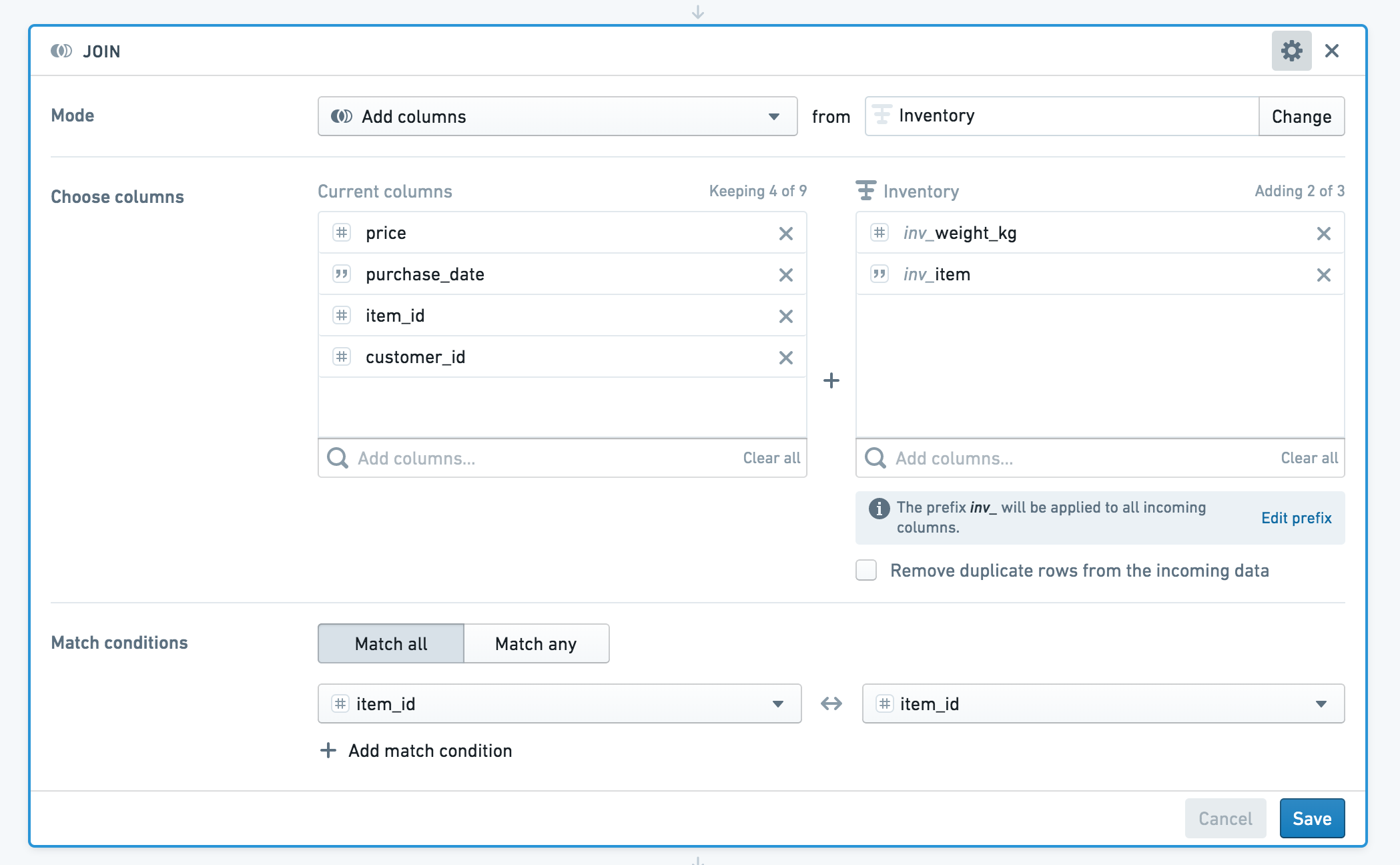
You can use the join board to enrich your starting dataset (transactions) with information about each item purchased.
If your datasets have columns with the same name, Contour will prompt you to add a prefix to the column names. In this case, both datasets have a column called item_id. We’ll apply the prefix “inv” (for inventory) to columns from the incoming dataset.
If you do not want to add the duplicate item_id column to the resulting joined dataset, you can deselect that column from the incoming dataset.
Your enriched dataset will look like this:
| customer_id | item_id | purchase_date | price | inv_item | inv_weight_kg |
|---|---|---|---|---|---|
| 121 | 997 | 1/1/2000 | 35 | Frying pan | 0.5 |
| 101 | 999 | 1/1/2000 | 50 | Toaster oven | 1 |
| … |
Configuration of the join board
Choose a join type to perform: left join (Add columns), inner join (Intersection) , right join (Switch to dataset), or full join (Incorporate all data, matching rows where possible).
Choose which columns from the other dataset to add to your current working set. By default, all columns from the first dataset are returned.
Then choose one or more keys from each set. If you use multiple join keys, you can choose to Match Any or Match All conditions.
Note that for a full join, all rows will be returned from the two datasets; this means that the join column for either dataset may show null values, since there is no coalescing of the two columns.
Union board
Use the union board to alter your current dataset based on another set. You can append data from another dataset (Add rows), filter the dataset to keep only data that exists in the other dataset (Keep rows), or remove data based on data that exists in another dataset (Remove rows). You can choose to match based on the position of the column in the dataset, or column names.
We’ll use these three tables for a concrete notional example:
people
| first_name | last_name |
|---|---|
| Casey | Linden |
| Jess | Sage |
| Lee | Rose |
| Taylor | Oak |
candidates
| first_name | surname |
|---|---|
| Jess | Sage |
| Lee | Rose |
| Jamie | Wood |
candidates_backward
| last_name | first_name |
|---|---|
| Sage | Jess |
| Rose | Lee |
| Wood | Jamie |
We have a table of people, and want to compare it to two tables of candidates. Both tables do not have the same schema as the people table. The following sections show the resulting set, depending which comparison (set math) you perform on the tables.
Example: Add rows
Starting with the people table, if we Add rows from the candidates_backward table By name, then the resulting set looks like this:
| first_name | last_name |
|---|---|
| Casey | Linden |
| Jess | Sage |
| Lee | Rose |
| Taylor | Oak |
| Jess | Sage |
| Lee | Rose |
| Jamie | Wood |
Starting with the people table, if we Add rows from the candidates_backward table By position, then the resulting set will append the first names from the people table to the last names from the candidates_backward table, and vice versa. This is likely not desirable. The resulting set looks like this:
| first_name | last_name |
|---|---|
| Casey | Linden |
| Jess | Sage |
| Lee | Rose |
| Taylor | Oak |
| Sage | Jess |
| Rose | Lee |
| Wood | Jamie |
You would want to Add rows to the people table from the candidates table By postion because the column names do not match, but the positions of the first name and last name columns do. Notice the column name is taken from the starting set:
| first_name | last_name |
|---|---|
| Casey | Linden |
| Jess | Sage |
| Lee | Rose |
| Taylor | Oak |
| Jess | Sage |
| Lee | Rose |
| Jamie | Wood |
Example: Keep rows
Starting with the people table, if we configure the union board to Keep rows that Appear in the candidates table By position, then the resulting set looks like this:
| first_name | last_name |
|---|---|
| Jess | Sage |
| Lee | Rose |
Starting with the people table, if we configure the union board to Keep rows that Appear in the candidates_backward table By name, then the resulting set looks like this:
| first_name | last_name |
|---|---|
| Jess | Sage |
| Lee | Rose |
Example: Remove rows
Starting with the people table, if we Remove rows that Appear in the candidates table By position, then the resulting set looks like this:
| first_name | last_name |
|---|---|
| Casey | Linden |
| Taylor | Oak |
Starting with the people table, if we Remove rows that Appear in the candidates_backward table By name, then the resulting set looks like this:
| first_name | last_name |
|---|---|
| Casey | Linden |
| Taylor | Oak |
If we instead started with the people table and Remove rows that Appear in the candidates_backward table By position, the resulting set looks as below. Note that this table is identical to the people table as there were no rows that appeared in the candidates_backward table when matching on position.
| first_name | last_name |
|---|---|
| Casey | Linden |
| Jess | Sage |
| Lee | Rose |
| Taylor | Oak |
Configuration of the union board
Choose Keep rows, Add rows, or Remove rows, then select the set you want to compare to.
For Keep rows and Remove rows, you can choose either Appear in or Match on.
- When using Appear in, you can choose either to match By position or By name.
- When using Match on, you must specify the columns to join on (one column from each set).
:::callout{theme="warning" title="Warning"} When performing a union, both datasets must have the same number of columns. Thus, when using a union board, it's important to be careful if the schemas are subject to change. For example, a union board downstream of a pivot table that's been switched to pivoted data could be subject to unexpected changes in the number of columns due to schema changes. :::
SQL equivalencies
For users who are familiar with SQL, it may be helpful to think of Contour join operations in terms of their equivalents in SQL. The following table shows which SQL join types are supported in which boards:
| Board | Union | Left join | Right | Outer | Inner |
|---|---|---|---|---|---|
| Join | X | X | X | X | |
| Union | X | X |
Join
The join operation is equivalent to the following in SQL:
SELECT [DISTINCT] <Column1, Column2, ...>
FROM CurrentTable
<INNER JOIN | LEFT OUTER JOIN | RIGHT OUTER JOIN | FULL OUTER JOIN > OtherTable
ON <join condition 1>([AND | OR] <join condition 2> [AND | OR] <join condition 3> ...)
Union
Keep rows match on is equivalent to a Left Semi Join in SQL:
SELECT L.*
FROM L INNER JOIN (SELECT DISTINCT <join column> FROM R) AS R_KEY
ON L.<join column> = R_KEY.<join column>
Remove rows match on is equivalent to a SQL Left Outer Join where the join keys do not match:
SELECT L.*
FROM L LEFT OUTER JOIN R
ON L.<join column> = R.<join column>
WHERE R.<join column> is null
Data Types
:::callout{theme="neutral" title="Tip"} Inspect your resulting set to ensure the data types are as expected. :::
When using the union board, be aware of the data types of your columns. Compatible column types will be cast. For a concrete example, let's use two datasets.
dataset1
| ID (int) | Name (string) |
|---|---|
| 555 | Alice |
| 666 | Bob |
dataset2
| ID (long) | Name (string) |
|---|---|
| 555 | Alice |
| 999 | Chloe |
Starting with dataset1, if we Add rows by position from dataset2, the resulting set looks as below:
| ID (long) | Name (string) |
|---|---|
| 555 | Alice |
| 666 | Bob |
| 555 | Alice |
| 999 | Chloe |
Starting with dataset1, if we Keep rows that appear in dataset2 by position, the resulting set looks as below:
| ID (long) | Name (string) |
|---|---|
| 555 | Alice |
Note that even though the starting set included the column ID as an int type, in the resulting set it is a long type. Keep rows that appear in
uses the Intersect function in spark.
Starting with dataset1, if we Remove rows that appear in dataset2 by position, the resulting set looks as below:
| ID (long) | Name (string) |
|---|---|
| 666 | Bob |
Again, note that although the starting set included the column ID as an int type, in the resulting set it is a long type. Remove rows that appear in
uses the Except function in spark.
Performance considerations
- When choosing keys for joining two tables, you should use unique IDs (like primary keys) as much as possible. We strongly advise against using foreign key joins – doing so will crash Spark.
- You should use the Save as dataset functionality after complex joins or expressions, to “save” your work before continuing. This will make downstream queries more performant because the join has been persisted to disk.
Checking the results
After joining your datasets, it's a good idea to look at a table of the joined set to check whether the results are what you expect. Select Table in the action ribbon to add a table board, and scroll through your new joined set.
中文翻译
连接数据集
Contour 提供了多种用于执行连接操作的看板。本指南将介绍:(1) 如何使用每种看板来连接数据集,(2) 每种看板的 SQL 等价写法,以及 (3) 性能考量。
连接看板 (Join board)
连接看板允许您将当前工作数据集与另一个数据集进行连接,并将匹配结果合并到您的数据中。以下是概览:
示例
假设您有一个包含客户购买信息的表格。
| customer_id | item_id | purchase_date | price |
|---|---|---|---|
| 101 | 999 | 1/1/2000 | 50 |
| 121 | 997 | 1/1/2000 | 35 |
| … |
您可能还有第二个表格,包含库存中所有商品的信息:
| item_id | item | weight_kg |
|---|---|---|
| 999 | Toaster oven | 1 |
| 997 | Frying pan | 0.5 |
| … |
您可以使用连接看板,用所购商品的信息来丰富您的起始数据集(transactions)。
如果您的数据集有同名列,Contour 会提示您为列名添加前缀。在本例中,两个数据集都有一个名为 item_id 的列。我们将为来自传入数据集的列添加前缀 "inv"(代表 inventory)。
如果您不希望将重复的 item_id 列添加到最终连接后的数据集中,可以取消选择传入数据集中的该列。
您丰富后的数据集将如下所示:
| customer_id | item_id | purchase_date | price | inv_item | inv_weight_kg |
|---|---|---|---|---|---|
| 121 | 997 | 1/1/2000 | 35 | Frying pan | 0.5 |
| 101 | 999 | 1/1/2000 | 50 | Toaster oven | 1 |
| … |
连接看板的配置
选择要执行的连接类型:左连接 (Add columns)、内连接 (Intersection)、右连接 (Switch to dataset) 或全连接 (Incorporate all data, matching rows where possible)。
选择要从另一个数据集中添加到当前工作集的列。默认情况下,会返回第一个数据集的所有列。
然后从每个数据集中选择一个或多个键。如果使用多个连接键,您可以选择 匹配任一条件 (Match Any) 或 匹配所有条件 (Match All)。
请注意,对于全连接,将返回两个数据集中的所有行;这意味着任一数据集的连接列都可能显示空值,因为这两个列不会进行合并。
并集看板 (Union board)
使用并集看板可以根据另一个数据集来更改当前数据集。您可以追加另一个数据集中的数据 (Add rows)、过滤数据集以仅保留另一个数据集中存在的数据 (Keep rows),或根据另一个数据集中存在的数据来移除数据 (Remove rows)。您可以选择根据列在数据集中的位置或列名进行匹配。
我们将使用以下三个表格作为具体的示例:
people
| first_name | last_name |
|---|---|
| Casey | Linden |
| Jess | Sage |
| Lee | Rose |
| Taylor | Oak |
candidates
| first_name | surname |
|---|---|
| Jess | Sage |
| Lee | Rose |
| Jamie | Wood |
candidates_backward
| last_name | first_name |
|---|---|
| Sage | Jess |
| Rose | Lee |
| Wood | Jamie |
我们有一个人员表格,并希望将其与两个候选人表格进行比较。这两个表格的模式 (schema) 与 people 表格不同。以下各节展示了根据您对表格执行的比较(集合运算)类型而得到的结果集。
示例:添加行 (Add rows)
从 people 表格开始,如果我们按名称 (By name) 从 candidates_backward 表格添加行 (Add rows),则结果集如下所示:
| first_name | last_name |
|---|---|
| Casey | Linden |
| Jess | Sage |
| Lee | Rose |
| Taylor | Oak |
| Jess | Sage |
| Lee | Rose |
| Jamie | Wood |
从 people 表格开始,如果我们按位置 (By position) 从 candidates_backward 表格添加行 (Add rows),则结果集会将 people 表格的名字追加到 candidates_backward 表格的姓氏后面,反之亦然。这通常不是期望的结果。结果集如下所示:
| first_name | last_name |
|---|---|
| Casey | Linden |
| Jess | Sage |
| Lee | Rose |
| Taylor | Oak |
| Sage | Jess |
| Rose | Lee |
| Wood | Jamie |
您应该按位置 (By position) 从 candidates 表格向 people 表格添加行 (Add rows),因为列名不匹配,但名字和姓氏列的位置是匹配的。请注意,列名取自起始数据集:
| first_name | last_name |
|---|---|
| Casey | Linden |
| Jess | Sage |
| Lee | Rose |
| Taylor | Oak |
| Jess | Sage |
| Lee | Rose |
| Jamie | Wood |
示例:保留行 (Keep rows)
从 people 表格开始,如果我们配置并集看板为保留 (Keep rows) 那些出现在 (Appear in) candidates 表格中按位置 (By position) 的行,则结果集如下所示:
| first_name | last_name |
|---|---|
| Jess | Sage |
| Lee | Rose |
从 people 表格开始,如果我们配置并集看板为保留 (Keep rows) 那些出现在 (Appear in) candidates_backward 表格中按名称 (By name) 的行,则结果集如下所示:
| first_name | last_name |
|---|---|
| Jess | Sage |
| Lee | Rose |
示例:移除行 (Remove rows)
从 people 表格开始,如果我们移除 (Remove rows) 那些出现在 (Appear in) candidates 表格中按位置 (By position) 的行,则结果集如下所示:
| first_name | last_name |
|---|---|
| Casey | Linden |
| Taylor | Oak |
从 people 表格开始,如果我们移除 (Remove rows) 那些出现在 (Appear in) candidates_backward 表格中按名称 (By name) 的行,则结果集如下所示:
| first_name | last_name |
|---|---|
| Casey | Linden |
| Taylor | Oak |
如果我们改为从 people 表格开始,并移除 (Remove rows) 那些出现在 (Appear in) candidates_backward 表格中按位置 (By position) 的行,则结果集如下所示。请注意,此表格与 people 表格完全相同,因为按位置匹配时,没有行出现在 candidates_backward 表格中。
| first_name | last_name |
|---|---|
| Casey | Linden |
| Jess | Sage |
| Lee | Rose |
| Taylor | Oak |
并集看板的配置
选择 保留行 (Keep rows)、添加行 (Add rows) 或 移除行 (Remove rows),然后选择要与之比较的数据集。
对于 保留行 (Keep rows) 和 移除行 (Remove rows),您可以选择 出现在 (Appear in) 或 匹配于 (Match on)。
- 使用 出现在 (Appear in) 时,您可以选择按位置 (By position) 或按名称 (By name) 进行匹配。
- 使用 匹配于 (Match on) 时,您必须指定要连接的列(每个数据集各一列)。
:::callout{theme="warning" title="警告"} 执行并集操作时,两个数据集必须具有相同数量的列。因此,在使用并集看板时,如果模式可能发生变化,务必小心。例如,位于已切换到透视数据的数据透视表 (pivot table) 下游的并集看板,可能会因模式更改而遭遇列数的意外变化。 :::
SQL 等价写法
对于熟悉 SQL 的用户来说,将 Contour 的连接操作视为其 SQL 等价形式可能会有所帮助。 下表显示了哪些看板支持哪些 SQL 连接类型:
| 看板 | 并集 (Union) | 左连接 (Left join) | 右连接 (Right) | 外连接 (Outer) | 内连接 (Inner) |
|---|---|---|---|---|---|
| 连接 (Join) | X | X | X | X | |
| 并集 (Union) | X | X |
连接 (Join)
连接操作在 SQL 中等价于:
SELECT [DISTINCT] <Column1, Column2, ...>
FROM CurrentTable
<INNER JOIN | LEFT OUTER JOIN | RIGHT OUTER JOIN | FULL OUTER JOIN > OtherTable
ON <join condition 1>([AND | OR] <join condition 2> [AND | OR] <join condition 3> ...)
并集 (Union)
保留行匹配于 (Keep rows match on) 在 SQL 中等价于左半连接 (Left Semi Join):
SELECT L.*
FROM L INNER JOIN (SELECT DISTINCT <join column> FROM R) AS R_KEY
ON L.<join column> = R_KEY.<join column>
移除行匹配于 (Remove rows match on) 在 SQL 中等价于连接键不匹配的左外连接 (Left Outer Join):
SELECT L.*
FROM L LEFT OUTER JOIN R
ON L.<join column> = R.<join column>
WHERE R.<join column> is null
数据类型
:::callout{theme="neutral" title="提示"} 检查您的结果集,确保数据类型符合预期。 :::
使用并集看板时,请注意列的数据类型。兼容的列类型会被强制转换。让我们用一个具体的例子来说明,使用两个数据集。
dataset1
| ID (int) | Name (string) |
|---|---|
| 555 | Alice |
| 666 | Bob |
dataset2
| ID (long) | Name (string) |
|---|---|
| 555 | Alice |
| 999 | Chloe |
从 dataset1 开始,如果我们按位置添加行 (Add rows by position) 从 dataset2,结果集如下所示:
| ID (long) | Name (string) |
|---|---|
| 555 | Alice |
| 666 | Bob |
| 555 | Alice |
| 999 | Chloe |
从 dataset1 开始,如果我们保留 (Keep rows) 那些出现在 (appear in) dataset2 中按位置 (by position) 的行,结果集如下所示:
| ID (long) | Name (string) |
|---|---|
| 555 | Alice |
请注意,即使起始数据集中的 ID 列是 int 类型,在结果集中它变成了 long 类型。保留 (Keep rows) 那些出现在 (appear in) 使用了 Spark 中的 Intersect 函数。
从 dataset1 开始,如果我们移除 (Remove rows) 那些出现在 (appear in) dataset2 中按位置 (by position) 的行,结果集如下所示:
| ID (long) | Name (string) |
|---|---|
| 666 | Bob |
再次注意,尽管起始数据集中的 ID 列是 int 类型,但在结果集中它变成了 long 类型。移除 (Remove rows) 那些出现在 (appear in) 使用了 Spark 中的 Except 函数。
性能考量
- 为两个表选择连接键时,应尽可能使用唯一标识符(如主键)。我们强烈建议不要使用外键连接 (foreign key joins) —— 这样做会导致 Spark 崩溃。
- 在复杂的连接或表达式之后,您应该使用另存为数据集 (Save as dataset) 功能,在继续之前"保存"您的工作。这将使下游查询的性能更高,因为连接已被持久化到磁盘。
检查结果
连接数据集后,最好查看一下连接后集合的表格,以检查结果是否符合预期。在操作功能区选择表格 (Table) 以添加一个表格看板,然后浏览您的新连接集合。