Color groups(颜色分组(Color groups))
You can use color groups in graph mode to visually organize your analysis. Assign colors to related nodes to distinguish different sections of your graph at a glance. For example, you could color all nodes downstream of one object blue and those downstream of another red.
Color groups can also be collapsed or hidden to simplify the graph and reduce visual clutter.
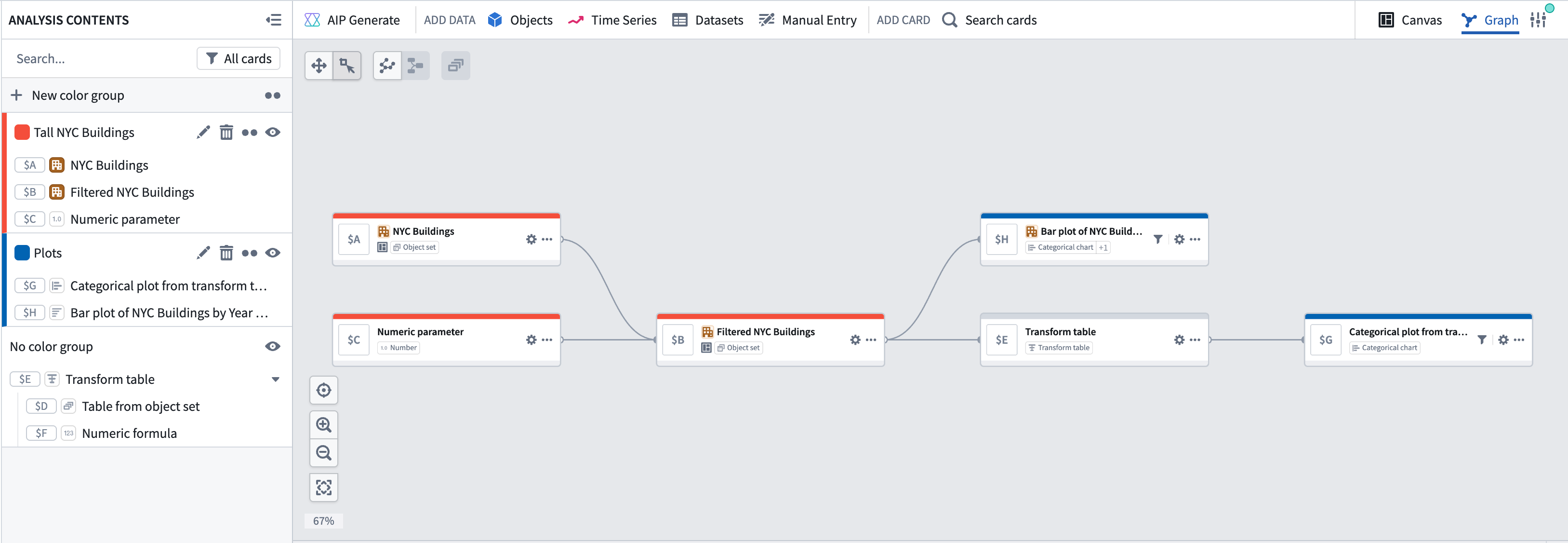
Create and assign color groups
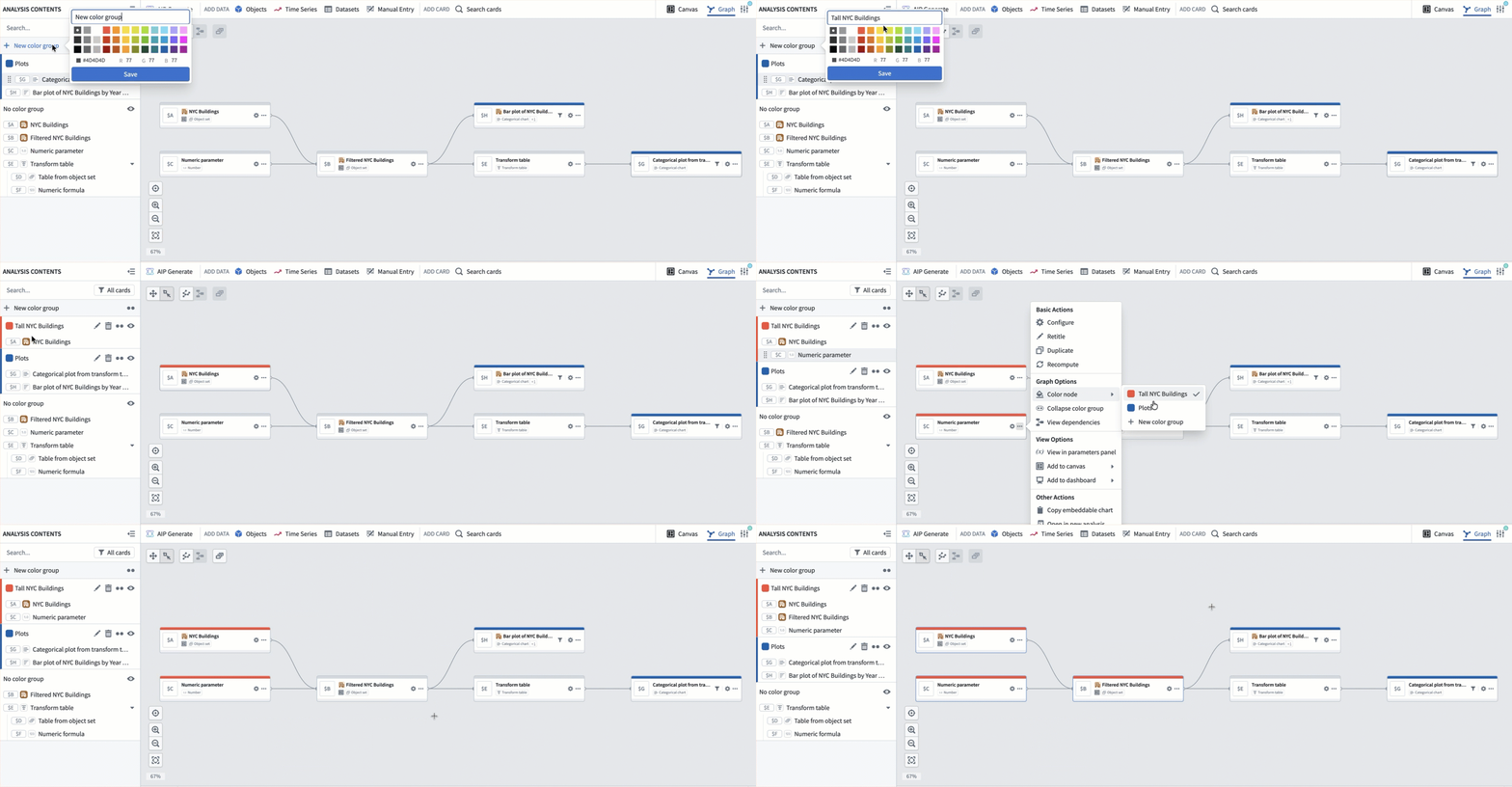
To create a new color group, select + New color group in the Analysis Contents panel. Then, set the name and color of the group.
To add nodes to the group, right-click on a node and select Color node. Then, choose the group you want to assign the node to. You can also drag cards within the Analysis Contents to move them between color groups or add them to a color group.
You can also create new color groups directly on the graph. Select the nodes you want to group, then right-click and select Color node > New color group (or use the bulk actions menu).
Collapse and expand color groups
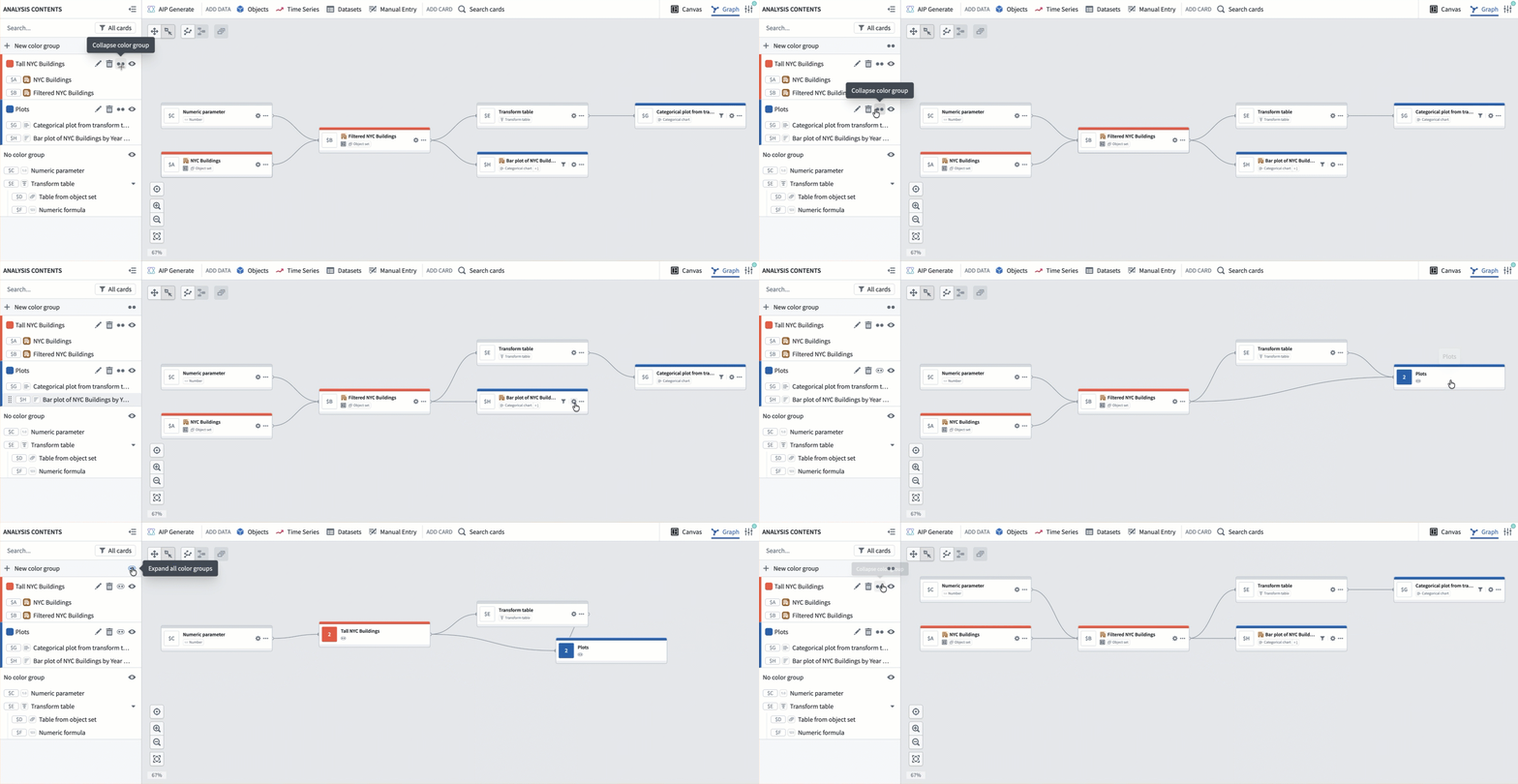
You can collapse a color group into a single node to simplify your graph, particularly when you are not actively working with nodes in a given group.
To collapse a color group, right-click on any node in the group and select Collapse color group or select the Collapse color group button in the Analysis Contents panel next to the group name. To expand the group, select Expand color group in the Analysis Contents panel next to the group name.
Hide color groups
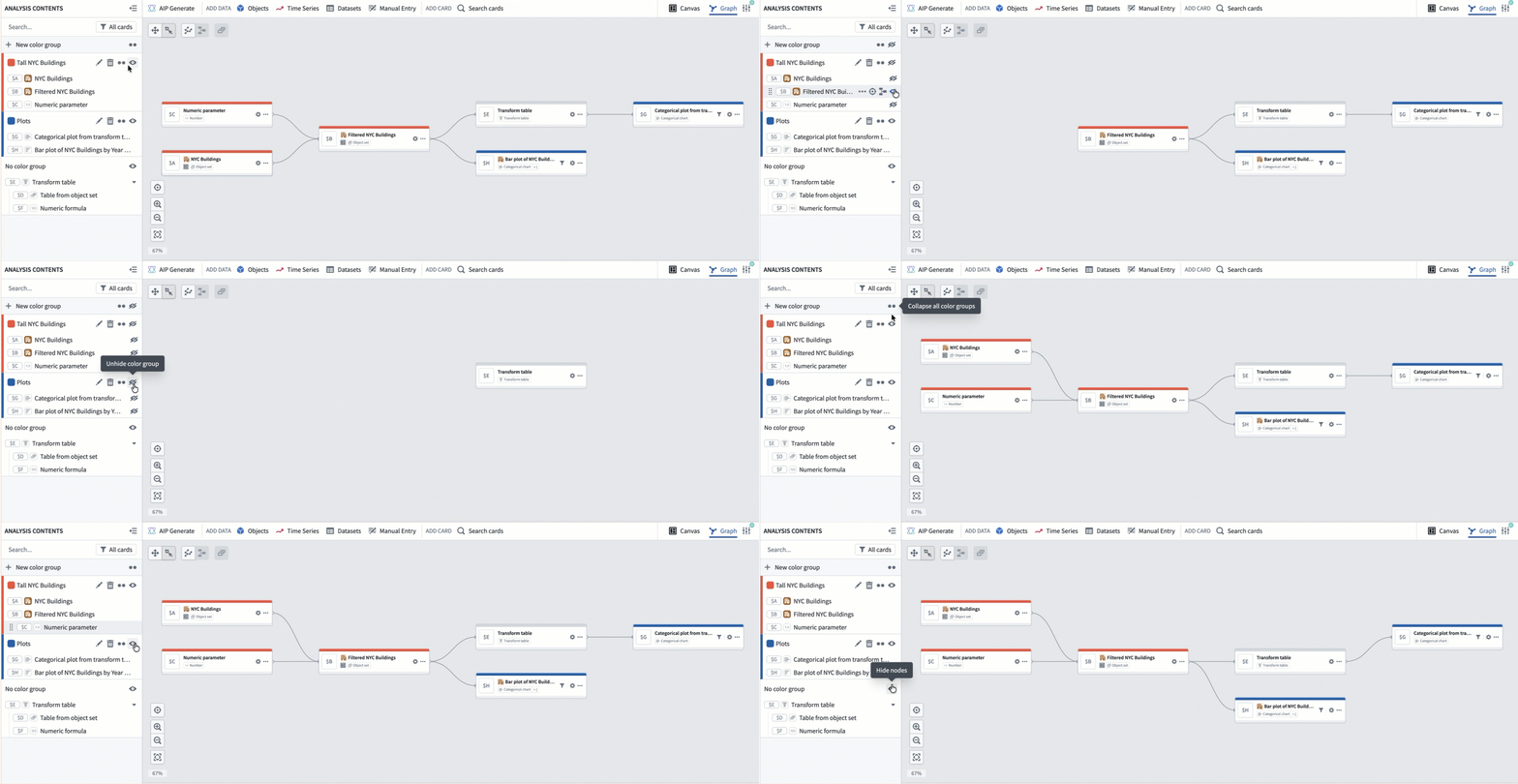
You can hide a color group or hide all other color groups to focus on a specific part of your analysis. To hide a color group, go to the Analysis Contents panel and select the eye icon next to the group you want to hide.
Modify color groups
Remove a node from a color group
To remove a node from a color group, right-click the node, select Color node, then choose the group name to remove it. You can also drag it from the Analysis Contents into either another color groups section or the No color group section.
Edit or delete color groups
To edit a color group, select the pencil icon near the group name in the legend. You can rename, change the color, or delete the group.
中文翻译
颜色分组(Color groups)
您可以在图谱模式中使用颜色分组来直观地组织分析内容。为相关节点分配颜色,可快速区分图谱中的不同区域。例如,您可以将某个对象的所有下游节点设为蓝色,而将另一对象的下游节点设为红色。
颜色分组还可以折叠或隐藏,以简化图谱并减少视觉杂乱。
创建与分配颜色分组
要创建新的颜色分组,请在分析内容(Analysis Contents)面板中选择+ 新建颜色分组(+ New color group)。然后设置分组的名称和颜色。
如需向分组添加节点,右键单击节点并选择颜色节点(Color node),然后选择要分配到的分组。您也可以在分析内容面板中拖拽卡片,将其移动到其他颜色分组或添加到某个分组中。
您也可以直接在图谱上创建新的颜色分组。选中要分组的节点,右键单击并选择颜色节点 > 新建颜色分组(Color node > New color group)(或使用批量操作菜单)。
折叠与展开颜色分组
您可以将颜色分组折叠为单个节点以简化图谱,尤其是在不主动操作某分组中的节点时尤为实用。
要折叠颜色分组,右键单击组内任意节点并选择折叠颜色分组(Collapse color group),或在分析内容面板中点击分组名称旁的折叠颜色分组按钮。要展开分组,请在分析内容面板中点击分组名称旁的展开颜色分组(Expand color group)按钮。
隐藏颜色分组
您可以隐藏某个颜色分组或隐藏所有其他分组,以便专注于分析的特定部分。要隐藏颜色分组,请前往分析内容面板,点击要隐藏分组旁的眼睛图标。
修改颜色分组
从颜色分组中移除节点
要从颜色分组中移除节点,右键单击该节点,选择颜色节点(Color node),然后选择分组名称以移除。您也可以将其从分析内容面板拖拽到其他颜色分组区域或无颜色分组(No color group)区域。
编辑或删除颜色分组
要编辑颜色分组,请在图例中点击分组名称旁的铅笔图标。您可以重命名、更改颜色或删除该分组。